
Stable Diffusion runs locally on Macs equipped with Apple Silicon (M1/M2/M3/M4). As an updated 2026 edition, this article brings together everything in one guide: installation steps for Stable Diffusion Web UI (AUTOMATIC1111), GPU acceleration via Apple Silicon GPU (MPS), support for the latest models like SDXL and Flux, and alternative tools for those looking for an easy start.
Why run locally? — The landscape in 2026
Even in 2026, when cloud-based generative AI (Midjourney, DALL·E, Imagen, etc.) has become exceptionally high quality, the advantages of running Stable Diffusion in a local environment remain clear.
- Cost: Unlimited generation (no API fees). Free commercial use within your own responsibility
- Privacy: No external transmission for confidential materials and internal testing
- Model flexibility: Switch freely between SD 1.5, SDXL, Flux, and locally fine-tuned models
- Offline operation: No internet connection required
Even in SMB environments, local generation is increasingly valuable for "data that cannot leave the company," such as creating internal logo variations and presentation image assets. In the same context, checking the Complete guide to running Gemma 4 on a local PC lets you build a dual-wield environment combining a local LLM with local image generation.
System requirements (2026 edition)
| Item | Recommended specs |
|---|---|
| Mac model | Apple Silicon (M1 or later) * Intel Macs do not achieve practical speeds |
| Memory | 16 GB or more (32 GB recommended for SDXL) |
| Storage | 30 GB or more of free space (model files require 2–10 GB each) |
| OS | macOS 14 (Sonoma) or later recommended |
| Python | 3.10.x (3.11/3.12 have dependency issues) |
The M3/M4 series supports MPS (Metal Performance Shaders) GPU acceleration natively, generating an image with SD 1.5 in about 5 to 10 seconds.
Installation steps (Stable Diffusion Web UI)
Setup takes the following 7 steps. Paste and run each command in Terminal (/Applications/Utilities/ターミナル.app).
1. Install Homebrew (if not already installed)
/bin/bash -c "$(curl -fsSL https://raw.githubusercontent.com/Homebrew/install/HEAD/install.sh)"2. Install required packages
brew install cmake protobuf rust python@3.10 git wget3. Create and activate a Python virtual environment
python3.10 -m venv sd-env
source sd-env/bin/activate
4. Clone the repository
git clone https://github.com/AUTOMATIC1111/stable-diffusion-webui.git
cd stable-diffusion-webui
5. Install dependencies
pip install torch torchvision torchaudio
pip install -r requirements.txt
6. Configure COMMANDLINE_ARGS in webui-user.sh
The key is configuring it to enable the Apple Silicon GPU (MPS). Edit webui-user.sh and add the following line:
# MPS 高速化版(M1/M2/M3/M4 Apple Silicon 推奨)
export COMMANDLINE_ARGS="--skip-torch-cuda-test --upcast-sampling --no-half-vae --use-cpu interrogate"
The legacy --use-cpu all flag was for CPU fallback, but on Apple Silicon in 2026, GPU acceleration using MPS runs stably. It is 5 to 10 times faster than CPU mode.
7. Launch the Web UI
./webui.shAccess http://127.0.0.1:7860 in your browser to display the Web UI.
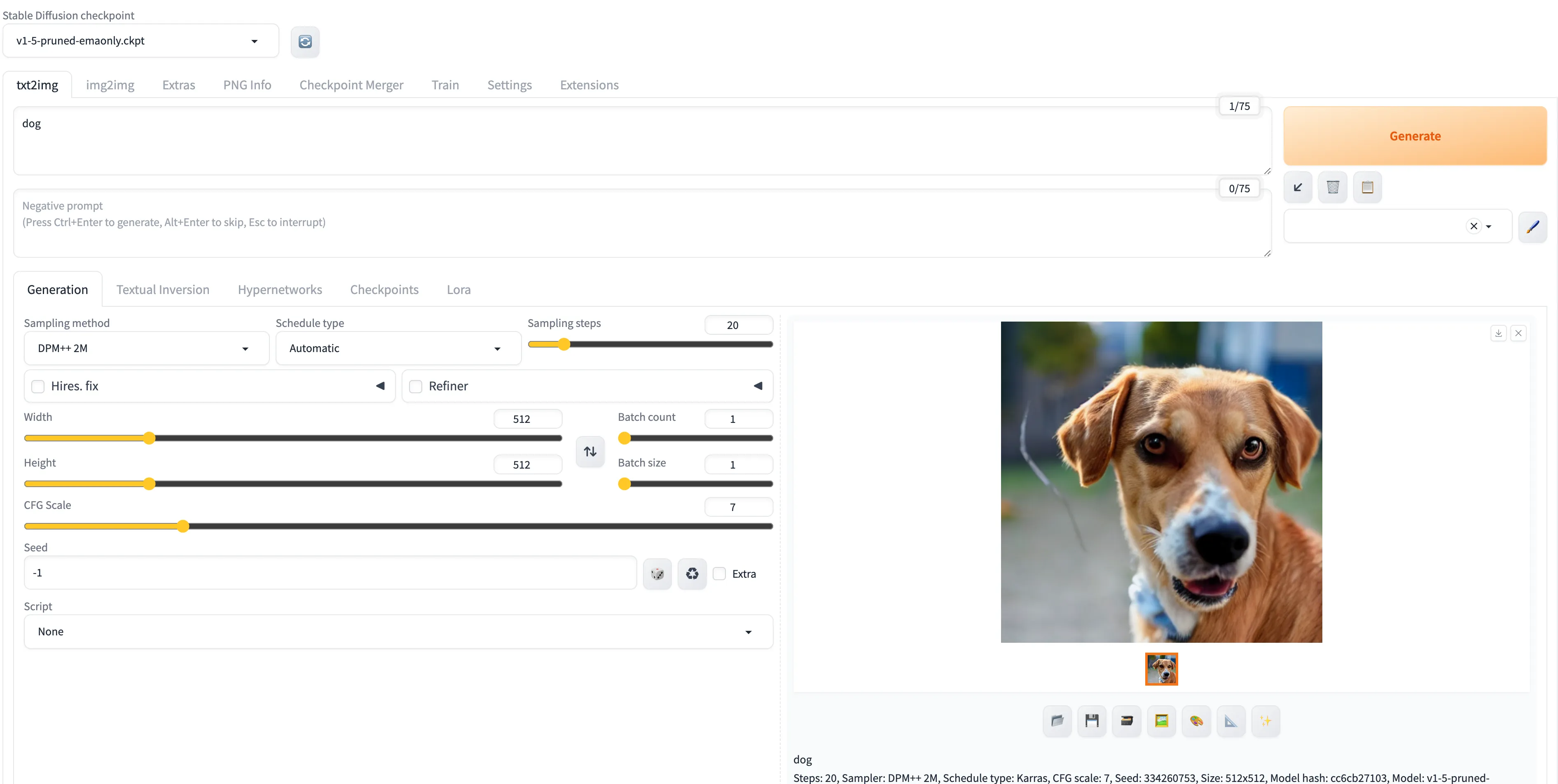
On first launch, the base model (v1-5-pruned-emaonly.safetensors, approx. 4 GB) will be downloaded.
How to choose models — Key options in 2026
Place model files in .safetensors format inside stable-diffusion-webui/models/Stable-diffusion/ to switch between them in the Web UI.
| Model | Recommended use case | Required VRAM / Memory |
|---|---|---|
| SD 1.5(v1-5-pruned-emaonly) | Lightweight, fast, rich selection of community models | 8 GB |
| SDXL 1.0 / Turbo | High quality, 1024px standard, photorealistic leaning | 16 GB |
| SDXL Lightning | Fast generation in 4–8 steps | 16 GB |
| Flux.1 [dev/schnell] | Highest quality open model of 2024–2026 | 24 GB+ (M2 Ultra/M3 Max recommended) |
| PonyDiffusion XL | Specialized for anime and illustration | 16 GB |
Standard sources include Hugging Face and Civitai. Check commercial usability terms for each model.
Alternative tools — For those who prefer skipping manual setup
For those thinking "Terminal commands seem daunting," one-click alternative tools are also readily available in 2026.
| Tool | Features | Eligible users |
|---|---|---|
| Draw Things(Mac App Store) | Completely free, all GUI, extensive presets | Beginners and casual use |
| ComfyUI | Node-based UI, powerful workflow reusability | Power users and automation fans |
| Pinokio | One-click installer for various AI tools | Those wanting to try multiple tools |
In particular, Draw Things only requires installing from the App Store to automatically configure Apple Silicon GPU acceleration, making it far faster to start than Web UI for quick trial use in business.
For those interested in node-based workflows, it shares concepts with the "managed agent design" discussed in our article explaining Claude Managed Agents, making it useful for cultivating an intuition for automation.
Troubleshooting
Error: AttributeError: 'NoneType' object has no attribute 'lowvram'
A typical error caused by insufficient memory. You can avoid it by launching with the following arguments.
./webui.sh --opt-split-attention-v1 --medvramReference: Apple Silicon Installation Official Wiki
Launches successfully, but generated images are completely black or noisy
Check whether --no-half-vae is included in webui-user.sh. For the Apple Silicon MPS implementation, --no-half-related options are required.
Frequent "ModuleNotFoundError: No module named 'xxx'"
You may be using Python 3.11 or later. Reverting to the 3.10 series is the most critical troubleshooting step.
brew install python@3.10
python3.10 -m venv sd-env  # 既存の sd-env は削除してから
Generation speed is extremely slow (over 1 minute per image)
It is very likely running in CPU mode. Remove --use-cpu all from COMMANDLINE_ARGS in webui-user.sh, and replace it with the MPS configuration above.
Conclusion — Mac and Stable Diffusion in 2026
With advancements in Apple Silicon, local image generation on Mac has reached practical utility. Based on the steps in this article:
- First verify operation with Web UI + SD 1.5
- Once familiar, try SDXL / Flux
- If you prefer avoiding terminal commands, start with Draw Things and transition gradually to Web UI
This progression is recommended. If you are considering commercial or internal business use, please also refer to our local LLM Gemma 4 guide. Foundations for leveraging generative AI "with data that cannot be sent outside" are coming together directly on local PCs.