
"We upgraded to an AI-enabled plan, but Gemini doesn't appear on the right side of Gmail." This is currently among the most frequent inquiries received by IT teams. What makes it particularly tricky is that it does not affect everyone. Even within the same plan and the same organizational unit, some users have it while others do not.
Reviewing license assignments reveals no discrepancies. In the Admin console, generative AI services are enabled. Yet it still does not appear. This is where many administrators burn several hours. The root cause is not licensing; it stems from an entirely separate setting called "Smart features and personalization."
Why checking licenses fails to solve the issue
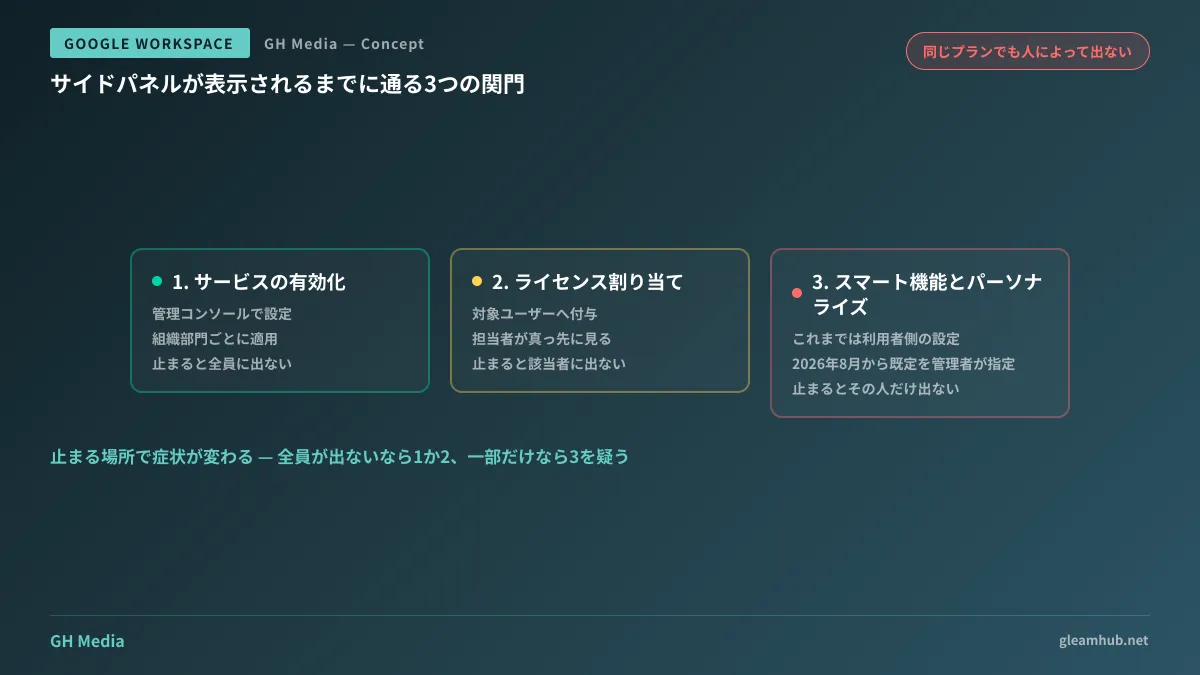
Gemini in Google Workspace involves a two-tiered permission structure.
The first tier is administrator enablement in the Admin console. Here, the administrator turns on generative AI-related service statuses and assigns them to the target organizational units. Most administrators check this first.
The second tier is "Smart features and personalization" on the user side. This setting item inside Gmail determines whether data from Gmail and other Google services may be used to power smart features. To use Gemini in the side panel of Workspace apps, this setting must be turned on (Manage access to Gemini features in Workspace services — Google Workspace Admin Help).
In other words, the following situation arises:
- The administrator enabled the service
- The license was properly assigned
- However, the user had previously turned off smart features while reviewing their privacy settings
- The side panel fails to appear only for that specific user
In most cases, users do not even remember turning it off. Perhaps they turned everything off en masse during onboarding under the mindset of "disabling anything unnecessary," or perhaps it was configured that way during initial device setup. Because it is an individual user setting, it is difficult to spot as a symptom from the Admin console side—and that is the core of this issue.
Starting in August 2026, administrators can set defaults
This has now changed. Administrators can now set the default personalization setting to on for users in the organization, with a gradual rollout starting on August 5, 2026, for Scheduled Release domains (Google Workspace Updates — 2026). Because full rollout can take up to 15 days, it will not roll out to everyone all at once on day one.
In terms of practical impact, this marks a transition from "users noticing and turning it on themselves" to "administrators setting an organizational default and starting from there." Given that a substantial portion of the "we adopted AI, but nobody uses it" problem came down to this single point, the significance of this change is considerable.
Deciding whether enabling it by default is appropriate
This is where the administrator's real work begins. Proceeding with the mindset of "let's just turn everything on because people are complaining it doesn't show up" will leave you unable to justify the decision later.
What this setting enables is using the contents of the user's own emails and files as input for AI capabilities. It does not grant others access to read their emails, nor does it publish internal data externally. Nonetheless, explaining that "the contents of your inbox will serve as source material for summaries and drafting" is something that should definitely be communicated in advance.
The decision hinges on factors like the following:
| What to verify | When enabling by default makes sense | When careful deliberation is required |
|---|---|---|
| Nature of data handled | Centered on general internal operational communications | Sensitive customer data or undisclosed transaction details flow routinely |
| Readiness of explanation | Established channels exist to notify users | Settings change without prior communication |
| Departmental variance | Operational tasks are relatively similar across the company | Information handled differs drastically between administrative departments and front-line operations |
If there is substantial divergence across the organization, the straightforward approach is to segment by organizational unit (OU) rather than applying a company-wide blanket policy. Because most Admin console settings can be applied per OU, you can adopt a phased rollout such as "enabling it for select departments first to gauge reactions."
Following the right configuration sequence
Here is another point essential in practice: if you open up personalization first, you will end up scrambling to add controls later.
Following this order will minimize backtracking:
- Decide upfront what data is processed where. If you wish to designate regions for storage and processing, configure that first. The core concepts are detailed in Selecting Data Storage Regions for Gemini in Workspace
- Verify data loss prevention (DLP) readiness. Expanding the scope of what AI can reference also means confidential data can be retrieved more readily. For a complete picture including Gmail, refer to Integrated DLP Including Gmail
- Enable services and assign licenses
- Enable personalization defaults (after narrowing target OUs)
- Review audit logs to confirm actual usage
Skipping steps 1 and 2 and jumping straight to step 4 results in a state where "the feature is active, but nobody knows what data is being referenced." This sequence follows the exact same logic as granting external applications access to Gmail or Drive, a pitfall covered in Are Employees Granting Full Access to Corporate Gmail and Drive for Convenience Tools?
Fewer "it's missing" inquiries does not guarantee adoption
Fixing the settings will bring up the side panel. In reality, however, the story does not end there.
While it gets used immediately after appearing, a common scenario in companies post-rollout is that users stop touching it within weeks because they do not know what to use it for. Since this is not a configuration issue, tinkering with the Admin console will not resolve it.
What works is highlighting two or three concrete, workflow-specific use cases in your organization's own words. Targeting tasks that actually happen every week in the company—such as "extracting only confirmation items for the client from meeting notes" or "converting an RFQ email into a requirements table"—drives retention far better than generic feature overviews.
First, check whether your domain is on Scheduled Release or Rapid Release. Because rollout schedules differ, this helps isolate whether "it hasn't appeared yet" is an error or simply waiting its turn. You can verify this in the release preferences within the Admin console.
Whether you want to organize what to establish before and after enabling Gemini or clarify what can be achieved under your current plan, GleamHub is available for free consultations on IT and Google Workspace. Because optimal configurations vary based on requirements, we provide customized estimates. Please reach out via Inquiries.


