Your company website or web app runs on Cloudflare Workers, and you want an agency to make changes and publish them. But when you try to pick a role on the invitation screen, only account-wide permissions come to mind, and you hesitate, worried they will be able to see DNS, billing and even your other Workers. The same dilemma applies to internal staff you only want to view logs during an incident.
In its September 21, 2026 changelog, Cloudflare made it possible to invite members from the Workers dashboard with permissions scoped to a specific Worker. In this article, we check in the official documentation what each of the four access levels "cannot do," and summarize, as the editorial team's recommendations, how to grant access when bringing outside people into the client's account and how to remove it when the contract ends.
Invite someone to a single Worker from "Invite" on the Worker's page
On the target Worker's page, click Invite, choose the person's email address and access level, and click Invite. That's all. If the person is already a member of the account, access to the Worker is granted immediately. If not, Cloudflare sends an invitation to the account, and access to the Worker is granted once the person accepts.
Note that only certain people can send invitations. The changelog states that only members with the Super Administrator role can invite from the Worker's page. The member management documentation also says that managing members requires the Super Administrator role and a verified email address.
Super Administrator is a role that can change any setting, make purchases, update billing information, manage members, and create and manage account-owned API tokens. If you grant this role so that the agency can handle invitations, it will also be able to touch billing and other members' permissions. It is safest to decide from the start that the client's Super Administrator sends the invitations.
The four access levels and what each "cannot do"
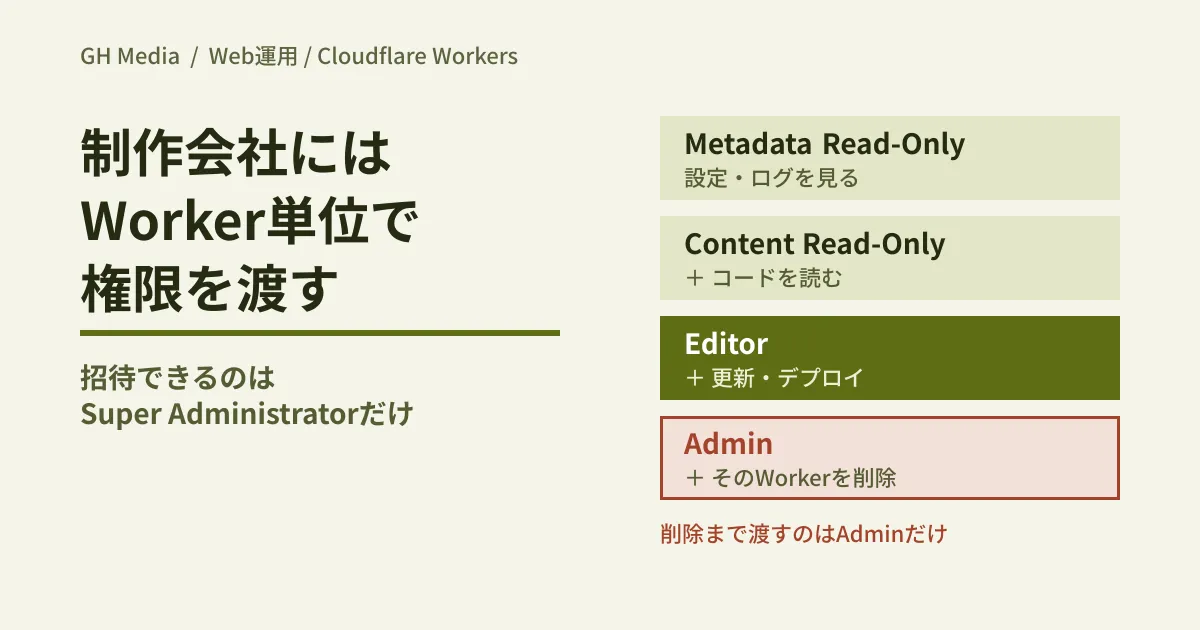
There are four levels to choose from. Each higher level includes everything in the levels below it.
| Access level | Permissions | What it cannot do |
|---|---|---|
| Metadata Read-Only | View settings, metrics, logs and traces | View code. View secret values. Make changes |
| Content Read-Only | All of the above, plus read the Worker's code | Make changes. Deploy |
| Editor | All of the above, plus update, deploy and rename. Also includes creating and deleting versions, schedules and secrets, and rollbacks | Delete the Worker. Create new Workers |
| Admin | Everything Editor can do, plus delete that Worker | When assigned per Worker, it does not extend to other Workers |
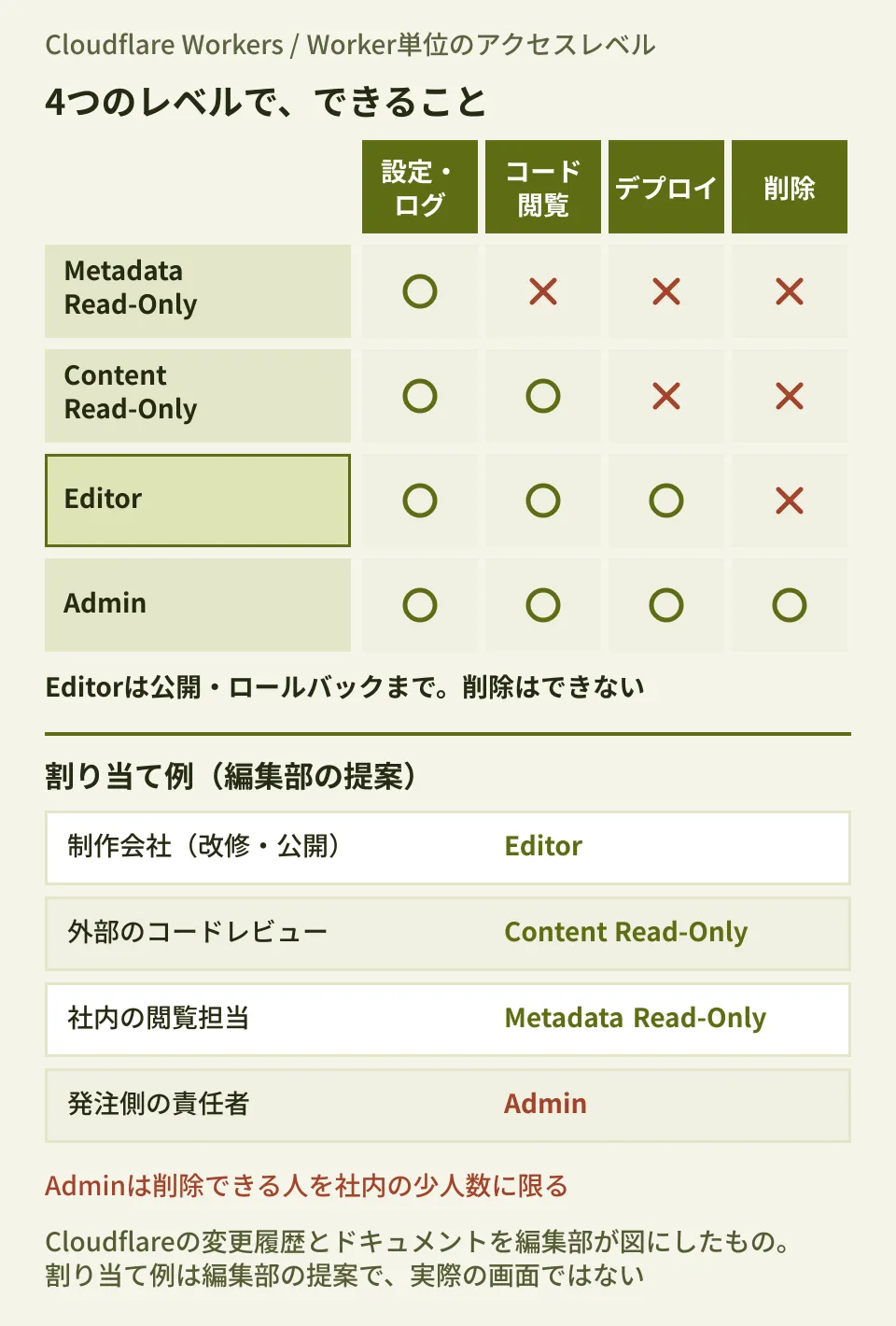
The key point in the diagram is the boundary between Editor, which can deploy but not delete, and Admin, which can go as far as deleting. If you are only asking someone to make changes and publish them, they do not need delete permission. The other boundary lies between Metadata Read-Only and Content Read-Only. Metadata Read-Only suits someone you want to show logs to but not code.
The official documentation also lists several constraints worth knowing before you grant access.
- Per-Worker permissions can only be assigned to Workers that already exist. Creating a new Worker requires Admin for Workers as a whole (at the product level).
- Adding, changing or deleting Routes or Custom Domains requires
Workers Routes Writefor each affected zone, in addition to Editor on that Worker. Once they are set up, deployments that do not change how the Worker is connected can be done with Editor alone. - Custom Domains do not currently support per-Worker permissions (support is stated as planned).
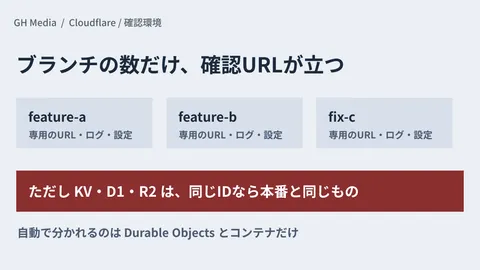
- Even for Workers with bindings such as KV, R2 or D1, Editor on the Worker is enough to deploy. Reading the bound data directly requires separate permissions on that resource.
- Cloudflare Pages permissions do not use per-Worker permissions.
When the web agency deploys with the CLI
Web agencies may also deploy from their own machines with Wrangler rather than from the dashboard. There is one condition here too. According to the official documentation, OAuth login via wrangler login does not currently support these fine-grained permissions (granular authorization). To use Wrangler with per-Worker permissions, authenticate with an account-owned API token.
| What you want to do | Example command | Required permission |
|---|---|---|
| View logs in real time | wrangler tail | Metadata Read-Only on that Worker |
| Deploy an existing Worker | wrangler deploy | Editor on that Worker |
| Roll back to a previous version | wrangler rollback | Editor on that Worker |
| Create a new Worker | wrangler deploy on a Worker that does not yet exist | Admin for Workers as a whole |
Tokens can be created with the same roles and scopes as members, but they hold their own permissions separately from members. With a token scoped to a specific Worker, Wrangler can only perform the operations allowed for that Worker. For automated deployments from CI/CD as well, a per-Worker Editor token is given as the official example. The workflow of having a web agency set up preview URLs for each branch is covered in our article on Worker Previews.
What to give each collaborator
From here on is the editorial team's proposal based on the specifications above. Before adding people to the client's account, decide the following for each party.
| Party | Level to grant (per Worker) | Rationale |
|---|---|---|
| Web agency (changes and publishing) | Editor | Can publish and roll back. Deletion and creating new Workers stay with the client |
| External code review or assessment | Content Read-Only | Can read code and settings, but cannot change or deploy anything |
| Internal viewer (checking during incidents) | Metadata Read-Only | Can see logs and metrics, but not code or secret values |
| Client-side owner | Admin (only for those who need it) | Limit who can delete to a small number of people in-house |
If a new Worker is needed, the client creates it first and then grants Editor to the web agency, because per-Worker permissions cannot be assigned to Workers that do not exist yet. Likewise, while Custom Domains do not support per-Worker permissions, writing domain reconnection into the contract as a task the client performs will avoid confusion.
When entrusting multiple Workers to several members of the same web agency, the official guidance is to create a User Group, attach policies to the group and add the members. When people change, you only need to add or remove them from the group.
When the contract ends, what to remove
Removal is also done by the client's Super Administrator. To remove someone from the account completely, open the member on the Members screen, click Revoke and confirm with Yes, revoke access. To keep them in the account but remove only their permissions on a specific Worker, update the scope and role with Edit on the same screen.
What is easy to overlook is when permissions come from multiple sources. A member's effective permissions are the union of the policies assigned directly to them and the policies of the User Groups they belong to. The official documentation notes that the Members screen shows only directly assigned permissions, and permissions inherited from groups must be checked on the Groups tab.
The editorial team suggests checking the following, in order, when a contract ends.
- On the Members screen, list all members from that company (including those still shown as "Invite Pending")
- On the Groups tab, check which User Groups that company's members belong to
- Check any account-owned API tokens issued for that company's CI/CD or Wrangler use. Because tokens hold permissions separately from members, review them separately even after removing the members
- Revoke members who are no longer needed, and disable their tokens as well
Keeping a table of who has been given what makes this check quick. The approach to defining the boundary between the client and the maintenance side during a site handover was also covered in the story of how JavaScript increased after moving nameservers.
On September 30, 2026, we checked Cloudflare's changelog (the September 21, 2026 entry), the Workers permissions documentation (Workers roles and permissions, Roles and permissions), and the documents on managing account members, roles, policies and User Groups by opening them directly in the official documentation's source repository. We did not test inviting, accepting or revoking with a test Cloudflare account, and have not verified the actual screens, the wording of invitation emails, invitation expiry or plan eligibility. Menu names are given in their English form.
For site operations on Cloudflare, or site renewals that include dividing responsibilities with a web agency, please contact GleamHub.
Sources
- Give teammates access to specific Workers directly from the dashboard — Cloudflare Changelog
- Workers roles and permissions — Cloudflare Workers docs
- Roles and permissions — Cloudflare Workers docs
- Manage account members — Cloudflare Fundamentals docs
- Roles — Cloudflare Fundamentals docs
- Policies — Cloudflare Fundamentals docs
- User Groups — Cloudflare Fundamentals docs