
You built a data infrastructure, but ad-hoc requests haven't decreased.
You consolidated your data into BigQuery and set up aggregation queries. Yet, messages from sales planning still arrive multiple times a week asking, "Could you pull last month's data for just these three stores?" or "Now for a different two stores." All you are doing is swapping values in the WHERE clause, yet work halts every time a request arrives.
The reason this cycle continues is clear: editing the query is the only way to modify criteria. Since only a limited group of people can touch queries, that person remains the bottleneck. The August 2026 Connected Sheets update addresses this problem directly.
Use cell ranges directly as multi-value criteria
Connected Sheets previously had a parameter feature, but it was essentially limited to single values. When you wanted to pass multiple values like "three stores," you had to use workarounds like setting up three separate parameters or passing and parsing a comma-separated string, forcing a rebuild every time the number of conditions changed.
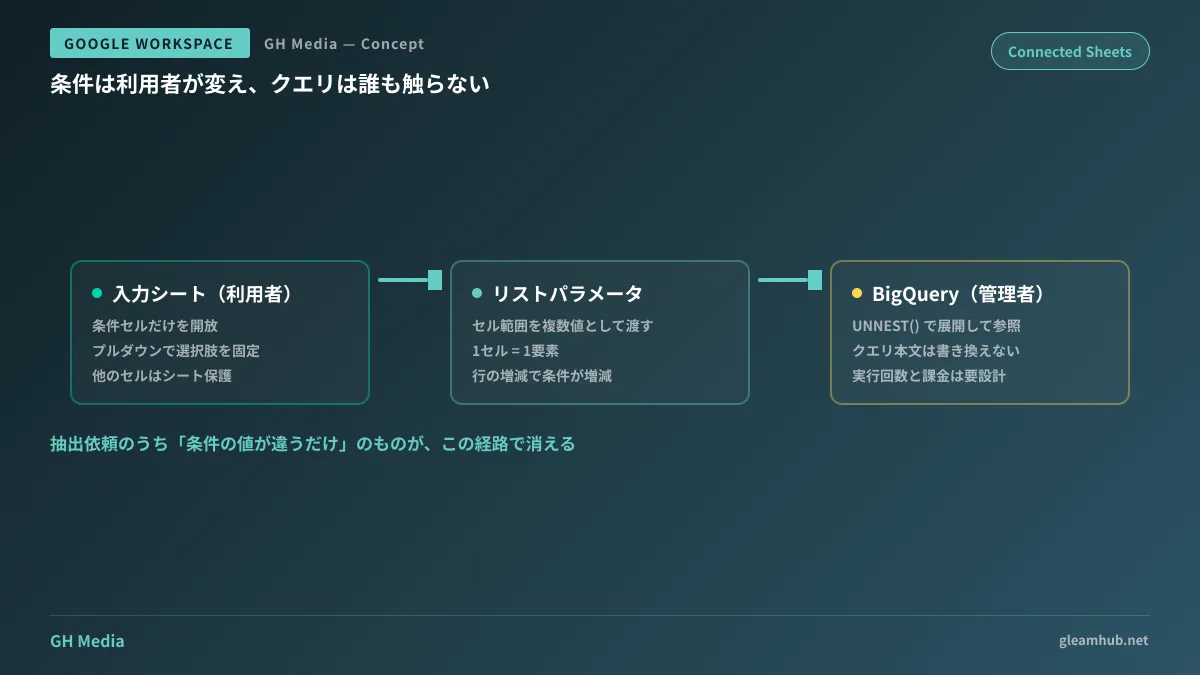
With the new list parameters, when you select a cell range on a sheet, each cell in that range is treated as an element in a list. Specifying a cell range containing store codes listed vertically becomes your search criteria as is. Adding rows expands the criteria; deleting rows narrows them. No rewriting on the query side is required.
On the query side, you expand and use the list with UNNEST().
SELECT
  store_code,
  SUM(sales_amount) AS total_sales
FROM `project.dataset.daily_sales`
WHERE
  store_code IN UNNEST(@target_stores)
  AND sales_date BETWEEN @date_from AND @date_to
GROUP BY store_code
ORDER BY total_sales DESC
Once you assign the cell range to @target_stores, users simply edit those cells. The key takeaway here is that users never look at the SQL at all. All they see is the input sheet.
Rollout is underway for both Rapid Release and Scheduled Release domains, with completion expected by August 15, 2026. It is available to all Google Workspace editions as well as personal Google accounts.
Define "allowed edit zones" on input sheets in advance
The crux of this approach lies not in the feature itself, but in the sheet design. If you hand over an unrestricted sheet, users will modify cells other than the criteria inputs and return with inquiries saying, "It stopped working."
To make it function reliably in production, separate at least these three sheets.
- Input Sheet — Place only criteria cells. Use dropdowns (data validation) to lock choices and prevent discrepancies from manual entry
- Extraction Results Sheet — Populated with Connected Sheets results. Users reference it without editing
- Master Sheet — Contains a list of store codes, department codes, etc., serving as the reference for dropdowns. Updated only by administrators
Next, apply sheet protection to lock everything on the input sheet except the criteria cells. Only after going this far is it ready to hand over to requesters. If you distribute it without protection, people will revert to the old request workflow within weeks because everyone becomes afraid of breaking it and stops touching it.
Two easily overlooked pitfalls
First, permissions are managed separately between Google Sheets and BigQuery. Even if you share the sheet, the data will not refresh if the recipient lacks read permissions on BigQuery. Conversely, if you operate under a model where only administrators trigger refreshes, users will simply see the last updated results. These two look very similar on the surface, making this a classic root cause of complaints about "stale numbers." Decide on your operational model upfront and display the last refresh timestamp on the sheet to prevent misunderstandings.
Second is query costs. A query executes each time a user modifies criteria. While self-service reduces requests, it increases execution frequency. If queries hit raw logs directly without preprocessing—such as partitioning target tables to filter by date or rolling up frequently viewed metrics into pre-aggregated tables—it can lead to unexpected billing spikes.
Dashboard or spreadsheet?
Even when enabling self-service data access, building dashboards with BI tools like Looker Studio remains an option. Here is a rule of thumb for deciding between them.
| Connected Sheets | BI dashboard | |
|---|---|---|
| Best suited for | Transform and edit extracted figures for subsequent tasks | Routinely monitor fixed metrics |
| User familiarity | Existing spreadsheet skills apply directly | Requires learning how to use the tool |
| Output flexibility | Cell-based structure integrates easily into downstream workflows | Constrained by screen design |
If users only need to view data, a dashboard is best; if they need to build something using those numbers, a spreadsheet is the natural fit. For departments like sales planning or accounting, where numbers are incorporated into subsequent documents after extraction, standardizing on spreadsheets ensures better adoption. Dashboard design practices are detailed in Building BI Dashboards with Looker Studio.
If you are transitioning reporting workflows previously run in Excel, conversion fidelity improved in August 2026. Checking Migrating Excel Tables and Pivot Tables beforehand will help you estimate the scope of required redesigns. For standalone spreadsheet automation, see Automating Operations with Google Sheets; for foundational table design, Open Lakehouse Architecture on BigQuery serves as a useful reference.
What to do next
Review the data extraction requests you received over just the past month. What percentage of them only differed by criteria values? If it exceeds half, those are requests you can eliminate with this architecture.
Conversely, if the aggregation dimensions change with every request, the issue lies in table design rather than parameters. In that case, redefining data granularity comes before refining the sheets.
If you would like guidance spanning BigQuery table design to input sheet permission architecture, GleamHub offers free IT and Google Workspace consultations. Because the optimal setup varies based on data volume and expanding user departments, please consult with us individually. Feel free to reach out via Contact Us.