You have given outside agencies or developers permissions on your Google Cloud projects, but you do not know how long they stay signed in. Billing administrators and data analysts sit in the same organizational unit (OU), so they are treated the same way. Until now, session length was tied to OUs, so you could not choose who it applied to separately from your OU structure.
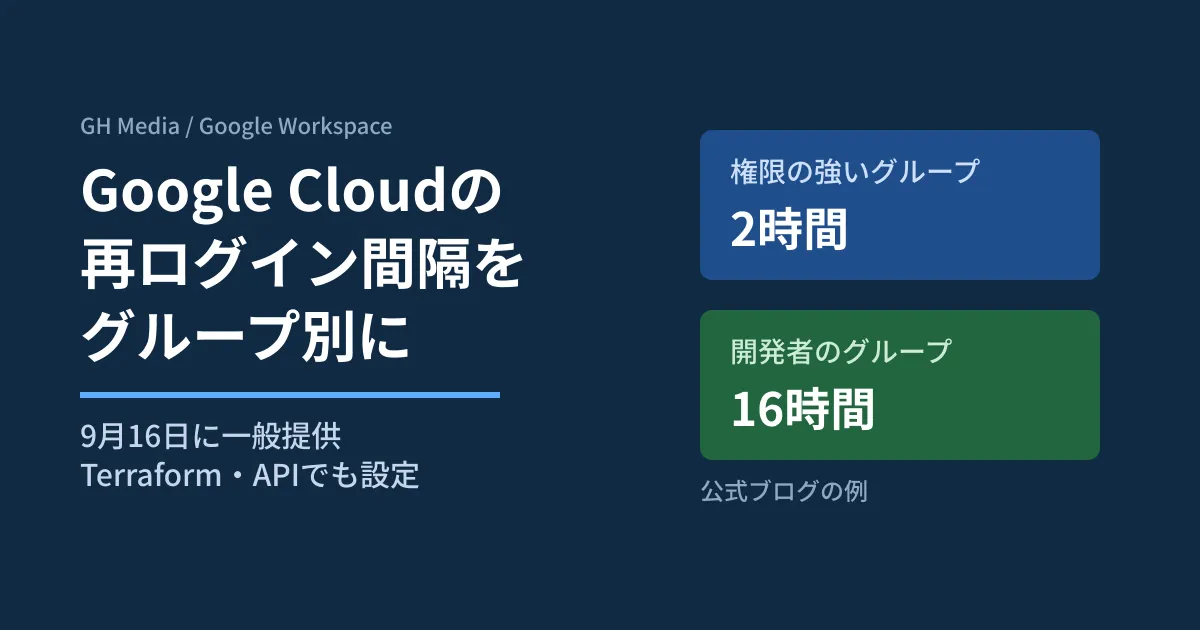
In its official blog on September 16, 2026, Google announced that Google Cloud session controls (settings that require reauthentication at fixed intervals) can now be specified per Google group and per app. We read the blog and the Access Context Manager API specification and outline what Workspace administrators should decide first.
What changed with the September 16 announcement
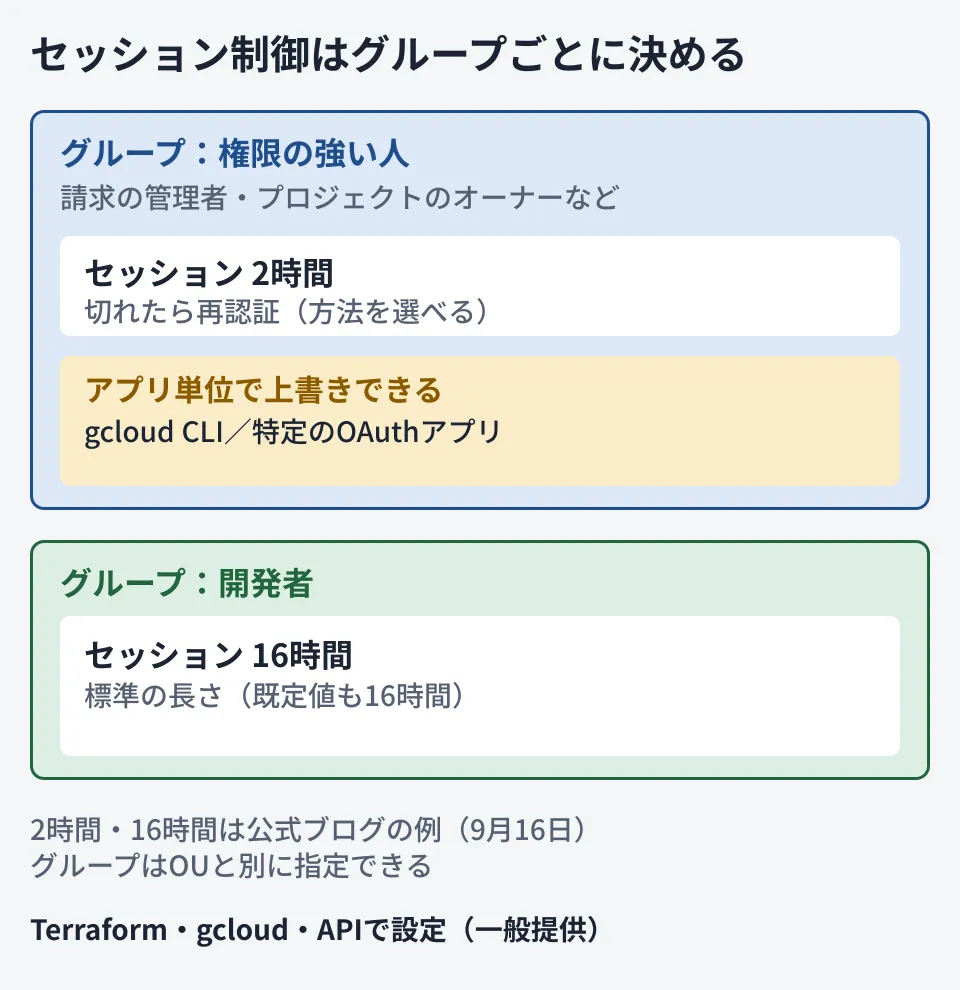
According to the blog, the 16-hour default has been fully applied to organizations that had not set a session length themselves. On top of that, session controls can now be specified in finer detail as part of Context-Aware Access (a mechanism that restricts the conditions under which access is allowed), as follows.
| Item | Before | From September 16 | Availability |
|---|---|---|---|
| How targets are defined | Tied to organizational units (OUs) | Specified by Google group | Generally available |
| Target apps | All apps using Google Cloud API scopes | Per gcloud CLI or specific OAuth app | Generally available |
| Configuration | Google Workspace Admin console only | Terraform・gcloud CLI・REST API | Generally available |
| Management in the Google Cloud console | None | Configured on the Access Context Manager screen | Preview (by application) |
As an example, the blog describes assigning 2-hour sessions to highly privileged users such as billing administrators and project owners, and 16-hour sessions to general developers, regardless of the organizational hierarchy. Per-app settings are explained as a way to avoid situations where strict settings applied to the Cloud SDK also stop BI tools and dashboards connected via OAuth.
What the settings contain, according to the API specification
The underlying setting is GcpUserAccessBinding in the Access Context Manager API. From the Discovery document (revision 20260916) and the Terraform Google provider documentation, we extracted the fields related to sessions.
groupKey: The target Google group. The Terraform documentation states that "group email addresses and aliases are not accepted," so you specify the group ID that can be retrieved via the Directory APIsessionSettings: Session length (sessionLength), the reauthentication method when it expires (sessionReauthMethod:LOGIN,SECURITY_KEY,PASSWORD), the maximum inactivity interval (maxInactivity, Google Cloud apps only), and morescopedAccessSettings: A field for applying separate settings only to specified apps or projects. Apps are specified by OAuth client ID or name (for example, "Cloud Console")
To set sessionLength to 0, you must set sessionLengthEnabled to false. Setting sessionLengthEnabled to false causes other fields to be ignored, and the session effectively becomes unlimited. In Terraform, organization_id is required, and a Google Cloud "organization" resource is assumed to exist.
resource "google_access_context_manager_gcp_user_access_binding" "admins" {
  organization_id = "123456789"
  group_key       = "01d520gv4vjcrht" # グループID(メールアドレスは不可)
  session_settings {
    session_length         = "7200s"
    session_reauth_method  = "SECURITY_KEY"
    session_length_enabled = true
  }
}
The example above combines fields from the Terraform documentation. The editorial team has not applied it to a real organization. The format of session_length (a string of seconds) also follows the general notation for the API's Duration type and is not taken from the provider documentation's examples.
What to decide before configuring
From here on is the editorial team's own analysis.
- Group highly privileged users together. These are billing administrators, project owners, and people who can change IAM. Because this can now be managed separately from OUs, you can review it independently of department transfers. You can take stock of permissions in the same order as the Context-Aware Access approach
- Put external collaborators in a separate group. There is no reason to give accounts for agencies or development partners the same settings as employees
- Identify integrations that must not break. Check whether BI tools and scripts connected via OAuth will stop when a session expires, and exclude or adjust them per app if needed
- Decide on the reauthentication method. If you choose
SECURITY_KEY, everyone in scope needs a security key
The blog does not give a date for when the 16-hour default was applied to your organization. We cover changes to Google Workspace defaults in the 2026 security default changes.
Pitfall
- Specifying groups by email address. Terraform does not accept group email addresses or aliases
- Assuming you can test sessions with a dry run. The Terraform documentation states that the
dry_run_settingsof per-app settings "cannot include session settings" - Entering 0 hours intending it to mean "disabled." When
sessionLengthis 0,sessionLengthEnabledmust be set tofalse, and in that case the session limit itself disappears
On October 3, 2026, we directly opened and cross-checked the Google Cloud official blog post "Introducing new session management tools with native, granular controls" (September 16, 2026), the Access Context Manager API v1 Discovery document (revision 20260916), and the
google_access_context_manager_gcp_user_access_bindingdocumentation in hashicorp/terraform-provider-google. On October 5, 2026, before publication, we reopened the blog, the Discovery document, and the Terraform documentation and confirmed that the content had not changed. We were also able to open the Admin console help article "Set session length for Google Cloud services," but it described the OU-level setup procedure, and we found no mention of group-level settings or eligible editions. We have not checked eligible editions, pricing, or the Admin console screens. We did not apply the settings to a real organization.
For help designing permissions and sign-in for Google Workspace and Google Cloud, contact us via IT and Google Workspace consulting.