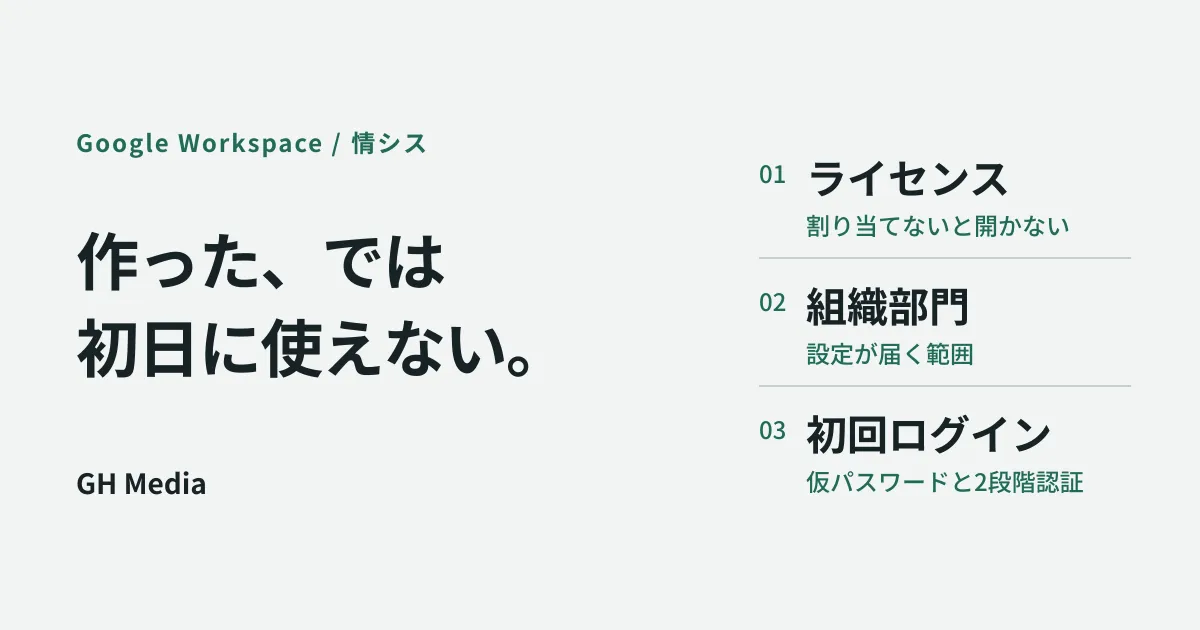
On the morning of their first day, you hand a new member a laptop and ask them to sign in. They enter the email address and password, and get "This account cannot be used" — or they sign in fine, but Gmail never opens. The HR contact calls the IT team, and the IT team reopens the Admin console. Plenty of companies repeat this with every new hire.
Most of the time the cause is not the act of creating the account itself. It happens in the form of five things that must be done after the account is created, one of which was missed. The creation screen is built to be helpful, so the trap is feeling finished the moment you have created the account.
Here we lay out the preparation that keeps the morning of a start date calm, in the order things actually go wrong. We focus on the parts that are common both to companies adding people one at a time by hand and to companies taking on a dozen or more hires a year.
What sits between "created" and "usable"
The moment you add a user in the Admin console, the account exists. But existing and being usable for work are two different things. After creation, at least the following four steps sit in between.
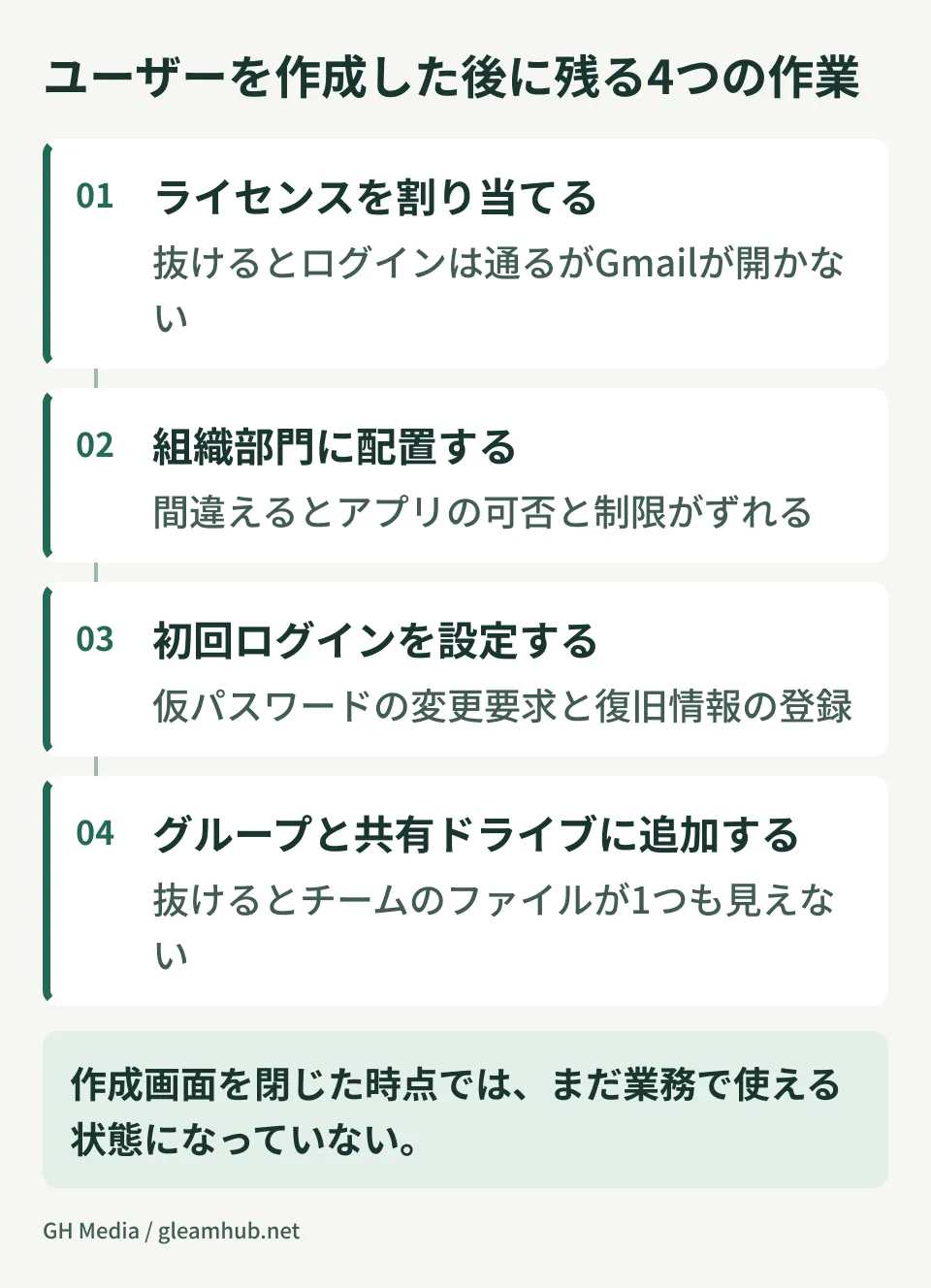
Of these four, the one that hits hardest on the first morning is assigning the license. Adding a user alone does not make the Google Workspace services available, so a license has to be assigned separately. In organizations that have not set up automatic assignment, this step is often still manual. The symptom where sign-in works but Gmail will not open is usually this.
The remaining three each produce a different symptom when missed. Place the user in the wrong organizational unit (OU) and that person alone cannot see apps they should have, or a restriction you intended to apply stays switched off. If adding them to groups and shared drives is missed, sign-in and the business apps are all fine, yet not a single team file is visible.
How to design the first sign-in
What happens at the moment a new member first signs in is something the administrator can decide. Operate without deciding it and the work tends to drift toward telling people passwords out loud or pasting them into chat.
If you use a temporary password, turn on the setting that requires a password change at next sign-in. When adding users in bulk via CSV, putting TRUE in the Change Password at Next Sign-In column applies the same behavior to everyone. This avoids a state where a password the administrator knows keeps being used.
Whether to require enrollment in 2-Step Verification right after the first sign-in is another item to decide up front. Finishing enrollment on the person's own smartphone on day one is more reliable than chasing everyone afterward. On the other hand, the first day is sometimes fully taken up by handing over the work device. Whichever you choose, if you leave it optional without deciding a deadline for enrollment, the enrollment rate will not rise. The wider picture of security settings is laid out in the Google Workspace security checklist.
Having the person register a recovery email address and phone number on day one also makes life easier later. If these stay empty, the only way to handle a forgotten password is an administrator reset, which adds work for the IT team.
One at a time, or in bulk with CSV
If you hire a few people a year, creating them individually from "Add user" in the Admin console is enough. Follow the on-screen instructions and the required fields get filled in.
For a bulk April intake, or hiring in batches by office, bulk upload via CSV is more reliable. In the Admin console, open "Directory" and then "Users", and download the template from the bulk user upload. First name, last name, email address, password and organizational unit path are required fields, so fill them in with a spreadsheet application and upload.
| Individual creation | Bulk CSV upload | |
|---|---|---|
| Best-Suited Scenarios | Roughly one to three mid-career hires a month | April intake, opening an office, ten or more people |
| Specifying the organizational unit | Select it on screen | Enter it in the Org Unit Path column |
| First password change | Checkbox | TRUE in Change Password at Next Sign-In |
| Where people trip up | Forgetting to fill in a field | Inconsistent spelling of the organizational unit path |
The common stumble with CSV is how the organizational unit path is written. If it differs from the hierarchy in the Admin console by even one character, that user alone ends up somewhere unintended. The safe approach is to export existing users and copy the notation actually in use.
Offboarding is harder than onboarding
Many organizations have tidied up the procedure for creating accounts but have not decided how to handle accounts that are no longer used. This also has a direct effect on cost. A license that stays assigned is billed even when that person is no longer coming to work.
What you want settled at the time someone leaves is whether to delete the account or suspend it. Deleting also removes that user's data, so if you delete before the handover is finished, there is no way back. Suspending stops the person from signing in while the data remains. However, a license is still consumed while suspended, so the matter is only closed once you have also decided what happens after the handover.
There is one more issue: email from clients keeps arriving at the departed person's Gmail. Build forwarding settings, or switching that address to a group, into the procedure so they can be done on the last day itself. The specific steps in the Admin console are covered in How to use the Google Workspace Admin console.
Put it in a form someone else can take over
Everything above stays dependent on one person for as long as it lives in that person's head. The fewer IT staff a company has — one, in many cases — the more surely things stall when a start date falls during that person's time off.
When writing this up, a list of "who checks what, and by when" gets used in practice far more than a long account of on-screen steps. Account creation and license assignment three business days before the start date; shared drives and groups the day before; 2-Step Verification and recovery information together with the person on day one. That level of detail works well enough.
If you have only just adopted Google Workspace and want to review the setup as a whole, see also the Google Workspace rollout and initial setup guide.
What to do next
First, open the account of your most recent hire in the Admin console and check the organizational unit and license assignment. If even one person is not in the intended organizational unit, some part of your creation procedure is relying on word of mouth.
Then take stock of whether any departed employees' accounts have sat suspended for months. This is the part where fixing the procedure alone shows up in your monthly license costs.
At GleamHub we take enquiries about Google Workspace administration design and organizing IT team operations through our free IT and Google Workspace consultation. The right operating model varies with headcount and how often people join and leave, so start by telling us where things stand. You can get in touch via Contact.
Sources
- Add or update multiple users from a CSV file — Google Workspace Admin Help
- Add a user — Google Workspace Admin Help
- Apply settings using organizational units — Google Workspace Admin Help
- Before you delete a departed user's account — Google Workspace Admin Help
- How to add a Google Workspace account: cautions and key points explained in detail — Yoshidumi Information
- Creating multiple users at once — How to use the Google Admin console