"We adopted Google Workspace, so email and Google Drive are unified under our Google accounts. But our Windows logins still use separate passwords on every machine. Whenever an employee leaves, someone has to physically go change that PC's password, and frankly, if a departed employee's PC was left lying around somewhere, we wouldn't even realize it." We received this consultation from a general affairs manager at a company of about twenty-five employees. Even when email and file storage are centralized in Google, many companies leave the initial gateway of PC login decentralized on individual machines.
GCPW (Google Credential Provider for Windows) effectively solves this issue of the perimeter being left behind. Employees log in to Windows using their Google Workspace accounts, unifying account management under Google. Furthermore, a 2026 update makes it possible to enforce 2-step verification using FIDO2-compliant physical security keys directly at the Windows login screen. This article explains how SMBs without dedicated IT personnel can use this framework to lock down their entry points.
What Is GCPW? A Mechanism Unifying Windows Sign-Ins under Google Accounts
GCPW is a free tool that replaces the native Windows login authentication with Google account credentials. Once deployed, employees sign in to their corporate Windows PCs using the same Google Workspace account they use daily for Gmail and Drive.
The effectiveness of this setup comes from centralizing identity management in a single location. Login credentials that were once scattered across individual PCs are now aggregated in the Google Admin Console. When an employee departs, simply suspending their account in the Admin Console simultaneously locks their entry point across all corporate PCs they logged into. The chore of manually changing local passwords on every departed employee's machine disappears entirely.
| Before GCPW Deployment | After GCPW Deployment |
|---|---|
| Disjointed local passwords on each PC | Unified sign-in with Google Workspace accounts |
| Manually updating individual PCs during offboarding | Suspend account in Admin Console → Access closed on all PCs simultaneously |
| Generally no 2-step verification for PC sign-in | Can enforce 2-step verification and physical keys on the sign-in screen |
The 2026 Update: Enforcing Hardware Security Keys at the Sign-In Screen
The highlight of this update is the ability to use FIDO2-compliant physical security keys for 2-step verification (2SV) during Windows sign-in. Administrators can mandate 2-step verification upon Windows login and require USB or NFC physical keys as the second factor.
Hardware keys are critical because they provide extraordinary resilience against phishing attacks. Verification methods relying on one-time code inputs leave room for credentials and codes to be stolen simultaneously via sophisticated spoofed websites. In contrast, physical keys operate on the guarantee that the physical key is physically present before the legitimate site, making phishing mathematically impossible. An attacker who has merely stolen a password cannot log in without the physical key in hand. The true significance of this update is extending this "passwords alone are not enough" defense beyond email and Drive to the PC login itself. The philosophy behind migrating to phishing-resistant authentication is discussed in detail in our article on passkeys and passwordless authentication.
Fortifying the Perimeter Does Not End at the Perimeter
Here is an important practical caveat. While hardening the perimeter with physical keys provides robust defense, it carries the flip side of lockout risk: if someone loses their key, nobody can get in. If you apply the same policy to administrator accounts without spare keys or recovery mechanisms in place, legitimate admins risk being locked out upon losing a key. Administrative lockout incidents involving 2-step verification do occur in practice, and our article on changes to Google Workspace default security settings highlights the necessity of configuring backup administrators and recovery paths.
Specifically, prepare the following safeguards together:
- Distribute at least two physical keys (primary and backup) to employees, or provide an alternative backup 2-step verification method
- Always configure multiple administrators, each possessing independent account recovery mechanisms
- Establish documented procedures beforehand detailing who reissues keys and how in the event of loss or malfunction
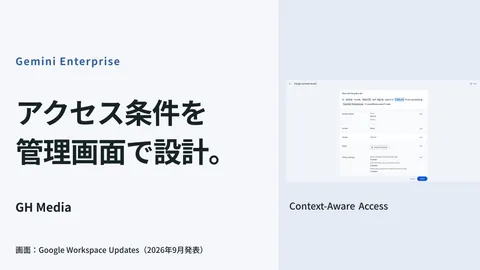
Deciding how strict to make the entry point works best when paired with policies defining where access is permitted. Combining this with strategies to restrict access from unmanaged personal devices outside the office, as explored in our article on Context-Aware Access, provides a cohesive approach.
Case Study: The Company That Eliminated PC Audits for Departing Staff
Consider this practical example. At a company of about forty employees (name withheld), the dual-hatted IT lead had a recurring semi-annual audit chore: inspecting every single machine to confirm whether local passwords on PCs previously used by departed staff had been updated. As machine counts grew, oversights inevitably occurred, including a close call where a PC with an active former employee login was discovered sitting in storage.
After implementing GCPW and unifying Windows sign-ins under Google accounts, these audits were rendered obsolete. Suspending an account in the Admin Console as part of standard offboarding instantly shuts down access across every PC that account could sign into. Concurrently, they distributed physical security keys starting with personnel handling sensitive data—such as accounting and executive leadership—and required 2-step verification at the login screen. Their success did not rely on overly complex tooling: it stemmed from centralizing perimeter management and distributing theft-resistant physical keys to sensitive roles. These two changes eliminated both offboarding burdens and the anxiety of orphaned, active logins.
Start by Centralizing Accounts in One Place
Unifying Windows sign-ins under Google accounts and locking them down with physical keys might sound like a massive undertaking, but the objective is simple: consolidate scattered login administration into one place and ensure passwords alone cannot grant access if stolen. Rather than an all-at-once rollout across the entire organization, you can start incrementally with departments burdened by offboarding tasks or employees handling sensitive data. All you need to arrange before starting is a lockout prevention plan featuring backup keys and secondary administrators.
Whether you want to unify accounts down to the Windows sign-in level, reduce the administrative burden of employee offboarding, or introduce phishing-resistant authentication starting with sensitive units, please feel free to reach out via GleamHub's free Google Workspace and information security consultation. From GCPW deployment design and hardware key rollout planning to admin redundancy structures that prevent lockouts, we partner with you to match your company's operational scale.