"Our entire staff works remotely, logging into company Gmail and Drive accounts from personal PCs and smartphones. We distribute IDs and passwords, but honestly, we don't know who is accessing company data from where. We're terrified of a scenario where an employee planning to resign downloads massive amounts of files from home." We received this consultation from a general affairs manager at a 30-person company. In businesses where work is conducted entirely in the cloud, being able to log in from anywhere and on any device as long as the password is correct has become the norm—and many executives and administrators feel the inherent risk.
Passwords and two-step verification verify "whether it is the genuine user," but they do not check "whether that user is accessing from a secure context." What bridges this gap is Google Workspace's Context-Aware Access (conditional access). In this article, we examine what this mechanism protects, which plans support it, and what alternatives are available for businesses on lower-tier plans, all from a client's perspective.
Blocking access when the situation is risky, even with a valid password
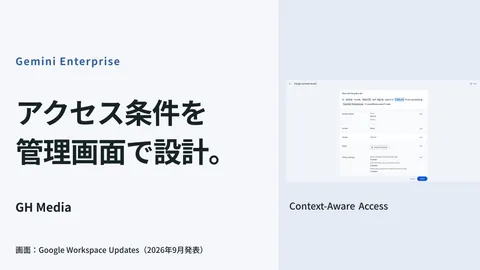
Context-Aware Access is a mechanism that evaluates "what context you are accessing from" after successful login to determine whether to allow or restrict access. Examples of context criteria used for this decision include:
- IP address: Whether access originates from the company office or an authorized facility network
- Device policy: Whether it is a company-managed device with screen lock and encryption enabled
- Geographic location: Whether access originates from unexpected countries or regions
- OS type: Whether access originates from approved operating systems and versions
By combining these conditions using AND and OR logic, you can create rules such as "allow access only if on a company-managed device AND from within Japan" or "otherwise block access to Google Drive." Even if a password is compromised and an unauthorized login is attempted from overseas, access is blocked if the context criteria are not met. This is the crucial point that closes the gap left by identity verification alone. For detecting data extraction by departing employees, reading our article on audit logs and alerts will help you understand the two pillars of prevention and detection.
Creating "access levels" and assigning them to services
The setup workflow itself is straightforward and consists of two main stages. First, you define "access levels" that bundle your authorized conditions—effectively naming a set of criteria such as "internal IP range," "within Japan," or "managed device." Next, you assign that access level to services like Gmail, Drive, or Calendar, or to specific organizational units (OUs).
Thanks to this two-stage structure, you can vary the policy strength based on department or business function, such as "the accounting department can only access Drive from the corporate network" while "sales reps can view Gmail from anywhere within Japan." Applying the same strict constraints to all employees inevitably triggers internal friction, but tightening controls specifically on departments handling high-risk data fortifies defense without obstructing daily operations.
The pitfall of locking yourself out
The most frequent accident during implementation is the scenario where administrators themselves trigger the conditions and get locked out. Applying an "allow only from internal IPs" rule uniformly across the entire company can result in remote-working administrators being locked out of the Admin console, unable to revert the settings—a scenario that does happen in practice.
The countermeasure is well-established. Always apply new rules initially to a subset of organizational units or test accounts in "monitor mode" (logging only without enforcing restrictions) to verify expected behavior and see who would be blocked before switching to active enforcement. Additionally, ensure that administrator accounts are excluded from the condition or that an emergency fallback access route is preserved. Skipping these steps and deploying straight to production will result in lengthy recovery downtime. If you feel uncertain about navigating the Admin console, reviewing our introduction to the Admin console beforehand will prevent confusion in the configuration menus.
What companies on ineligible plans can use as alternatives
Here is the most critical reality for clients: Context-Aware Access is not available on every plan. It is limited to Enterprise Standard / Enterprise Plus, Frontline, higher tiers of Education, Cloud Identity Premium, and similar editions; it is not available on Business Starter / Standard / Plus, which many SMBs subscribe to.
| Common requirement | Practical alternative on Business plans |
|---|---|
| Restrict access from personal devices | Register and approve devices via endpoint management, blocking unapproved devices |
| Prevent unauthorized logins | Mandate company-wide 2-Step Verification (preferably passkeys) |
| Restrict sharing to specific collaborators | Manage via shared drive scopes, external sharing restrictions, and organizational unit permission design |
Before jumping to an Enterprise upgrade simply because "we definitely need conditional access," we recommend clarifying what your company specifically wants to protect—whether it is unauthorized logins, personal devices, or data exfiltration. Depending on your target, measures available in your current tier—such as enforcing 2-Step Verification, utilizing endpoint management, and reviewing sharing configurations—often provide sufficient coverage. If you are reviewing overall plan costs, considering our perspective on license fee optimization will help you avoid excessive contract modifications.
Start by discovering who is accessing what and from where
At a company that consulted GleamHub, rather than immediately jumping into conditional access, we first spent a week taking inventory of audit logs to see who was accessing company data from which devices and regions. We discovered that suspected "suspicious access from overseas" was virtually non-existent; the real risk lay in the fact that employees planning to leave could save large volumes of files onto personal PCs. Consequently, without upgrading plans, we began by segregating personal devices via endpoint management and restricting sharing permissions on sensitive folders, mitigating the largest risks upfront at zero additional software cost.
Restricting access to corporate data based on context is powerful, but plan limitations and configuration pitfalls mean that hasty adoption can halt operations or incur unnecessary costs. If you are wondering how to control access from personal devices or home offices, what is feasible under your current plan versus what requires an upgrade, or where to start, feel free to contact GleamHub via our free IT and Google Workspace consultation. We will work with you to design a balanced access control structure tailored to your business realities.