Assuming "we use Google Workspace, so we're secure" often overlooks the risk of operating with default settings. While Google Workspace provides extensive security capabilities, many features remain inactive unless administrators intentionally configure and verify them.
In this article, we compile 15 priority security settings for Google Workspace administrators into an actionable checklist, providing Admin Console navigation paths for each item. Use it for your periodic audits.
Why security configuration audits are necessary
Google Workspace security settings are not "set-and-forget." As organizations grow, staff change, and new features roll out, configurations can quietly drift into unintended states.
Be particularly watchful in the following scenarios:
- Default values for new features change (due to Google updates)
- Admin accounts increase or change (staff handoffs or IT department reorganizations)
- External sharing scope widens (accumulation of project-based exception permissions)
We recommend referencing the checklist below to regularly audit your configuration status.
Authentication and account protection (Items 1–4)
1. Is 2-step verification enforcement enabled?
This is your top-priority check. Leaving 2-step verification (2SV) optional leaves accounts vulnerable to takeover if passwords leak.
Setting path: Admin Console → Security → Authentication → 2-step verification → change enforcement policy to "On"
Providing new users with a grace period (recommended: 1–2 weeks) prior to mandatory enforcement minimizes onboarding disruption. Consider configuring phishing-resistant passkeys or security keys as recommended options.
2. Are super admin accounts separated from daily operations?
Using accounts with super admin privileges for everyday email and routine work sharply escalates phishing and operational error risks.
- Dedicate super admin accounts strictly to administrative tasks, without assigning separate Google Workspace licenses
- Conduct daily operations using standard user accounts
- Do not forward emails to super admin accounts
3. Are administrator roles managed under least privilege?
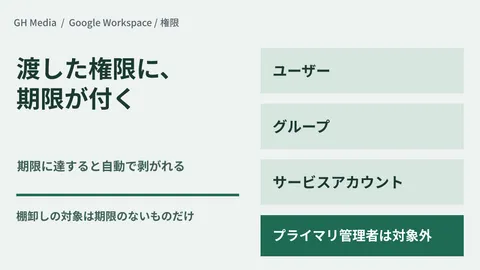
Setting path: Admin Console → Account → Admin roles
In organizations with multiple super admins, the rule of thumb is to segment roles (e.g., Groups Admin, Help Desk Admin) based on duties and grant only the minimum necessary permissions. Periodically audit role assignments and revoke unneeded permissions.
4. Are inactive accounts disabled or deleted?
Leaving accounts of departed employees or long-term leaves active invites exploitation by third parties.
Setting path: Admin Console → Directory → Users
We recommend reviewing last sign-in dates and establishing operational policies to suspend or delete accounts inactive for a set duration (e.g., 90 days).
Email and Gmail security (Items 5–7)
5. Are SPF, DKIM, and DMARC configured?
This is fundamental to anti-spoofing protection. Configuring all three together allows receiving servers to authenticate the legitimacy of your sending domain.
| Authentication protocol | Configuration location | Primary role |
|---|---|---|
| SPF | Domain DNS (TXT record) | Verifies legitimacy of sending IP addresses |
| DKIM | Admin Console → Apps → Gmail → Authenticate email | Prevents spoofing via digital signatures |
| DMARC | Domain DNS (TXT record) | Specifies handling policy upon SPF/DKIM failure |
Google requires all senders to configure SPF or DKIM, and mandates the full trio of SPF, DKIM, and DMARC for senders dispatching 5,000+ emails per day (effective since 2024). Address this promptly if not yet configured.
6. Are advanced phishing and malware protections enabled in Gmail?
Setting path: Admin Console → Apps → Google Workspace → Gmail → Safety
Verify that the following settings are enabled:
- Enhanced attachment protection (blocking script-embedded files and unusual attachments)
- Enhanced link and external image protection (scan before display)
- Spoofing and authentication protection (display warnings for lookalike domains)
7. Are spam filter settings properly configured?
Setting path: Admin Console → Apps → Google Workspace → Gmail → Spam, phishing, and malware
Regularly verify that unnecessary domains or IPs have not accumulated on your allowlist. Addresses temporarily approved for past projects frequently remain behind.
Drive and data sharing controls (Items 8–10)
8. Is external Drive sharing appropriately restricted?
Setting path: Admin Console → Apps → Google Workspace → Drive and Docs → Sharing settings
Allowing the "Anyone with the link" option outside your organization increases data leakage risks. The recommended approach is to default to "Users within the organization only" and explicitly invite specific external users when external sharing is required.
Even when permitting sharing outside your domain, consider restricting permitted domains via an allowlist.
9. Is ransomware detection enabled?
Google Drive's ransomware detection and recovery capabilities, generally available (GA) as of March 2026, are on by default, but settings may have been modified at the organizational unit (OU) level.
Setting path: Admin Console → Apps → Google Workspace → Drive and Docs settings → Malware and ransomware
For details on this feature, see our in-depth article: Google Drive Ransomware Detection Now Generally Available: Configuration and Operational Key Points for Administrators.
10. Is adding external users to Shared Drives restricted?
Setting path: Admin Console → Apps → Google Workspace → Drive and Docs → Sharing settings → Shared drive creation
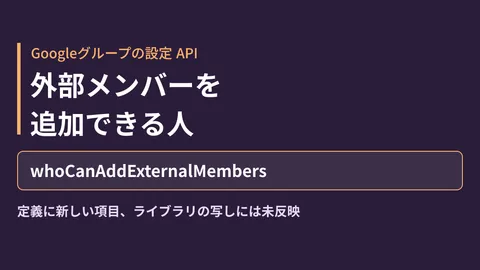
Setting external member additions to Shared Drives to "Admins only" prevents unauthorized data exposure. Allowing all members to add outside users carries high risks and is frequently overlooked.
Meet and Chat security (Items 11–12)
11. Have Google Meet external participant admission settings been reviewed?
To mitigate unauthorized entry if meeting links leak externally, review the following settings:
Settings path: Admin Console → Apps → Google Workspace → Google Meet → Meet safety settings
- Knock for external participants: Enabled
- Quick Access default: Recommended Off for organizations handling confidential data
For detailed participant admission settings in Google Meet, refer to Enhancing Google Meet Security: New Setup Methods for Participant Approval.
12. Is external space creation in Chat controlled?
Configuration path: Admin console → Apps → Google Workspace → Google Chat → Chat settings
Whether to permit creating Chat spaces with external users must be explicitly configured according to your organization's policies. Permissions can also be restricted to specific allowed domains.
Endpoint and device management (Items 13–14)
13. Is endpoint management (MDM) enabled?
Setting path: Admin Console → Devices → Mobile & endpoints → Settings
Enabling endpoint management is required to enforce basic management policies (screen lock, remote wipe) on mobile devices. Organizations permitting BYOD should enable at least Basic Mobile Management.
For corporate-owned hardware, consider applying Advanced Mobile Management for granular control.
14. Is access restricted from unmanaged devices?
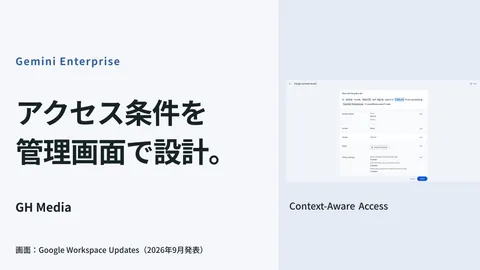
Setting path: Admin Console → Security → Access and data control → Context-Aware Access
Context-Aware Access enables access control based on device compliance state, location, OS version, and other criteria. Available on Enterprise plans, this capability forms the foundation of zero trust security.
Third-party app management (Item 15)
15. Are third-party OAuth app integrations periodically audited?
Setting path: Admin Console → Security → API controls → Manage Third-Party App Access
Third-party applications connected to Google accounts pose risks if granted overly broad permissions or left unused over long periods.
Review and remediation guidelines:
- Revoke access for apps unused for 90 days or more
- Scrutinize business justification for apps requesting full access to Drive, Gmail, or Calendar
- Consider allowlist-only operations permitting trusted apps exclusively (Google Workspace Enterprise)
Checklist summary
| # | Item | Categories |
|---|---|---|
| 1 | Enforce 2-step verification for all users | Authentication |
| 2 | Separate super admins from daily operations | Authentication |
| 3 | Operate admin roles under least privilege | Authentication |
| 4 | Disable inactive accounts | Authentication |
| 5 | Configure SPF, DKIM, and DMARC | |
| 6 | Enable phishing and malware protections | |
| 7 | Audit spam filter allowlists | |
| 8 | Properly restrict external Drive sharing | Data |
| 9 | Enable ransomware detection | Data |
| 10 | Restrict external member additions to Shared Drives | Data |
| 11 | Verify Meet external participant admission settings | Meet/Chat |
| 12 | Configure external Chat user controls | Meet/Chat |
| 13 | Enable endpoint management (MDM) | Devices |
| 14 | Restrict access from unmanaged devices | Devices |
| 15 | Audit third-party OAuth app connections | Apps |
Conclusion
Google Workspace security depends on how you configure and operate the capabilities Google provides. The 15 items in this article represent essential checks drawn from Google's official checklists and industry best practices.
Because misconfigurations in authentication, email authentication, and Drive sharing can directly cause security incidents, we recommend prioritizing these areas. Furthermore, rather than checking settings just once, make regular quarterly audits a standard habit.
If you need assistance reviewing your company's Google Workspace configuration or establishing security policies, please feel free to reach out to GleamHub. From Admin Console setting reviews to operational workflow design, we tailor our support to your organization's scale and plan.