For prototype apps shown to customers or test environments spun up for each pull request, slow database setup holds up the entire job. Creating a database with the same configuration as production every time costs both time and money, yet sharing one development database among everyone mixes up test data. When you hand work to AI coding agents, there are also situations where you want to give each agent a disposable database.
On November 4, 2026, Google Cloud released AlloyDB Express, a new configuration of AlloyDB for PostgreSQL, as a preview. It is PostgreSQL for developers and AI coding agents that can be created in seconds and stops automatically when not in use. Based on what we confirmed by November 6, 2026 in the announcement blog, documentation, and pricing page, this article lays out the pricing, the conditions under which it stops, the limitations, and what to check before using it.
What AlloyDB Express can do
The main features the blog lists and what the documentation states are as follows. Where the blog and documentation differ, we show both.
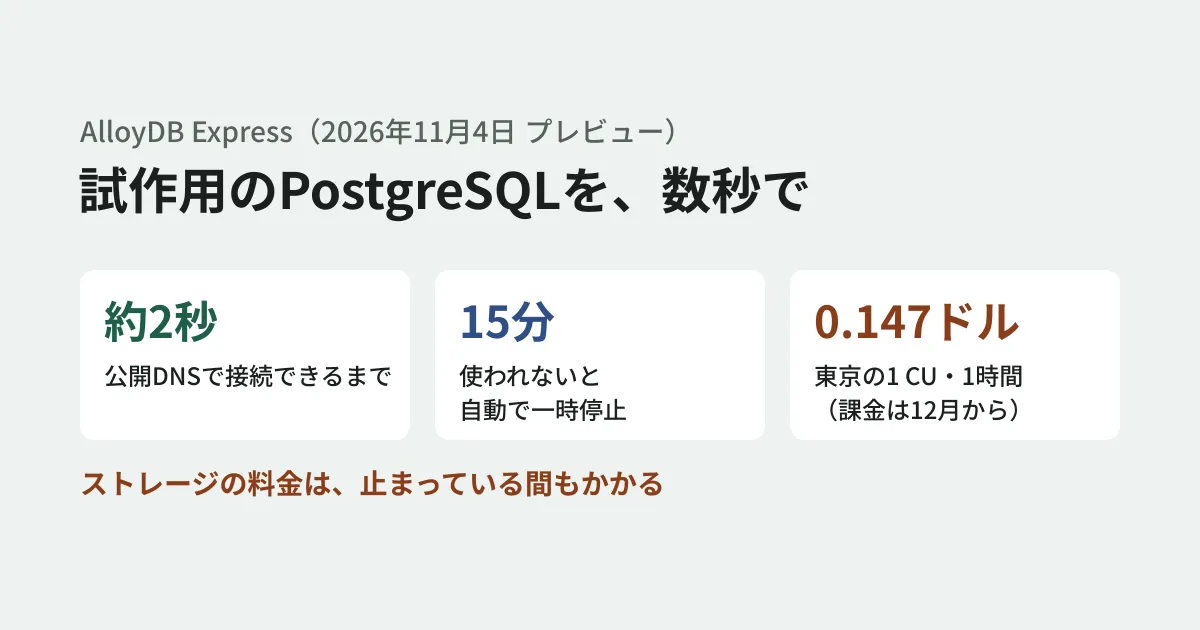
- Created in seconds: The blog says "under 2 seconds". The documentation gives the time until connections can be accepted as about 2 seconds with public DNS and within 20 seconds with Private Service Connect. The means of creation are the console, gcloud CLI, REST API, and the AlloyDB remote MCP server. The blog also lists Terraform, but the limitations in the documentation say Terraform and Config Connector are not supported
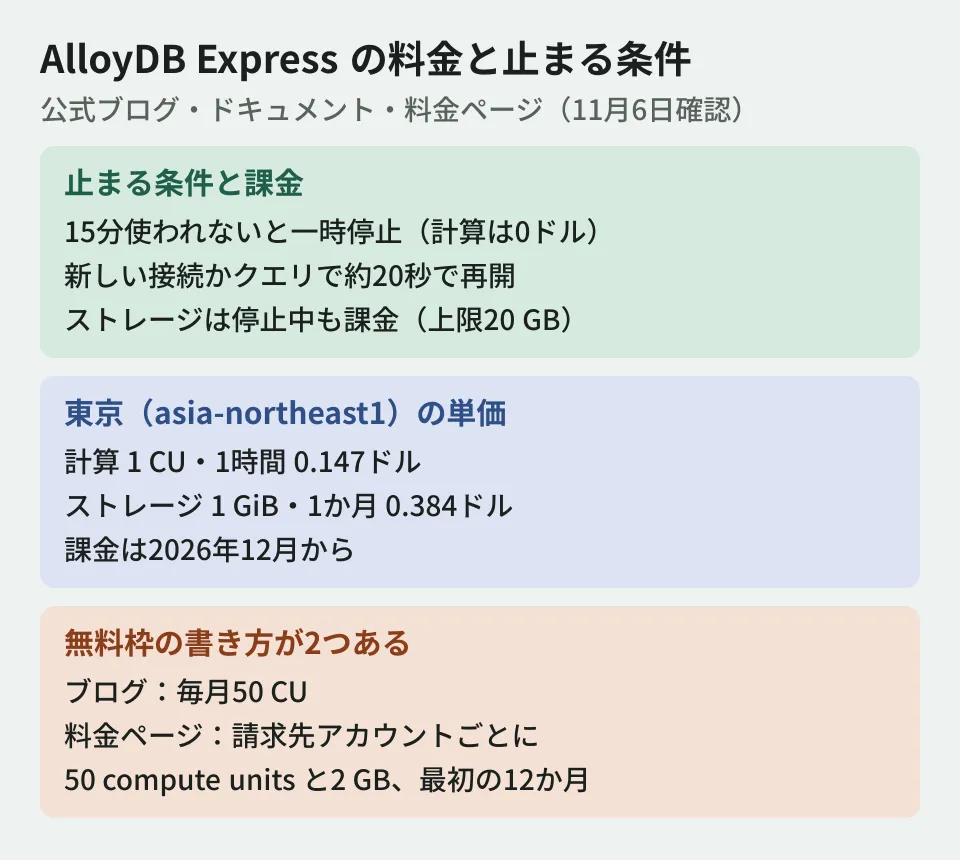
- Stops when not in use: According to the blog, it automatically pauses after 15 minutes without use, and no compute charges apply during that time (the 15-minute figure does not appear in the documentation or on the pricing page). For the time to resume, the blog says "a few seconds", while the documentation says "about 20 seconds" after a new connection or query arrives
- Upgradable to a production configuration: When an app moves to production, you can upgrade to regular AlloyDB with one click. Data, schemas, users, and connection strings stay as they are, and high availability, read replicas, and disaster recovery become available. However, you cannot go back to Express, and pausing also goes away, so you pay the rate for regular AlloyDB running at all times
- AI features: You can use vector search with pgvector HNSW and Google ScaNN indexes, functions that call Gemini models from within SQL (
ai.if,ai.rank,ai.generate), and more
There are two ways to connect: public DNS and Private Service Connect. Public IP cannot be used. According to the documentation, the default depends on how you create the instance. The console enables both, while the gcloud CLI, REST API, and MCP enable only Private Service Connect. To use public DNS, specify it when you create the instance.
By default, the public DNS endpoint rejects all direct connections from psql and similar clients. To connect directly, add the client's IP address range to the allowlist. Connections that use the gcloud CLI, Auth Proxy, or Language Connectors do not need this allowlist setting.
Limitations stated in the documentation
Because this is a configuration for prototyping, it differs from regular AlloyDB in the following ways.
- PostgreSQL 18 only
- Only one instance in a single zone, with either 1 vCPU (4 GB of memory) or 2 vCPUs (8 GB of memory). Instances are created with 1 vCPU, and you change to 2 vCPUs after creation
- Storage is limited to 20 GB, and writes stop once that limit is reached
max_connectionsis fixed at 200- Automated and manual backups, point-in-time recovery, high availability, read pools, and cross-region replication are not available
- There is no SLA (availability guarantee), and customer-managed encryption keys (CMEK) are not supported
- The seven supported regions are asia-east1, asia-east2, asia-northeast1 (Tokyo), asia-southeast1, australia-southeast1, europe-west2, and us-west1
When upgrading to a production configuration, a 1 vCPU instance can be upgraded only in regions that have the C4A machine series. AlloyDB's machine series table does not include C4A for Tokyo, so it appears that in Tokyo you must first change to 2 vCPUs.
Pricing: unit prices in the Tokyo region
According to the pricing page, the unit of compute is the Compute Unit (CU), and 1 CU corresponds to a ratio of 4 GB of memory per vCPU. Compute is billed per second, and there is no charge while paused. Storage is billed by the amount used, with a limit of 20 GB. Storage charges apply even while paused.
| Item | us-west1 | asia-northeast1 (Tokyo) |
|---|---|---|
| Compute (1 CU, 1 hour) | $0.115 | $0.147 |
| Storage (1 GiB, 1 month) | $0.30 | $0.384 |
| Compute while paused | $0 | $0 |
The pricing page gives an example in which a database with 1 CU and 10 GB of storage running 5 hours a day in us-central1 costs $0.674 per day. The unit price in this example matches us-west1 in the table, and us-central1 appears in neither the pricing table nor the documentation's supported regions. Applying the same conditions to the Tokyo unit prices gives $0.735 for compute ($0.147 × 5 hours) and about $0.126 per day for storage, for a total of about $0.86 (the editorial team's calculation).
The pricing page also states the following conditions.
- Billing starts in December 2026
- Committed use discounts (CUDs) are not available. Standard enterprise discounts do apply
- Usage beyond the free tier is billed at 1 CU for 1 vCPU instances and 2 CUs for 2 vCPU instances
The blog and the pricing page describe the free tier differently
The two sources do not describe the free tier in the same way.
- Blog: "a free tier of 50 CUs every month"
- Pricing page and documentation: "The monthly free tier is 50 compute units and 2 GB of storage per billing account, for the first 12 months"
The pricing page and documentation give more detailed conditions, with limits of per billing account and 12 months. The release notes also say "first 12 months." Even if you test in multiple projects, it appears there is only one free tier if they share a billing account. When estimating a budget, assume the conditions on the pricing page, and check them again before you start using the service. We could not determine from the pricing page and documentation how many hours "50 compute units" equals.
What to check before using it (the editorial team's proposal)
From here on are the editorial team's suggestions, based on what the official materials state. We did not actually create or connect to an instance.
- Check what counts as "in use." The pause condition is "not used for 15 minutes" in the blog and "no traffic" in the documentation, and a new connection or query triggers a resume. The official materials do not say whether connection pools that keep connections open, or monitoring that periodically checks connectivity, prevent pausing. Test this first. If the instance does not pause, compute charges keep accruing
- Include resume time in your test wait times. The blog says "a few seconds" and the documentation says "about 20 seconds," so assume the longer figure of about 20 seconds. Set a connection timeout so that the first connection in a test does not time out. According to the documentation, maintenance updates may also be applied at resume
- Storage billing continues even when paused. If you forget to delete a database you created as disposable, storage charges pile up. Write the step that deletes it when a PR closes in the same place as the step that creates it
- Check that you fit within 20 GB and 200 connections. Writes stop once storage reaches 20 GB, and
max_connectionsis fixed at 200 and cannot be changed. This may not suit testing with near-production data volumes - Do not run production on it during the preview. Because it is in preview, specifications and pricing may change. There is no SLA and there are no backups, so do not keep data you cannot afford to lose. Design customer-facing production environments on regular AlloyDB
Looking at the API definitions, the Express setting (expressConfig) exists in the cluster definitions of the v1beta and v1alpha versions of the AlloyDB API, but not yet in v1 (Discovery document of November 6, 2026). The REST example in the documentation also uses v1beta. To create an instance with gcloud, add --enable-express to gcloud beta alloydb clusters create. This flag was added in gcloud 589.0.0, and --enable-public-dns, which enables public DNS, was added in 590.0.0, so update first if your gcloud is older.
The high availability configuration of regular AlloyDB is covered in our article on AlloyDB hot standby, and running vector search in production is covered in our article on running pgvector in production.
Scope of verification
On November 5, 2026, we retrieved the Google Cloud official blog announcement and the AlloyDB pricing page and checked them against the original text. On November 6, after checking them once more, we compared them with the AlloyDB Express documentation (overview, creation and management), the AlloyDB and gcloud release notes, and the machine series table (document research). We also reviewed the Discovery documents for the AlloyDB API (v1, v1beta, v1alpha). The date displayed on the blog page is November 5, and the date of the AlloyDB release notes is November 4. Because we did not try creating, connecting to, or pausing an instance, we have not confirmed the actual time required for creation and resumption, whether instances can be created with Terraform, or how connection pools and monitoring affect pausing.
For questions about building prototype apps and test environments or choosing a database, please contact us through Consulting on development, AI, and automation.