In a business system running SQL Server, you moved several years of history to BigQuery or a similar service and deleted it. The database contents shrank, but the Cloud SQL disk capacity stayed the same, and storage costs did not go down. Google Cloud has introduced on its official blog a way to resolve this situation without a long outage.
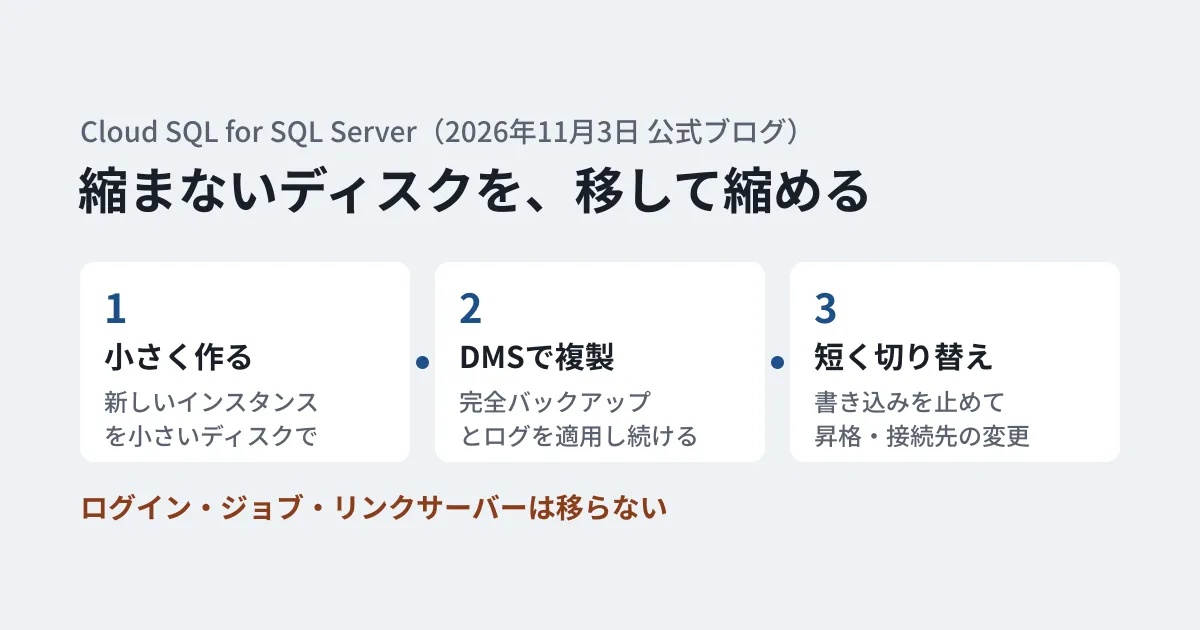
The November 3, 2026 post, "Beyond Migration: Using Database Migration Service for disk shrinking," is an example of using Database Migration Service (DMS) as a tool for day-to-day operations, not only for migrations. You keep replicating data to a new instance with a smaller disk, then move over with only a brief cutover. This article covers why the disk does not shrink, how to choose between standard shrink and DMS, how to prepare what does not carry over, and the work that follows the cutover.
Shrinking files does not shrink the disk
According to the blog, when data is deleted, SQL Server marks the freed space inside data files (.mdf, .ndf) as reusable. Truncation also creates free space inside the transaction log (.ldf). However, the files themselves stay at the largest size they have reached. Setting AUTO_SHRINK shrinks them, but the blog says this is generally not recommended in production because of the heavy index fragmentation and performance burden.
Shrinking manually with DBCC SHRINKFILE can return the free space in the files to the disk. Even so, the Cloud SQL persistent disk stays at the maximum capacity allocated. The automatic storage increase feature is important for preventing outages caused by running out of space, but in the blog's words, capacity in many production environments ends up being something that "only moves up."
The blog lists the following three situations in which to consider shrinking the disk.
- You moved large amounts of old data to cold storage or BigQuery
- A runaway transaction or temporary load triggered automatic growth, and you are paying for capacity you do not need
- You split large tables out to another service, removed unused indexes, or compressed data
To decide whether there is room to shrink, compare database/disk/bytes_used (actual usage) and database/disk/quota (allocated capacity) in Cloud Monitoring. The blog includes queries that use sys.database_files and FILEPROPERTY(name, 'SpaceUsed') to check the allocation and free space for each database file.
Choosing between standard shrink and DMS
Cloud SQL has a standard shrink feature that reclaims allocated but unused space. According to the blog, this approach suits cases where you can set aside planned maintenance time, but the downtime is proportional to the total size of the allocated disk, and disks of several terabytes can see hours of downtime.
The Cloud SQL documentation also says downtime can be quite long depending on disk size, and recommends moving to a new, smaller instance with DMS if you want shorter downtime. Standard shrink is a feature announced in the April 6, 2026 release notes. It applies only to primary instances, cannot be used on shared-core instances, and is not supported by Terraform. Before running it, you can use gcloud sql instances get-storage-shrink-config to check the smallest size you can shrink to (minimalTargetSizeGb) and the estimated time for the operation.
If you cannot take that downtime, DMS is the alternative. You create a new Cloud SQL instance with a smaller disk, keep replicating from the existing instance, and finish with only a brief cutover. The blog's comparison table covers the following.
| Item | Standard shrink | Migration with DMS |
|---|---|---|
| Downtime | Long (proportional to disk size) | Short (cutover time only) |
| IP address and connection strings | Keeps the existing IP address | Repoint to the new instance |
| Server objects such as logins and jobs | Preserved automatically | Move manually or by script |
| Mapping between logins and database users | Preserved automatically | Recreating a login with a different SID creates orphaned users |
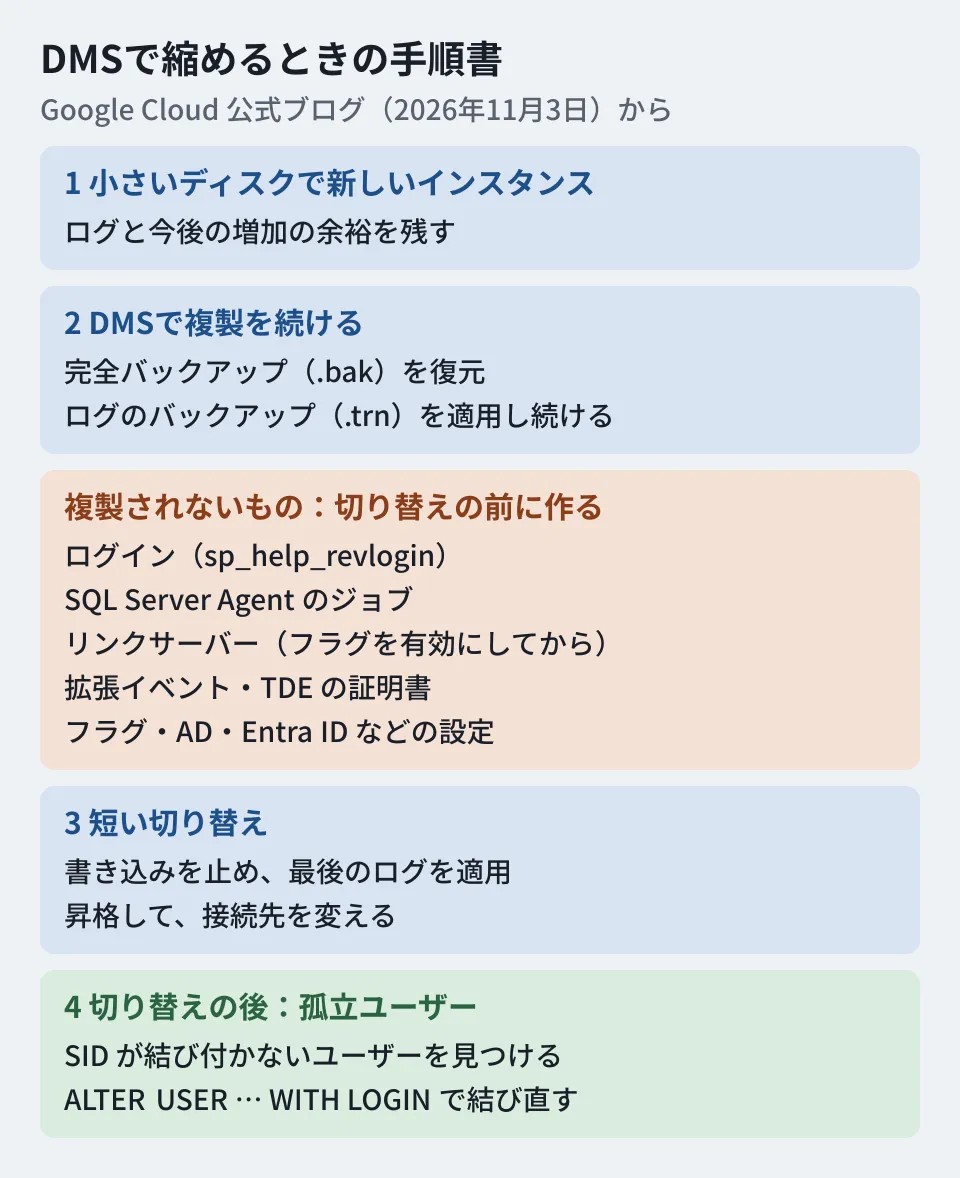
The blog explains that DMS replication works much like SQL Server log shipping.
- Take a full backup (.bak) of the selected user databases and restore it to the new instance
- Keep taking transaction log backups (.trn) and applying them to the new instance to keep it nearly in sync
The blog says replication is possible between Cloud SQL instances in the same project, in a different project, or in a different region. However, the cases the DMS migration guide lists are the same project and a different project. The guide says connection profiles, migration jobs, the destination database, and buckets should be placed in a single region. If you are moving to a different region, check this condition first.
Conditions and limits in the documentation
Using Cloud SQL for SQL Server as a migration source was announced as generally available (GA) in the May 22, 2026 DMS release notes. The DMS documentation includes conditions that the blog does not mention.
- gcloud CLI required: Source connection profiles and migration jobs can only be created with the Google Cloud CLI. You can view progress in the console
- PITR on the source: Enable point-in-time recovery (PITR) on the source to create transaction log backups. You also need to create a migration user and grant it permissions
- PITR on the destination: It cannot be enabled on the destination during the migration. Enable it after the migration finishes
- Number of databases: Backup-based migrations support up to 20 databases per migration job. Only one migration job can run on a single destination instance
- Backup bucket: Create a Cloud Storage bucket in the destination project. Because DMS does not delete the exported files, setting a retention period of 14 to 30 days is recommended. Automatically created backups are not encrypted
- Cost: For homogeneous migrations to Cloud SQL, there is no additional charge for DMS itself. Cloud SQL and Cloud Storage charges do apply
Create what does not carry over before the cutover
DMS replicates at the level of user databases, so anything outside them does not move automatically. The blog lists the following preparation.
- Logins: Export them from the original instance with
sp_help_revloginand recreate them on the new instance. In Cloud SQL, adding the database flagcloud sql enable sp_help_revlogininstalls this stored procedure (per the documentation) - SQL Server Agent jobs: Export them from SSMS Object Explorer via "Script [Object] as > CREATE To" and create them on the new instance. Check that job steps do not reference on-premises file paths or unsupported OS dependencies
- Linked servers: Export them the same way. Before creating them, enable the linked server database flag on the new instance. The blog writes
cloudsql.linked_servers, but the flag name in the Cloud SQL documentation iscloudsql enable linked servers - Extended events: Export them the same way
- TDE: If you use transparent data encryption, export the certificates from the original instance and import them into the new instance in advance
- Instance settings: Manually configure settings such as database flags, Active Directory, and Entra ID to match the original
- PolyBase: If you use it, re-encrypt the DMK (database master key) so that database-scoped credentials work
When deciding the disk size, the blog says to leave room for the transaction log and future growth. The blog does not give a specific amount. The standard shrink documentation recommends leaving about 100GB or at least 20% of current usage, whichever is larger, to allow for reindexing and similar work, and this can serve as a guide.
Orphaned users after the cutover
One thing to check after the cutover is "orphaned users": database users that are not tied to a server login and cannot authenticate. According to the blog, creating a login on the new instance gives it a security identifier (SID) different from the original. Users inside the database keep the original SID, so by default they become orphaned. Using sp_help_revlogin preserves the SID, but if you created logins another way, you need to relink them.
The blog shows how to find orphaned users with the following query from Microsoft's procedure and relink them with ALTER USER.
-- 孤立ユーザーを見つける(各ユーザーデータベースで実行)
SELECT dp.type_desc, dp.sid, dp.name AS user_name
FROM sys.database_principals AS dp
LEFT JOIN sys.server_principals AS sp ON dp.sid = sp.sid
WHERE sp.sid IS NULL AND dp.authentication_type_desc = 'INSTANCE';

-- 見つかったユーザーを新しいログインへ結び直す
ALTER USER [user_name] WITH LOGIN = [login_name];
Editorial proposal: what to put in your runbook
Based on the blog's procedure, we propose the following points to put in your runbook before you run it.
- Compare cost and downtime first. Set the difference in monthly storage cost after shrinking next to the downtime the standard shrink would require (the
get-storage-shrink-configestimate), and decide whether the effort of using DMS is worth it. With DMS, also add the cost of the new instance and bucket up to the cutover. For small disks or systems that can be stopped overnight, standard shrink may be enough - Build a list of server-level items from the original instance. List logins, jobs, linked servers, extended events, TDE, and flags, and check them one by one on the new instance
- Decide the cutover procedure and how to roll back. Write down, in order, the time to stop writes, confirmation that the final log has been applied, promotion, changing the connection target, checking for orphaned users, and enabling PITR on the new instance. Also decide the conditions for going back to the original instance if problems occur
- Review your automatic growth settings. If a temporary load is the reason you had to shrink, review the work procedure and staging location so that the same work does not grow the disk again
For another announcement about shortening database downtime, see also the article on AlloyDB hot standby. We covered precautions for automating changes to production databases in the article on the incident in which an AI agent deleted a production database.
Scope of verification
On November 3 and 6, 2026, we directly retrieved the Google Cloud official blog post "Beyond Migration: Using Database Migration Service for disk shrinking" (November 3, 2026) and checked the procedures, names, queries, and comparison table in the text against the original (document research). On November 6, we also checked the DMS and Cloud SQL documentation and release notes, as well as Microsoft's procedure for orphaned users. We have not been able to confirm whether replication to a different region is possible, or which source SQL Server versions are supported (the DMS support table does not list Cloud SQL as a source). We have not tested shrinking or migration on Cloud SQL, including whether the output of
sp_help_revlogincan be run on Cloud SQL.
For questions about operating business system databases or reviewing their costs, please contact us through consultation on development, AI, and automation.
References
- Beyond Migration: Using Database Migration Service for disk shrinking(Google Cloud Blog、2026-11-03)
- About storage shrink(Cloud SQL for SQL Server)
- Shrink instance storage capacity(Cloud SQL for SQL Server)
- Migrate from a Cloud SQL for SQL Server instance(Database Migration Service)
- Known limitations(Database Migration Service for SQL Server)
- Database Migration Service release notes
- Configure database flags(Cloud SQL for SQL Server)
- Troubleshoot orphaned users(Microsoft Learn)