"We don't want the client to see our internal structure yet, so I'll BCC you." Adding internal managers or other departments to client communications via BCC is a common practice.
Trouble arises the moment the BCC recipient hits "Reply all" on that message. Because the reply includes all original To and CC addresses, everyone on the thread learns that this person was following along. At the same time, their email address is disclosed to all participants.
BCC is the recipient status users are least conscious of. On inbox screens, you cannot tell whether you are on To, CC, or BCC without opening and expanding recipient details. Consequently, accidents where someone clicks "Reply all" while intending a simple "Reply" have happened repeatedly.
Pre-send warnings now stop you with a yellow banner
In July 2026, Google added Reply All BCC warnings to Gmail (Prevent accidental disclosures with new Reply All BCC warnings in Gmail — Google Workspace Updates).
When selecting "Reply all" on a thread received via BCC, an alert banner appears before the message is sent. The banner states, in effect: "You were included on the Bcc of this message. Replying to all will reveal to everyone that you were included."
From an administrative standpoint, two practical benefits stand out:
- No administrator setup required. It operates by default without adding settings in the Admin Console.
- Broad availability. It is active across all Google Workspace editions, Workspace Individual, and personal Google Accounts.
This means internal training can focus not on configuring Gmail, but solely on what actions to take when the banner appears.
How recipients can check whether they are on BCC
Even though warnings now appear, realizing your status before the banner triggers is safer. Knowing how to verify your recipient status allows you to make informed decisions before pressing reply.
In Gmail, recipient details appear collapsed. Clicking the expand icon below the sender reveals the To and Cc lines. If your address is missing here, you received it via BCC. While indicators like "me" or "bcc:" sometimes appear in recipient fields, display formats vary across devices and email clients, making checking for your own address in To and Cc the most reliable method.
Oversights happen most frequently under the following three conditions:
- Reading on smartphones. Constrained screens require an extra tap to expand recipient lists, leading people to reply without checking.
- Long email threads. Across extended exchanges, it becomes difficult to remember at which point you were added.
- Replying directly from push notifications. Messages can be replied to without ever viewing the full recipient interface.
These three scenarios are also precisely where this new warning acts as a final safety net. This makes communicating the banner's purpose across your organization well worth the effort.
The protection scope of this warning is narrower than you think
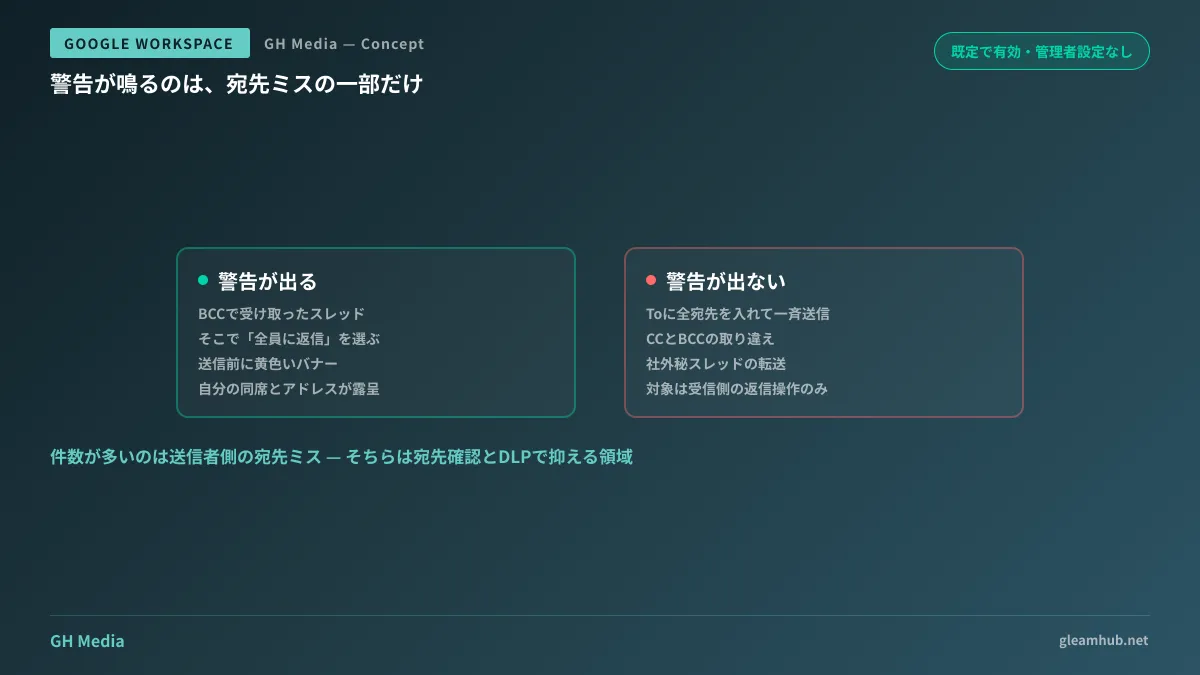
Misunderstanding this feature is hazardous, so let us draw clear boundaries. This warning triggers only when you are a BCC recipient and press Reply all.
| Status | New warning | Frequency in daily operations |
|---|---|---|
| Received on BCC and hit Reply all | Triggers | Medium |
| Mass blast sent with all recipients in To | Does not trigger | High |
| Sent with CC and BCC swapped | Does not trigger | High |
| Forwarding internal confidential threads externally | Does not trigger | Medium |
Incidents occur far more frequently among the bottom three rows. Sender addressing errors—such as putting 100 recipients into To instead of BCC—fall entirely outside this feature's scope. Addressing those requires address confirmation workflows and DLP, as discussed in Preventing Gmail Misdirection and External Data Leaks. To enforce restrictions organization-wide, configurations should be managed under Integrated DLP for Google Workspace.
Can we stop using BCC for internal sharing altogether?
While the addition of this warning represents progress, using BCC for internal sharing remains fundamentally fragile as an operating procedure, regardless of whether warnings exist. There are three reasons:
- Recipients cannot easily identify their standing. This warning is merely a temporary patch for that specific flaw.
- Actions cannot be audited afterward. Seeing who was BCC'd requires opening the sender's sent mailbox; if account ownership transfers, context disappears.
- Replies fork. If a BCC recipient clicks simple "Reply," the message reaches only the sender, fragmenting the thread.
If the goal is simply keeping internal stakeholders informed, alternative approaches are far more natural: addressing a Google Group to maintain a shared audit history, or logging context in documents stored on shared drives. Operational best practices for Gmail are compiled in Configuring Gmail for Business Excellence.
Experience shows that the moment you have stakeholders you must hide from external counterparties, email is usually the wrong tool to solve the problem. BCC is a mechanism for blind distribution, not internal collaboration.
What the IT team can do this week
Because this feature rolls out automatically, there is no implementation work. Instead, the IT team can take action on the following two points:
First, announce it internally. "Replying all to a BCC'd email triggers a warning. If you see it, verify whether you were on BCC." Sharing just this guideline reduces the chance that users dismiss the banner without reading. To an uninformed user, a warning looks like just another confirmation dialog.
Second, inventory business processes using mass BCC distribution. Check if customer notices are still distributed via Gmail BCC. If recipient counts exceed several dozen, migrating to a dedicated distribution system makes sense. For inbound safeguards, see also Inbound Security Settings for Gmail.
If structuring email workflows or DLP policies internally proves difficult, GleamHub offers assistance through free IT and Google Workspace consultations. Appropriate boundaries vary by organization size and counterparty profiles, so please consult us individually via our Contact Us page.