You go to share an estimate spreadsheet with a client, and the moment you enter their email address, a gray message appears: "This information can only be shared within your organization's Google Workspace apps." The recipient's address is correct, with no typos. Yet the share button cannot be clicked.
As inquiries to IT team help desks go, this ranks near the very top. And there are almost no cases where the inquiring user made an operational mistake. This message is shown to users when external sharing is closed in the Admin console. In other words, the cause lies on the administrator's side, and inspecting the user's device or browser will reveal nothing.
What complicates matters is that external sharing settings do not live in just one place. That is precisely why secondary inquiries arise, such as "I thought I turned external sharing on, but some people still cannot share."
There are four locations where sharing is locked down
Google Drive external sharing is governed by the following four layers. The entry point is "Apps → Google Workspace → Drive and Docs → Sharing settings" in the Admin console.
| Layer | Scope of control | Common settings |
|---|---|---|
| Entire organization | Default value under domain | Launched into operation left "Off" |
| Organizational unit (OU) | Overrides by department or employment type | Open only for sales, closed for part-time OU |
| Individual shared drives | Settings for that single drive | Allow external access only for project drives |
| Allowlist of trusted domains | Restricts sharing partners' domains | Register only client on-site locations and primary partners |
These four layers share one critical property: restrictions imposed in higher layers cannot be loosened in lower layers. If set to Off organization-wide, no matter how much you try to open it at the OU or shared drive level, files cannot be shared externally. Most inquiries claiming "I allowed it in the OU but still can't share" overlook this one-way street.
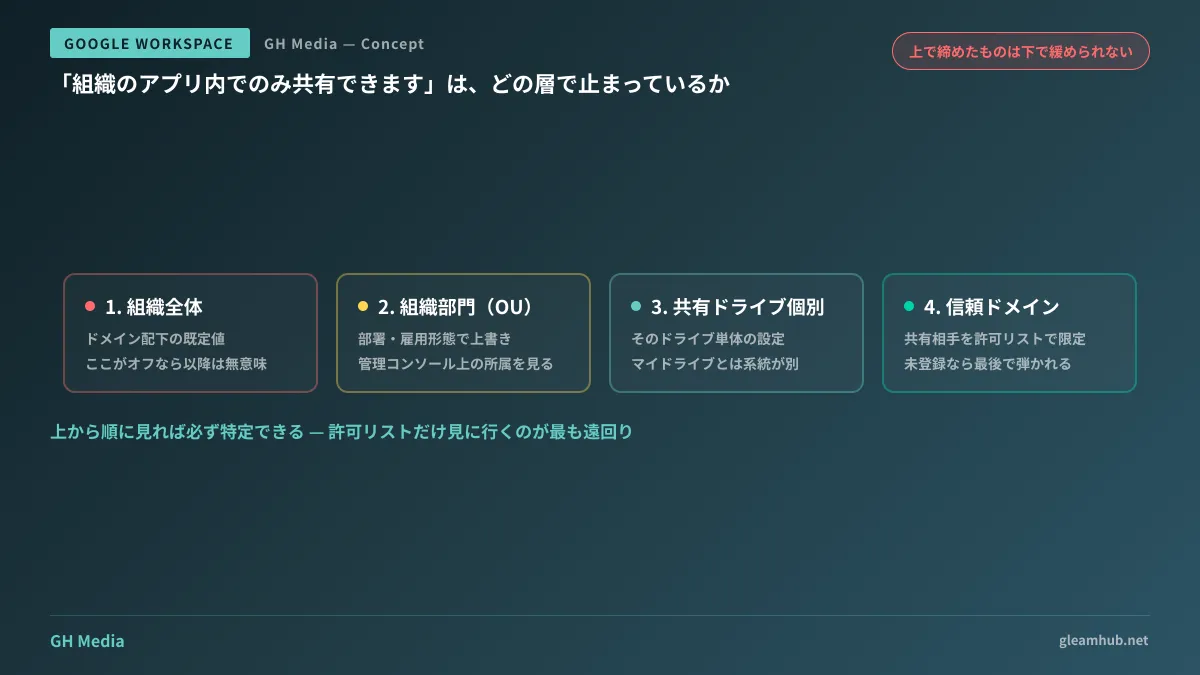
Checking from top to bottom will always pinpoint the cause
Isolating the cause finishes faster when you eliminate possibilities from top to bottom rather than guessing across layers.
- Check whether the file resides in My Drive or a shared drive. These two follow distinct setting hierarchies; mixing them up means you'll keep looking at the wrong layer
- Inspect the organization-wide sharing settings. If this is Off, looking at subsequent layers is pointless
- Identify the reporting user's OU and inspect its settings. Look at which OU they belong to in the Admin console, not their department on an organizational chart. In many organizations, this diverges from reality
- If the file is in a shared drive, inspect that specific shared drive's settings
- If using a trusted domain allowlist, verify whether the recipient's domain is listed
Only after reaching step 5 might you discover that "the recipient's domain was unregistered." Skipping earlier steps to check only the allowlist risks taking a detour, only to realize the entire organization was turned Off.
If OU assignments themselves are ambiguous, organizing those before touching sharing settings will save time overall. What resides where in the Admin console is compiled in Introduction to the Google Workspace Admin console.
How to open sharing without defaulting to "wide open"
Once the cause is identified, the worst mistake is turning On the entire organization to call it resolved. That creates a state where every employee can share with any domain, all for the sake of a single share request.
When opening access incrementally, the fundamental rule is to handle higher layers with greater caution.
- Use a trusted domain allowlist — When sharing partners are fixed, such as client on-site locations or key vendors, this is the tightest configuration. While registering each new partner takes effort, that friction effectively serves as an approval process
- Open access per shared drive — In organizations that spin up shared drives per project, permit external access only for that project's drive. Once the project concludes, it can be closed along with its settings
- Open access per OU — Open access only for departments whose core duties include external correspondence. However, because personnel transfers shift OUs, this becomes ineffective unless paired with regular OU audits
If the permission model of shared drives themselves (differences between Manager, Content Manager, and Contributor) is not organized, opening external sharing immediately leaks files beyond intended scopes. Reviewing Designing permission roles for shared drives beforehand reduces incidents.
Three easily overlooked discrepancies
First is confusing external sharing with guest accounts. As a solution for "sharing with partners," inviting them as guests is an alternative to opening external sharing. Because use cases and administrative overhead differ, comparing them in Google Workspace guest accounts before choosing reduces the need to tighten things down later.
Second is that link sharing and individual invitations are handled separately. Even if "Anyone with the link" is disabled, email-based invitations can still be permitted. The reverse is also true. When a user reports they "cannot share," failing to ask which action they attempted leads you to inspect the wrong place.
Third is that configuration changes apply to existing files as well. Turning on external sharing makes not only newly created files shareable, but existing ones too. "We'll manage operations carefully from now on" cannot retroactively protect data, meaning narrowing the scope is the only viable control when opening access.
Relying entirely on human vigilance to enforce boundaries between what can and cannot leave the organization has its limits. Systematic mechanisms to automatically scan message bodies and files for personal or confidential data are covered in Preventing Gmail data leaks with Google Workspace Integrated DLP.
What to do next
First, check how your company's organization-wide settings are currently configured: Is it left "Off with individual inquiries coming in only when needed," or is it "On with nobody watching"? These two may appear equally peaceful on the surface, but carry polar opposite risk profiles.
From there, identifying which departments actually handle external communications will naturally reveal whether boundaries should be drawn by OU or by shared drive.
If you wish to consult on sharing design tailored to your organization or restructuring your OUs, GleamHub offers free IT and Google Workspace consultations. Because appropriate partition models vary based on organizational size and partner count, please consult us individually. Reach out via Contact Us.
Sources
- Allow external sharing only with trusted domains — Google Workspace Admin Help
- Manage external sharing for your organization — Google Workspace Admin Help
- Three Ways to Restrict External Sharing on Shared Drives — G-gen Tech Blog
- Google Drive Sharing Settings Guide — rakumo
- Getting Started: Admin Guide to Drive Settings — Google Workspace