The week after applying settings to restrict external sharing, a report might come in stating that a former employee was able to open a three-year-old estimate from their smartphone. The Admin console settings were definitely updated. Yet, the file still opens. To the person who configured the settings, this is the most baffling scenario.
This is not a configuration mistake. Google Drive sharing settings apply to sharing actions performed going forward; they do not retroactively invalidate already issued links. In other words, "tightening settings" and "revoking access" are two separate tasks, and many organizations stop after doing only the former.
Tightening settings will not revoke already distributed links
When changing sharing settings in the Admin console, you need to differentiate what actually happens.
| Operation | Scope of effect | Scope not affected |
|---|---|---|
| Turn off external sharing across the entire organization | Future new sharing and adding new external collaborators | Files already set to "Anyone with the link" |
| Change default link sharing to "Restricted" | Initial state of files created in the future | Current sharing scope of existing files |
| Configure an allowlist of trusted domains | Destinations for future individual sharing | Accounts invited in the past |
All of these apply to the "future" and do not touch existing assets. Misunderstanding this distinction and reporting that countermeasures are complete creates the most dangerous situation. If you are uncertain about the setting hierarchy itself, review The four layers administrators must check when "Sharing outside the organization is blocked" appears first.
First, count "how many are out there"
Before starting revocation, measure the scale. If you skip this step and start locking down everything haphazardly, you will not be able to roll back when business operations grind to a halt.
How you count depends on your subscription plan.
- Inspect Drive log events. Filter and extract events where sharing visibility changed within a specific timeframe from the Admin console reports. You will get a list of "when, who, which file, and what visibility setting," allowing you to gauge the order of magnitude of the incident count
- Set up sharing notification rules in advance. By creating a reporting rule triggered by Drive log events, you can track new shares created while the audit is underway. If new links are being distributed while you are counting past ones, the task will never end
- Use the security investigation tool on higher-tier plans. You can search for files based on visibility settings and proceed directly to bulk actions. Since this is unavailable in Business Starter and Standard, it is safer to design procedures assuming it is absent
In environments where the investigation tool is unavailable, it is more realistic to designate by department "where files allowed for external sharing may reside" and eliminate unauthorized shares everywhere else first. Trying to inspect every single file is an endless task.
If you feel uncertain about interpreting logs, Tracking "who did what on which device" with Google Workspace audit logs serves as a helpful starting point.
Dividing revocation into three types prevents roadblocks
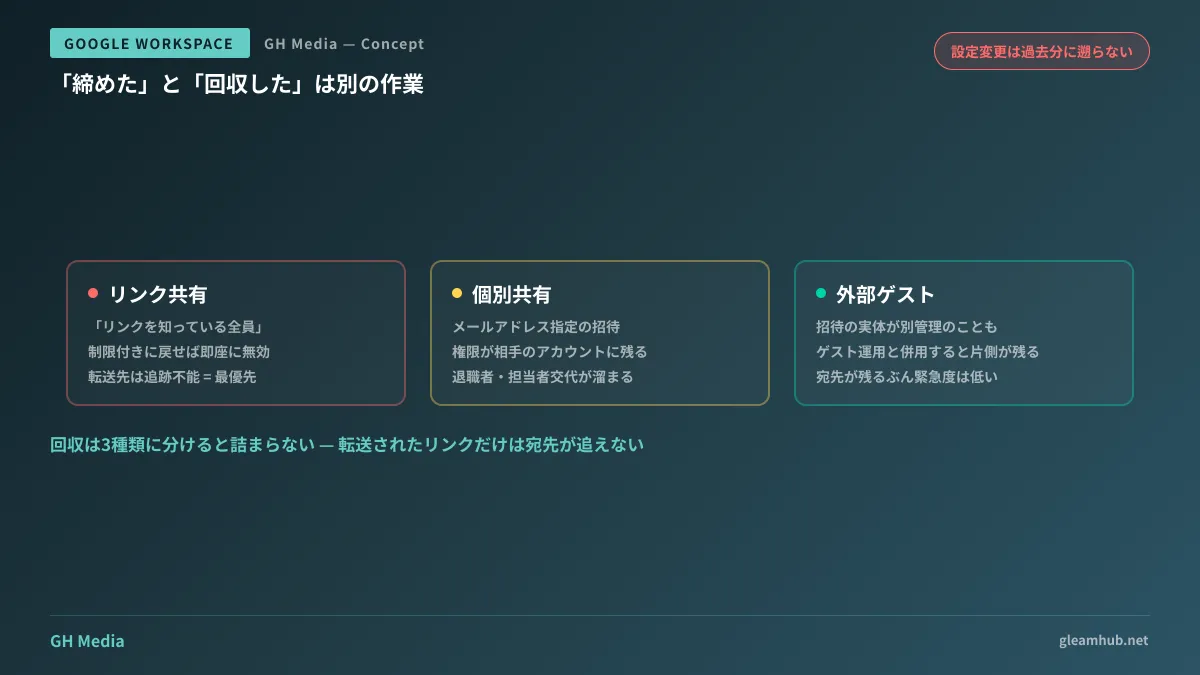
Even though we broadly say "shared," revocation procedures differ completely depending on the sharing type. Mixing them together will inevitably cause items to be missed.
- Link sharing ("Anyone with the link") — Reverting the visibility to "Restricted" immediately kills the link. While this is the most definitive form of revocation, the troublesome part is that links circulating internally will stop working at the same time
- Individual sharing (invitations by specific email address) — Permissions are tied to the recipient's account. You revoke access per file or remove them via member management in Shared Drives. Offboarded employees and changed vendor personnel accumulate here
- External guests and non-Google account recipients — The actual identity of an invitation may be managed separately. If you use guest accounts operationally, you must inspect them alongside management methods in Google Workspace guest accounts; otherwise, one side will remain active
Among these, the first type is most likely to lead to incidents. Because links cannot be tracked once forwarded, there is no way to identify after the fact who received them. Conversely, because the second and third types retain recipient records, their urgency is one level lower. Prioritize based on this nature.
What breaks when you tighten everything in bulk
Reverting the sharing scope to "Restricted" in bulk comes with predictable side effects. If you do not anticipate them in advance, work will stall the following morning due to incoming support inquiries.
Links distributed for internal use will stop working simultaneously. Manuals, request form templates, and links posted on internal portals will break. If they were operated under "Anyone in this organization" instead of "Anyone with the link," they will be unaffected; however, in organizations that set permissions without distinction, both end up in the same state. Before locking them down, you need to segregate locations for files intended for internal distribution.
Ongoing projects with business partners will stall. If an active project is underway with shared links to estimates, specifications, or deliverables, the counterparty will suddenly be unable to open them the moment restrictions are applied. Organizations that create separate Shared Drives per project can estimate the scope of impact, but if individual users store files in My Drive, predicting it becomes impossible. This architectural difference is discussed in How to integrate My Drive and Shared Drives.
Embeds will break. If Google Slides or Sheets are embedded in websites or internal wikis, changing their sharing permissions will cause them to stop rendering. You will avoid conflict by treating files for embedding separately and explicitly excluding them from the audit scope.
In short, bulk operations cannot be used until you have narrowed the scope. Pushing a button for an organization-wide bulk change is an option only for organizations that have cleanly separated storage for internal distribution from project files.
Do not try to finish it all in one go
The reason audits do not end as a one-time effort is that the act of sharing files is part of daily business operations. If you design the process as an annual spring cleaning, links will start accumulating again the very next week.
A realistic approach is a two-pronged strategy for revocation: eliminate past shares over defined time windows, while catching future ones using default settings and alerts. Setting the default to "Restricted" ensures logs are generated only when users intentionally expand permissions, reducing monitoring targets to a fraction of the original volume. Relying on system configurations rather than human vigilance shares the same philosophy as Stopping Gmail data leaks with Google Workspace unified DLP.
What to do next
First, count how many events changed visibility to "Anyone with the link" on your company's Drive over the past year. If the count is three digits, it is an operational rule issue; if it is single digits, it is an individual handling issue—and the countermeasures differ entirely. If you attempt revocation before counting, you cannot make this determination.
Next, verify whether the storage location for internal distribution files is separated from project files. If it is not, separating them before starting revocation will ultimately allow you to finish faster.
If you would like consultation on Shared Drive segmentation or designing the scope of audits, GleamHub offers free IT and Google Workspace consultations. Because available tools vary based on organizational scale and subscription plans, please consult with us individually via Contact Us.
Sources
- Manage external sharing for your organization — Google Workspace Admin Help
- Allow external sharing only with trusted domains — Google Workspace Admin Help
- How access to files in shared drives works — Google Workspace Learning Center
- Three Ways to Restrict External Sharing on Shared Drives — G-gen Tech Blog
- Google Drive Sharing Settings Guide — rakumo