A phone call comes in from a client: "Did you have a chance to review the invoice we sent last week?" When the person in charge looks for it, it was sitting in the spam folder. They click "Report not spam" right then, and the matter seems settled. However, the following month, an email from the exact same person at the same client lands in spam once again.
Companies experiencing this recurring loop are not rare. And in many cases, the chosen countermeasure is to "add the client's domain to the allowlist." While this works, it simultaneously allows spoofed emails pretending to be that client to pass straight through.
Understanding where the filtering takes place changes the actions you take.
There are places where an individual's "Report not spam" has no effect
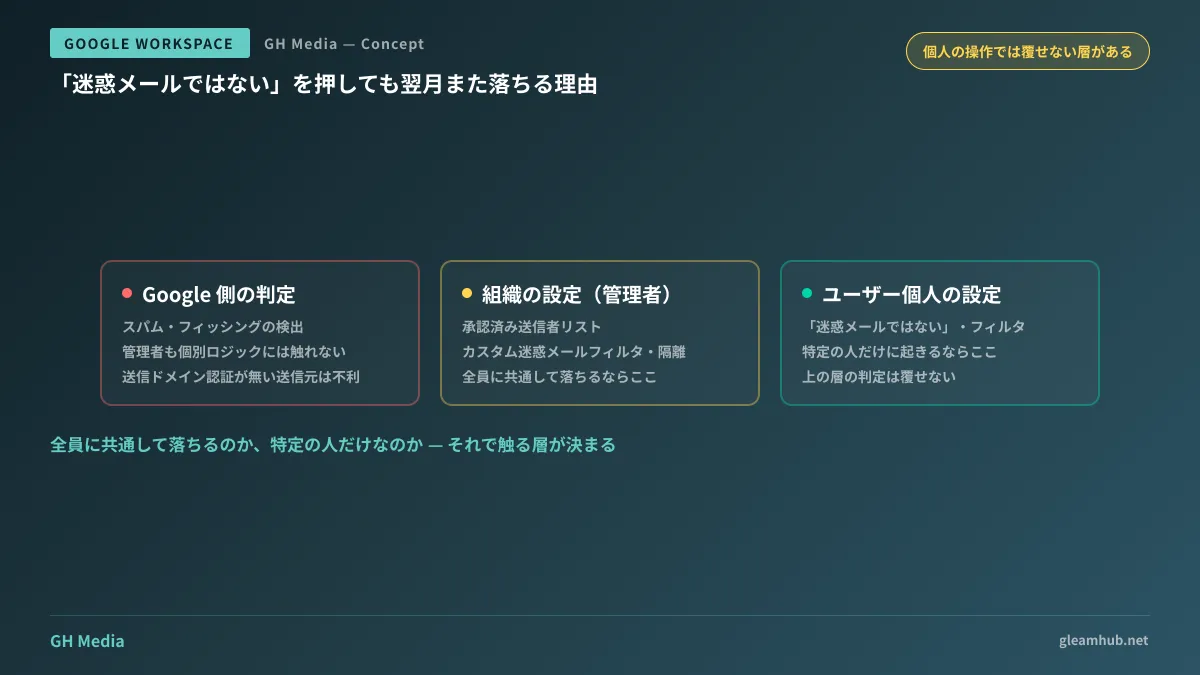
Gmail's spam filtering is not determined solely by individual user learning. There are at least three layers through which organizational email passes in Google Workspace:
- Google-side filtering — Spam, phishing, and malware detection. Even administrators cannot modify the underlying logic
- Organization settings — Rules configured by administrators in the Admin Console. Approved sender lists and custom spam filters reside here
- Individual user settings — Filters, blocks, and spam reports in the Gmail interface
The "Report not spam" button clicked by users belongs to the third layer. If routing to spam is decided within the first two layers, actions taken in the third layer cannot override it. If emails from the same sender drop into spam month after month, it is quicker to assume the judgment is occurring in the higher layers rather than in individual learning.
Conversely, if the behavior varies by user (e.g., it arrives for Person A but not Person B), the likelihood increases that the cause lies in the third layer. Is it failing universally for everyone, or only for specific people? Performing this isolation first determines which settings to adjust.
There are four areas administrators can configure
In the Admin Console's Gmail settings, there are several areas that change how spam is handled. Since their roles differ, mixing them up leads to incidents.
| Configuration | What it does | Best-Suited Scenarios |
|---|---|---|
| Approved sender list | Exempt specified addresses and domains from spam filtering | Specific clients with ongoing false positives |
| Custom spam filter | Adjust filtering sensitivity by organizational unit or department | When circumstances differ by department |
| Quarantine | Hold matching emails for administrator review instead of delivering them | External attachments or specific domains |
| Blocklist | Reject or send specified senders to spam | When stopping unwanted senders |
The first one is what teams use initially in practice. Google's help documentation also explicitly states that emails on the approved sender list continue to receive virus and spam protection itself. It merely shifts the filtering weighting; it does not leave you defenseless.
Even so, the following issue remains.
"Allowlisting the client's entire domain" is the most dangerous
Because emails from torihikisaki.co.jp consistently drop into spam, you add the entire domain to the approved sender list. This is a quick and commonly practiced countermeasure.
The problem is that the sender field of an email can be easily spoofed. An email sent by an attacker claiming to be torihikisaki.co.jp will satisfy the allowlist conditions. Invoice forgery masquerading as a client (known as business email compromise) uses precisely the names of parties with whom you frequently do business. An allowlist can turn into an action that lowers defenses on your most targeted route.
This is where email authentication comes into play. SPF, DKIM, and DMARC are mechanisms to verify whether an email was truly sent from that domain, allowing you to set conditions so that only emails passing authentication qualify for the allowlist. Google Workspace's approved sender list also includes an option to target only authenticated senders. If you allowlist a domain, make sure to apply this condition. The authentication mechanisms themselves are summarized in Causes of undelivered emails and DMARC.
Another realistic problem is cases where the client has not configured email authentication. In this scenario, allowlisting with authentication conditions will not function. While it may feel awkward to inform them that the cause of the drop is a configuration deficiency on their end, leaving it unaddressed means they will continue sending emails in the same broken state to other companies as well. Informing them once—"Emails from your company are being marked as spam on our end, and SPF settings appear to be missing"—leads to a faster resolution for both parties.
Turning "disappeared" into "on hold"
What makes false positives dangerous is that no one realizes the email was never delivered. Unless you proactively search it, the spam folder might as well not exist.
Using quarantine changes this dynamic. Matching emails are not delivered to recipients, accumulating instead as pending items awaiting administrator review. The administrator inspects the content and can choose to deliver if safe or delete if dangerous. The fundamental difference is that "disappearing unnoticed" turns into "held until someone makes a decision."
It is not a panacea. Because it creates work for the reviewer, broadening the scope too much will make it unsustainable. In practice, it is realistic to use it restricted to conditions with predictable volumes, such as "executable attachments arriving from outside" or "specific domains that had issues in the past."
Isolate the cause only after checking the logs
Before touching any settings, verify one basic fact: Did that email actually reach Google?
Using Email Log Search in the Admin Console, you can search for the relevant email using the sender address or subject line. This primarily reveals three possibilities:
- Not present in logs — It never reached Google. The sender did not send it, it stalled on the sender's end, or the recipient address was incorrect. No matter how much you adjust your own spam settings, it will not fix it
- Present in logs and sent to spam folder — This is a filtering issue. This is where the approved sender list comes in
- Present in logs and delivered to inbox — It was delivered. Likely diverted by an individual user filter or moved to another folder
If you skip this and jump straight into changing settings, you will run out of options when the cause was not on the receiving side. Since emails can also be halted due to sender-side limits or delivery routes, be sure to also check Gmail sending limits when receiving inquiries about outgoing emails failing to reach their destination.
What to do next
First, write down just three cases where an email was reported as not delivered. Who was it addressed to, was it universal or only for specific individuals, and was the sender domain the same? A pattern often emerges from these three cases; if not, you can proceed to Email Log Search before making blind guesses in your settings.
On top of that, review the domains already registered in your approved sender list. You may find companies you no longer do business with, added years ago as a temporary fix. If there are entries without authentication conditions attached, that is the first place to fix.
At GleamHub, we assist with Google Workspace administration settings, email environment reviews, and phishing countermeasure design through our free IT and Google Workspace consultations. Since the procedure varies depending on organization size and current configurations, please reach out for an individual consultation via Contact Us.
Sources
- Spam management options — Google Workspace Admin Help
- Create custom spam filters in Gmail — Google Workspace Admin Help
- Block email from specific senders or domains — Google Workspace Admin Help
- Track email delivery with Email Log Search — Google Workspace Admin Help
- Authenticate email with SPF, DKIM, and DMARC — Google Workspace Admin Help