While sending year-end business hours notices to clients, errors suddenly appeared midway through, preventing further sending. By the next morning, sending worked as if nothing had happened. The number of messages you recall sending was, at most, a few dozen.
If you treat this symptom as a "Gmail glitch," you will never get to the root cause. That is because Gmail sending limits are calculated by the total recipient count, not the number of emails sent. A single email with 300 BCC recipients counts as 300, not 1. When team members who think they have only sent a few dozen emails hit the limit, it is because they are sending bulk messages without knowing how recipients are counted.
And the trouble is that it is not just that one person who gets blocked. If they were sending from a shared account, outbound emails from that account will halt across the entire business.
What is counted is recipients, not email volume
The main limits for Google Workspace accounts published by Google are as follows:
| Item | Limit |
|---|---|
| Messages you can send per day | 2,000 messages (500 messages for free Gmail and trial accounts) |
| Recipients per message (total of To, Cc, and Bcc) | 2,000 recipients |
| Unique recipients per day | 3,000 recipients |
| Mail merge (Gmail mail merge feature) | 1,500 recipients per day |
Separate limits apply to external domain recipients and automatic forwarding, and these figures may be revised. If you use them as the basis for your operations, please check the table in Gmail Help listed under Sources at the bottom for the latest values.
What is critical is the relationship between the second and third rows. Three hundred recipients in BCC stack up toward your daily recipient count as "300 recipients," not "1 email." Sending four batches of announcements amounts to 1,200 recipients. Routine day-to-day business emails are added on top of this, causing the user's perception of having sent "around 50 emails today" to diverge from the system's actual count by two orders of magnitude.
Once the limit is reached, outbound sending from that account is temporarily blocked. While lifting the restriction is automatic, you cannot even send ordinary reply emails in the meantime. The real issue when hitting the limit is not that mass mailings stop, but that your sales team's entire workday grinds to a halt.
Route emails based on recipient nature
The solution is not to "raise the limit." Because Gmail is designed for one-to-one communication, continuing to funnel bulk distributions through Gmail will inevitably hit a wall somewhere as your scale expands. The practical solution is to divide sending channels according to the nature of the recipients.
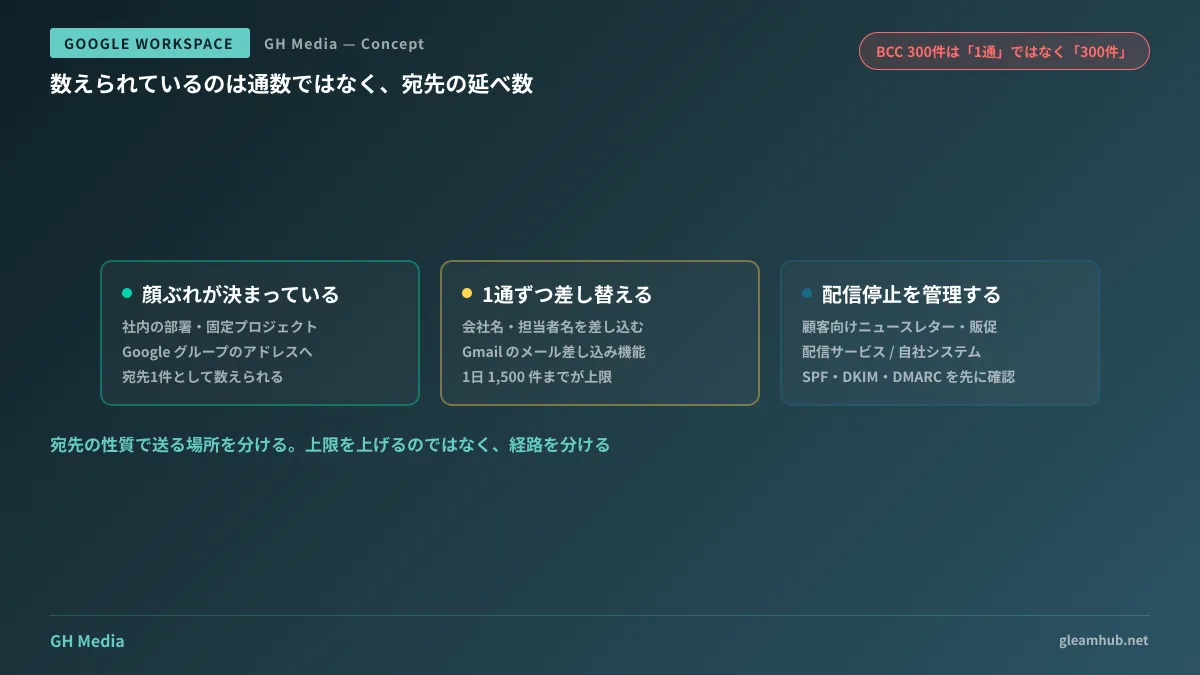
The decision comes down to the following three questions:
- Are the recipients "members" or a "list"? If the roster is fixed, such as an internal department or an established project, send to a Google Groups address. Because it counts as a single recipient, limit issues disappear, and updating recipients during personnel changes is handled entirely on the group side. The setup procedure is summarized in Creating and Choosing Group Addresses.
- Do you need to customize each email individually? If you need to insert company names or contact names, you can use Gmail's mail merge feature, but the limit is 1,500 recipients per day. If you routinely send to several thousand recipients, it exceeds the scope of this feature.
- Do you need to track unsubscribes, opens, and delivery rates? For customer newsletters and promotional campaigns, handling unsubscribes and managing deliverability are practically essential. This use case is outside Gmail's intended purpose, making it a prerequisite to migrate to an email marketing service or outbound sending from your own systems.
Companies that continue using Gmail for the third scenario run into another issue long before hitting sending limits. When handling unsubscribe requests via email and manually removing contacts, omissions will inevitably happen, leading to customer complaints.
Preventing migrated emails from turning into "undelivered"
Moving your sender source outside Gmail introduces a whole new issue: spam classification. That is because emails that previously originated from Google IPs will now originate from another provider's IPs claiming to represent your company's domain.
Before migrating, always verify that your SPF, DKIM, and DMARC records include the new sending source. If you skip this step, emails will land in recipients' spam folders despite successful dispatch, taking weeks to diagnose. The concepts behind authentication settings are outlined in SPF, DKIM, and DMARC Setup for SMEs.
When sending from internal systems, using Google Workspace's SMTP relay service is another option. However, this is not a "workaround to bypass Gmail limits," but a dedicated route for sending operational system notification emails under your own domain. The relay is also subject to its own separate limits.
The admin console reveals why sending halted
When administrators receive a report that "an email could not be sent," the first place to look is the Email Log Search under Reports in the admin console. Filtering by sender and time window lets you verify individually whether each message was delivered, rejected, or blocked due to limits.
If you reply with "it is probably the limit" without checking here, you will be unable to take action when the actual cause is a recipient-side block. In particular, if delivery fails to only one specific company, the cause is the other party's spam filter, not your limit. Limits apply across the entire sender account and never discriminate by specific recipients. This single diagnosis drastically cuts troubleshooting time.
What to do next
First, identify the accounts sending bulk emails. In many companies, addresses like info@ or personal accounts of sales representatives are used. Listing what stops when that account gets blocked will clarify your priorities.
Next, divide your destination lists into three categories: "members," "business partners requiring merges," and "customer broadcasts." Once classified, the proper destination channel is determined by the criteria above. Jumping straight into comparing email marketing services without classifying will result in spending money on distributions that could have been handled with Google Groups.
GleamHub provides support for email routing architecture, Google Workspace administrative configuration, and outbound email implementation from business systems through our free IT and Google Workspace consultations. Because the approach varies based on sending volume and current configuration, please reach out for personalized guidance. Get started via Contact Us.