On a Monday morning, you open your calendar to find unfamiliar events scheduled. You have no memory of opening an invitation email, let alone accepting one. Yet there they sit in your schedule, and your phone even sounds a reminder ten minutes before they begin.
This is not a glitch. By default in Google Calendar, events are added the moment an invitation arrives, without requiring any action from the recipient.
The trouble is that this behavior serves directly as a delivery channel for phishing. While email phishing requires recipients to open the message body, calendar invitations appear on the schedule automatically and trigger reminders before start times. Because URLs placed in event descriptions appear as events already on your own schedule, users do not apply the same level of suspicion as they would to emails.
Starting August 14, 2026, a phased rollout began for a new setting allowing administrators to govern "how invitations are added" on an organizational unit basis.
Users originally had three choices
As background, this setting has existed in individual user calendar preferences for some time. There are three options to choose from.
| Configuration | Invitations automatically added to schedule | What is blocked |
|---|---|---|
| From everyone | Everything received | None (default) |
| Only from known senders | From contacts, people in the same organization, or past correspondents | Invitations from people contacted for the first time |
| Only invitations replied to via email | Only invitations the user has replied to via email | All invitations without a reply action |
The default is "From everyone." In other words, any organization that has configured nothing is operating with everyone on the most permissive setting.
The determination of "Only from known senders" is based on address book contacts, membership in the same organization, and whether prior communication exists. Keep this in mind, as it becomes significant later.
Note that this setting does not remove suspicious events that have already been added to calendars. Reporting an event as spam deletes it from the calendar. Changing the setting alters how future incoming invitations are handled and does not apply retroactively.
In August 2026, administrators gained the ability to define allowed options
What is new is administrative control. From calendar settings in the Admin console, administrators can specify defaults and the available selection of options for users by organizational unit (OU) or group.
The latter capability is what matters most. While changing defaults was conceivable before, administrators can now restrict users from choosing "From everyone." For instance, you can configure policy so that "From everyone" is removed from options, leaving users to choose only between "Only from known senders" and "Only invitations replied to."
If administrators do not alter the default, organizational values remain "From everyone." Due to the gradual rollout, it may take up to roughly 15 days for the setting to appear in the Admin console.
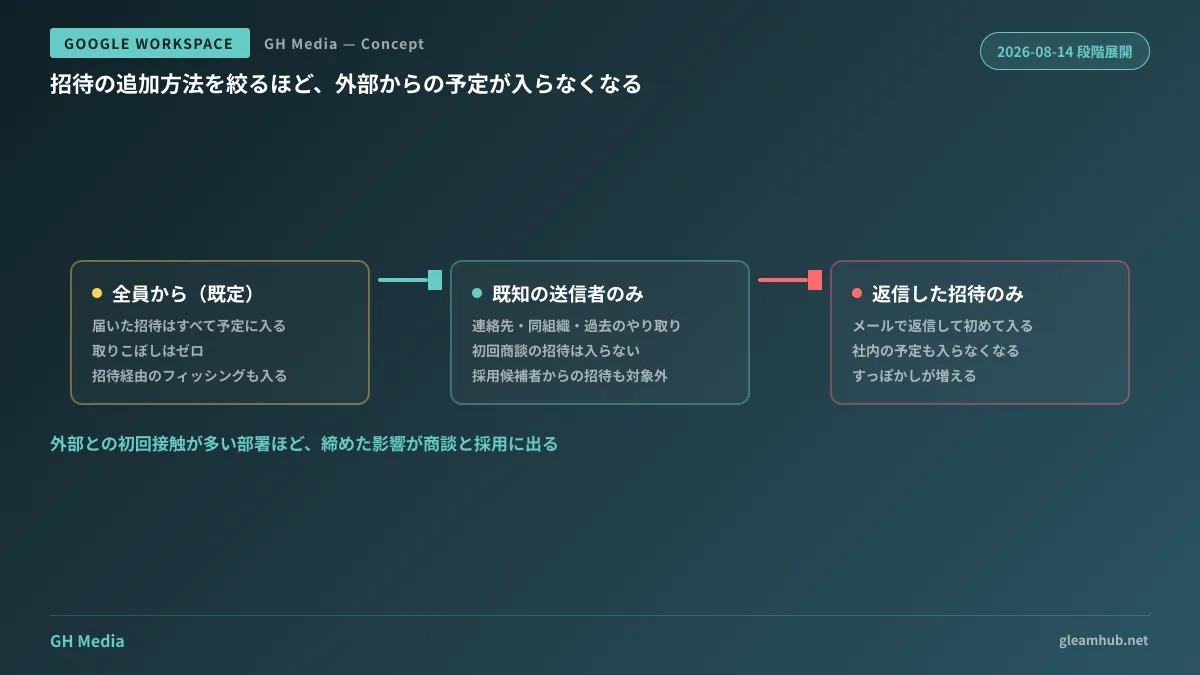
The strictest setting eliminates invites for initial sales meetings
This is where operational realities diverge. From a pure security perspective, moving the entire company to "Only from known senders" might seem like the correct answer. In practice, doing so breaks sales and recruiting.
First-time contacts do not qualify under the definition of "known." Invitations from senders not in contacts, outside the organization, and with no message history are all rejected by definition. Specifically, this includes the following:
- Initial sales meeting invitations — Cases where a counterpart company schedules a meeting and sends an invite. These will not appear on your team's calendar
- Invitations from job interview candidates — When applicants reserve slots using scheduling tools
- Invitations sent through external scheduling tools — Meetings confirmed via booking links may send invitations from the tool's address
- Automated emails from webinars and trade shows — Invitations sent upon completing registration
Furthermore, the failure mode is the worst possible. Because the invitation email itself lands in the inbox, senders have no way of knowing it did not make it onto the calendar. Recipients see nothing on their calendar and remain unaware until the day of the meeting. Without either party realizing anything is wrong, one person ends up waiting alone in a conference room on the scheduled day.
"Only invitations replied to" is even more restrictive: unless users build a habit of opening invitation emails and actively replying, even internal company meetings will stop appearing automatically.
Separating by department is the pragmatic solution
The fact that this can be specified per OU or group is most naturally read as guidance not to enforce a uniform company-wide rule.
For departments whose core work involves initial external contacts—sales, recruiting, PR, and customer support—leave "From everyone" in place, or at least allow users to choose it. For departments that rarely receive external invitations—administration, manufacturing, or internal software development—set "Only from known senders" as the default. This division reduces exposure to phishing while avoiding the risk of dropping business meetings.
Because it can also be applied per group, you can configure individual exceptions for cross-departmental staff or members concurrently assigned to external projects.
For departments where rules are tightened, distribute one accompanying notice: invitation emails still arrive in the inbox. Because they simply do not appear on the calendar automatically, users can add them manually from the email. Without this clarification, the IT team will be flooded with inquiries reporting that meetings are missing.
Touching only this setting does not establish complete calendar governance. Who can see event details and to what extent is covered in Combining Event Visibility and Sharing Permissions, while preventing sensitive data in event titles and descriptions is discussed in Protecting Calendar Details with Calendar DLP. Restricting invitation entry is just one layer among them.
What to do next
After checking whether this setting has appeared in your Admin console, first ask your sales and recruiting teams whether it is acceptable for initial meeting invitations to stop appearing automatically. Rather than technical possibilities, the answer to that single question should determine your setup.
Then, separate departments with heavy external interaction from those without using OUs or groups. The moment you enforce a blanket company-wide rule, one side will suffer.
If you would like to review organizational unit structures or overhaul your calendar settings comprehensively, we assist with this through GleamHub's free IT and Google Workspace consultations. Because appropriate boundaries depend on your industry and volume of external communications, please consult with us individually. Reach out via Contact Us.
Sources
- New admin controls for adding invitations to Google Calendar — Google Workspace Updates
- Google Calendar Adds New Setting for Admins to Control How Invitations Are Added — HelenTech
- Manage Invitations in Calendar — Google Calendar Help
- Report Inappropriate Invitations or Events in Calendar — Google Calendar Help