A sales representative receives seminar invitations three times a week from an unfamiliar sender. Even when deleted, new invites arrive from the same sender the following week. Deleting merely removes that specific event; it does not stop the person sending them.
For this issue where deletion was long the only resort, Google Calendar added a direct remedy in August 2026: simply open the invitation and select "Block" from the three-dot menu in the upper-right corner.
While straightforward to execute, its effects extend beyond Calendar. Issuing guidance to employees without understanding this will later spark complaints that emails from a given company have stopped arriving.
What happens when you block someone
Two things occur the moment you block a sender.
First, existing events and invitations from that sender are deleted from your calendar, eliminating the need to delete each item manually.
Second, new invitations from that sender will no longer arrive, achieving the primary objective.
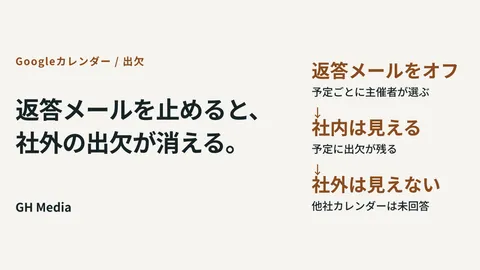
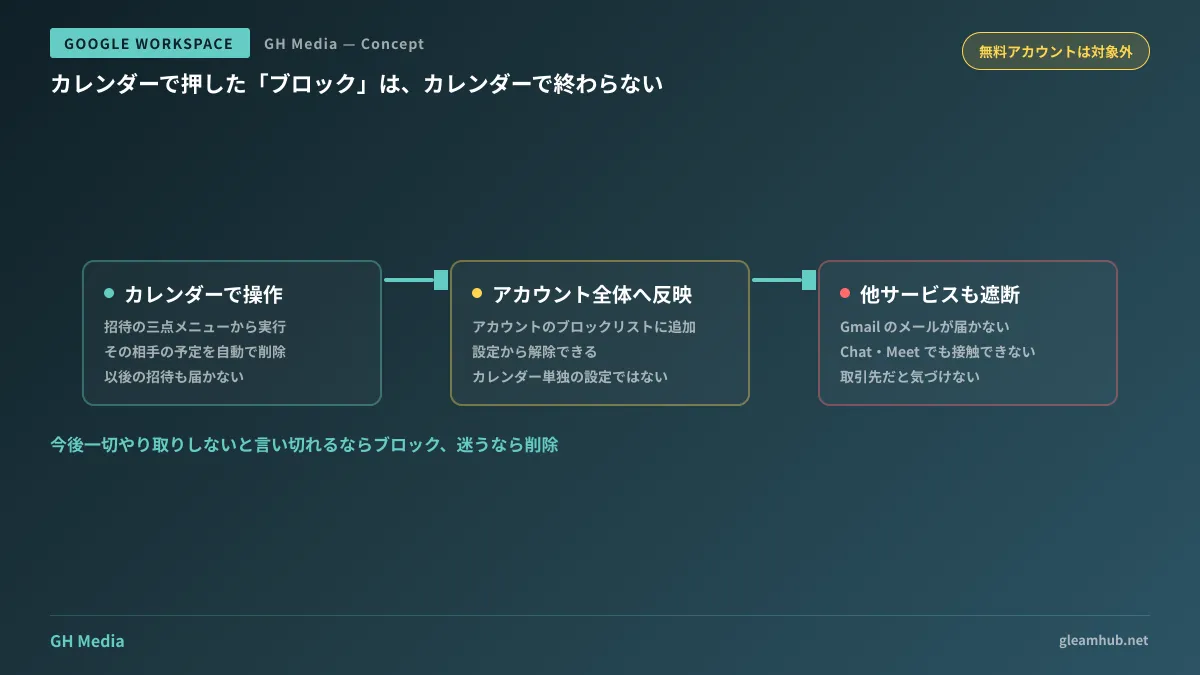
The complication lies in a third consequence: blocking within Calendar adds the sender to your account-wide block list. Consequently, that same person can no longer contact you via Gmail, Google Chat, or Google Meet. It does not stop at the Calendar settings page.
In business, the issue is not another person from the same domain, but the exact same person
Let us look specifically at how this side effect manifests in day-to-day operations.
Suppose a contact at a client company sends a bulk invite to an internal company event. Since the invite itself is unnecessary, your sales rep blocks them. A few weeks later, an email requesting a quote arrives from that same contact. Except it doesn't. Because they are on the blocklist.
The sender assumes, "I sent an email, but got no reply," while the recipient responds, "No such email ever came." Neither side is lying, so it takes time to track down the root cause.
In short, blocking should be limited strictly to cases where you can say with certainty that you will never communicate with that person again. Depending on your industry, there is a very real possibility that someone sending nuisance invites is also a business partner. Spoofed invites are another matter, and in those cases, blocking is the correct response. However, because sender display names can be forged, you also need to confirm separately whether your organization has a mechanism in place to verify sender authenticity.
The one line to share with employees
If the IT team is announcing this, providing the decision criteria in a single line is far more practical than explaining the feature mechanics first.
If you are certain you will never communicate with that person again, block them; if in doubt, just delete.
This alone prevents the vast majority of mishaps. People will not remember a detailed technical explanation, but this single line sticks.
Beyond that, be sure to clearly state where to unblock someone. They can be removed from the blocklist inside Google Account settings. Informing users upfront that "if you make a mistake, you can undo it" encourages them to actually use it when necessary. Conversely, announcing it without explaining how to undo it results in either no one using it or blocks being left in place permanently.
Treat it as distinct from organization-wide measures
Blocking is an individual user action. It operates on a completely different layer than determining an organization-level policy for handling invitations.
On the administrative side, there are separate organizational-unit settings to control how invitations are added to calendars. These enforce company-wide policies, such as "do not automatically add invitations from unknown senders." However, if you tighten them too much, you will even miss meeting invitations from prospective clients you have never met before.
The two approaches should be divided as follows:
- Organizational settings — Company-wide common policy. Used when you want to curtail indiscriminate broadcast invites across the board
- Individual blocking — Targeted action for specific parties. Organizational settings are kept flexible, allowing affected individuals to protect themselves
In small and medium-sized businesses, prioritizing the latter makes operations run much smoother. Tightening organizational settings inevitably triggers complaints from sales departments. A realistic approach is to tighten policies not company-wide, but only for departments that have no need to receive unsolicited invitations.
Not available on free accounts
There is one more point to check before making an announcement. This feature is intended for Google Workspace subscribers and Workspace Individual users; it cannot be used with free Google accounts.
If your company has contractors or partners participating with personal free accounts, they will not be able to perform these steps even if given the same guidance. In that case, use blocking on the Gmail side as an alternative. Blocking in Gmail stops all incoming emails from that sender, so be sure to communicate that it has a broader impact than Calendar.
Additionally, invitations sent from services other than Google Calendar originate as emails, so they must be handled on the Gmail side. This applies when a client uses Microsoft 365. For companies that have established clear practices for using Gmail labels versus filters, taking the middle ground of automatically archiving with filters rather than blocking is also an option.
What to do next
First, ask whether anyone in your company is repeatedly receiving invites from the same sender. If there is no one, there is no need to make an immediate company-wide announcement. Sending company-wide notifications every time a new feature is added only leads to people ignoring them.
If someone is affected, simply give them that single line above: "If you will never communicate again, block; if in doubt, just delete." Adding a link to unblocking instructions makes this notice fully sufficient.
GleamHub offers free IT and Google Workspace consultations covering Google Workspace configuration policies, department-specific access controls, and operational rule design for employees. Because the optimal setup varies based on organizational structure and partner communication workflows, please contact us for tailored advice via our contact form.
Sources
- Managing unsolicited event invitations with user blocking in Google Calendar — Google Workspace Updates
- Google Calendar will finally let you block other users — Android Authority
- Block calendar spam — Google Calendar Help
- You Can Now Block Annoying People From Spamming Your Google Calendar — Android Headlines