You type a product code into an order entry screen. Feeling uncertain whether it is correct, you switch to the inventory list in another tab to check. Then you come back and resume typing. This round trip happens dozens of times a day, and transcription errors almost always occur at the moment of switching.
End users ask, "Can we place two screens side by side?" and the IT team replies, "Then please open two browser windows." However, business applications are typically designed to operate self-contained within a single tab, so opening two identical screens often causes session conflicts or prevents changes in one from reflecting in the other.
Standard browser mechanisms have finally matured to satisfy this need to "keep just a small portion constantly visible."
No longer just a feature for video
Picture-in-picture is widely known as a feature that keeps video playing in a small floating window. The Document Picture-in-Picture API enables this window to display arbitrary HTML instead of video.
Its capabilities are straightforward:
- Opens a separate window that remains always on top
- Renders custom HTML, CSS, and JavaScript inside it
- Updates its contents dynamically from the original page
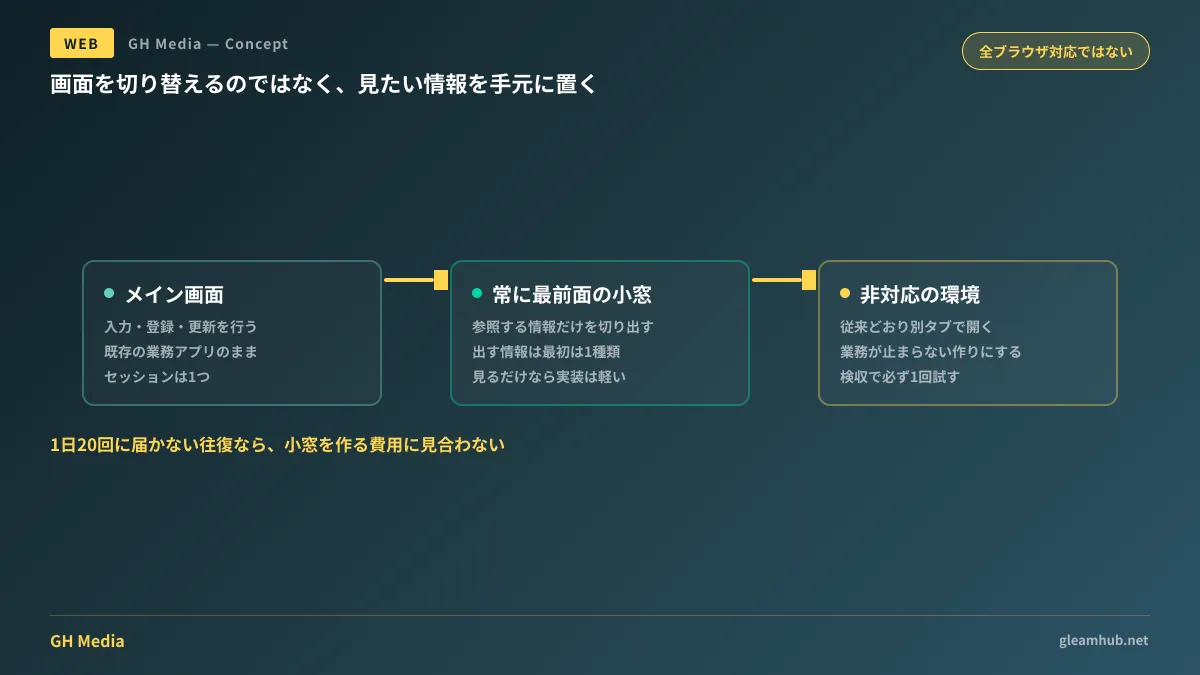
In other words, you can extract just the inventory table and place it in an always-visible floating window. Even if you minimize the browser or switch to another application, that floating window stays in view. It is a paradigm shift: rather than switching screens, you keep the necessary information close at hand.
Implementation in Firefox 151 has expanded browser support beyond Chrome and Edge. However, as discussed below, support is not yet universal across all browsers.
Where business apps benefit: separating reference and data entry
Adding floating windows to every screen makes little sense. It proves effective only where information must be continuously referenced while entering data. Common scenarios encountered during consultations include:
Order entry. Typing codes while referencing product masters or stock levels. The division of labor works naturally: input fields remain on the main screen while reference tables sit in the floating window.
Customer support. Drafting replies on one screen while looking at customer profiles or interaction history. For companies toggling constantly between CRM and email, the number of round trips directly dictates handling time.
On-site operational logging. Completing checklists while following operating procedures. Many companies still operate by opening procedure manuals as PDFs in separate windows while filling in forms in a browser.
Conversely, workflows that involve finishing reviewing one screen before moving to the next are poor candidates. For actions like approval workflows—reading, deciding, and clicking—floating windows will not reduce tab switching.
Three checks to make before ordering
Before asking a development or web agency to "add that floating window," clarifying three points in advance will keep discussions efficient:
First, can you narrow down the content in the floating window to a single type? If you want inventory, customer details, and procedure manuals all shown, screen transitions become necessary inside the floating window, driving up implementation scope. Keep it to one type initially. In practice, users often realize they only truly need to view one thing constantly.
Second, will users interact within the floating window, or only view it? Pure viewing requires minimal implementation effort. If users need to click to filter or sort inside the window, development workload rivals building a separate screen from scratch. This distinction is the primary cost driver in estimates.
Third, what happens in unsupported browsers? This is the point most frequently overlooked.
How to handle unsupported environments
Document Picture-in-Picture is not yet supported in every browser. In companies without a standardized corporate browser, some users will inevitably be unable to use it.
Your fallback strategy should be determined in advance, and there are essentially two practical options:
- In unsupported environments, open content in a separate tab as before. Functionality degrades slightly, but operations do not stop. Because existing user flows are preserved, additional implementation costs remain low
- Make a supported environment a strict operational requirement. Mandate a standardized browser and classify others as unsupported. Only a limited number of companies can enforce this
In practice, the first option is almost always chosen. Design the capability as a feature that "adds convenience when available," never making it an operational blocker if missing. This is a general rule when introducing modern specifications into business applications, matching the reasoning used when evaluating modals built with the dialog element.
During acceptance testing, we recommend testing operations once in an unsupported browser. If clicking the button produces no feedback or error handling, that represents an implementation defect.
Count the round trips before adding a floating window
Measuring one metric before deciding on implementation prevents wasted spend: how many times that specific round trip actually happens in a day.
The method can be rudimentary. Have an operator tally tab switches with tick marks for half a day. If it falls short of 20 times, it will not justify the development cost of building a floating window. If it exceeds 100 times, the saved time will easily outweigh the development expense.
This figure is applied the same way when reducing input form abandonment. Tasks intuitively described as "cumbersome" frequently turn out to occur only five times a day upon measurement.
What to do next
First, identify the single workflow in your company that involves the most screen switching. If you ask operational staff, "Which screen do you toggle to most frequently in a day?", you will almost always receive an immediate answer.
Next, determine which side of that round trip is "view-only." The view-only side is your prime candidate for the floating window. Once you have determined this much, you have sufficient information to hand over to the development team.
GleamHub offers consultations on custom development, AI, and automation, covering business web app UI architecture, usability improvements for legacy systems, and implementations leveraging standard web APIs. Because viable approaches depend on current interface designs and user environments, please contact us for tailored advice via our contact form.