An employee installs a PDF conversion extension to generate expense reimbursement receipts. A sales rep adds a translation extension to browse foreign sites. Someone adds an "AI webpage summarizer" extension and recommends it to coworkers. None of this is malicious; in fact, it stems from trying to work faster.
The problem is that many of these extensions request permission to "Read and change all your data on all websites." Internal enterprise portals and quotes opened in Google Drive are visible to the extension. Furthermore, not even the user who installed it knows what capabilities next week's update might introduce.
Chrome extensions can change ownership. Time and again, extensions that amassed significant user bases were acquired, with subsequent updates injecting data collection code. To end users, behavior does not suddenly alter overnight; updates arrive silently without badges or notifications.
Why Telling Users "Don't Install" Fails
Trying to prohibit extensions through company memos rarely works. The reason is simple: certain extensions are genuinely necessary for business operations. With more workflows confined entirely to browsers, an outright ban halts productivity.
Moreover, memo-based governance has a fatal flaw: administrators have no way of knowing what is installed on which PC. Announcing "please do not install them" leaves already-installed extensions running undisturbed.
Chrome Enterprise Core fills this visibility gap. It can be enrolled directly from Google Workspace Admin Console at no additional fee. It enables managing Chrome instances across Windows, Mac, Linux, iOS, and Android from a single admin console. For organizations already using Google Workspace, the key advantage is starting without expanding vendor contracts.
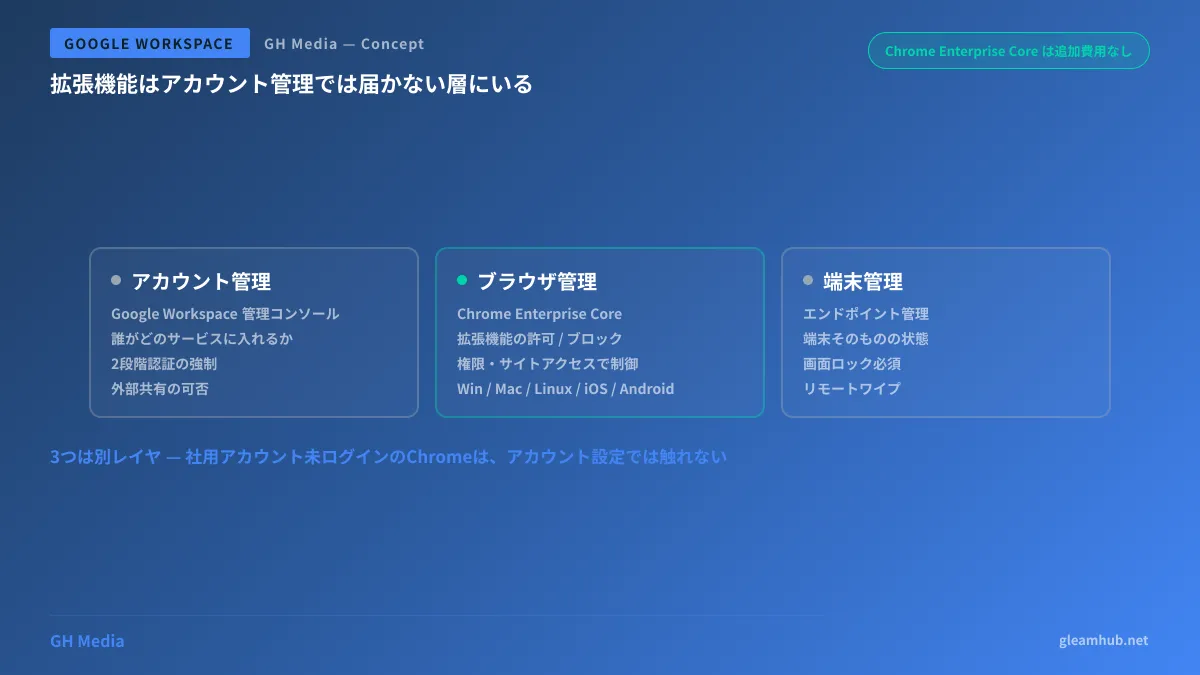
Account Management and Browser Management Are Different
Where confusion often arises is the relationship with existing administration. If you manage accounts in Google Workspace Admin Console, browsers might appear to be under control as well. In reality, they operate on separate layers.
| Management target | What is controlled | Examples |
|---|---|---|
| Accounts (Google Workspace) | Who can access which services | Enforcing 2-step verification, external sharing permissions |
| Browsers (Chrome Enterprise Core) | Browser behavior and extensions | Allowing/blocking extensions, sync controls |
| Devices (Endpoint management) | Hardware state itself | Requiring screen locks, remote wipes |
Browsers not signed into corporate accounts or Chrome installed on personal PCs cannot be influenced by account policies alone. Browser management bridges this divide. Comprehensive endpoint architecture including device-level controls is covered in Google Workspace Endpoint Management and BYOD, while conditional access strategies are explored in Conditional Access with Context-Aware Access.
Establish Visibility Before Tightening Controls
In sequence, inventory comes before restriction. Creating an allowlist without seeing what is currently installed will inadvertently break business-critical extensions.
Phase 1: Enrollment and visibility. Issue browser enrollment tokens in the Admin Console and enroll Chrome on company PCs. Once enrolled, installed extensions across all devices appear in the Admin Console inventory. Enforce no restrictions here. Gathering data over a few weeks reveals actual usage.
Phase 2: Block obvious hazards. Reviewing the inventory typically exposes abandoned extensions, extensions from unknown developers, or redundant tools. Build a blocklist for these first. Because the scope is narrow, business operations remain uninterrupted.
Phase 3: Filter by permissions. Extensions can be governed by requested permissions and accessible sites. Restricting only extensions that can "read data on all websites" narrows the target, serving as a practical intermediate milestone before enforcing a comprehensive allowlist.
Stage 4: Switch to an allowlist. Put things in a state where no extensions can be installed except those approved by the company. Once you reach this point, operations shift to having administrators automatically distribute necessary extensions to everyone. Rather than letting frontline staff install things themselves, you need a workflow where requesting an extension gets it installed; otherwise, shadow IT will simply migrate elsewhere (to personal devices or personal accounts).
Many companies try to rush all the way to Stage 4 and stall, but even stopping at Stage 2 represents substantial progress compared to leaving things unattended. The key to maintaining momentum is not turning this into an all-or-nothing choice.
Three easily overlooked gaps
The first is Chrome on personal devices. Enrolling a browser requires action on the device itself, so it cannot be applied to personally owned PCs. If you permit BYOD, you must address this not through browser management, but through access-side controls (restricting which services can be opened with corporate accounts).
The second is browsers other than Chrome. If employees are using Edge or Safari for work, those fall outside the scope of Chrome Enterprise Core management. "Locking down Chrome only to have them migrate to Edge" defeats the purpose, so this must be paired with a policy that consolidates work-related browser usage onto Chrome.
The third is confusing extensions with connected apps on the Google Workspace side. External apps that access Google Drive or Gmail are managed separately from extensions under "Security → Access and data control → API controls." Even if you lock down the browser side, apps authorized via OAuth remain unaffected. Unless you look at both, your efforts will be half-baked.
What to do next
To start, enable Chrome Enterprise Core in the admin console and try going as far as issuing an enrollment token. Up to this point, it is free of charge and imposes no restrictions, meaning there is zero impact on your organization.
Next, enroll just a few devices—such as those belonging to the IT team or administrative departments—and verify how the extension inventory appears. Being able to show this screen to executive leadership makes it far easier to secure buy-in for a company-wide rollout. That is because presenting an actual list of what is installed is much faster than explaining in words that "extensions are dangerous."
If you would like to discuss how to proceed with a rollout tailored to your company's device setup, or how to combine it with Google Workspace configurations, we handle inquiries through GleamHub's Free IT & Google Workspace Consultation. The optimal sequence varies depending on device counts and whether BYOD is present, so please consult with us individually. Reach out via Contact Us.
Sources
- Chrome Enterprise Core — Chrome Enterprise and Education Help
- Allow or block apps and extensions — Chrome Enterprise and Education Help
- Guide to strengthening Chrome browser security and boosting productivity with free Chrome Enterprise Core — SoftBank Cloud Technology Blog
- Confronting Chrome extension threats! Hands-on allowlist management with Chrome Enterprise Core — Zenn
- Control which third-party & internal apps access Google Workspace data — Google Workspace Admin Help