"Sales emails the final estimate, the department manager replies 'Approved,' accounting digs up that reply, prints it, and attaches it to an internal approval request... but nobody can confidently say which file is the truly approved final version anymore." A manager overseeing administrative departments at a wholesale business with around 40 employees once shared this concern with us. Approvals had not ground to a halt, yet the actual proof of approval was scattered across email threads, chats, and modified file names (見積_最終_v3_部長OK.xlsx), making it impossible to trace backward. When audits or client disputes arose, they were at a loss regarding what to submit as evidence.
This situation is far from unique. Contracts, estimates, internal approvals, final design assets, expense documentation—every company has moments where someone must grant formal sign-off, and most handle them across a fragmented mix of email, chat, physical stamping, and disparate tools. This article outlines how to run approvals and sign-offs entirely within Google Drive without moving files or halting editing momentum. We will evaluate how far standard features can take you before deciding to introduce dedicated workflow SaaS.
Why Approval Records Become Scattered
The reason approvals become impossible to trace is not negligence on the part of staff; it is because approval records reside outside the files themselves. An estimate's Excel file lives in Drive, while the approval decision sits inside an email thread. Because they inhabit different places, their connection weakens as time passes. Appending "_ManagerApproved" to a file name is a well-intentioned manual effort to bridge that gap, but file names are easily overwritten, copied, and rendered meaningless.
Another deep-seated issue is uncertainty over whether the version originally approved matches the version currently on hand. If a manager approved a version on Friday evening and sales modified a single unit price on Monday, does that approval remain valid? With email approvals, tracking differences relies entirely on human memory. While an approval is fundamentally an expression of intent regarding a specific version, it ends up recorded against an ambiguous target.
What You Can Accomplish with Google Drive Approvals
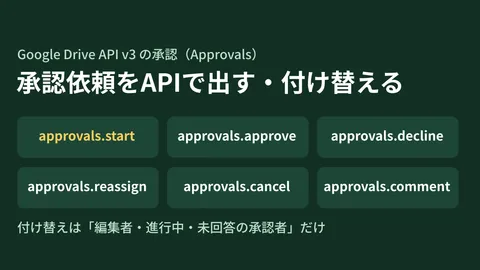
Google Drive comes equipped with built-in Approvals that tackle this issue directly. By right-clicking a file and selecting "Share → Approvals" or navigating to "File → Approvals" with the file open, you can assign approvers and submit requests. It supports not only Google Docs, Sheets, and Slides, but also PDFs, images, and Microsoft Office formats (Word, Excel, PowerPoint) stored in Drive. Being able to route contract PDFs or client Excel estimates directly without file conversion is a significant practical advantage.
Approval records attach directly to the file itself rather than to emails or chat messages. Who was asked to approve, when, who approved or rejected the file, and what comments were left are all preserved within the file's history. Due dates can be set when requesting approvals, and automated reminder emails are sent as deadlines approach or pass. When multiple approvers are assigned, the file is only marked "Approved" once everyone has signed off, while a single rejection marks it as "Rejected." Once approvals are complete, the file is automatically locked into an uneditable state, fixing it as the definitive approved final version.
The key behaviors are summarized below:
| Item | Behavioral |
|---|---|
| Supported files | Google Docs, Sheets, Slides, PDFs, images, Office formats (Word, Excel, PowerPoint), etc. |
| Assigning approvers | Multiple approvers allowed. Marked "Approved" upon unanimous sign-off; marked "Rejected" if anyone rejects |
| Deadline | Supported. Reminder emails sent to approvers around deadlines |
| Post-submission | File locks automatically, preserving the approved version |
One caveat to note is eligibility. Approvals are not available on all tiers; they are provided in Business Standard, Business Plus, Enterprise Standard, Enterprise Plus, Education Plus, and various Essentials editions. Because they are unavailable on plans like Business Starter, confirming whether the feature is active for your organization's edition is an essential prerequisite. For administrator-side configurations, reviewing our guide to Google Workspace Admin Console fundamentals is also recommended.
The "Edits Triggering Approval Restarts" Dilemma and June 2026's New Behavior
The traditional approval mechanism carried a constraint that caused noticeable friction in day-to-day work: if a file was edited mid-approval, all previously collected approvals were reset, requiring all parties to approve the latest version from scratch. While sound from a strict audit perspective—since the version changed, it should be re-approved—it posed a major hindrance for collaborative documents. If three people agreed on a design direction and someone subsequently corrected a single typo, all three approvals were sent back to square one. The anxiety of "do not touch the file while it is out for approval" actively slowed collaborative work.
This was addressed by the introduction of "alignment approvals" in the June 2026 update. According to the Google Workspace Updates announcement, a new checkbox was added to the approval request dialog. When selected, edits made by collaborators during the approval workflow no longer reset recorded approval decisions. It is designed for scenarios where strict locking is unnecessary and teams simply want light agreement on strategic direction.
Importantly, this does not replace traditional approvals. Alignment approvals are turned off by default and only activate when explicitly checked by the requester. Furthermore, approvers can manually revert their status to "Pending" at any time—if edits alter content in a way they can no longer endorse, they can trigger a re-review at their discretion. In short, it creates a flexible middle ground between "resetting everything automatically on edit" and "never resetting," adjustable based on reviewer judgment. This behavior rolled out gradually starting June 2, 2026, for Rapid Release domains and June 15 for Scheduled Release domains.
Documents like contracts, where every word constitutes the legal meaning of the sign-off, can follow the traditional workflow (reset on edit, automatic lock upon completion), while conceptual drafts and design plans can leverage alignment approvals to confirm broad consensus while refining details. Gaining the ability to choose between these two approaches represents a meaningful practical improvement.
What Standard Features Cover vs. When to Move to Dedicated SaaS
Before assuming all approvals can shift to Drive, let us candidly assess the boundaries of standard features. Drive approvals are fundamentally built for scenarios where designated individuals approve or reject a single file. They excel when the approval target exists as a concrete file, such as contracts, estimates, final design deliverables, or internal approval attachments. In the wholesale distributor example, routing the estimate Excel file through Drive approvals with set deadlines and automatic file locking largely eliminates the ambiguity over which version was final.
Conversely, certain requirements exceed what standard features can comfortably handle. Conditional branching (e.g., department manager approval for 100,000 yen or more, executive approval required at 1,000,000 yen or more), organizational mapping that automatically assigns approvers by job title, multi-step sequential workflows, and compiling raw expense data for accounting system integrations fall outside the design scope of file-based approvals. When these capabilities are required, it is time to consider dedicated workflow SaaS or custom automation using Apps Script.
As a practical guideline, consider the following breakdown:
| Status | Initial Options to Consider |
|---|---|
| Approval target is a file, with fixed, small approval groups | Aim to complete within Drive approvals |
| Conditional branching, multi-stage approval, and org hierarchy required | Consider dedicated workflow SaaS or Apps Script |
| End-to-end flow from form submission to approval needed | Google Forms + automation, or dedicated SaaS |
In many small and mid-sized businesses, an unexpectedly large volume of tasks can be handled cleanly through file-based approvals alone. While dedicated SaaS platforms offer extensive functionality, they entail recurring subscription costs and operational learning curves, often leading to overinvestment for companies with straightforward approval needs. This makes auditing which tasks can be resolved with standard features before jumping into new SaaS purchases a high-value step.
Approaching Approvals as Operational Workflow Design
Finally, let us look beyond tool mechanics. The greatest benefit of consolidating approvals within Drive is not merely cutting down on email ping-pong, but establishing written operational rules defining who approves what and in what sequence. Introducing a structured tool compels teams to articulate approval criteria that previously remained unspoken.
This foundation cannot be established simply by flipping on the approvals feature. Drive approvals run smoothly only when supported by sound information architecture and permission structures—such as which folders host approval documents, how files are named, and who holds edit permissions. Disorganized folder hierarchies make locating target files difficult, while overly broad sharing permissions risk unauthorized edits to unapproved drafts. Because these foundational aspects are covered in our guides on structuring files through Drive information architecture and Drive sharing settings, we recommend reviewing them alongside your approval rollout.
When we assist clients with these challenges, we do not simply turn on approval features right away. We start by mapping out how one or two representative workflows actually function in practice. We document who approves based on transaction amounts or categories, where files reside, and how files are utilized post-approval. Only after diagramming these processes do we evaluate whether standard features suffice or custom automation is required. Because approval workflows quickly become embedded organizational habits that are difficult to alter later, investing time in upfront workflow design pays significant dividends.
To get started, we recommend two immediate actions: first, check whether your Google Workspace edition supports approvals and run a test workflow on a single document type, such as a contract or estimate; second, map out on a single sheet of paper who approves that document and where it is stored. Trying these two steps alone will make it strikingly clear whether you truly need dedicated tools or whether standard features are more than enough.