
"We migrated mail and calendar, but OneDrive is being used as a file server across 400 users, and a separate estimate for that alone came in at 2 million yen." This is almost always where migration projects stall. The one-time migration cost exceeds what could be recouped through license cost differences. The moment that calculation is made, the project gets shelved for the year.
Part of this bottleneck was resolved on August 25, 2026. The advanced mode in the Google Workspace Admin Console Data Import feature became generally available for large-scale Microsoft OneDrive file migrations. It involves no additional tooling costs.
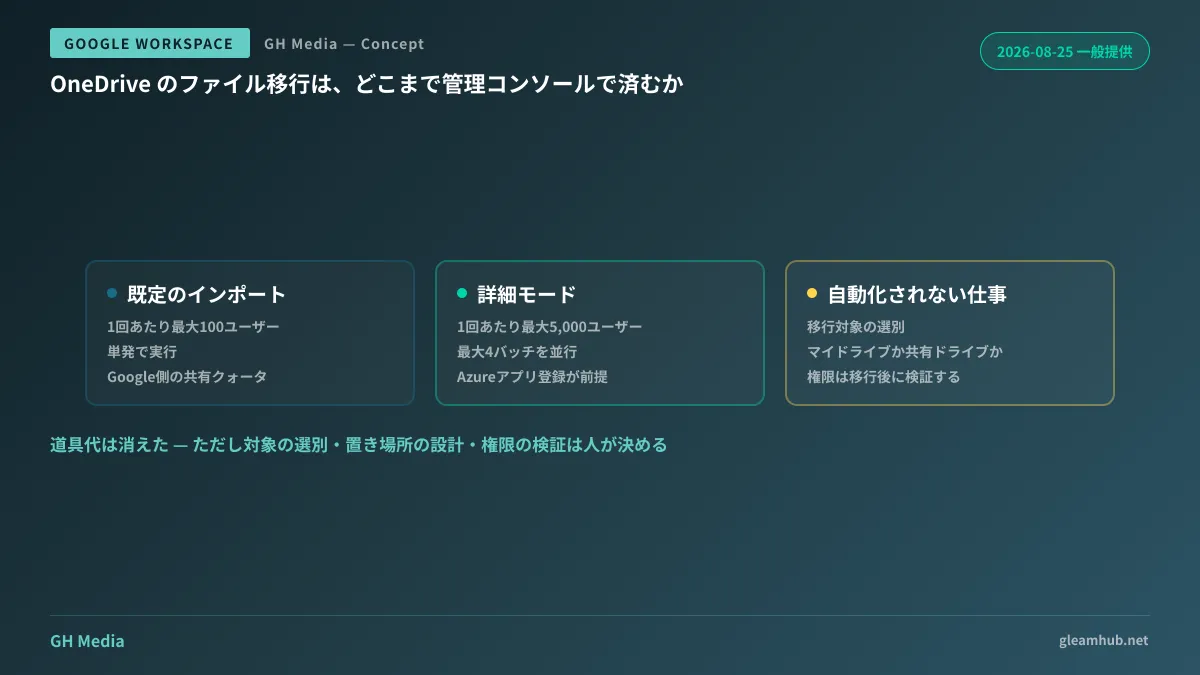
The 100-user batch limit has expanded to 5,000 users
Data import itself was already present in the Admin Console. However, the default method could handle only up to 100 users at a time, requiring 4 batches for 400 users and 10 batches for 1,000 users. Waiting to review results and stage the next batch took longer than the actual migration work.
Advanced mode changes this:
| Default data import | Advanced mode data import | |
|---|---|---|
| Users per run | Up to 100 | Up to 5,000 |
| Concurrency | Single batch | Up to 4 parallel batches |
| API quota | Google-side shared quota | Dedicated tenant quota (via registered Azure app) |
| Prerequisites | Connection setup and user mapping | Above steps plus app creation in the Azure portal |
In addition, transfer speeds adjust automatically to match the Microsoft license tier. The design minimizes the risk of exceeding source-side quotas and disrupting day-to-day Microsoft 365 operations. For estimates that factored in overtime labor to compress migrations into off-hours, this fundamentally shifts the baseline.
Execution requires a Google Workspace super administrator as well as tenant administrative privileges on the Microsoft side. Because it supports delta imports that transfer only files added or modified after the initial run, you can arrange a timeline of "running the bulk transfer during business days and running only deltas right before cutover."
Advanced mode requires advance setup on the Azure side
This is an easily overlooked detail. Advanced mode is fast because it uses your organization's dedicated API quota rather than Google's shared quota, which requires registering an application in the Microsoft Azure portal.
In other words, this feature is not something that completes solely within the Google Admin Console. If someone capable of managing the Microsoft tenant is not present, day-one work cannot even begin. It is common for small and medium-sized businesses to outsource M365 management to external vendors, leaving no internal global administrator. In such cases, the first thing to secure in your migration plan is neither tooling nor labor hours, but a communication channel to request Azure app registration from the vendor.
Discussions about migration almost always start with "which tool to use." In reality, one to two weeks are often lost upfront just tracking down administrative permissions.
Files migrate, but file organization does not
Here begins the territory that automation does not cover.
First, Data Import does not delete or modify data in the source environment. Items in OneDrive remain untouched, and copies are created in Google Drive. While this provides peace of mind by keeping rollback viable, looking closer reveals that deciding when to end this period of duplication is human work. If you proceed without deciding this, the question of "which one is the authoritative source?" will arise across the entire company six months later.
Another publicly noted caveat is that not all OneDrive features are supported for migration. What does not transfer can be verified in reports generated after migration, but whether your plan accounts for reviewing these reports determines how much post-migration confusion occurs.
The biggest issue is what we noted when previously covering this feature: whether departmental shared files stored in individual OneDrive accounts should simply be copied to My Drive is an architectural decision, not a migration task. Because OneDrive is personal storage, every departure or transfer triggers searches for files that "should be in that person's folder." Bringing that same structure into Google Drive's My Drive reproduces the exact same problem.
Reorganizing files into shared drives is a restructuring effort, not a mere transfer. How to move items from My Drive to shared drives and how to partition folders based on shared drive item limits remain manual decisions, no matter how fast migration tools become.
Plan under the assumption that permissions will not transfer seamlessly
In practice, permissions are where incidents happen most easily. Official documentation states that exact replication of permissions is not guaranteed and reflection may be delayed. Furthermore, it explicitly notes that files and folders must not be moved during import execution or between import runs.
This directly dictates project scheduling:
- Prohibit "cleanup" during the migration window. People often want to organize folders when migrating, but moving items while a transfer runs corrupts permission mappings. Organization should be completed prior to migration or handled collectively after completion
- Budget hours with the assumption that permissions must be verified post-migration. Setting acceptance sign-off on the premise that "permissions will just follow the files" will inevitably lead to disputes. Separate the migration completion date from the permissions verification sign-off date
- Audit external shares in advance. If internal permissions fall out of sync, operations may pause, but they can be corrected. If open external links are unintentionally carried over, they will be exposed before you can fix them
The third point might look like a migration-specific task, but it is worth doing even without a migration. Using a migration as the impetus to audit external sharing gets far more traction than calling for an audit in isolation.
Where cost estimates decrease and where they do not
What this feature eliminates are licensing fees for third-party migration tools and the infrastructure setup to run them. Because these are highly visible line items, total estimate amounts will drop.
The following three areas will not decrease:
First is filtering what to migrate. Do you migrate all OneDrive files for 400 users, or only those updated in the last two years? This decision changes data volume severalfold, but only those familiar with business operations can make it.
Second is designing destination storage locations. This corresponds to the partitioning between My Drive and shared drives described above.
Third is handling post-migration inquiries. "I can't find a file that was there before" will always happen. The volume of tickets is inversely proportional to how thoroughly users were notified beforehand.
In short, tool costs have disappeared, but the volume of decisions to make remains unchanged. Whether you can use the savings from reduced quotes to greenlight the project this year depends on whether you can allocate staff to these three areas.
What to do next
First, determine the total volume of candidate OneDrive data and the distribution of last modified dates. Knowing only the total terabytes is not enough to decide. If 70% of files have not been modified in over three years, narrowing the migration scope should take priority.
Next, identify who can register Azure applications on the Microsoft side. If you do not have someone in-house, that is the critical path of the migration project. It needs to be addressed before evaluating tools.
At GleamHub, our free IT and Google Workspace consulting covers Microsoft 365 to Google Workspace migration planning, shared drive permission architecture, and post-migration operational rule design. Recommended approaches vary based on data volume and organizational structure, so please reach out for an individual consultation via Contact Us.
Sources
- Google Workspace Weekly Recap - August 28, 2026 — Google Workspace Updates
- Introducing data import for Microsoft OneDrive: An easier, faster, and higher-fidelity migration to Google Workspace — Google Workspace Updates
- Use the default data import method for OneDrive — Google Workspace Admin Help
- Run a delta import for OneDrive — Google Workspace Admin Help
- Understand a OneDrive file data import report — Google Workspace Admin Help
- Google Workspace "Data Import" adds support for Microsoft OneDrive and Teams — HelenTech