“We want to exchange files with our partner companies, but if we turn external sharing on we have no idea what goes out.” Google Workspace administrators bring us this shape of problem regularly. Banning it outright stops the leaks, but then the teams fall back on personal Gmail and file transfer services. For every hole you close in the Admin console, another opens somewhere you cannot see.
One reason this became an either/or choice is that the settings on the Google Drive side were split across two systems. Since September 14, 2026, those two have been brought together into a single rule.
“Who you share with” and “what you share” were managed separately
Until now, sharing control in Google Drive was handled by two mechanisms with different roles.
Trust rules control by who you are sharing with. They specify that this organizational unit may share with that domain, or that this external domain is prohibited. They look only at the audience, never at the content.
DLP (data loss prevention) policies control by content. They detect strings that look like national ID numbers, credit card numbers, or files carrying a classification label, and block the share or raise a warning. They do not look closely at the audience.
Run separately, they cannot express real requirements well. “We can exchange anything freely with partner company A, but payroll files must never go out” is hard to express with trust rules alone or DLP alone. The result is that teams tighten one of them hard and route the business side through exception requests. And exception requests tend to become a formality.
This structural problem was addressed on the Gmail side first. The background is covered in the unification of Gmail data protection rules.
One rule that looks at the audience and the content together
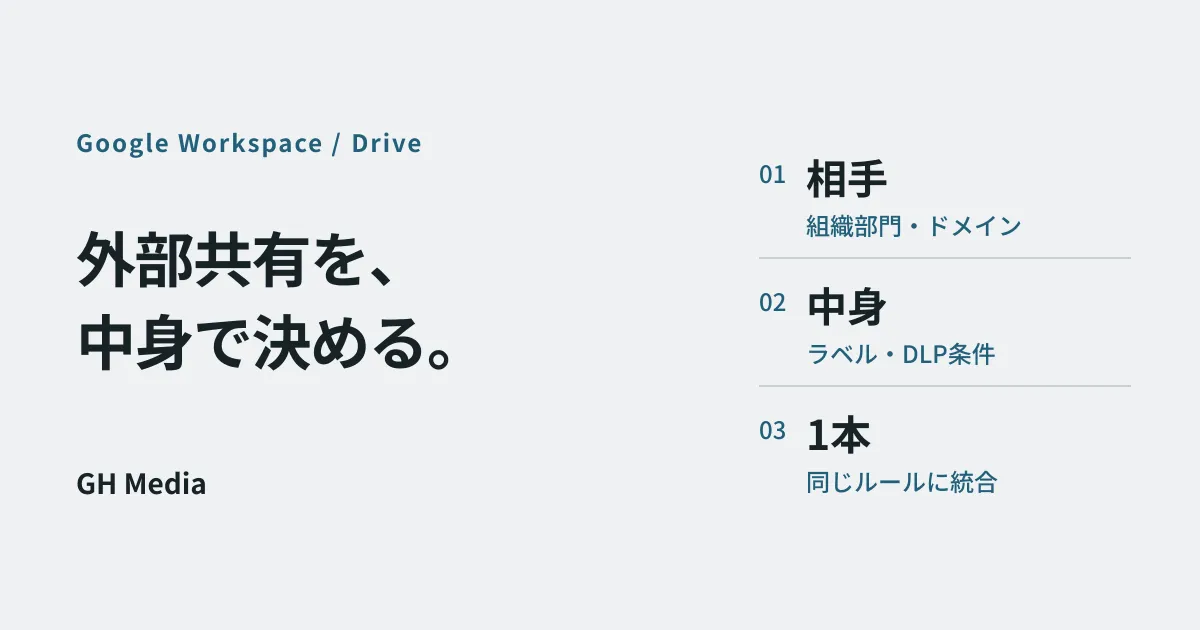
With this change, administrators can now combine conditions for the sharing audience and conditions for data sensitivity within a single data protection rule.
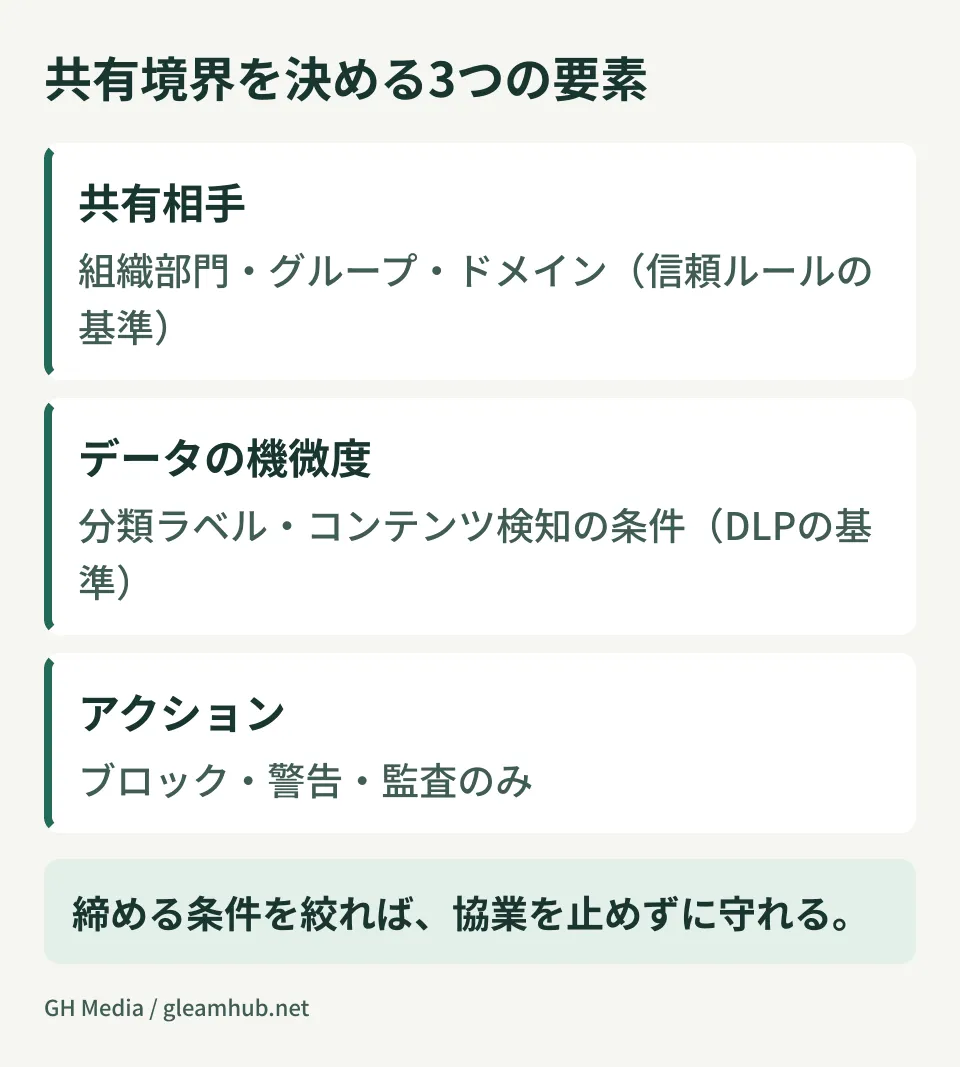
The conditions available are the trust rule criteria (organizational units, groups, domains) and the DLP criteria (classification labels, content detection conditions). Multiplying the two lets you draw what is called a sharing boundary with the content taken into account.
The requirement above can now be written as one rule:
- Narrow the scope to “shares addressed to partner company A’s domain”
- Add the condition “files carrying the HR and payroll classification label”
- Set the action to “block the share”
Read the other way round, files addressed to company A without the label can still be shared exactly as before. Tighten only what needs tightening, and do not stop the collaboration. This ability to “open up safely” is the practical value of the unification. What happens when you close external sharing entirely is described in diagnosing what broke after blocking external sharing: quite often the only result is more inquiries for the administrator.
The rollout started on September 14, 2026 for both Rapid Release and Scheduled Release domains. Because visibility of the feature can take up to about 15 days, it is worth waiting a little even if it has not appeared in your Admin console.
Check whether your edition can use it first
This is the most important point in practice. The feature is limited to the following editions.
| Classification | Edition |
|---|---|
| Available | Frontline Plus、Enterprise Standard、Enterprise Plus、Education Standard、Education Plus、Enterprise Essentials Plus |
| Not included | Business Starter、Business Standard、Business Plus |
The Business plans common among small and mid-sized companies are not included. A company of 10 to 50 people on Business Standard cannot design around this feature.
How to build data leak prevention on a Business plan is covered in alternatives for plans without DLP. In short, it comes down to a steady combination: narrowing the default for sharing links, using shared drive permission roles to stop downloads, and taking stock of links periodically. Whether to move up a plan should be judged by the type and volume of files you need to protect.
The first rule you write only needs to be one
Even if you are on a supported edition, writing a comprehensive set of rules straight away is not advisable. If you introduce strict rules while classification labels are not applied consistently by the teams, you get the accident where the people following the process correctly are the ones who get blocked.
The safe order is as follows.
- Start in audit mode. Do not block at first; simply record the shares that match the conditions. One or two weeks of logs will show you what is actually going out
- Pick the single worst case. Do not try to protect everything; choose one thing that would be genuinely damaging if it got out. At most companies that is HR and payroll, or unpublished quotations and cost data
- Block only that one thing. Enable a single narrowly scoped rule and watch how the teams react
- Grow the labelling practice first. Relying on content detection alone increases false positives. The habit of teams applying classification labels is more accurate in the long run
Existing sharing links are not removed retroactively when you create a rule. Taking stock of the past is separate work. Combining how to take stock of sharing links with closing external sharing by setting expiry dates reaches both the new and the existing.
Common pitfalls
Do not delete your trust rules. Unification does not mean existing trust rules are replaced automatically. When both the new rule and the existing rules are in effect, blocking can be stronger than you expect. If you are going to switch, list what each one controls first.
Do not confuse this with per-shared-drive settings. Shared drives have a separate mechanism for setting data policies individually. When a domain-wide rule collides with a per-shared-drive setting, isolating the cause takes time.
Prepare the wording for “this was blocked”. From the team’s point of view, all they know is that the share stopped. Telling people in advance who to ask and about what prevents detours into shadow IT.
What to do next
Check your edition in the Admin console. On a Business plan this feature is unavailable, so move on to considering the alternative combination. On a supported edition, start by creating a single rule in audit mode and collecting two weeks of logs.
GleamHub offers free IT and Google Workspace consultations covering Google Workspace sharing policy design, establishing operating rules for classification labels, and taking stock of existing sharing links. Because the options available depend on your edition and current operations, please get in touch through the contact form.
Sources
- Set up sharing boundaries in data protection rules — Google Workspace Help
- Create and manage trust rules for Drive sharing — Google Workspace Admin Help
- Create data protection rules — Google Workspace Help
- Manage data policies for specific shared drives — Google Workspace Admin Help
- Google Workspace Updates