Three years after migrating a file server to a shared drive, the front line reports: "I cannot save any new files." Checking storage purchases shows plenty of free space. What is running short is not gigabytes, but item count.
A single shared drive can contain up to 500,000 items, which includes not only files, but also folders, shortcuts, and contents in the trash. If you only look at storage management screens, this number remains completely invisible until the end. And once the limit is hit, the corrective actions available are far more burdensome than the few hours of work proper upfront design would have required.
What is being counted is not capacity
Among the limits governing shared drives, the following three impact migration design:
| Limit | Value |
|---|---|
| Item count per shared drive | 500,000 (including files, folders, shortcuts, and items in the trash) |
| Folder nesting depth | Up to 100 levels |
| Upload capacity per user per day | 750GB |
Item counts and folder depth limits were raised from the previous 400,000 items and 20 levels. Interpreting this as "the limits were relaxed, so we do not need to worry" is dangerous. What was raised was the ceiling; the rate at which you approach that ceiling remains unchanged. Assets migrated from file servers accumulate monotonically with every passing fiscal year.
When less than 20% of capacity remains, a warning banner appears upon opening the shared drive, but the only people who can notice it are those with permission to add items to that drive. It does not appear for executives or other departments using it with viewer access. Without a separate mechanism on the administrative side to monitor remaining allowance, "we cannot save" from the front line becomes your first notification.
Why splitting after hitting the limit is expensive
Once the limit is reached, the only practical option is "splitting." And splitting is far from a simple task of dragging and dropping folders.
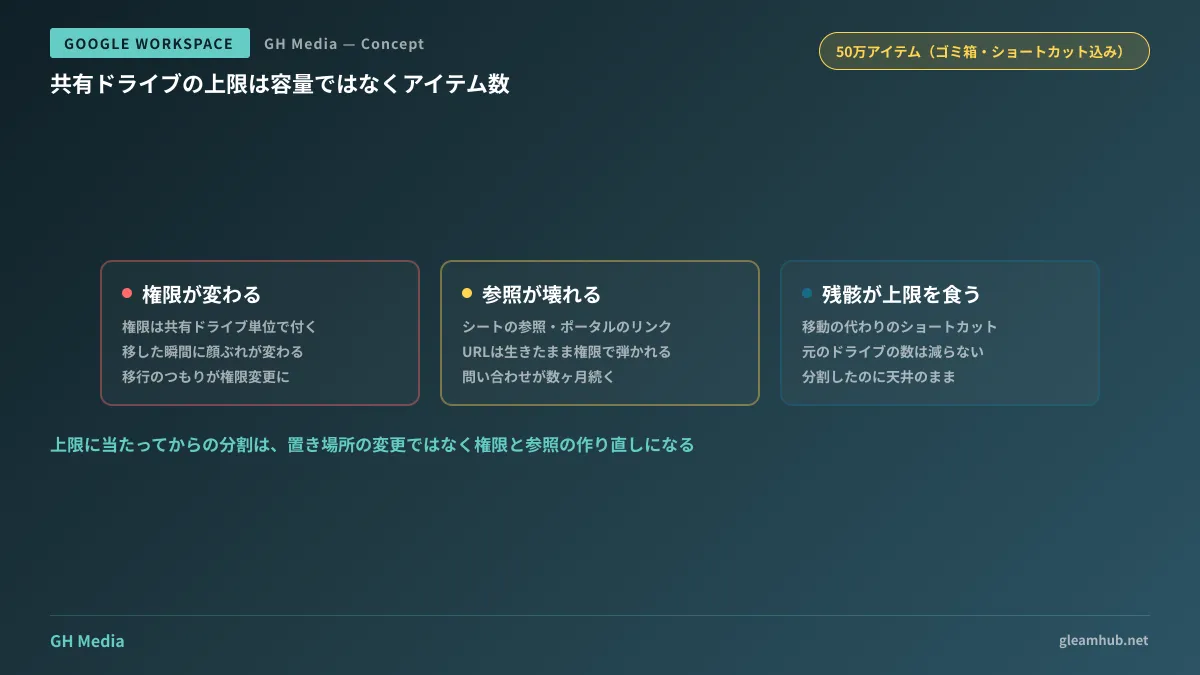
Moving files across shared drives triggers three changes simultaneously:
- Permissions change to match the destination shared drive. Because shared drive member permissions apply at the drive level, the roster of users who can access files changes the moment they are moved. Users moving files rarely realize that what was intended as a migration has turned into a permissions overhaul. Designing shared drive roles is detailed in Determining Shared Drive Permission Roles.
- Places where shared links were pasted continue pointing to the old location. Spreadsheet references, internal portal links, and URLs in past emails often leave links technically alive while access is denied by permissions. Inquiries reporting "I cannot open this" scatter over several months.
- Residual shortcuts continue consuming your limit. If you adopt an operational practice of placing shortcuts instead of moving files, the item count in the source drive will not decrease. Despite intending to split, you remain pressed against the ceiling.
In short, splitting after hitting the limit is not a "change of storage location" but a "complete rebuild of permissions and references." Being forced to rebuild company-wide file references in the middle of a fiscal year is the most costly aspect of this problem.
Define split units by business completion
The single decision to make before migration is "where to divide." The criterion is neither capacity nor departmental headcount, but whether the set of files has a definitive end.
- Things that conclude by fiscal year or project (client engagements, projects, audit responses) serve as excellent units because they have an end. Once a project wraps up, downgrading the entire shared drive to view-only ensures items will not increase thereafter.
- Things that never end (general affairs regulations, sales collateral, product manuals) will continue growing even if divided by department. Rather than a unit for splitting, these are candidates for defining retention periods. Unless you establish after how many years to discard them, the exact same consultation will arise a few years later no matter how you split them.
- Drawing a clear boundary to keep person-specific files off shared drives is also necessary. When individual working files mix into shared drives, item counts grow proportionally to headcount and work iterations rather than business volume. The distinction between My Drive and shared drives is summarized in Deciding When to Migrate from My Drive to Shared Drives.
As a realistic architecture, dividing by "Department × Fiscal Year" and halting new additions to drives once the fiscal year closes should prove manageable. Concerns about over-segmentation often arise, but because files are located via search, an increase in drives does not place a burden on frontline users. What becomes a burden is managing members, which is resolved by applying Google Groups.
Limits that can stall the migration itself
Another factor directly affecting migration schedules is the upload limit of 750 GB per user per day. If you attempt to funnel a multi-terabyte file server through a single administrator account, it will stall on day one and derail the plan.
If you add accounts to circumvent this, the migration accounts become the author of each file, causing audit logs and ownership information to drift from reality. When using migration tools, this limit applies in the exact same manner. Build migration duration estimates using the total volume divided by 750 GB as the baseline minimum number of days. For managing remaining storage across the organization, refer to Storage Pool Capacity Management.
What to do next
First, check the item count of your largest shared drive. Check item count, not storage capacity. If it exceeds 300,000, reaching the limit may be a matter of next year rather than years down the road.
Next, identify which folder is continuously growing. Usually, a single specific operation drives the entire increase. Discussing the unit of division is virtually synonymous with determining the retention period for that single operation.
GleamHub provides support for migration architecture from file servers, shared drive splitting, permissions redesign, and establishing Google Workspace operational rules through our free IT and Google Workspace consultations. Because the approach varies based on your current data volume and operational boundaries, please reach out for personalized guidance. Get started via Contact Us.
Sources
- Shared drive limits in Google Drive — Google Workspace Learning Center
- Storage and upload limits for Google Workspace — Google Workspace Admin Help
- Google Drive shared drives increase limits for stored items and folder hierarchy — HelenTech
- Shared drive item cap reached capacity — Google Workspace Knowledge