"I didn't notice an RFP email from a client until the next day, delaying our response by half a day." "Out of nowhere, my inbox stopped being in date order and Gemini started generating automatic summaries, leaving me confused." Since early 2026, inquiries like these have been mounting from SMB executives and IT team staff. The common issue is that Gmail's appearance changed without anyone remembering altering their settings.
The cause is Gmail's transition into the "AI Inbox" era powered by Gemini. The inbox interface is shifting from a list ordered by arrival time into a screen where AI reads content to reorder and summarize messages based on importance. In this article, we provide a practical overview of what is happening, how users can revert the view, and the key points administrators and senders need to understand.
What is happening in inboxes right now
In January 2026, Google announced that it was bringing Gmail into "the Gemini era." At the core of this update are three main behaviors.
The first is AI prioritization. Traditional "important markers" relied primarily on behavioral signals, such as who sent the email and whether you had opened their messages before. The new Gemini-based system determines importance by reading the semantic meaning of the email body. For example, even if an email comes from a brand-new contact, if the body contains a contract deadline or a quote request, it will be flagged as "important."
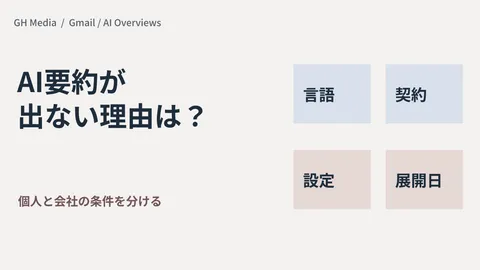
The second is thread summaries (AI Overview). It condenses long conversation threads into a few sentences, allowing users to grasp the key points without reading every message. Conversation summaries are being rolled out gradually to all users for free.
The third is natural language queries. If you ask your inbox a question like "What about the contract Sarah sent last week?", Gemini will search across your emails and respond with an AI Overview. This query capability is available for higher-tier plans like Google AI Pro / Ultra.
Tying all these features together is the new view known as AI Inbox. Instead of organizing by individual messages, it restructures your inbox around key takeaways, topics, and to-dos, surfacing conversations you should see right now at the top like a morning briefing. It is initially rolling out to select testers before expanding wider. If you want to review basic Gmail operations, feel free to check out our Gmail Business Best Practices as well.
Practical challenges in the field: "Buried emails" and "blind trust"
While convenient, two distinct risks arise in practical work.
First, important client emails can sink to the bottom. Because AI reorders by semantic meaning, any misjudgment can push critical emails to the lower screen or into aggregated digest boxes, causing those used to tracking messages chronologically to miss them. Industry observations note that a measurable percentage of emails delivered to inboxes see reduced priority, making them substantially less visible (see Sources). It is safer to assume that the premise of "received equals seen" no longer holds.
Second is the danger of blindly trusting AI summaries. While summaries are handy, primary information such as amounts, quantities, deadlines, and terms must always be verified in the actual email body. Summaries are a map to decide your reading order, not the primary basis for decision-making.
What users can do (how to revert the view)
First, take self-defense measures. Google is rolling out these generative AI features enabled by default with user opt-out options. If you find it disorienting, check the following:
- To return closer to the traditional chronological view, check the inbox view toggle (AI Inbox / Standard view).
- For critical contacts, secure your own reliable path using stars, dedicated labels, or filters so they always catch your eye.
- Review smart features and personalization settings directly within Gmail Settings.
Rather than leaving message sorting entirely to AI, setting up redundant manual paths for emails you cannot afford to drop works wonders in practice.
Administrator perspective: Handling "Gemini reading company emails"
For the IT team and administrators, the central question is how to handle Gemini reading the bodies of internal company emails on Workspace. Avoiding assumptions, we outline the key settings to check based on official documentation.
Google explains that interactions with Gemini within Workspace do not leave the organization, existing Workspace protections apply automatically, and user content is not used for other customers, nor used for human review or generative AI model training outside the organization without permission. Even so, deciding how far to enable these features rests with the organization, and controls are provided in the Admin Console.
| Setting Location | What to Decide |
|---|---|
| Generative AI (Gemini for Workspace) settings | The scope for enabling/disabling Gemini features in Gmail and elsewhere (by user, group, or organizational unit) |
| Smart features and personalization settings | Whether to use smart features such as body-based sorting and suggestions |
| Workspace Intelligence settings | The scope of data sources that generative AI can search across |
The key point is that you can define boundaries by organizational unit (OU) or group. Instead of a blanket company-wide toggle, you can restrict the feature to departments handling lower-sensitivity data. Additionally, organizations in Japan should note as a baseline that smart features and related controls are turned off by default when the location is set to the EEA, Japan, Switzerland, or the UK. We explore generative AI cross-service search mechanisms in our article on Understanding Gemini Cross-Search for Admins, and secure inbox configuration in Hardening the Receiving Side for Admins.
Sender perspective: Keeping your emails from getting buried by the recipient's AI
An often-overlooked angle is what happens when you are the sender. Since Gemini reorders incoming mail by semantic meaning in the recipient's inbox as well, if their AI classifies your sales outreach, announcement, or invoice notice as "unimportant," it will go unread even if delivered.
Technical deliverability (anti-spoofing and authentication) is a separate topic, and we cover SPF, DKIM, and DMARC setups in our Email Authentication and Deliverability Article. What we emphasize here is the content side: writing emails that AI recognizes as relevant and important communications once authenticated. What works in practice comes down to basic, sound habits:
- Be specific in subject lines: Instead of a vague "Notice," craft a subject line that clearly identifies the recipient, purpose, and deadline.
- Send necessary updates to contacts with existing relationships: Maintaining ongoing relationships with actual contacts is far more effective than blasting out mass emails.
- Build engagement: Beyond opens, recipient actions such as replies and clicks serve as positive signals for "important" classifications.
Overusing discount terms or relying on ambiguous boilerplate won't just trigger spam filters; AI will read them as low-relevance and unimportant, burying them. It ultimately comes down to sending clear, human-understandable communications to the right recipients.
Pitfalls and what to do next
Finally, two common pitfalls. One is placing complete trust in the AI Inbox order without setting up manual fail-safes for critical emails. The other is administrators making snap decisions to turn everything on or off company-wide. Disabling it eliminates confusion, but you also sacrifice productivity gains from summaries and drafting assistance. A phased rollout starting with higher-sensitivity departments is the practical route.
Your immediate next steps are simple. As a user, add redundant manual safeguards using stars or filters for vital clients. As an administrator, check the Admin Console once to see how generative AI and smart feature settings are configured for your organization. Taking care of just these two steps will keep you prepared even when your inbox interface shifts.
GleamHub has extensive experience helping businesses optimize Google Workspace configuration, operations, and internal IT practices. If you are concerned that employees might miss critical emails under AI Inbox, or unsure how to explain and configure Gemini reading company emails internally, please feel free to reach out via our Google Workspace & IT Consultation Desk. From verifying Admin Console settings to departmental boundaries and operational guidelines, we will work alongside you tailored to your business realities.
Sources
- Gmail is entering the Gemini era | Google Blog
- Google adds Gemini features to Gmail. Users will have to opt out | CNBC
- Google announces the future of Gmail with AI Inbox & new AI Overview search | 9to5Google
- Manage Google Workspace smart features for your users | Google Workspace Help
- Manage access to Gemini features in Workspace services | Google Workspace Help
- Introducing Workspace Intelligence, with admin controls | Google Workspace Updates
- How Gmail’s Gemini AI Changes Email Deliverability in 2026 | Folderly