"A spreadsheet used in accounting contains a script created by a former employee. It runs every morning at 8:00 AM and seems to send data to some system, but no one in the company can read the code." In companies with around forty employees, we frequently encounter this exact consultation.
Any company using Google Workspace can write Google Apps Script (GAS) at no additional charge. That is precisely why operational staff create scripts themselves, which remain behind long after those individuals transfer or resign. As long as it runs, nobody is inconvenienced, so nobody stops it. Years then pass without anyone knowing where it is communicating.
The issue here is not script quality. GAS's UrlFetchApp can send requests to any arbitrary external URL under the executing user's authority. Code reading internal customer lists to POST externally and code fetching foreign exchange rates look identical to administrators: simply an "Apps Script execution." Leaving this lack of distinction unchecked is the most dangerous risk.
Look at "Where It Goes" Rather Than "Who Wrote It"
When auditing, people often try to catalog every script first. However, hunting down scattered GAS files manually across the company takes as much effort as scanning the entire Drive. Furthermore, if stored in unshared My Drives, administrators cannot discover them by browsing file lists.
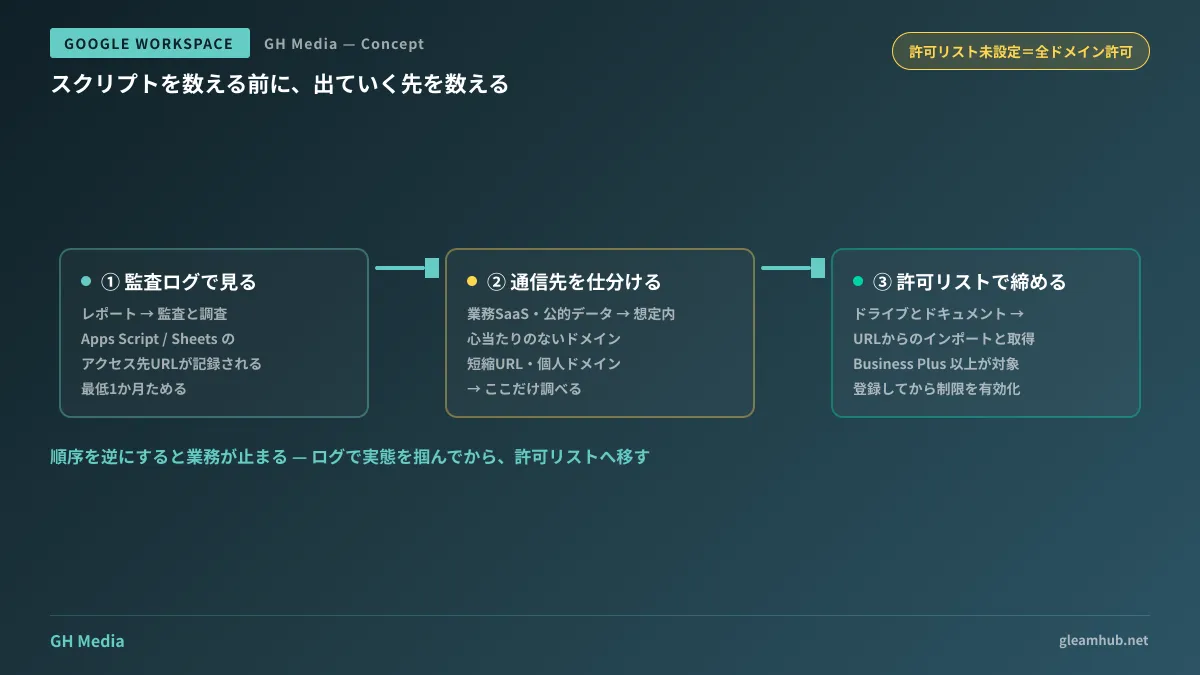
Reversing the sequence gets the job done much faster: start from outbound traffic logs instead of script inventories. Google Workspace maintains logs recording URLs accessed by Apps Script and Google Sheets functions like IMPORTXML, viewable under "Reporting → Audit and investigation" in the Admin Console.
What you obtain here is an actual list of external domains queried from within the company. Regardless of how many scripts exist, outbound destinations usually boil down to a dozen domains. Most of them can be assessed the moment you see the domain list:
- Domains of SaaS used in operations (Slack, accounting systems, e-commerce carts, etc.) → Expected
- Open data from public agencies, exchange rates, postal codes → Expected
- Unrecognized domains, URL shorteners, or personally registered custom domains → These are the only ones you need to investigate
Tracking a few unfamiliar domains instead of reading hundreds of scripts makes all the difference for companies lacking a dedicated IT team.
The Allowlist Is Under "Import and Fetch from URL"
Once destinations are identified, the next step is restriction. The allowlist setting is located in the Admin Console under Apps → Google Workspace → Drive and Docs → Features and Applications → Import and fetch from URL.
There are three key characteristics of this setting to keep in mind:
- Unless you configure an allowlist, nothing is restricted. "Not yet configured" equals "all domains allowed." Because it is an opt-in policy, leaving it untouched will never default to safe
- It affects both Apps Script's
UrlFetchAppand Google Sheets' IMPORT family functions. Operational sheets pulling external data viaIMPORTXMLorIMPORTDATAface the identical restriction, meaning evaluating only GAS will unexpectedly break other workflows - Eligible editions are restricted. It applies to Business Plus, Enterprise, Education Standard, Teaching and Learning Upgrade, and Education Plus. On Business Standard and below, the setting itself is not available
The third item is a tangible hurdle for SMBs. If a company running Business Standard decides to enforce an allowlist, it cannot do so immediately. Since it demands an edition upgrade, you must complete visibility via logs first, then present risks and costs to leadership. An overall guide including navigation across the Admin Console is summarized in Introduction to Google Workspace Admin Console.
Getting the Sequence Wrong Halts Business Operations
The most frequent failure with this setting is switching to "Allowlisted URLs only" while the allowlist is still empty. At that instant, all outbound external communication company-wide fails. Morning aggregations stop, operational sheet cells change to #REF!, and inquiries flood in from teams unaware of the cause.
The sequence to avoid interruptions is as follows:
- Accumulate logs for a defined period (at least one month). Certain scripts run only monthly or quarterly; building an allowlist from one week of logs guarantees omissions
- Sort logged destinations by checking with operational owners. Asking "What is this used for?" usually clarifies ownership. Unclaimed domains immediately become audit targets
- Register approved URLs into the allowlist beforehand
- Enable restrictions only after registration is complete
- Prepare to handle inquiries during the first few days after activation. Missed entries inevitably occur. If you manage them by adding items one by one rather than rolling back, the allowlist will quickly align with reality
Note that the urlFetchWhitelist parameter in script-level appsscript.json is distinct from this feature. That manifest is self-declared by the script author, not enforced across the organization by administrators. Confusing the two breeds false confidence that "we declared it, so we're safe."
What This Setting Cannot Block
A URL allowlist narrows outbound destinations, but does not close all exfiltration paths for internal data. Failing to recognize remaining gaps leads to a false sense of security.
The largest avenue is API access by third-party applications. When users authorize apps via OAuth, those apps access Drive and Gmail through Google's APIs. This operates on a separate layer from GAS outbound communication and is managed under "Security → Access and data control → API controls" in the Admin Console. The "Accessed apps" list displays apps currently authorized by employees, serving as a helpful starting point for auditing.
Another factor is that this setting does not halt the execution of GAS itself. Scripts can communicate with allowlisted domains, and operations like copying Drive files to another Drive do not involve external requests, falling outside its scope. If you need content-based blocking, you require mechanisms like continuous detection via Google Workspace DLP API.
Fundamentally, the goal is not to kill personalized legacy GAS scripts. Since business processes depend on them, the goal is to implement visibility and boundaries, then separately decide whether to keep, rewrite, or migrate them into dedicated systems. These decision frameworks are discussed in How to Take Over a Predecessor's GAS and When to Systematize Excel and GAS Operations.
What to do next
First, verify your Google Workspace edition. If you have Business Plus or higher, you can review audit logs today. If on a lower edition, the inability to use this setting itself provides justification for evaluating plan upgrades.
Next, set a schedule to accumulate audit logs for one month. Tightening controls can wait until after. Restricting blindly without knowing actual usage is the most hazardous approach, whereas understanding the reality accounts for most of the risk.
If you would like guidance on organizing legacy personalized GAS scripts or migrating them to production systems, GleamHub provides free IT and Google Workspace consultations. Recommended approaches depend on script volume and business dependencies, so please consult with us individually via our Contact page.
Sources
- Restrict external connections for Apps Script and Google Sheets — Google Workspace Admin Help
- Allowlist and Audit Logs for URLs accessed from Google Apps Script and Google Sheets — Google Workspace Updates
- Allowlist URLs — Apps Script | Google for Developers
- Monitor and control Google Apps Script use in your Google Workspace organization — Google for Developers
- Control which third-party & internal apps access Google Workspace data — Google Workspace Admin Help