Imagine a project running in a single Chat space with multiple partner companies. The moment a new company is invited, its representative can open the member list. What they see is a list of other partners' names and affiliations. Regardless of the host's intentions, it reveals whom you are partnering with, how many vendors you have approached, and which internal departments are involved.
Similar situations occur internally: large spaces for company-wide announcements, spaces bringing together HR and recruiting personnel, or spaces handling discussions on resignation negotiations and labor relations. The lineup of participants itself constitutes sensitive information in more situations than one might expect.
Spaces can now control the visibility of member lists
Starting August 24, 2026, Google began rolling out a setting to control who can view member lists in Google Chat spaces. Previously, any member of a space could view the full list of participants.
The setting is located under "Membership" in the space settings, with four announced options.
| Setting | Who can view the member list |
|---|---|
| Owners only | Only space owners |
| Owners and managers | Space owners and managers |
| All members | Everyone in the space (default for most spaces) |
| Entire organization | Anyone in the organization (only selectable if the space is open to the entire organization) |
Because the default is "All members," nothing changes if you take no action. Due to the gradual rollout, it may take up to around 15 days for the setting to become visible.
What is hidden and what remains visible
Misunderstanding this leads to a gap between what the configurator expects and what users actually see. According to announced details, restricting member list visibility does not change the following two elements.
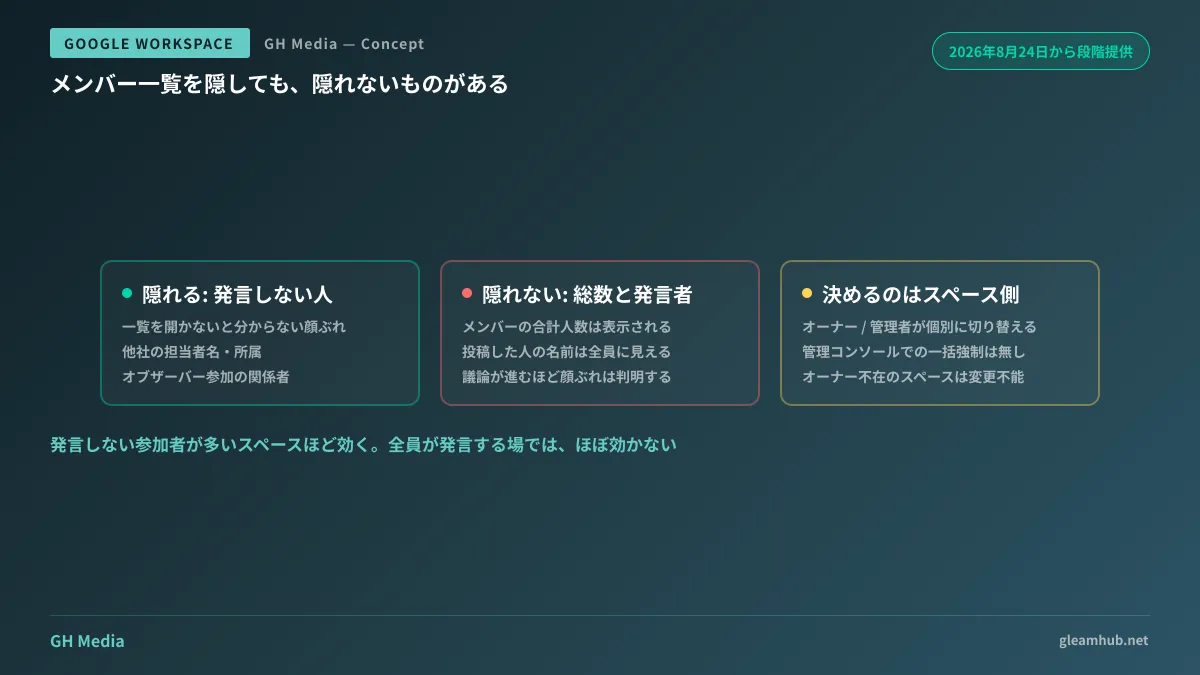
First is the total member count. Even if the list itself cannot be opened, the number showing how many people are in the space remains displayed. The scale of participation can still be inferred from this count.
Second is active posters. Whenever someone posts a message, their name is visible to everyone. In other words, even if the member list is closed, the roster becomes apparent starting with whoever speaks. Silent observers remain hidden, but those engaging in discussion do not.
Given this characteristic, where it helps is very clear. It is most effective in spaces with many non-posting participants, and has little effect in spaces where everyone posts. Company-wide announcement spaces and spaces hosting multiple external companies in parallel fall into the former category.
Not a setting administrators can configure globally
In practice, this is the most significant takeaway. The published procedure applies to individual space settings, meaning space owners or space managers must toggle it individually. No method has been announced for administrators to modify this default uniformly across the organization via the Admin console.
This differs in nature from admin settings that restrict space creation itself or settings governing whether external conversations are permitted. Those are top-down boundaries enforced by admins, whereas this is a choice left to individual space owners.
Simply having the setting available changes nothing. Change only occurs when your organization establishes guidelines on which types of spaces should use this setting and communicates them to space creators.
Three decisions to make in advance
Configuring the technical setting takes only a few clicks. What takes time is securing agreement beforehand.
- What should be the default for spaces with external members? Setting spaces that may involve multiple companies to "Owners and managers" is a clean boundary. For long-term spaces dedicated to a single partner company, keeping the default causes no issue.
- Do you know who the owners are? Only owners and space managers can change this setting. In spaces where the creator has resigned or transferred and is no longer present, no one is available to modify the setting. Discovering that "there are no owners" on the day you wish to apply restrictions is the most common roadblock.
- Will you notify participants that the list is hidden? If you hide it silently, external partners must participate in discussions without knowing who else is present. Even if hiding the list is entirely justified, failing to communicate it fosters distrust. A single explanatory line in the space description is sufficient.
An effective alternative to creating more spaces
"If there are people you don't want seeing each other, split the spaces" used to be the correct approach. However, the more you split spaces, the more the same topics run in parallel across multiple places, bringing you closer to a state where it becomes unclear which space to check to follow the conversation.
Restricting the member list provides another option to avoid fragmenting spaces. If spaces were split solely to hide participants from one another, there is now room to consolidate them back together.
What to do next
First, inventory your Chat spaces containing external members. You can identify spaces permitting external members under app settings in the Admin console. Filtering for those where two or more external companies coexist immediately highlights your primary targets for applying this setting.
Next, verify whether the owners of those spaces are still with the company. If absent, handing over ownership must precede any discussion of settings. Spaces lacking an active owner cannot apply this setting, nor can they revoke external sharing or remove participants.
GleamHub offers free IT and Google Workspace consultations covering permission design, operating rules for Chat and Drive involving external collaboration, and offboarding handover procedures. Appropriate policies vary based on organization size and the frequency of external collaboration, so please reach out for individualized advice. Contact us via Contact Us.
Sources
- Restrict who can view the member lists in Google Chat spaces — Google Workspace Updates
- Google Workspace Weekly Recap - August 28, 2026 — Google Workspace Updates
- Manage view members permissions in Google Chat — Google Chat Help
- Manage space settings — Google Chat Help
- Manage external Chat and spaces chat options — Google Workspace Admin Help