Common complaints about conference room reservations almost always follow the same pattern: Looking at the calendar, the entire afternoon is booked solid. Yet walking down the hallway, every single room has its lights off.
When this happens, internal behavior changes. Since employees cannot find a room after a meeting is scheduled, more people start "booking just in case." As more people reserve rooms preemptively, securing one becomes even harder. Eventually, an unwritten rule takes hold where people simply occupy any open room regardless of reservations. This widens the gap between bookings and actual usage even further.
Before adding more physical rooms, verify your registration details, recurring bookings, and cancellation workflows. Configuration issues and actual ghost bookings are separate problems, and you need to investigate both.
How the calendar marks rooms as "fully booked"
In Google Calendar, shared facilities like conference rooms and company cars are registered as "resources." Resources are attached to events as rooms and are treated separately from participants. When a user creates an event and specifies a time slot, a list of available resources during that time is displayed for them to choose from.
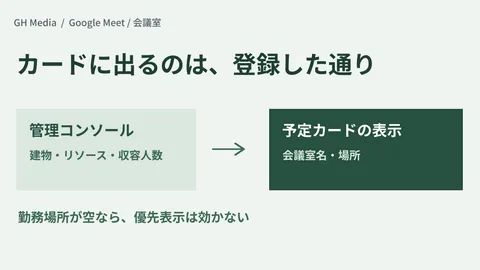
What is crucial here is that the order and filtering of the resource list depend on the building information configured at registration. Because Google Calendar uses buildings as the foundation for all resources, setup begins with cataloging your company's physical buildings.
Where many companies stumble is skipping this foundational step and registering rooms individually on an ad hoc basis. Resources without buildings or floors configured appear without context, leaving users unable to tell which room is close by. Consequently, rooms are booked starting with whatever catches the user's eye first. Accidentally choosing a room on another floor or at a different office location leads to discrepancies between reservations and actual usage.
Organizing buildings, naming conventions, and booking permissions in sequence
Before modifying existing registered resources, review the sequence. Setting up building information first makes it much easier to standardize subsequent naming conventions and booking configurations.
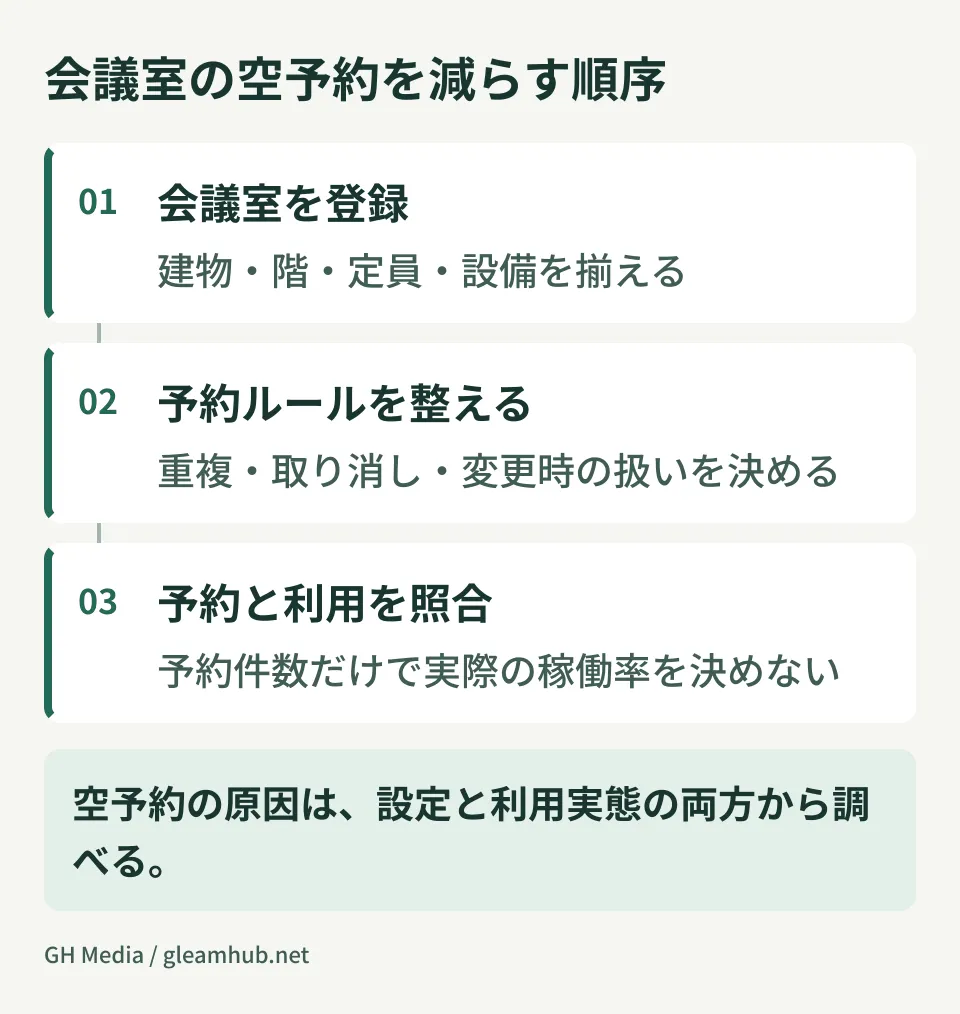
1. Define buildings first
Register the building name, number of floors, and address if necessary. Even for a company with only a single location, whether this registration exists dictates whether floor-by-floor filtering can be used later.
2. Establish naming conventions before registering rooms
Resource names are search query strings. If they are not consistent, users cannot find them. In practice, arranging the following elements in a fixed order works best.
| Element | Examples | Benefit |
|---|---|---|
| Office location / building | Headquarters | Prevents accidental bookings across multiple locations |
| Floor | 3F | Allows assessing walking distance |
| Room name | Meeting Room A | Matches the signage on-site |
| Capacity | 6 people | Allows filtering options by headcount |
The key is using the exact wording found on the physical door sign, such as "HQ 3F Meeting Room A (6 people)." Matching the calendar name with the physical on-site name makes it easier to verify the booked room.
3. Decide who can book each resource
Resources have their own calendar sharing settings. Rooms that all employees can freely book do not need the same settings as executive boardrooms that require formal requests. Determine authorized users and approval workflows according to usage, and establish handling procedures for when approvers are unavailable.
4. Check whether to use automatic room replacement
Under [Buildings and resources] → [General room settings] in the admin console, there is an option called automatic room replacement. When enabled at the domain level, Google Calendar will automatically rebook an alternative room with similar conditions if a room reserved for an event becomes unavailable. Review the applicable conditions and replacement destination details before integrating it into your operations.
Issues that persist even after fixing settings
Up to this point, you can reduce problems where users cannot find rooms or mistakenly select distant ones. Automatic room replacement is a feature designed to handle rooms that become unavailable; it is not a mechanism for automatically eliminating ghost bookings. If ghost bookings persist, check the following causes as well.
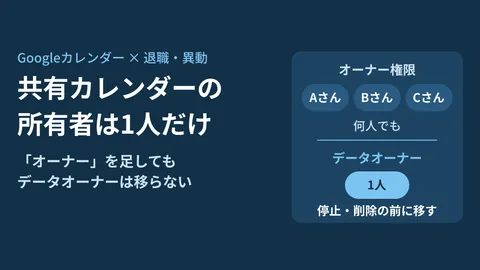
Events remain from organizers who retired or transferred. Catalog recurring events they organized, hand over ongoing meetings, and clean up unnecessary events. Because outcomes vary depending on choices made during account deletion and how events are handled, check this as part of the offboarding process.
Multiple bookings or declines are not reflected. Check events where multiple rooms were reserved as backups, or meetings whose plans changed because attendees declined. Rather than assuming actual usage based solely on event status, confirm with the organizer and release unnecessary rooms.
Recurring meetings continue to occupy rooms. This happens when a weekly sync started six months ago is actually handled entirely online, yet continues to hold a conference room. You can identify these quickly by opening the resource calendar and viewing only recurring events in a list.
Cancellations are not reflected in events. This occurs when a meeting cancellation is communicated via chat, but the calendar event is never removed. Because this is difficult to prevent systematically, designating someone to inspect resource calendars once a month is a practical solution.
Rooms cannot be booked for meetings organized by external parties. You need to add your company's meeting room later to an event invitation sent by an external party. Because handling external invitations relates to administrative settings defining the scope of accepted invitations, check those first if users report that invitations do not arrive or events cannot be created.
Conference rooms were created as user accounts instead of resources. A certain number of companies initially started operations by creating user accounts named "Meeting Room A" and sharing those calendars. While events can still be scheduled as shared calendars with this setup, they are treated differently from the resource room list. Furthermore, if paid licenses are assigned to them, they incur licensing costs. When migrating, safely define beforehand how far back you will migrate existing events, publish new resources in parallel, and switch over within a designated transition window. Before disabling the old account, confirm that future events and invited guests will not be impacted.
Revising room bookings means revising how meetings are held
Once resource configurations are organized, a secondary benefit emerges: comparing room reservation distribution becomes much easier. However, booked time is not identical to actual usage time. Assess usage by cross-referencing against the status of compatible conference room hardware or on-site visual checks.
Instead of a vague shared impression that "we don't have enough meeting rooms," you get concrete data like "the 6-person room on the 3rd floor is constantly booked, while the 12-person room on the 1st floor is only used twice a week." This provides the actual data needed to decide on floor expansions or office relocations.
Additionally, if you are shifting meetings to online formats, defining both joining flows for events involving external video conferences and how far to delegate executive calendar permissions at the same time will prevent ad hoc troubleshooting down the line.
What to do next
Open your admin console and first check whether your company's buildings are registered. If they are not, that is your starting point.
If they are already registered, browse the list of resource names and count how many rooms lack standardized naming. If there are only a few, you can fix them on the spot; if there are many, you should establish naming conventions and update them all at once. In either case, notify users only after names are standardized.
GleamHub provides free IT and Google Workspace consultations covering conference room resource redesign, Google Calendar permission audits, and multi-office operational rule development. Since available configurations vary based on location count and subscribed editions, please reach out individually via Contact Us.
Sources
-
Automatically Replace Unavailable Meeting Rooms — Google Workspace Admin Help
-
Create Buildings, Features, and Calendar Resources — Google Workspace Admin Help
-
Book Resources Such as Meeting Rooms — Using Google Calendar
-
Enabling Google Calendar to Automatically Book Alternative Meeting Rooms for Events — System Crais