In companies where assistants or administrative departments schedule meetings on behalf of executives, they almost always run into the exact same obstacle with Google Calendar permissions: if you allow someone to schedule events as a delegate, they can also see the details of events marked as private.
Doctor visits, family events, hiring interviews that cannot yet be shared internally—even if you mark these events as “Private,” anyone who has permission to “Make changes to events” on your calendar can see their details. Conversely, if you restrict permissions down to “See only free/busy (hide details),” they can no longer schedule events on your behalf, leading to double bookings. This was a compromise that many companies simply brushed aside with “we trust our assistants.”
Starting in July 2026, a third option was added to this either-or choice.
Under the previous four tiers, privacy and delegated operations could not coexist
Google Calendar sharing permissions previously consisted of four main tiers. From lowest to highest: See only free/busy (hide details), See all event details, Make changes to events, and Make changes and manage sharing.
The problem lies in how permissions from the third tier upward are handled. Anyone granted “Make changes to events” or higher can also see the details of events set to private. It is designed around the notion that if someone can edit events, they naturally ought to see their content, which makes sense in isolation. However, actual operational requirements are a hybrid of “we want them to edit, but we want to conceal certain details,” and no tier previously accommodated that.
As a result, two workarounds were commonly used. The first was keeping personal events on a separate calendar (such as a personal account) and excluding it from sharing. The second was manually masking details by renaming event titles to things like “Busy” or “Out of Office.” Both work, but the former splits calendars in two and frequently skews free/busy availability checks, while the latter relies on the user manually obscuring details every single time.
The new permission: can edit, but cannot see details of private events
Beginning rollout on July 7, 2026, is a new sharing permission level corresponding to “Make changes (see private events as free/busy)”. It has been rolling out to both Rapid Release and Scheduled Release domains (New calendar sharing permission level and changes to recurring event visibility — Google Workspace Updates).
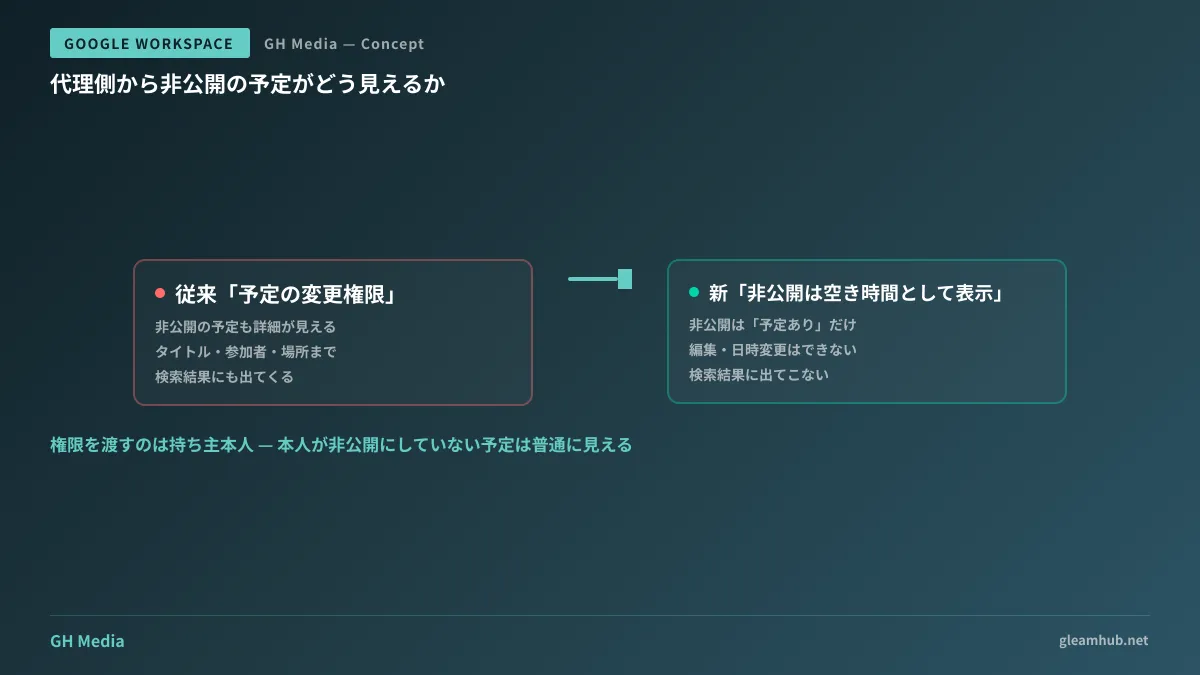
From the perspective of someone granted this permission, the calendar appears as follows:
- They can create, edit, and delete non-private events just like with the traditional “Make changes to events” permission.
- Private events are displayed only as “Busy” blocks. Titles, attendees, and locations are all invisible.
- They cannot edit private events or change their dates and times.
- Private events do not appear at all in the delegate's search results.
This last point may seem modest, but it makes a significant difference in practice. If hiding details still allowed titles to be surfaced via search, it would defeat the purpose, so designing it to be excluded from search as well makes complete sense.
Permissions are granted by the calendar owner themselves. This is not something administrators swap out in bulk; rather, it is selected per shared user in the calendar's settings screen.
The benefits extend beyond executive assistant operations
While the executive-assistant relationship is the most obvious example, the exact same dilemma exists in other settings as well.
Cases where general affairs staff manage a department head's calendar. You want them to schedule meetings, but keep performance review discussions and labor relations consultations private. Workarounds that previously offloaded consultations to a separate calendar can now be consolidated cleanly on a single calendar.
Professions where event titles themselves constitute confidential information, such as legal, accounting, and healthcare. In workflows where client or patient names appear in event titles, granting delegate entry permissions previously meant exposing that information. If only private events can be reliably locked down, expanding the scope of delegated entry becomes much easier.
Small organizations where staff hold multiple concurrent roles. When one person oversees multiple departments, cross-departmental schedules become mixed on a single calendar. Forced into an all-or-nothing choice between showing everything or showing nothing, teams invariably defaulted to “showing everything.”
Note that delegation here is a distinct mechanism from Gmail's “mail delegation.” Shared inbox architecture, including delegated sending and receiving of emails, is covered in Gmail delegated access and shared mailboxes. Keeping in mind from the start that permissions must be designed separately for calendar and email will help prevent confusion.
What the IT team needs to do beforehand
Although this feature itself is configured by end users, it will go unused if left alone. To make it work effectively, completing three preparations on the administrative side will speed things up.
First, verify the organization's external calendar sharing settings. If the sharing scope is restricted in the Admin Console, users cannot even select delegates to assign permissions to. Check whether internal sharing is restricted to “See only free/busy.”
Second, decide on how to use “Private” beforehand and communicate it. Because this permission level hides only events explicitly set to “Private,” events that users fail to mark as private remain fully visible. In other words, simply enabling the feature protects nothing by itself. Establishing an operational rule—such as “mark personal events and confidential internal events as Private”—comes first.
Third, audit existing sharing configurations. Review users who have already been granted “Make changes and manage sharing” to see if they should be downgraded to this new permission level. The process of reducing excessive permissions directly follows the mindset discussed in Delegating administrative privileges and least privilege. Calendar management is no different: the baseline is to choose the lowest tier that fulfills the necessary operations.
Potential pitfalls to keep in mind
There are a few areas where knowing what to expect in advance can prevent incidents.
Friction caused by delegates being unable to move “Busy” blocks. Because private events cannot be edited, delegates must ask the calendar owner directly whenever those slots absolutely need to be rescheduled. This adds an extra back-and-forth compared to adjustments that delegates previously handled entirely on their own. While this is the proper workflow, expect inquiries immediately after rollout asking “why can't I move this?”
Resource reservations, such as conference rooms, operate under a separate system. Calendar sharing permissions and resource (meeting rooms, equipment) booking permissions are architected independently. For the approach to resources, refer to Third-party calendars and resource reservations.
The same announcement includes changes regarding recurring event visibility. Along with the additional permission level, changes have been announced regarding how recurring events are displayed. Because users with numerous recurring private events are more heavily affected, verify the relevant section in the original announcement.
One Thing to Check at the Next IT Team Regular Meeting
If someone is managing the calendar of an executive or department head as a delegate, check in an overview list which permission level they currently hold. If they have been granted “Make changes and manage sharing,” they are currently in a state where they can see everything, including private events.
Next, confirm with the calendar owner how to use the Private setting. Unless both pieces are in place, the new permission level will not function as intended even if introduced.
Whether you want to audit your Google Workspace permission architecture or streamline operational rules across departments, GleamHub offers support through our free IT and Google Workspace consultations. Because the optimal setup varies depending on your requirements, we provide customized quotes. Please reach out to us via Contact Us.
Sources
- New calendar sharing permission level and changes to recurring event visibility — Google Workspace Updates
- Choose what others can see and do on your calendar — Google Calendar Help
- Change event & task privacy settings — Google Calendar Help
- Set Google Calendar sharing options — Google Workspace Admin Help