You create a recruiting interview event after setting it to "private," yet the next day a team member asks, "Which company was yesterday's interview with?" Or an executive mentions, "It seems my doctor's appointment is visible to people other than my assistant."
When inquiries like this arise, what gets checked first is usually the event setting. Opening it up reveals it is indeed marked "private." Yet it remains visible. That is where progress stops.
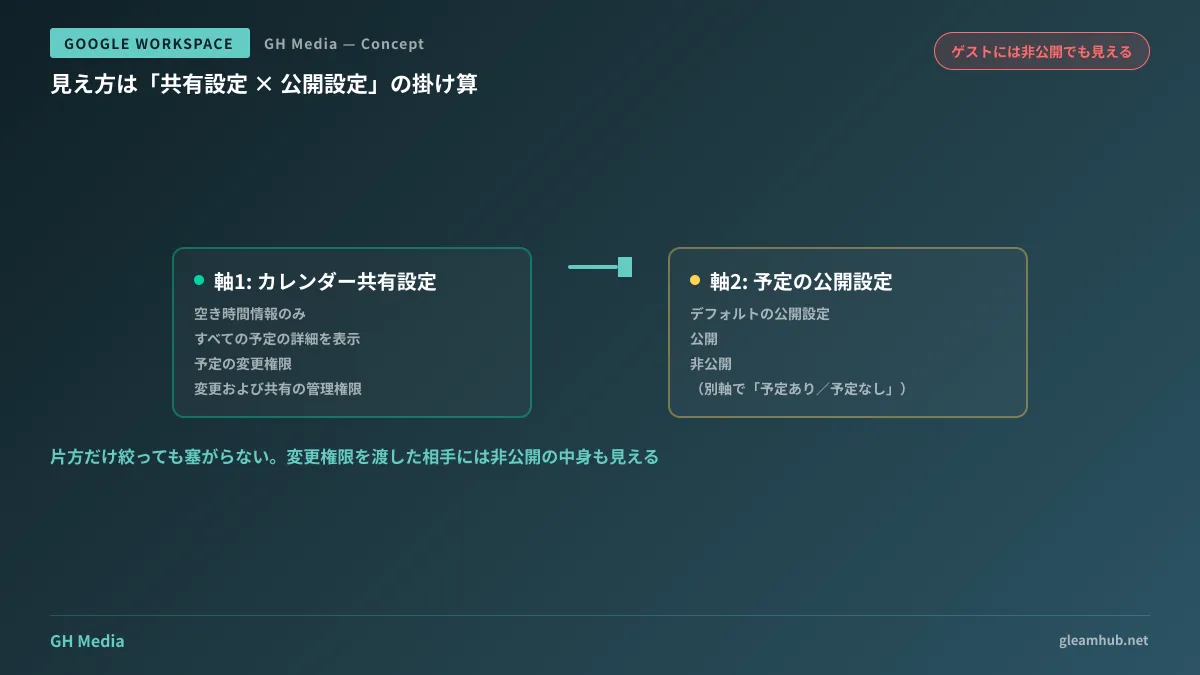
Google Calendar visibility is not determined by a single event's setting alone. It is the product of multiplying calendar-level sharing settings by event-level visibility settings. Moreover, these two are managed by different parties: calendar sharing by the user (along with administrator defaults), and event visibility by whoever created that specific event. Even if one side is tightened, details are exposed if the other remains open.
Two axes determining visibility
First, understand the two distinct axes. If these remain conflated, you cannot provide reproducible explanations no matter how many settings you adjust.
The first axis is sharing settings for the calendar itself. This determines to whom and at what level the calendar is shown. There are four permission levels, with visible information increasing toward the top:
- See only free/busy (hide details)
- See all event details
- Make changes to events
- Make changes and manage sharing
The second axis is visibility settings for individual events. This defines the treatment of that specific event rather than the entire calendar. There are three options:
- Default visibility (follows calendar-level settings)
- Public
- Private
The reason many people look only at "private" is that they are manipulating only this second axis. If the first axis opens "See all event details" company-wide, events marked private are hidden, but all everyday events not set to private remain fully visible. Conversely, if the first axis is set to "See only free/busy," there is virtually no need to mark individual events private in the first place.
What is visible across combinations
Multiplying the two axes determines what is visible to others. Practically all workplace inquiries fall within the following scope:
| Calendar sharing setting | Event is "Default" | Event is "Private" |
|---|---|---|
| See only free/busy | Busy (time slot only) | Busy (time slot only) |
| See all event details | Title, location, description, and guests are visible | Busy (time slot only) |
| Make changes to events | Everything is visible | Everything is visible |
| Make changes and manage sharing | Everything is visible | Everything is visible |
The bottom two rows of the table are the rows overlooked in the opening inquiry. Those granted edit permissions can see event contents even when marked private. If calendar management is delegated to an executive assistant or secretary, this row applies. Delegated permissions that separate this access were added in 2026 and are covered in Google Calendar Adds Delegated Access That Hides Private Events. Organizations utilizing delegated management will resolve issues faster by consulting that first.
There is another axis not shown in the table. Changing an event's availability to Free causes the event itself to disappear for users who cannot view details. If left as "Busy," the fact that the time slot is booked is still communicated. For events whose very existence you wish to conceal completely, you must adjust this in addition to setting them to private. However, because the time is treated as free, others can schedule meetings during that slot. Hiding an event and defending your time are mutually exclusive.
Invited guests can see details even when private
This is the single most common misunderstanding.
Setting an event to private applies to users with whom the calendar is shared, not to guests invited to that event. Anyone added as a guest can view the event title, description, location, and the list of other guests. Setting it to private does not alter this.
In other words, leaks of the type where "a client company's name was included in the title of a meeting inviting a different client" cannot be prevented whatsoever by private settings. Mechanically stopping this leak path requires a different mechanism, corresponding to Calendar DLP covered in Company Names in Event Titles Are Visible to Invited Clients.
Similarly, when you add a resource like a conference room to an event, the event will also appear on the calendars of anyone who can view that resource's calendar. The amount of detail displayed depends on the resource's settings, so organizations that use shared resources for confidential events should check how their resource calendars actually appear.
Default settings administrators should configure in advance
Relying on telling individual users to "please make it private" is not sustainable. People forget, and the time they forget leads to an incident. It is far more reliable to set defaults from the admin console.
You should look at the two types of default settings in calendar sharing.
First is the default setting for external (outside the organization) sharing. Choose from "Do not share," "Only free/busy information," or "All event details." In organizations where this is set to "All event details," the contents of events will be visible to external parties by default. If you do not have a culture of cross-referencing calendars with clients or partners, sharing only free/busy information is sufficient.
Second is the default setting within the organization. Allowing colleagues to see event details speeds up internal scheduling, so restricting this across the board slows down business operations. Rather than restricting the entire company, a practical compromise is to split departments that handle sensitive information—such as HR, corporate planning, or executive offices—into separate organizational units (OUs) and adjust their default settings accordingly.
Using OUs to apply differentiated settings is a concept you will encounter repeatedly, not just for sharing configurations. If you are unsure where things are in the admin console, getting familiar with locations via Introduction to Google Workspace Admin Console will speed up future configuration changes.
Troubleshooting check sequence
When an inquiry comes in, following this sequence will reduce wasted effort.
- Ask whether the person who claims they can see it is a shared user of that calendar or a guest on the event. If they are an invited guest, it is not a settings issue, and troubleshooting ends here.
- Check the sharing settings on the calendar itself. Check whether individual permissions have been granted to specific users. It is not uncommon for permissions granted once in the past to remain active.
- Check the visibility settings on the event itself. This is where you finally check whether it is marked as "Private."
- Check the default settings in the admin console. If the individual has not changed anything, the default settings apply.
- If the event includes resources or conference rooms, check visibility on the resource side as well.
If you skip step 1 and jump straight to step 2, you risk endlessly reviewing configurations only to end up realizing, "They were just an invited guest."
Three common pitfalls
Events automatically added from Gmail are handled differently. Events created from confirmation emails for flights or restaurant reservations have their own visibility settings. Users often do not realize their itineraries are visible to anyone who can view their calendar, making this worth checking at least once for executive accounts.
Sharing settings apply retroactively to events created before the change. Simply deciding "I'll be careful going forward" will not alter how existing events are displayed. If you change settings to make them more restrictive, it takes effect immediately; conversely, loosening them instantly exposes past events as well.
The mobile app UI makes it easy to forget to change visibility settings. While the setting is prominently placed on desktop, it is buried deep within menus on mobile. This creates a disparity where only events added while on the go lack the proper settings.
What to do next
First, check just one thing in your admin console: what the default external sharing setting is. If this is set to "All event details," the contents of events will be exposed the moment someone shares a calendar with an external party. For most organizations, this is not the intended behavior.
Next, count how many executive-assistant pairs are currently using delegated calendar access. Knowing that number will help you determine whether you need to redesign your permission structure or if you can manage by having them handle private events individually.
GleamHub provides free IT and Google Workspace consultations covering calendar sharing design, including OU configuration and differentiated department defaults. Appropriate designs vary depending on organizational structure and the volume of communication with external partners, so feel free to consult with us individually. Please reach out via Contact Us.
Sources
- Change event and task visibility settings in Google Calendar — Google Calendar Help
- Manage visibility settings for events from Gmail — Google Calendar Help
- How to Share Google Calendar: Restricting Visibility, Hiding Details, and Granting Permissions — Yoshidumi Information
- Internal Calendar Visibility Settings — Using Google Calendar