During an on-site meeting with a client, the other party begins outlining specific requests. Looking down to take notes interrupts eye contact and slows the pace of conversation. Conversely, focusing entirely on listening leaves figures and proper nouns hazy by the time you return to the office.
Anyone handling sales or upstream client discussions has likely faced this dilemma repeatedly. Even as online meetings gained automated note-taking, in-person meetings—where the most crucial conversations happen—remained completely manual.
In August 2026, Google Meet's automated note-taking expanded to cover in-person meetings. Place your smartphone on a conference room table, and the conversation will be converted into a summary and task list saved directly to Google Drive. While a long-awaited feature for users, the implications look quite different from an administrative standpoint.
What happens: a step-by-step walkthrough
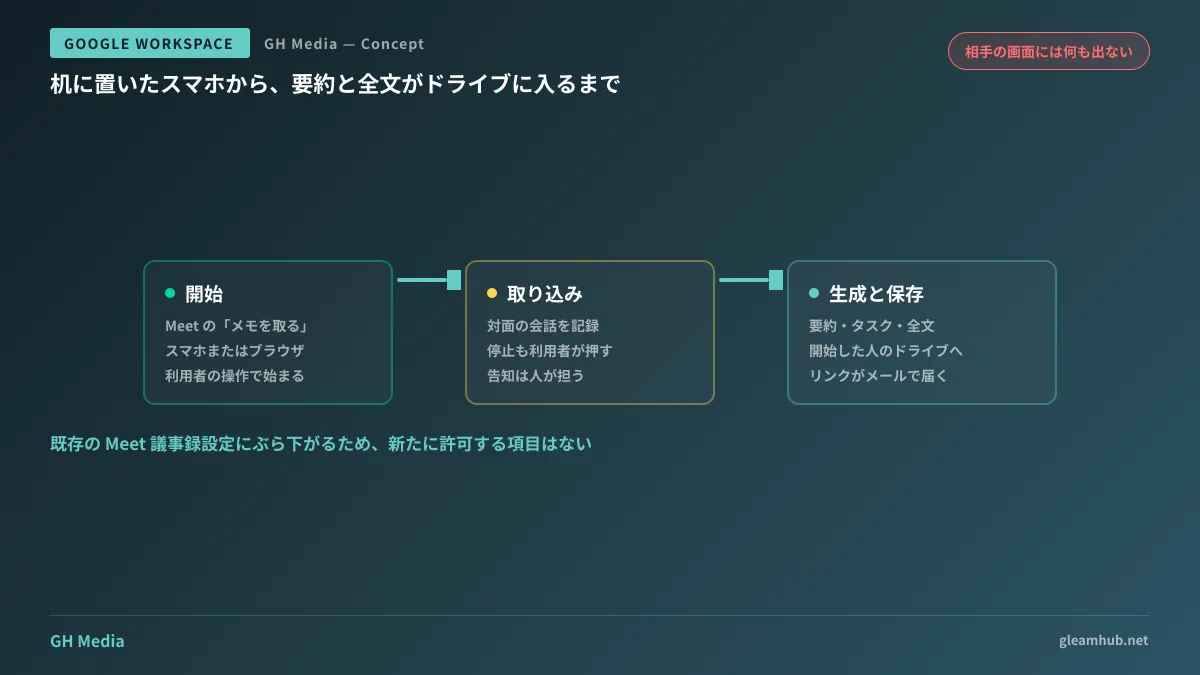
The user experience is straightforward.
- Open Meet on a smartphone or browser
- Tap "Take notes for me" on the home screen
- Recording begins, capturing the conversation
- Tap stop once the meeting concludes
Upon stopping, Gemini generates a Google Doc containing a summary, task list, and full transcript, automatically saves it to Drive, and emails a link to the person who initiated it. In-person conversations now produce the exact same format of meeting notes as online calls.
The rollout is scheduled for Android starting August 11, 2026, web browsers from August 14 onward, and iPhone and iPad from August 31 onward. It is available to the same tier of plans supporting automated online meeting notes, including Business Standard, Business Plus, Enterprise Standard, Enterprise Plus, and Frontline Plus.
Available even without administrators remembering granting permission
This is the crucial detail for administrators.
This feature inherits the existing Google Meet note-taking settings, with no new toggle to activate. In other words, in organizations where automated note-taking for online meetings is permitted, recording in-person meetings is enabled simultaneously. Even if you do not recall approving anything in the Admin console, the button has already appeared on employees' smartphones.
Rather than a brand-new feature, it is more accurate to view it as an existing permission whose scope has expanded into client conference rooms and coffee shops. While online meetings often remain confined within your own domain, in-person meetings frequently take place in external facilities. The expanded scope reaches places outside your company's administrative control.
We previously covered filtering by participant count in Restricting Meet Automatic Notes to "Three or More Participants", but because in-person recording is initiated directly by the user, it operates independently of those criteria. Even if you set a participant threshold for online meetings, in-person recordings begin outside that boundary. The assumption that tightening your settings keeps you protected no longer holds once this feature arrives.
The decisive difference from online meetings
When notes are taken during a Meet online call, a recording indicator is displayed on every participant's screen. Because everyone looks at the same interface, awareness is built directly into the meeting itself.
That does not happen in person. No one can tell whether a smartphone sitting on a desk is recording unless they lean over to look at the screen. The responsibility to notify others shifts from the system to the person using it.
In practice, this creates problems across three distinct scenarios.
- Client business meetings — Client policies may restrict recording conversations, and recording without permission can lead to contractual disputes.
- Job interviews — Given the power dynamic, candidates find it difficult to say "please do not record."
- Internal 1-on-1s — During performance reviews or HR consultations, remarks made without realizing they are being recorded end up permanently documented in writing.
None of these are simply about whether recording is legal or not; it is about whether relationships fracture when it later comes to light that someone was recorded without their knowledge. Because this cannot be prevented via technical settings alone, it must be addressed through operational rules.
The minimal framework for establishing internal rules
Overly elaborate rules will not be followed, so the pragmatic approach is to start by defining just these three points.
First, make verbal consent mandatory before starting. Never skip the phrase, "May I take notes using a recording tool?" during meetings with external parties. Establish a simple rule: if they decline, do not use it.
Second, explicitly designate scenarios where recording is prohibited by name. Job interviews, performance reviews, HR consultations, and disciplinary hearings. Enumerate specific meeting types to remove any ambiguity.
Elaborating on this second point, it is vital not to leave the decision to an individual's discretion. Writing rules like "do not use for sensitive discussions" forces the user to judge on the spot what qualifies as sensitive. By listing specific categories of meetings, judgment calls become unnecessary. Eliminating room for hesitation ensures better adherence.
Third, keep the default sharing permissions of generated documents restricted. Because in-person meeting records are saved to the initiator's personal Google Drive, downstream access management follows standard file-sharing policies. Allowing full transcripts of client discussions to accumulate in personal My Drives complicates both employee offboarding handovers and information governance. Applying the same rationale covered in Organizing from My Drive to Shared Drives to these records is the safest approach.
Regarding the presence of third-party meeting note tools that do not appear on participant rosters, the checks outlined in Taking Inventory of AI Meeting Tools are required separately. While Google Meet's feature is contained entirely within Workspace, tools installed independently by employees operate outside of it.
What to do next
Verify in the Admin console whether your organization allows automated note-taking in Google Meet. If enabled, in-person meeting recording is already available as well. If your company has not decided whether this is acceptable to use, it means it is already being used before rules have been put in place.
The quickest way to check is to ask your sales reps: "Have you ever used your phone to take meeting notes during an on-site client visit?" If the answer is yes, verify whether they asked for the client's permission beforehand. If this alignment remains unaddressed, it will eventually surface as a complaint from a client.
GleamHub provides free IT and Google Workspace consultations covering scope design for meeting records, establishing internal guidelines for off-site recording, and reviewing storage destinations for generated documents. Because required standards vary based on your industry and contractual commitments, feel free to contact us individually via our Contact Us page.
Sources
- Take Notes for me for in-person meetings is now available — Google Workspace Updates
- Use “Take notes for me” for in person meetings — Google Meet Help
- Google Meet rolling out ‘Take Notes’ for in-person meetings on Android, web, & iOS — 9to5Google
- Google Meet can finally take notes for your in-person meetings — Digital Trends