You open the meeting notes document that arrived after a call, and find an image embedded in the middle of the summary. The slide containing the quotation shared by the other party is right there, captured intact.
This document sits in a folder accessible to the entire internal sales team. What would have caused no issue as a text summary becomes an entirely different matter once converted into an image.
Starting August 3, 2026, Google Meet's "Take notes for me" feature began embedding screenshots of presented screens directly into the meeting notes body. This is a gradual rollout covering both Rapid Release and Scheduled Release domains, taking up to roughly 15 days to become visible.
What gets included, and under what conditions?
What gets captured are still images of content shared via screen share during the meeting. The purpose of the feature is to preserve visual information—such as slides, diagrams, charts, and architectural blueprints—alongside the audio summary in the document.
There is one condition: content displayed on screen for less than 10 seconds is excluded. Things flashed briefly and switched away will not be preserved, but conversely, anything shown for 10 seconds or longer to explain a point becomes an eligible candidate. An admin console opened mid-call to say "take a quick look at this" or a spreadsheet pulled up to answer a question will be captured if visible for 10 seconds.
Presenters receive a notification. When starting screen sharing, a notice indicates that Gemini may capture screenshots. However, this is a notification shown to the person initiating screen sharing in meetings where note-taking is enabled. Meeting participants will not necessarily remain aware of it throughout the call.
Treat text notes and image-inclusive notes as fundamentally different assets
This is the crux of the change. While technically it is merely a convenient feature upgrade, from an information governance perspective, the nature of meeting note documents has fundamentally shifted.
Until now, automated notes were summaries of spoken words. Because summarization is an abstraction of information, specific figures and names present in the original slides were omitted. While that omission was sometimes inconvenient, it had the beneficial side effect of lowering the risk of incidents when notes were shared widely.
When images are introduced, abstraction no longer works. Presented screens are reproduced down to the pixel: price sheets from clients, unapproved planning slides, or customer records opened for testing. Material intended only for meeting attendees now reaches everyone with access to the notes document.
Moreover, in many organizations, storage locations and sharing scopes for notes documents are determined automatically based on the meeting organizer. In effect, the sensitivity of the content has escalated while permissions remain unreviewed on a per-meeting basis.
Configuring note generation defaults across an organization is discussed in Setting Organizational Defaults for Meet Automatic Notes, and where generated files are stored in Drive is detailed in Meet Recordings Automatic Drive Storage and Admin Governance. Consider this update as raising the importance of both configurations by a notch.
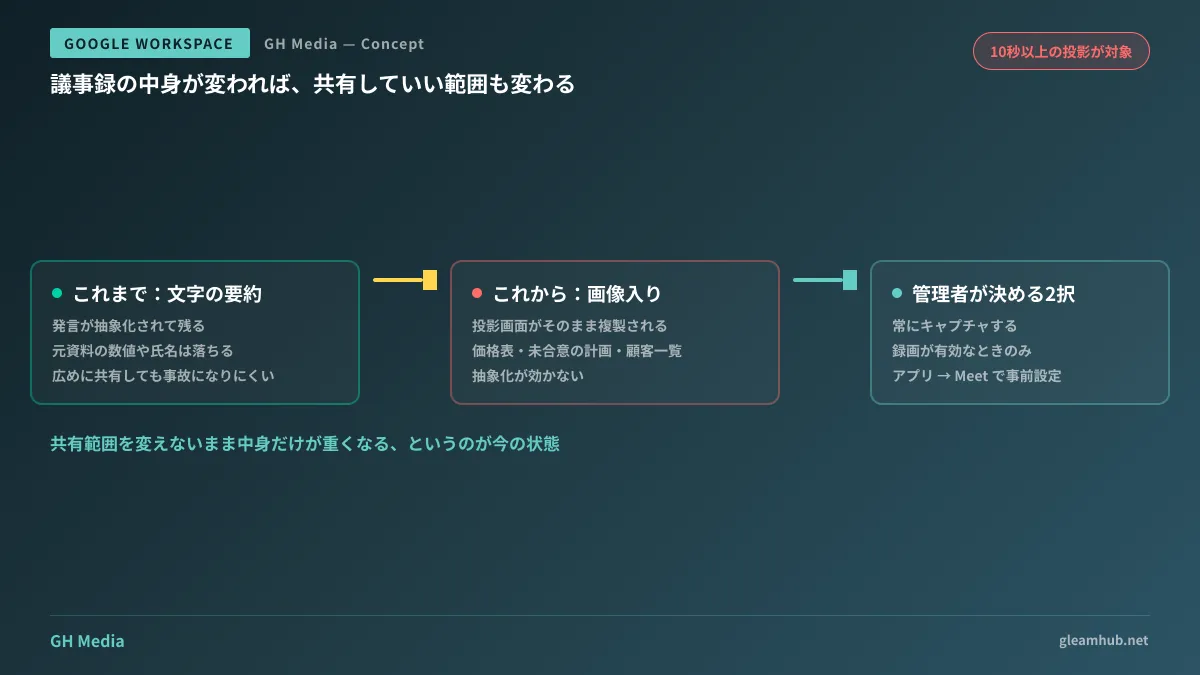
Admins can choose between "Always" and "Only when recording"
The Admin console includes a setting governing image capture under Apps → Google Workspace → Google Meet.
| Option | Behavioral | Suited organizations |
|---|---|---|
| Always capture | In meetings with notes enabled, presented content is preserved as images | Meetings are primarily internal, and presentation sharing scope matches attendees closely |
| Only when recording | Images are preserved only when the meeting is being recorded | External meetings are frequent, and recording is evaluated on a case-by-case basis |
The benefit of choosing "Only when recording" is that the decision to record also governs the decision to capture images in a single action. Because recording is clearly visible to participants, everyone recognizes that documentation fidelity has increased. If you want to avoid visual materials being preserved as images in meetings where only notes are quietly enabled, this is the natural choice.
This setting could be configured in advance before the feature reached end users. If you have not touched it yet, check which state it is currently in. Applicable editions are Business Standard, Business Plus, Enterprise Standard, Enterprise Plus, and Google AI Pro for Education.
In-meeting controls to stop capture, and their limits
During a meeting, users can disable this feature from the notes panel. When presenting content you do not want recorded, it can be turned off on the spot.
There are two limitations. First, turning it off requires action from whoever has the notes panel open. Even if the presenter asks for content not to be saved, someone else must perform the action. Second, people routinely forget to toggle it off. Relying on turning it off at the start of a meeting leads to oversights when meetings run long or slides are introduced later.
Practically, rather than relying on in-meeting actions, predefining which types of meetings should enable notes is much more stable. Establish clear lines by department—such as turning notes off by default for sales calls involving external parties, and leaving them on for internal design reviews. Requiring decisions on every call means checks slip on busy days.
Note that this discussion addresses Google's native features. Third-party AI note-taking tools installed individually by employees operate outside these administrative settings. Tightening native features is meaningless if browser extension tools are capturing the same screen. For auditing usage, see Auditing AI Meeting Note Tools.
What to do next
Check your Admin console to see how Google Meet image capture is currently configured. If you do not recall changing it, that is not a deliberate choice—it simply remains at the default setting.
Next, count how many meetings in the past month involved external parties. The higher that proportion is in your organization, the stronger your justification for switching to "Only when recording."
We consult on designing meeting record handling, sharing scopes, and departmental policies through GleamHub's free IT and Google Workspace consultations. Because requirements depend on industry standards and client agreements, please consult with us individually. Reach out via Contact Us.
Sources
- Visual screenshots now included in Google Meet meeting notes — Google Workspace Updates
- Visual screenshots in Google Meet meeting notes will soon be generally available, pre-configure admin settings in advance — Google Workspace Updates
- Google Meet’s AI note-taker will soon start including presentation screenshots — Neowin
- "Take notes for me" in Google Meet — Google Meet Help