Reports have begun surfacing of users opening automatically generated meeting Docs only to find slides of quotation proposals shared during the call pasted directly as images. For organizations accustomed to assuming only text transcripts and summaries were preserved, this change comes as quite a surprise.
Google Meet's "Take notes for me" has added a feature that captures screenshots of presented content into meeting notes. A phased rollout began on August 3, 2026, taking up to 15 days to propagate (Visual screenshots now included in Google Meet meeting notes — Google Workspace Updates). Furthermore, the default setting is "Always allow." Unless administrators take action, it remains active automatically.
Preserving transcripts and preserving screens are fundamentally different
It is easy to assume that "since meeting notes were already generated automatically, this isn't much different," but the nature of what is retained changes fundamentally.
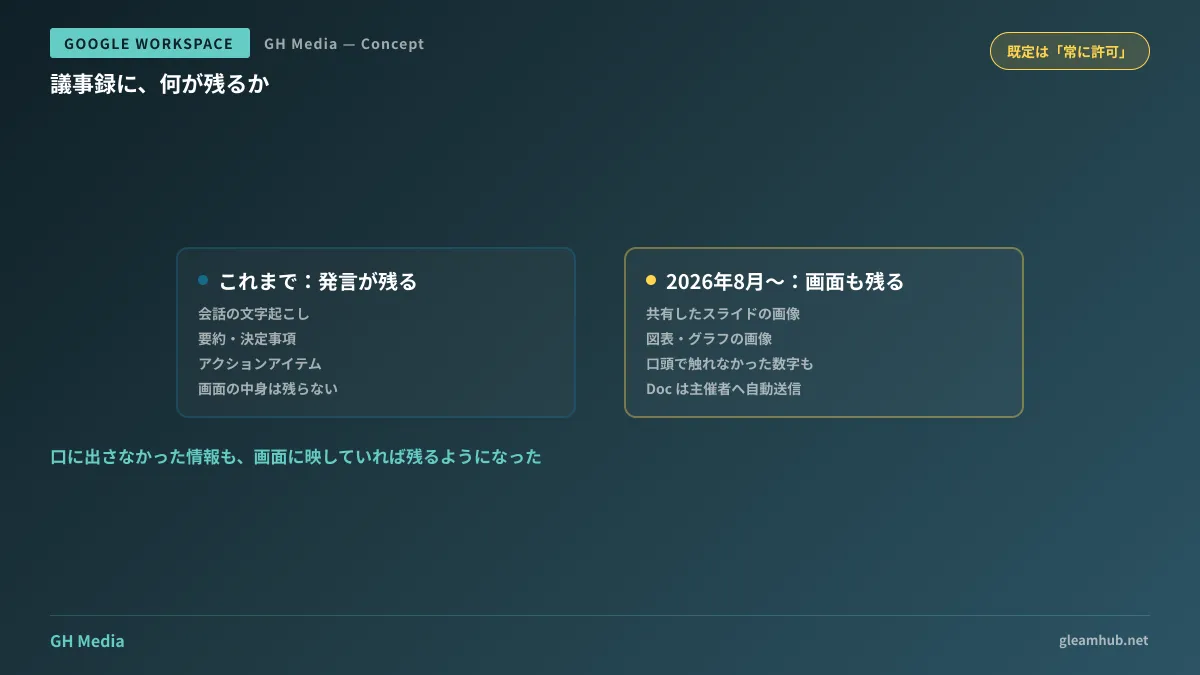
Previously, what remained in the meeting notes Doc were transcribed spoken statements along with the summaries, key decisions, and action items derived from them. If a participant remarked, "Our gross margin this quarter is...," those words were recorded. However, the exact data table displayed on screen was not.
What has been introduced this time is the behavior of capturing presented materials—such as slides, diagrams, and charts—as images. Information that was not spoken aloud is also preserved. To understand the difference, imagine a scenario where a single slide shown during a meeting includes numbers that have not yet received internal sign-off or client names from an unrelated project on that same sheet.
Meeting notes Docs are automatically emailed to the host and the person who initiated notes, and are also attached to the Google Calendar event. The convenience of this feature lies in the fact that initial sharing happens rapidly, but at the same time, this is precisely where the impact is felt when the nature of the content changes.
Two options available to administrators
The setting is located under Apps > Google Workspace > Google Meet in the Admin Console and can be applied at the domain, organizational unit (OU), and group levels. You can choose between the following two options:
| Configuration | Behavioral | Best suited for |
|---|---|---|
| Always allowed (default) | As long as note generation is running, screenshots of presented materials are included in the meeting notes regardless of whether recording is active | Meetings are primarily internal, and prioritizing comprehensive meeting notes is preferred |
| Allowed only when recording is active | Screenshots are captured only when the meeting is being recorded | There is already an established understanding that "a recorded meeting is a meeting that leaves a record" |
The latter option is what proves effective in practice. That is because many organizations already have an established habit of deciding whether to record a meeting. If a company already operates with practices such as verbally announcing "I'm going to record this" or not recording meetings that include external guests, tying screenshot permissions to that decision creates the least friction. Rather than adding another new rule, it simply piggybacks on an existing one.
How to divide policies when a company-wide blanket rule is not feasible
Where opinions diverge is in companies where meeting content differs significantly across departments.
For a development team's design review, having diagrams shown on screen directly included in the meeting notes is actually desirable. It eliminates the hassle of searching for "that architecture diagram from back then" later on. On the other hand, sales negotiations with prospective clients or HR and accounting meetings present an entirely different situation.
Because this setting can be applied by OU or group, a practical approach is to divide it as follows:
- Set the default to "Allowed only when recording is active" to keep the company-wide baseline conservative
- Carve out teams that frequently share diagrams and do not involve external guests (such as development and production) into an OU and set them to "Always allowed"
- Leave departments that routinely hold meetings with external parties at the default baseline
Order matters. If you open up the entire company with "Always allowed" first, you will have to explain your rationale when tightening it later. Changes where "something people could use is taken away" easily invite pushback from staff. The approach covered in Delegating device management privileges by OU can be applied directly when deciding the scope for administrative privileges.
What happens on the user side
After configuring the settings, here is how it appears to end users:
When screen sharing begins, a notification appears indicating that Gemini may take screenshots. On top of that, users can turn off screenshots alone from the notes panel. In other words, the design ensures that the final safeguard remains in the user's hands.
However, showing a notification is very different from users understanding what it actually means. Few people can read and evaluate a notification in the middle of a meeting. It is more realistic to think that information sharing should be completed in advance, with notifications serving merely as an aid. There are only three key points to convey: what gets preserved, who can see it, and where to click if they want to stop it.
An easily overlooked aspect: storage locations for the meeting notes themselves
Discussions around configuration tend to focus on whether screenshots are allowed, but what matters even more in practice is where generated meeting notes Docs are stored and who is in a position to view them.
Meeting notes are saved to the creator's Drive. As content becomes richer, the significance of each individual file increases. The structural issue of recordings and meeting notes accumulating in an individual employee's My Drive was outlined in Before meeting recordings and notes begin piling up in personal employee Drives. This update is of a nature that makes that storage location issue one step more severe. When exposed externally, a text-only file and a file containing images of presentation materials carry very different impacts.
Deciding organization defaults for the notes feature itself is covered in How to handle Meet automatic note taking as an organization default, while note generation scope and customization are discussed in Mastering "Take notes for me" in Meet.
The single check to perform first
Rollout has already begun, so there is one step you should take before your next meeting. Open the Meet settings in the Admin Console and check whether the current default value remains set to "Always allowed." Then, if there are departments that routinely host meetings with external attendees, switch at least those units over to "Allowed only when recording is active."
Even if you defer making a decision, leaving it as default without checking versus deliberately keeping it after confirmation drastically changes what you can explain if questioned later.
If you want to review your data egress channels end-to-end across Meet and Drive, or organize configurations by department, GleamHub offers free IT and Google Workspace consultations. Because the optimal setup varies depending on requirements, we provide customized quotes. Please reach out via Contact Us.
Sources
- Visual screenshots now included in Google Meet meeting notes — Google Workspace Updates
- Visual screenshots in Google Meet meeting notes will soon be generally available, pre-configure admin settings in advance — Google Workspace Updates
- Let Google Meet AI take notes for my users — Google Workspace Admin Help
- Google Meet’s AI note-taker will soon start including presentation screenshots — Neowin