Your shared drive contains meeting notes, estimates, and spec sheets. Yet when you ask Gemini to "summarize the history of this project," it pulls unrelated files or returns generic generalities without touching the essential materials.
We have seen several companies assume their Drive was poorly organized and restructure their folder hierarchy, but that rarely solves the problem. The issue is not where files are stored, but that no one has designated the scope of which specific documents should be read for this question.
The "Projects" option added to Google Drive's left navigation menu was built precisely to establish that scope. It is not just a new name for folders. It is designed not as an organizational tool, but as a mechanism to bundle the resources you want the AI to read.
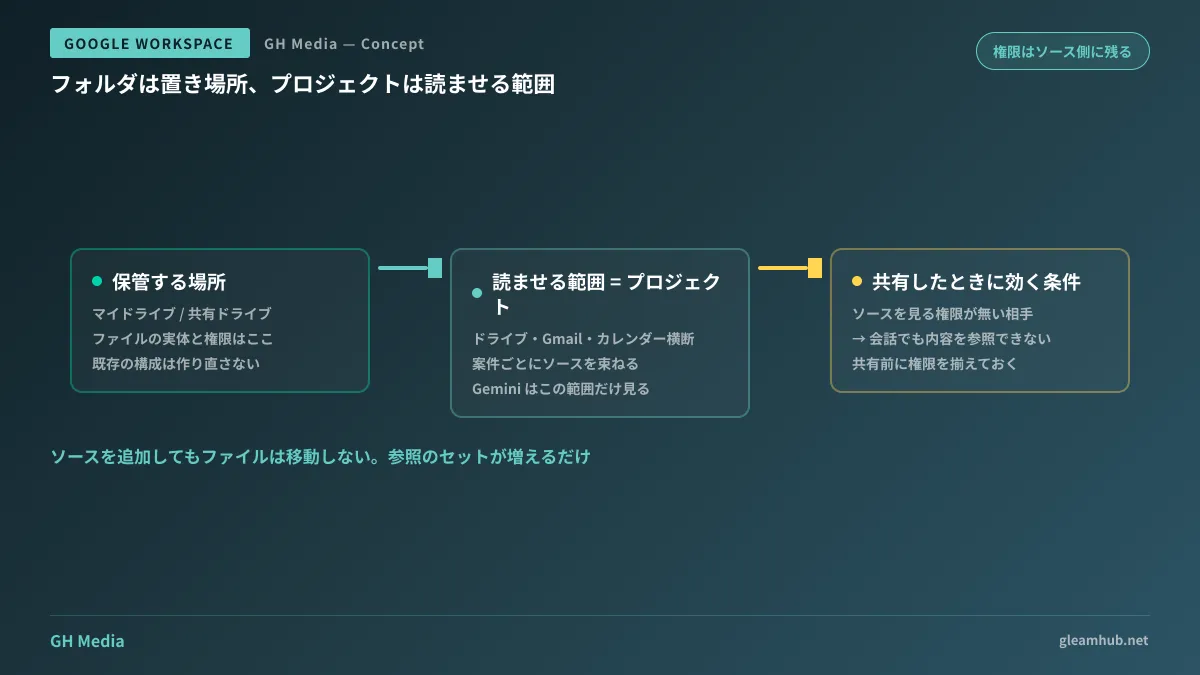
Folders are storage locations; projects define reading scope
Traditional folders determine where files are stored. A file resides primarily in one place, and following the hierarchy leads you to it. For humans searching for files, this structure works well.
Projects serve a different purpose: gathering materials related to a specific project or topic regardless of where they are stored. You can designate a collection of sources that includes proposals in My Drive, meeting notes in shared drives, customer exchanges buried in Gmail, and meeting schedules in Google Calendar.
When you click "Ask Gemini" within that setup, summaries and answers are generated based solely on that gathered scope of sources. It provides a middle ground between searching the entire Drive and manually opening and pasting files one by one.
| Purpose | File entity | |
|---|---|---|
| Folders / Shared drives | Storage and permission management | Resides here |
| Project | Defining scope for AI reading | Referenced only as sources |
The right column of this table is key: adding sources to a project does not move or copy the files. Because it merely creates a set of references pointing to relevant materials for a project, you do not need to worry about disrupting existing folder structures.
Permissions stay with the source, not the project
This is the part most frequently misunderstood in day-to-day operations.
Projects themselves can be shared. If you invite team members as collaborators, everyone can query Gemini against the same collection of sources. Hearing this, people often assume that adding materials to a project makes them readable to everyone invited.
The reality is the exact opposite: if a collaborator does not have permission to view the source file itself, Gemini will not reference that file's content in conversations with them. Adding an item to a project does not distribute permissions.
From an information security standpoint, this behavior errs safely on the side of caution. Even if an HR folder is accidentally added to a project, its contents will not leak to unauthorized users. Operationally, however, it creates different symptoms:
- Invited collaborators receive noticeably lower-quality answers
- The AI answers accurately for you, while other members report that it claims the documents do not exist
- It is difficult to tell from the conversation interface which specific files lack necessary permissions
In short, you must align sharing settings on the source files before sharing a project. In practice, this amounts to an audit of your link sharing and access permissions. We outline the process for reviewing organization-wide Drive permissions in Auditing Google Drive link sharing. Running through that audit before adopting Projects broadly will save significant confusion later.
No need to redesign your shared drives
We often hear from teams wondering if they should restructure their shared drives now that Projects has arrived. In short, there is no need to rebuild them.
Shared drives will continue to handle storage and access management as they always have: dividing drives by department or initiative and managing membership. That architecture remains unchanged. Projects sit on top as a layer for temporarily gathering whatever is needed.
Rather, the risk lies in the opposite direction: creating too many projects leaves people unsure of which project to look at. The familiar proliferation of unorganized folders simply repeats itself one layer up.
To avoid this, define your creation units in advance. The cleanest approach is operating on the premise that projects retire once the initiative finishes. Keep long-term company knowledge organized within shared drives rather than projects. Failing to establish this distinction early on guarantees that both will become cluttered within six months.
We previously addressed where to consolidate organizational knowledge in Combining NotebookLM and Google Workspace. It helps to divide responsibilities: Projects handle short-term project context, while NotebookLM manages recurring institutional knowledge.
Operational decisions the IT team should make upfront
Before rolling this out company-wide, agreeing on a few policies will save rework. These are operational agreements rather than technical configurations:
Can highly confidential documents be added as sources? Establish clear guidelines on whether HR, payroll, legal, or unannounced corporate data can be added as project sources. Even though unauthorized users cannot see the content, individual members can still send project invites. Drawing boundaries on permissible data types upfront is far safer than imposing bans after an incident occurs.
What happens when a project owner leaves the company? This is a key difference from shared drives. While files stored in shared drives remain company assets, user-created projects are tied to individual accounts. When determining offboarding procedures, projects must be included alongside Drive files.
Confirm device limitations. Project creation and Gemini interactions remain centered on the web interface, while mobile apps are largely limited to adjusting share settings or renaming. When onboarding mobile-heavy departments, communicating this limitation upfront prevents a wave of "it doesn't work" inquiries.
The core philosophy behind permission design is identical to our approach in Designing permissions for internal portals in Google Sites: first determine who should see what, then apply the tool's features accordingly.
What to do next
Pick an ongoing initiative and count how many documents are tied to it and where they are scattered. Across Drive, Gmail, and Calendar, you will likely find five to ten separate items. That dispersion is precisely why assigning operational tasks to AI was difficult in the past.
Projects are practical because they bundle these scattered assets without requiring you to reorganize them first. You can start using them while files remain as they are. However, as noted earlier, the system falls flat if collaborators lack underlying permissions, so run your permission checks alongside any testing.
For guidance on Google Workspace permission design or structuring internal data access for generative AI, GleamHub offers free IT and Google Workspace consultations. Implementation approaches vary depending on organizational size and existing Drive structures, so please consult us for tailored support. Reach out anytime via Contact Us.
Sources
- Use Drive projects to share Gemini sources — Google Drive Help
- Google announces Workspace Intelligence, including Google Drive Projects and Google Meet in-person note taking — HelenTech
- How to use Google Drive's new Projects feature | Benefits of centralizing information with Gemini — rakumo
- What are Google Drive Projects? Usage, use cases, and differences from NotebookLM explained — DSK Cloud
- Understand how to use Google Drive's Projects feature in 10 minutes — Yoshizumi Information