A question arrives on the IT team's device from an employee: "Can I install the Gemini app?" While the answer is still pending, it is already installed in another department. Unless you restrict installation on company-issued Windows devices, this is simply what happens.
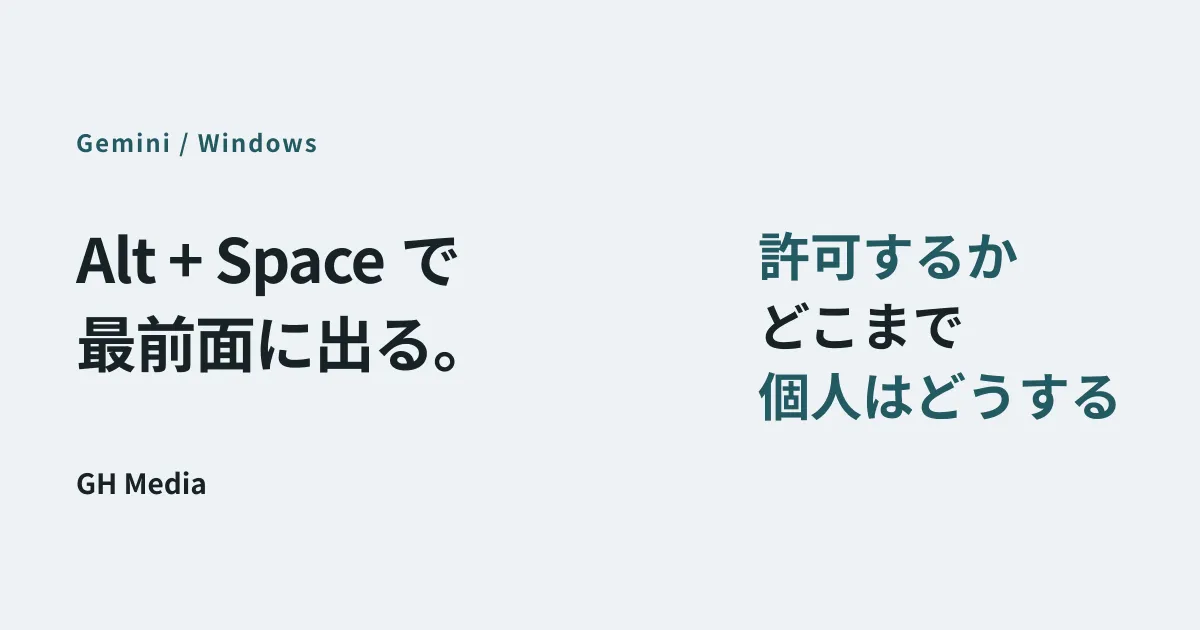
On 10 September 2026, Google began offering the Windows version of the Gemini app. Press the Alt key and the space bar together and Gemini appears layered over whatever you are working on. It arrives about five months after the Mac version. Using it requires 8 GB or more of memory and at least 200 MB of free space, and it supports Windows 10 and 11.
What makes this app awkward to administer is that it works with a personal Google account as well as a company work account. Whether it can be used with a work account is something administrators control, but when an employee signs in with their own personal account, settings on the Admin console side are irrelevant. Unless you lay out the options that sit between banning and ignoring, only the reality moves forward.
What changed, and what did not
Gemini itself has always been available from a browser. What changed with the desktop app is mainly how easy it is to reach.
The act of hunting for a browser tab and switching to it disappears, and a single keyboard shortcut brings it to the front. In its dedicated workspace it can also pull information from Google apps such as Gmail and Google Drive to draft documents. It is closer to reality to treat this as a change that increases how often it gets used.
What has not changed is the principle of where data goes. When used with a work account, the range it can reference is determined by whether the administrator has allowed the Gemini app to connect to each Workspace service. This setting lives in the Admin console under "Apps", then "Google Workspace", then "Gemini", and requires the Gemini settings administrator privilege. It is enabled by default, so an organization that has done nothing is in a state of having allowed it.
Three things to decide
1. Whether to allow use with work accounts
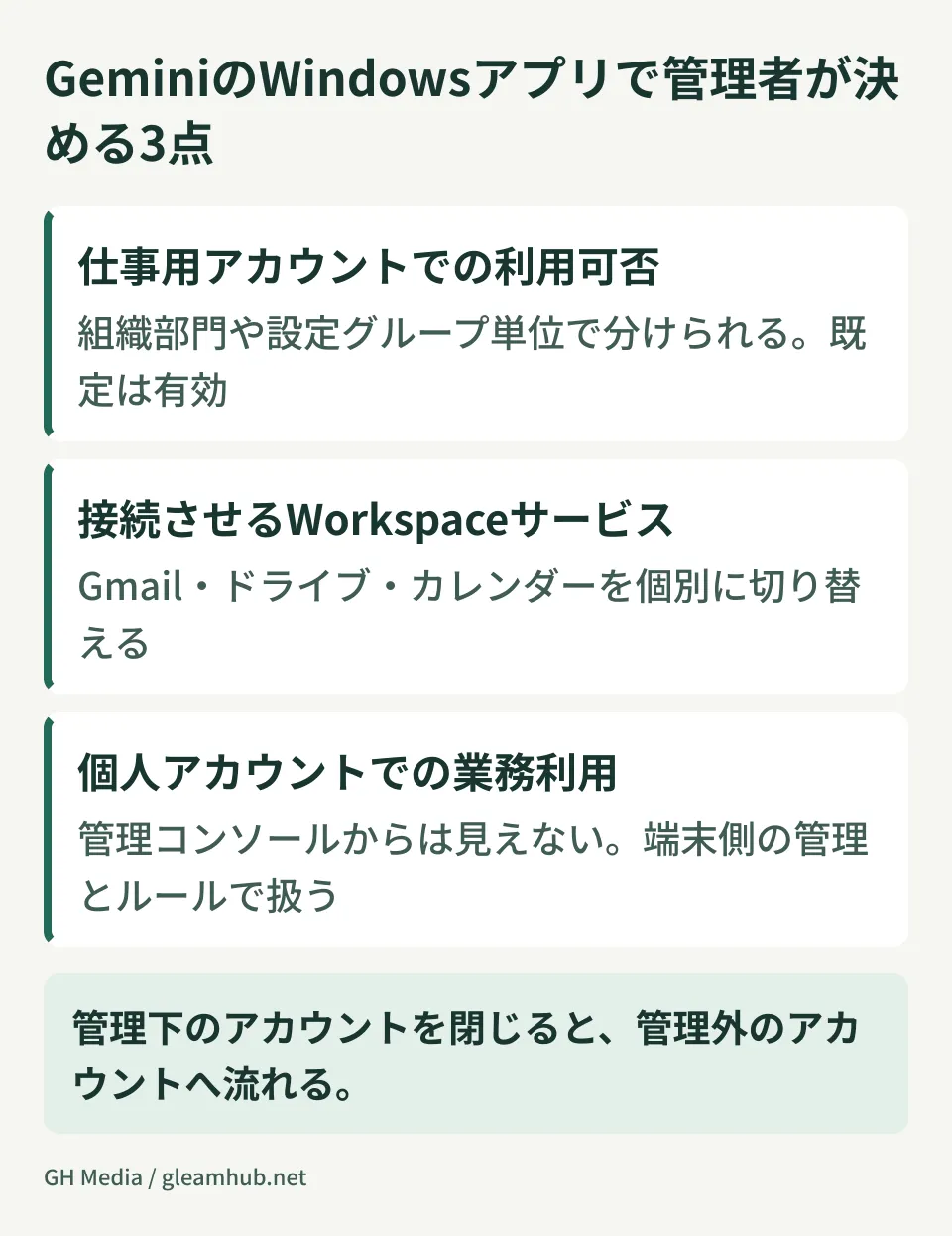
First, decide whether the Gemini app may be used with a company account. It can be split by organizational unit (OU) or configuration group, so it does not have to be uniform across the company. You can allow it for the sales department while deferring the decision for departments that handle customers' personal information.
Operating on the default without deciding this leads to a state of "nobody remembers allowing it, but it works". Because tightening later draws complaints from employees who have already built it into their work, deciding first creates less friction than leaving it open. Changes to the setting can take up to 24 hours to take effect.
2. Which Workspace services it may touch
Next, decide whether the Gemini app may reference Workspace data such as Gmail and Drive. This too can be switched individually in the Admin console.
What informs this decision is not whether the data would cause trouble if it left the company, but who sees it when it is mixed into an AI response. If personnel evaluations or quotations sit in a shared drive, the order is to confirm that access to those files is narrowed to the people who should have it before allowing references. Gemini finds files that person is already able to access. Allowing references while permission design remains loose only makes the visible range visible.
3. How to handle use on personal accounts
The third is the hardest part. An employee signing in to the Gemini app with their own personal Google account and pasting company material into it is invisible from the Admin console. This is not specific to Gemini; it is common to every AI service reachable from a browser.
There are two directions you can take. One is on the device side: managing installation rights and the app allowlist on work Windows devices. How to manage Windows devices with Google Workspace endpoint management is laid out in Who is protecting the company PCs, and how?
The other is to write the rules down and make them known. For the part you cannot stop technically, the only option is to write specifically what may and may not be pasted in. "Be careful with AI" gives people nothing to follow, so bring it down to the level of documents containing customer names, unpublished price lists, and rosters containing personal information. How to write this for a small or medium business is covered in AI usage policies for small and medium businesses.
Get the order wrong and you do the work twice
These three are not independent. Ban only the work account while leaving the personal account side alone, and employees move to personal accounts. Visibility actually falls, in the form that closing accounts under management increases use of accounts outside it.
In practice, the easier order is to decide and communicate the range usable with work accounts first, and then ask people to refrain from business use on personal accounts. The sequence is to provide a usable option before restricting.
For the broader trend of Gemini features, voice input among them, arriving on work devices, the voice features in Gmail, Docs and Keep also covers the points that matter to administrators.
What to do next
Open the Admin console, go to "Apps", then "Google Workspace", then "Gemini", and check the current state of the connection setting for Workspace apps. If it is enabled on the default, that may not be a decision the organization made, but simply something nobody has touched.
If what you find differs from your intent, we recommend reviewing shared drive access permissions before making the change. Reverse the order and you start operating with a reference scope you believe you narrowed but which does not match reality.
At GleamHub we take enquiries about Google Workspace administration design and setting rules for generative AI use through our free IT and Google Workspace consultation. The right dividing line varies with the size of the organization and the nature of the information it handles, so start by telling us where things stand. You can get in touch via Contact.
Sources
- Google begins offering the Gemini app for Windows — gihyo.jp
- Gemini app for Windows released: usable layered over the screen without interrupting your work — ITmedia NEWS
- A Windows version of the Gemini app arrives — Mado no Mori
- Control Gemini App access to Workspace services — Google Workspace Help
- Turn the Gemini App on or off — Google Workspace Help
- Google begins offering the Gemini app for Windows — HelenTech