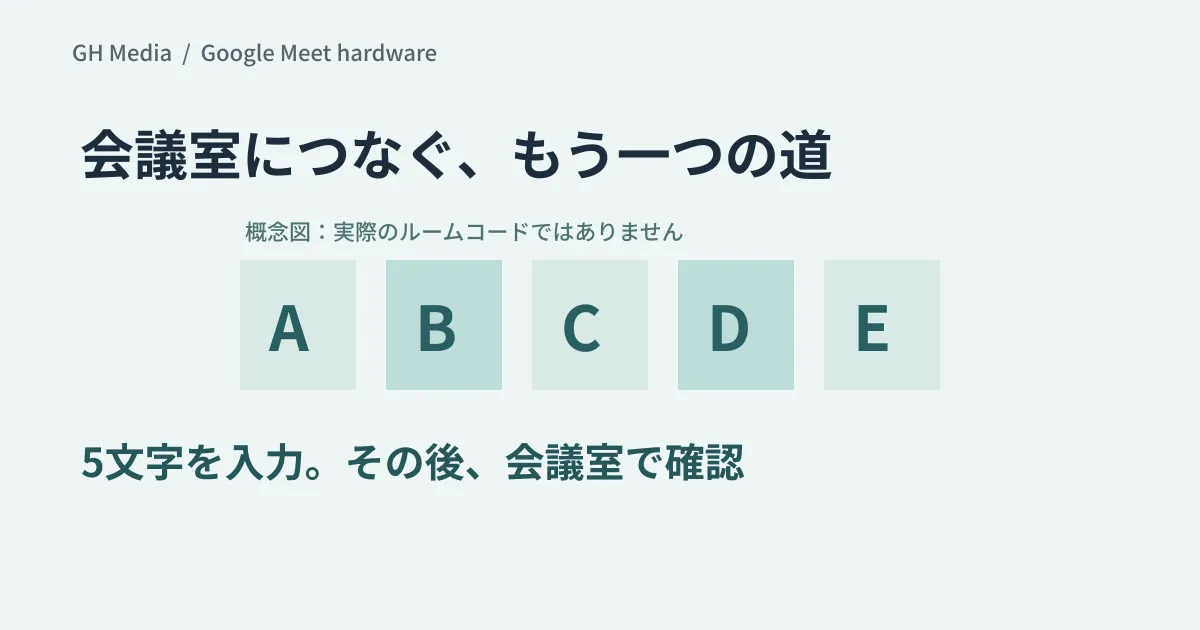
The meeting room equipment is nearby, yet your PC cannot detect it. Google Meet room codes offer a manual connection method when ultrasound detection cannot be used. It is not a feature that resolves all network or account issues.
The general availability announcement on September 15, 2026, explains how to enter the 5-character code displayed by Meet hardware on the pre-call screen of your device. It is intended for Workspace users who utilize Google Meet hardware.
Confirm on the conference room side after entering the code
According to official documentation during the preview period, after entering the code, you tap the screen on the meeting room device to confirm the connection. The code refreshes every few minutes.
While these mechanisms help prevent misconnections, they should not be extended into a guarantee that "people far away can never connect." Meeting room attendees must confirm that a connection request corresponds to their own action before approving it.
What administrators need to verify
According to the general availability announcement, the feature is ON by default and can be controlled via per-device settings. Because it is a gradual rollout taking up to 15 days starting September 15, not all devices will necessarily show the same display as of September 20.
| Status | What to check first |
|---|---|
| Room code is not displayed | Eligible device, rollout schedule, admin settings |
| Entering the code does not proceed | Whether the code is current, confirmation action on the meeting room screen |
| Video or audio is unavailable after connecting | Investigate network, device, and meeting settings separately |
| Unsure whether to allow use in shared meeting rooms | Designated approver, usage instructions, support contact |
Include fallback steps in meeting room guidelines
Providing users with three clear options—"connect via auto-detection," "connect via code," and "contact support if it still fails"—allows them to decide whether to continue troubleshooting or call for assistance.
Before posting instructions, verify and photograph code display locations, pre-call screen wording, and approval steps on actual devices. Distributing fictional UI mockups prevents users from cross-referencing with actual equipment. When verifying, record test data for meeting names and participants.
Evaluate adoption not only by successful connection counts, but also by whether first-time users can follow the instructions, whether accidental connections to other meetings are avoided, and whether instructions remain valid even if devices are not yet updated.
Official documentation was reviewed on September 20, 2026. Connection verification on meeting room hardware and smartphones has not been performed. This article is not an empirical report of operational steps.
Please consult GleamHub regarding operational design for meeting room hardware and Workspace.