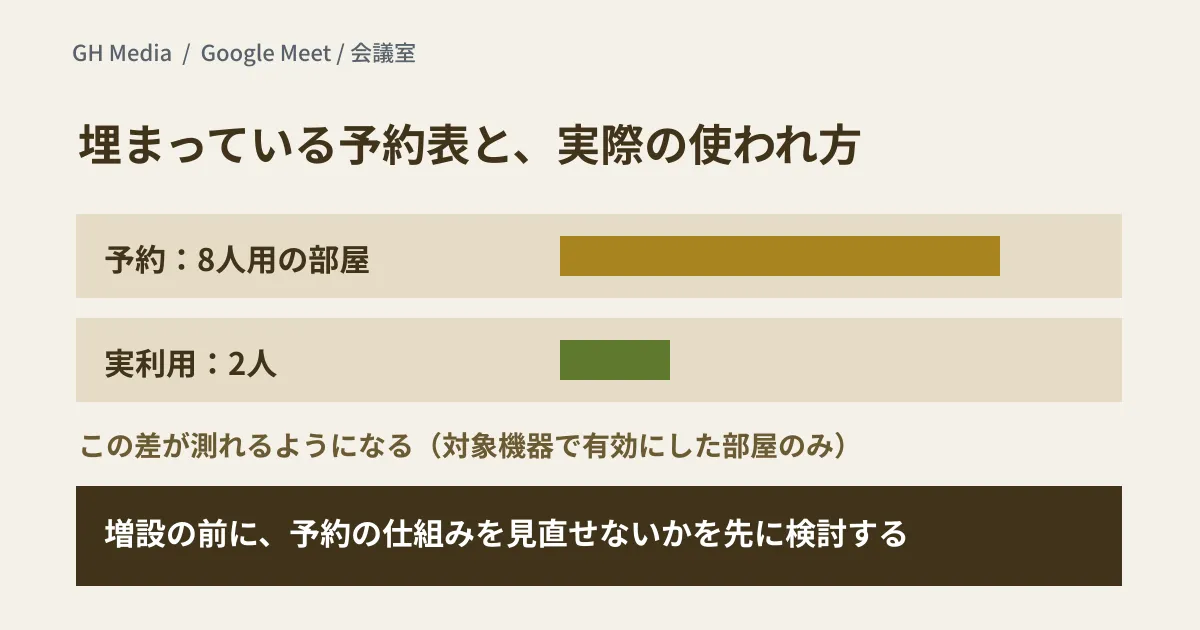
When you are asked to add more meeting rooms, the booking calendar may be full while rooms that are booked are actually empty.
If you have numbers showing the gap between bookings and actual use before deciding whether to add rooms, the discussion starts from a different place. Google Meet room hardware has occupancy counting for this purpose, and the range of supported devices is expanding.
Expanding to Android-based Logitech devices too
On September 23, 2026, Google announced that occupancy counting for Google Meet (rendered in the Japanese-language Help Center as "detection of the number of people using a room") will also be available on Android-based Logitech Gen 2 room hardware (Logitech Rally Board 65 or later). It brings a capability that existed on ChromeOS devices to Android-based devices. Support for older Gen 1 devices is to be added next year as part of an upcoming CollabOS update.
- Eligibility: All Google Workspace customers using Google Meet on Logitech Gen 2 AOSP devices (Rally Board 65 or later)
- Rollout: An extended, gradual rollout starting September 28, 2026 for both Rapid Release and Scheduled Release domains (it may take longer than 15 days for the feature to become visible)
- Settings: Off by default. Admins turn it on at the domain, organizational unit or group level. There is no end-user setting
- Data: Admins can review occupancy data in the Admin console and can also download it as a spreadsheet. Google says the feature does not collect or store personally identifiable information
As an example of how to use it, the announcement mentions checking whether rooms with older video conferencing hardware are being avoided in favor of rooms with better cameras and audio.
To find out whether your devices are covered, check the model names in the Google Meet hardware list in the Admin console and compare them with the conditions above. We cover the difference between the ChromeOS and Android lines in You don't need to replace meeting room Meet hardware just yet.
Counting from camera images, on the device
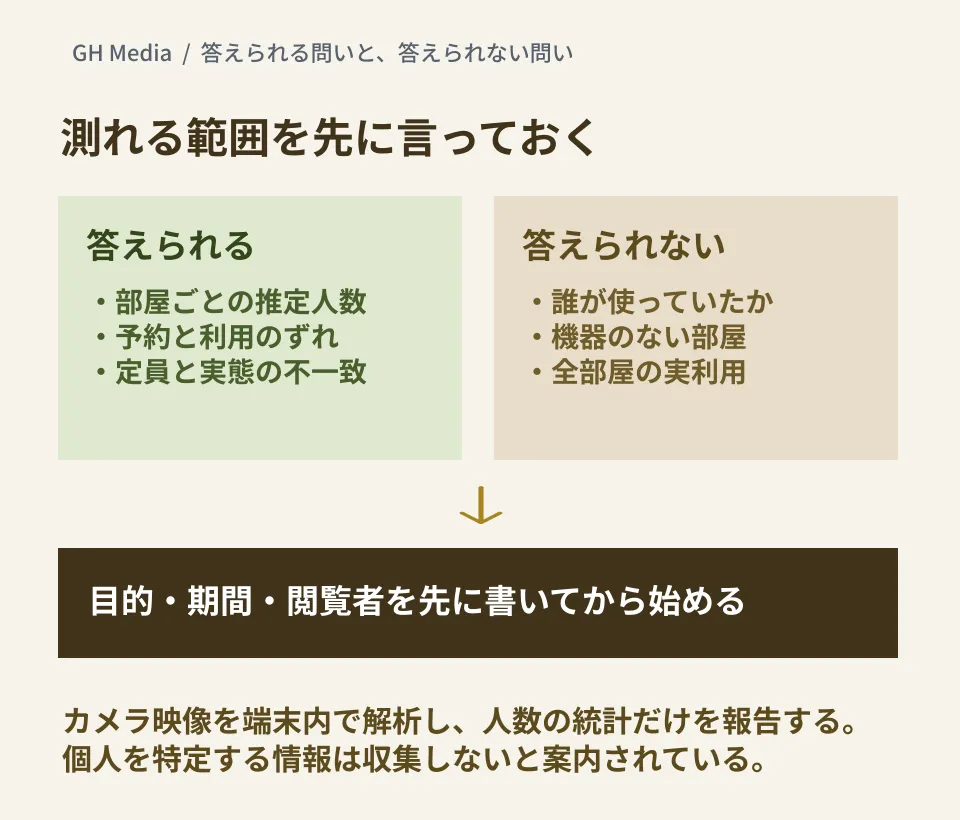
According to the help article, occupancy detection runs entirely on the device, and a machine learning model analyzes camera images to estimate the number of people in the room. It explains that only statistics are reported and that no personally identifiable information leaves the device. Note that the Japanese-language Help Center (machine-translated by AI) renders the part corresponding to "runs entirely on the device" as a phrase meaning "operates across the entire device," which changes the meaning.
Descriptions of the camera LED differ between sources. The help article says "when it's on, the LED indicator on the camera lights up," while the September 23 announcement says that "because occupancy detection processes data locally on the device, the camera LED indicator may remain off during counting depending on the hardware vendor," and directs readers to vendor documentation for device-specific information. When explaining the feature internally, avoid presenting the LED lighting up as "the signal that counting is happening."
What the data can and cannot tell you
You review the data in the Room insights dashboard in the Admin console (called the "meeting room information dashboard" in the Japanese-language Help Center) and in reports you can download for each device. Based on the help article's definitions, we separate the questions it can answer from those it cannot.
| Question | Can it be answered? (based on the help article) |
|---|---|
| How many people actually use an eight-person room | Answerable for rooms with a supported device where it has been turned on. Headcounts are estimates, and the ratio to capacity is also shown |
| Whether any rooms are booked but nobody shows up | Rooms where it is turned on likewise give you clues. Occupancy of booked rooms and occupancy of unbooked rooms are shown in separate graphs, and times when nobody is detected are distinguished |
| Who was using the room | Cannot be answered. Only headcount statistics are reported |
| How rooms without the hardware are used | The booking rate is visible, but there is no headcount data |
Each device's report contains the device ID, the start and end time of each data point (UTC), the most frequently observed number of people and the maximum number of people during that period, and whether the Google Meet device was used to join a meeting. The dashboard classifies room occupancy as more than 100% of stated capacity, 50–100%, 1–49%, or nobody detected. The booking rate is the share of booked hours in the 10-hour workday from 8 a.m. to 6 p.m.
The third and fourth rows are points to communicate up front when explaining the feature internally. On hearing "the camera counts people," some people will wonder what is being recorded. And because rooms without the hardware produce no headcounts, you will not end up with actual usage for every room.
In addition, while the help article explains that the number of people can be tracked throughout the day, we could not confirm from the announcement whether the supported Logitech devices also count people in the same way when no meeting is in progress. The announcement directs readers to vendor documentation for device-specific information.
The order to follow when explaining it internally
Because the feature is off by default, you can choose when to turn it on. Before turning it on, write down "what it is for."
- Define the purpose in one sentence. For example: "Collect three months of actual headcounts per room as input for deciding whether to add rooms." Setting a time limit makes it easier to explain that this is not constant monitoring.
- Write down what is recorded and what is not. The help article explains that camera images are analyzed on the device itself to estimate the number of people, that only headcount statistics are reported, and that no personally identifiable information leaves the device. Internally, it is easier to get this across if you rephrase it as "No record of who was there is kept. Only an estimate of how many people were there remains." Because the LED behaves differently depending on the device, do not use it as the basis for your explanation.
- Decide who can see the data. Viewing the dashboard requires the Room insights privilege, one of the Calendar administrator privileges. The people who can view it in the Admin console are not the same as the people who receive reports. Also decide where downloaded files will be stored.
- Decide what happens after the data has been used for the decision. Will you turn it off once the decision on adding rooms has been made, or keep it running? Record which devices you turned it on for and how long it will continue.
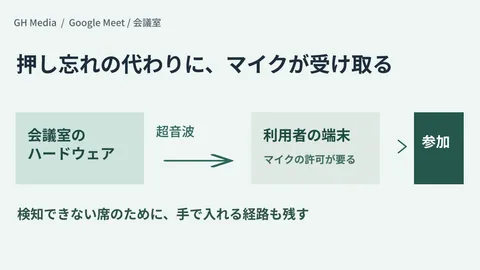
Around meeting rooms there is also automatic check-in, in which the microphone on a user's device picks up ultrasound emitted by the room hardware. We covered it in Automatic room check-in runs on ultrasound. Occupancy counting uses the camera on the room hardware. Because the two features detect people with different components, prepare a separate explanation for each.
What to do once the numbers are in
Once you have three months of data, consider whether you can revise your booking rules before adding rooms. The help article also mentions using the dashboard to spot trends such as small groups booking large rooms. If an eight-person room is being booked for meetings that two people actually attend, there is room to review how booking works before adding rooms.
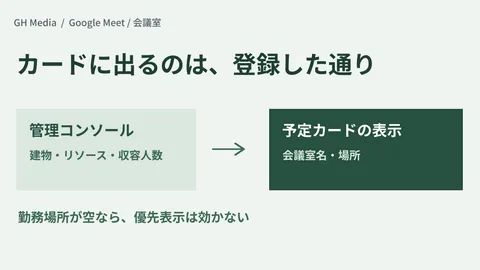
To use the dashboard, the help article says to register meeting rooms as Google Calendar structured resources, assign calendars to the resources, set the room category to Meeting space, and set the time zone for each room. For the registration fields for buildings and resources, see Meeting rooms now show on the Meet homepage; for cleaning up unused bookings, see Why Google Calendar rooms are "booked yet empty".
Even if you conclude that more rooms are needed, these numbers change how you justify it in the internal approval. Instead of "the bookings are full," you can state how many rooms are consistently used at less than half their capacity and how many are used beyond their capacity.
On September 28, 2026, we opened and checked directly the Google Workspace Updates announcement (dated September 23, 2026) and the Admin Help Center articles "Turn on occupancy detection" and "Track room and device usage with Meet hardware" (English versions, both updated September 24, 2026). We have not verified the settings in the Admin console, the data actually displayed or downloaded, the accuracy of the headcount estimates, or how long the data is retained. Whether the supported Logitech devices also count people when no meeting is in progress, and how the camera LED behaves, need to be checked in each vendor's documentation for each device. This article organizes what the official materials cover and proposes how to explain the feature internally.
For designing how meeting rooms and Meet hardware are operated, or reviewing Google Workspace admin settings, please consult GleamHub.