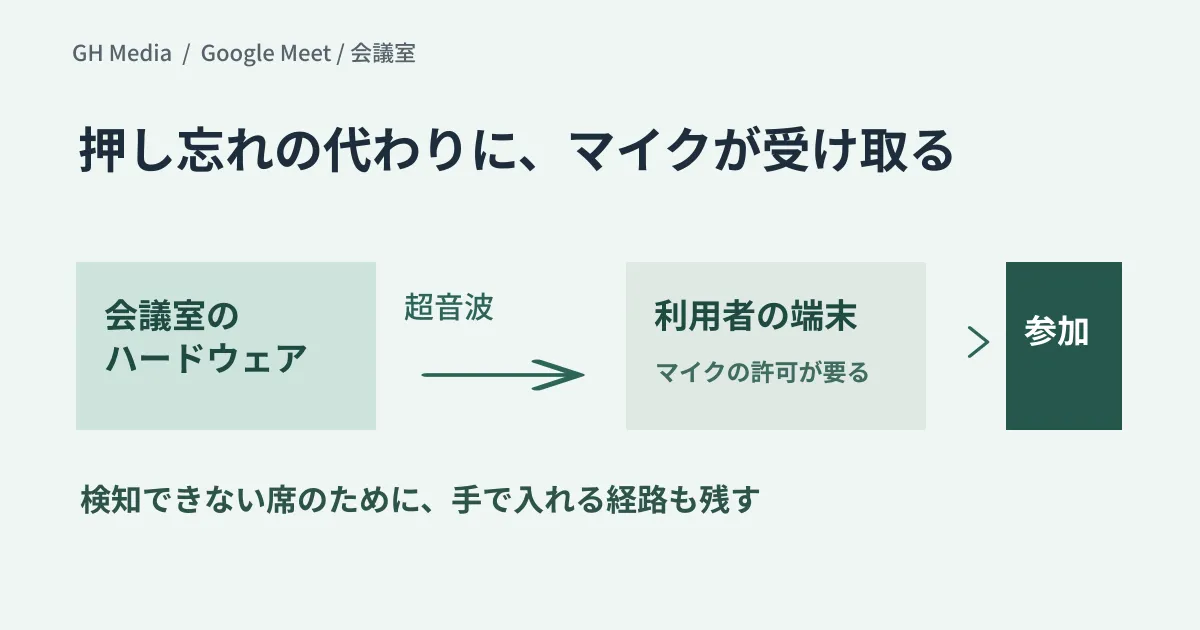
When you join Google Meet from a meeting room, remote participants see only the room's name on their screens and cannot tell who is in the room. If you connect your own device in Companion mode and "check in" to that room, your name appears, but if that extra step is skipped, remote participants have no way of knowing who is in the room.
Google Meet's automatic room check-in does this check-in without relying on anyone's manual action. Since September 9, 2026, its use on smartphones and tablets has been gradually expanding to all Workspace customers with Meet hardware. However, the mechanism uses the device's microphone. There are things to decide internally before you tell users about it.
Fewer forgotten check-ins, in exchange for using the microphone
According to Google's announcements and help pages, when the device's microphone detects the ultrasonic signal emitted by the meeting room hardware on the pre-join screen (the green room), the button for joining in Companion mode is highlighted, and joining with that button automatically checks you into that room. It was announced for laptops (the web version of Meet opened in Chrome) in August 2025, and what is expanding now is its use in Companion mode on smartphones and tablets. The mobile rollout also began in January 2026 but was paused in February, and a gradual rollout started again on September 9. According to the official guidance, it can take up to about 15 days to appear.
When you check in, your name appears in the participant list and on the meeting room's video tile. With fewer forgotten check-ins, it becomes easier for remote participants to see who is in the room.
What to check is not "sound" but "microphone permission"
Ultrasound is inaudible to the human ear, but it is picked up by an ordinary microphone. That means microphone use must be permitted on the user's device. This is where internal explanations tend to get stuck.
| What to check | What to look at specifically |
|---|---|
| Meeting room side | Whether it is supported Meet hardware, and whether proximity detection is on (on by default for newly enrolled devices) |
| User devices | Whether the browser or app has permission to use the microphone, and which microphone is selected (detection can fail with a USB headset) |
| Personal devices (BYOD) | How far the company may ask for permission, and what happens when someone refuses |
| Room conditions | Whether adjacent rooms, glass partitions or movable walls cause false detections |
At companies where people use personal devices for meetings, unless you first explain what the request "please allow the work app to use the microphone" means, it may be taken to mean constant recording. The announcement for laptops explains that proximity detection runs only on the pre-join screen and for a short time right after joining in Companion mode. The quickest approach is to make clear that it is a separate feature from meeting recording and transcription. We cover setups that connect a personal laptop to the meeting room TV in before installing dedicated Meet hardware in meeting rooms.
Prepare a route in advance for when detection fails
Proximity detection results vary with the environment: devices that have denied microphone access, devices with a USB headset selected as the microphone, seats far from the hardware. In each case the device is "just not detected," and the meeting itself can still start, so it becomes hard to notice that a check-in was missed.
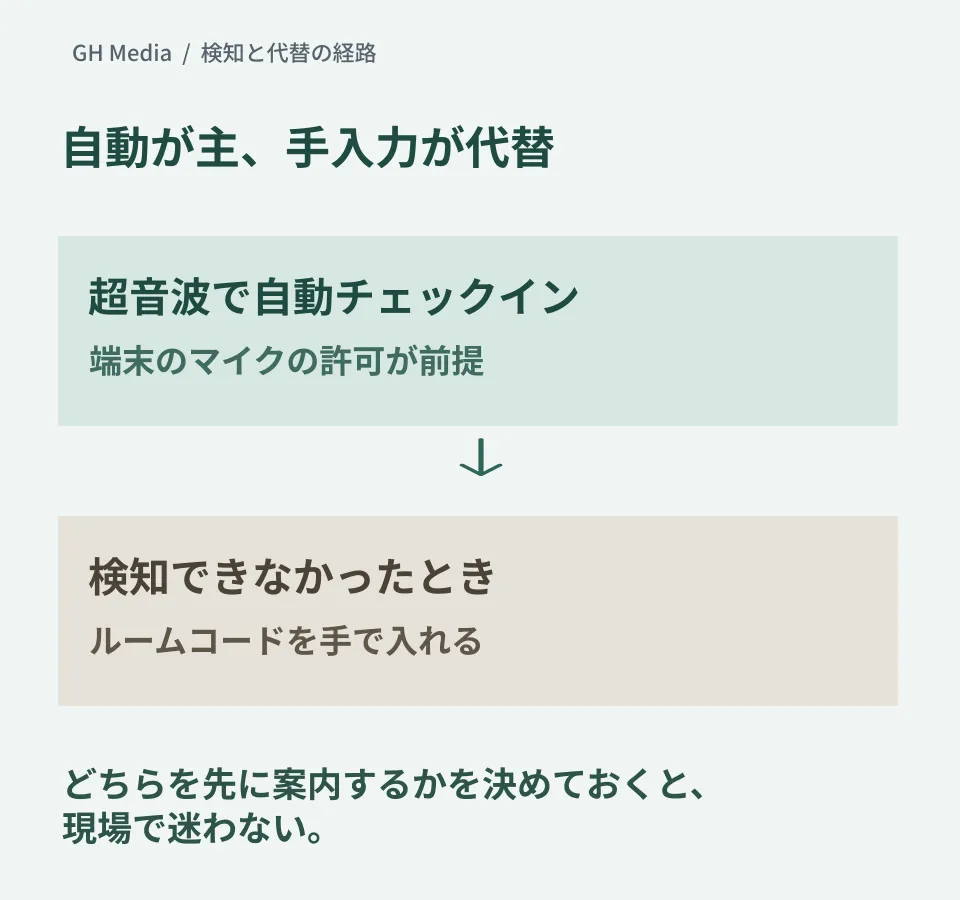
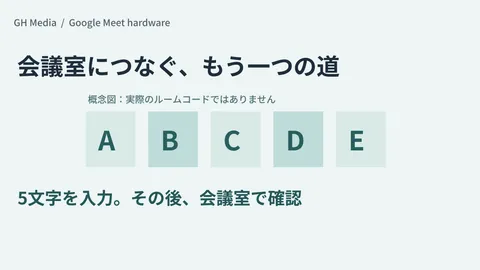
Explain the manual entry route at the same time. As a fallback for when ultrasound cannot be used, there is a way to connect to nearby meeting room hardware by entering a 5-character room code from your own device. We cover the steps in how to connect with a room code. If you decide the order in advance, with automatic check-in as the main path and the code as the fallback, people in the room won't be left unsure what to do.
If a generational change of the meeting room hardware itself is coming up, also check whether there is currently a plan to replace it. We outline what the transition covers and its timing in the transition plan for meeting room hardware.
Start with one room
Proximity detection is on by default for newly enrolled devices, and admins can switch it on or off for each device. There is no reason to announce it to the whole company at once. Pick one frequently used room and check, for each type of user device, whether detection actually works and whether names appear when people join from the highlighted button.
If you also record in that one room what trouble people who denied microphone access ran into and whether any false detections occurred, you will have your explanatory material ready when you expand.
On September 24, 2026, we rechecked the Google Workspace Updates announcements (August 2025, January 2026 and September 2026), Google Meet Help and the Google Workspace Admin Help, using the excerpts of each page included in search results. Detection on meeting room hardware, false detection rates and what is displayed after check-in have not been verified hands-on. This article organizes what to check before adoption and how to proceed.
For help designing how you run meeting rooms or Google Workspace, please consult GleamHub.