When you run an access review, you may find an assignment like this: an admin role granted three months ago for a migration is still in place after the work ended. The person who granted it does not remember doing so, and there is no record of it being removed. Nothing malicious happened; the step of "remove it when the work is done" simply was not anyone's job.
With privileges like these, removing them is harder than deciding to grant them. The Google Workspace Admin console has now gained a change that hands that step over to the system.
Grant it with an expiration and it is removed automatically
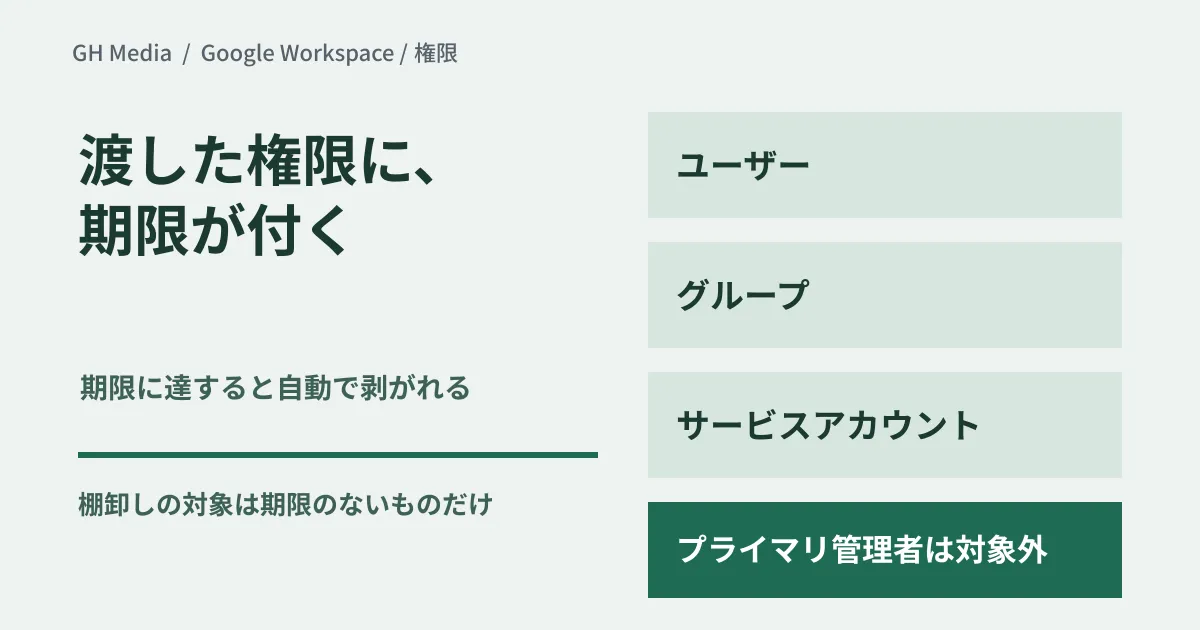
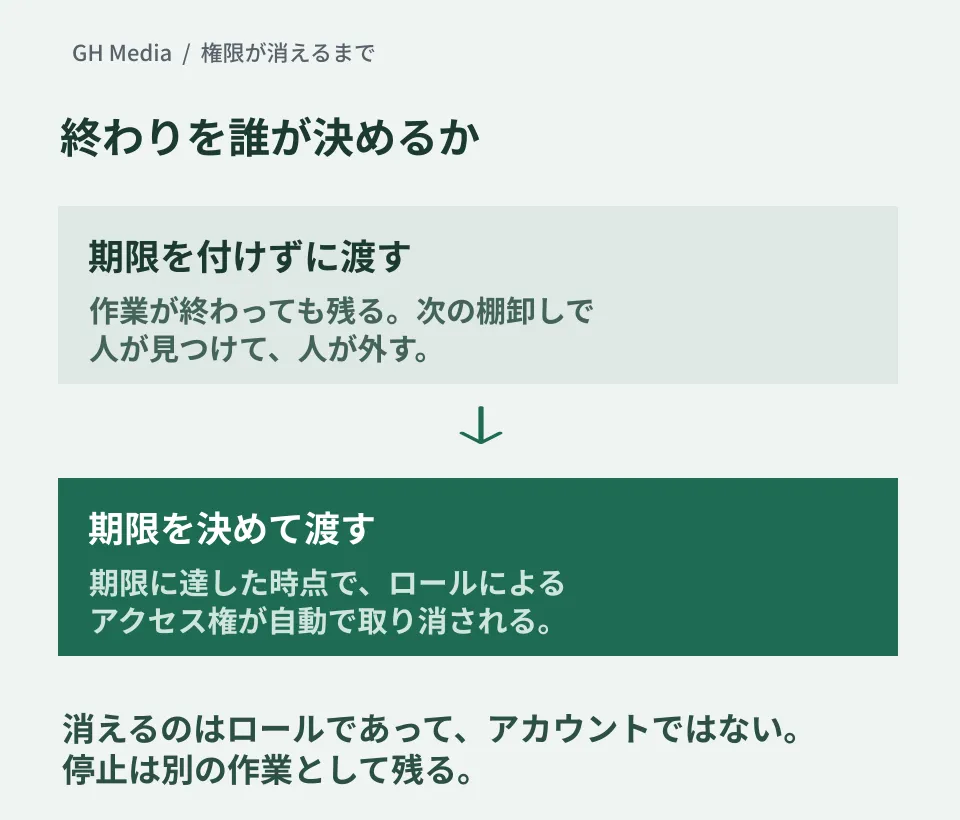
As announced on September 23, 2026, admin roles can now be assigned "for a defined period." According to the announcement, it applies to all Google Workspace customers and can already be used on both Rapid Release and Scheduled Release domains. When the specified expiration is reached, the access granted by that role is automatically revoked.
You can grant them to more than just users: groups and service accounts are covered too. When a super admin assigns a role, they either choose a predefined duration such as 30 days or specify a date and time themselves. According to the Admin Help Center, the maximum is one year.
The announcement names one exception: temporary roles cannot be assigned to your organization's primary admin. This is because the primary admin requires permanent super admin privileges, and that part has not changed.
Be clear about what this reduces
What this feature reduces is not the privileges themselves but "what your access reviews have to cover."
Privileges that are assigned permanently have to be listed periodically and judged one by one on whether they are still needed. For those granted with an expiration, that judgment is no longer necessary. What you need to look at in an access review narrows down to the assignments without an expiration. In an organization where a single IT person looks after the Admin console alongside other duties, this difference shows up as real working time.
Put the other way around, nothing changes for privileges granted without an expiration. Deciding who gets which role still requires the approach we laid out in delegating admin privileges with least privilege. Expirations are an operational tool that sits on top of that design.
Where to set the expiration
In practice, the hard part is choosing the date. If you simply enter the scheduled end date of the work, it may not be enough, because fixes before acceptance and handling questions right after the switchover can still remain.
| Recipient | How to set the expiration |
|---|---|
| Members of a short-term project | Set it at the end of the monitoring period after the switchover, not on the scheduled acceptance date |
| Stand-in during a leave of absence or extended absence | The planned return date. Extending it if the absence runs longer is safer than setting a long period from the start |
| Supporting an external audit or investigation | The report submission date. Match it to the deliverable deadline, not the working period |
In every case, check in advance what will stop when the expiration passes. If an automated process depends on an admin role, it may fail silently once the privileges lapse. Take particular care when granting a temporary role to a service account.
When you give admin privileges to an outside vendor
When you outsource migration work or configuration changes, how to hand over admin privileges tends to become a negotiation every time. If you can use temporary roles, that negotiation becomes simpler.
- Grant only the roles the scope of work requires, with an expiration that matches the work period
- Have the vendor separate, in advance, the tasks that need a super admin from those that do not
- Each extension request becomes, in itself, a record that the work ran over
We wrote about the risks of privileges being concentrated in particular people in super admin concentration and delegation. Now that privileges can be granted with an expiration, there will be more situations where you do not have to choose "our own staff do everything because handing over privileges is too risky."
Easy-to-miss points
What lapses at the expiration is the access granted by the role, not the account itself. If the account you issued to an outside contractor still exists, that person can still sign in. A role's expiration and suspending the account are separate tasks.
Take care, too, when roles are assigned to groups. A temporary role assigned to a group applies to every member of that group. If a member is added before the expiration, that person receives the privileges as well.
Action items for this week
In the Admin console, check who each role is assigned to, and mark any "assignment where no one can say how long it is needed." Those are the candidates for reassigning with an expiration. You do not need to switch everything at once; simply granting privileges with an expiration from the next time you hand them out will change how much there is to review six months from now.
On September 25, 2026, we checked the relevant parts of the Google Workspace Updates announcement dated September 23, 2026, and the Admin Help Center article "Assign specific admin roles" (updated September 18). Eligibility (all Google Workspace customers) and availability are based on the announcement; the one-year maximum is based on the Help Center article. The Help Center article still carries a note that some users may not see expiration options in the Admin console until the feature is fully released. Assigning roles in the Admin console, the behavior when an expiration is reached, and the results of applying this to service accounts have not been verified. This article is an overview of the conditions of use and operational design.
For reviewing admin privileges or designing privileges when you outsource work, please consult GleamHub.