Even organizations that have adopted client-side encryption (CSE) can encrypt PowerPoint files from business partners and keep them in Drive. Drive lets you upload files of any type, including PDFs and Office files, as encrypted files. From Drive for desktop, you can also read and edit some types of encrypted files, such as Office files.
What was missing was a way to import PowerPoint as encrypted Google Slides. Encrypted Excel files can be opened, edited and converted in Google Sheets, but the English version of the Docs Editors Help still lists "Import Microsoft Office files into Docs or Slides" among the things you cannot do with encrypted files (checked on September 26, 2026). The more a file needed editing in Slides, the more room there was for it to be converted outside encryption.
One more import path
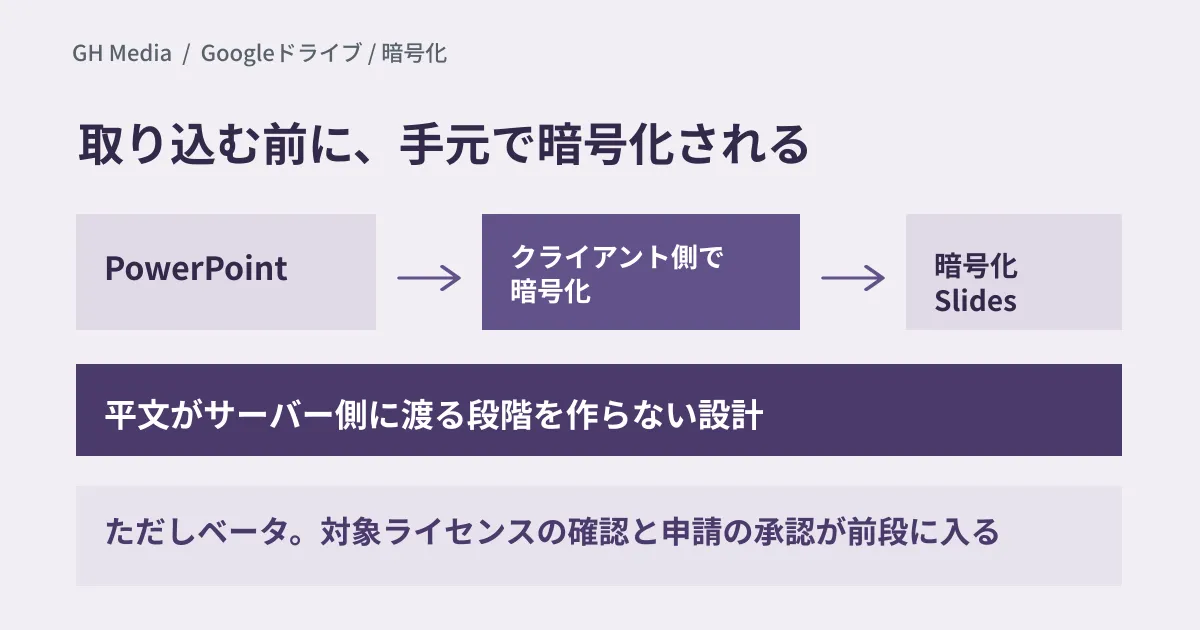
In an announcement on September 24, 2026, Google said that eligible customers can now import PowerPoint files as CSE-encrypted Slides, and that users can open and edit the content. As the announcement describes it, PowerPoint files are encrypted on the client before being imported into Workspace, and are then converted into high-fidelity encrypted Slides.
CSE is end-to-end encryption that Google servers and third parties cannot decrypt. Because the file is encrypted locally before it is imported, there is no stage at which the PowerPoint content reaches Workspace in plain text. The announcement does not say where the conversion itself takes place.
The feature is offered through the CSE Office Interop beta program. According to the announcement, the program gives immediate access to features for Microsoft Office editing, export, import and Takeout. The reverse direction, downloading encrypted Slides as PowerPoint, was announced in April 2026 as a feature of the same beta.
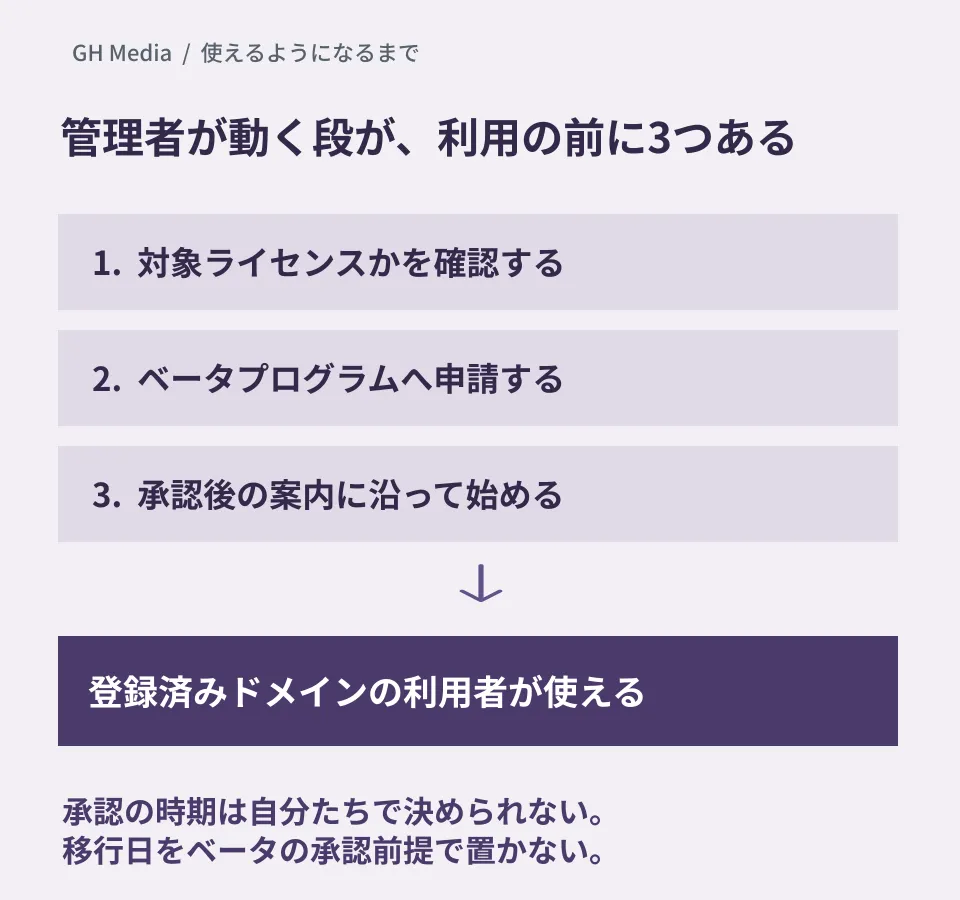
It is available for Enterprise Plus, Education Standard and Education Plus, Frontline Plus, and Assured Controls and Assured Controls Plus. Admins with eligible licenses can apply, and once accepted they receive instructions on how to get started. For organizations that are already registered, the feature is now available across their domains.
What it means that an application is required
This is where it matters in practice. Because the feature is not generally available, you cannot use it just by turning it on in the Admin console. Under the rollout plan in the announcement, on both Rapid Release and Scheduled Release domains it is already available to organizations accepted into this beta, and organizations that apply from now on can use it once they are accepted.
| Stage | Who acts |
|---|---|
| Checking whether your licenses are eligible | Workspace admin |
| Applying to the beta program | Workspace admin. Not usable until approved |
| Getting started by following the instructions received after approval | Workspace admin |
| Starting to use it | Users in registered domains |
Opening the application form shows that the conditions go beyond licenses. The form positions this beta as a pre-general-availability test offering and states that testing may be performed with production data, users and systems, and that a third-party key management service and identity provider may be required. When applying, you are asked to agree that there is a risk of data corruption for client-side encrypted files during the beta, and that managing, backing up and recovering your encryption keys is your organization's responsibility. It also explains that features are released incrementally (Slides after Docs, and Office editing after import, export and Takeout), and that accepted organizations get each feature when it becomes available for testing.
In other words, you cannot fix the adoption date yourselves. If a project is designed on the assumption of CSE interoperability, you need to build this uncertainty into the plan. It is better to avoid the approach of "setting the migration date on the assumption that the beta will be approved".
In some cases it is worth going back to the decision of whether to adopt CSE at all. We laid out the criteria in our article on whether CSE, encryption that keeps content hidden even from Google, is necessary or excessive for SMBs.
Where to keep files while waiting for approval
PowerPoint files keep arriving from business partners while you wait for approval. If you do not decide how to handle them in the meantime, files converted outside encryption for ease of editing will multiply.
- Encrypt and upload the PowerPoint files you receive. If you encrypt and upload files from Drive's New menu, the only limitation is that you cannot edit them in Slides; there is no need to take them outside encryption just to have somewhere to keep them.
- Decide where decrypted files may be kept. Drive for desktop can read and edit some types of encrypted files, such as Office files. However, the Admin Help Center warns that if a file that has been downloaded and decrypted is placed in a local folder that syncs with Drive, the file is stored in Drive in clear text. Tell users in advance where decrypted files may be kept.
- If some materials will be handled outside encryption, keep them in one place and put controls on it. If you create materials that are converted to regular Slides, identify where they live and restrict them with sharing settings and DLP. Also decide when to move them back to the encrypted side and when to delete them. We summarized the order of checks for when label-based controls do not work in What to check when label-based DLP isn't working.
- Agree in advance on the format you will send back to business partners. To return imported Slides as PowerPoint, you need the feature that downloads encrypted Slides as PowerPoint. That is also a beta feature, announced in April. The general Help Center lists downloading encrypted Docs or Slides among the things you cannot do.
If you skip the second item, you end up in a state where "files are encrypted, yet decrypted copies flow back into Drive in plain text through a synced folder". That dilutes the point of adopting CSE, so it is better not to skip steps.
What to check before deciding
If you are considering adoption, check things in the following order.
First, confirm that your edition is eligible. The announcement lists Enterprise Plus, Education Standard and Education Plus, Frontline Plus, and Assured Controls and Assured Controls Plus. It is also a prerequisite that an admin has turned on CSE and that users can verify their identity and create encrypted files.
Next, look at what the PowerPoint files you want to import actually are. The announcement describes the conversion as high-fidelity but does not say which elements are preserved, or to what extent. The April announcement of the reverse export (from Slides to PowerPoint) listed core elements such as text, styling, tables, images and comments. You will not know the results of the import until you actually run your own files through it. The experience also differs from regular Slides; for example, only one person can edit an encrypted file at a time.
Then decide whether to apply for the beta. Given the risk of data corruption and the responsibility for key management stated in the application form, a realistic approach is to run a few copies of representative files through the procedure provided after approval and check the results.
We opened and checked the Google Workspace Updates announcement (dated September 24, 2026), the related announcement dated April 15, 2026, the beta application form linked from the announcement, the Admin Help Center articles "About client-side encryption" and "Client-side encryption user experience overview" (both updated September 18), and the Docs Editors Help article "Get started with encrypted files in Drive, Docs, Sheets & Slides" directly on September 26, 2026. We have not verified applying for the beta, running the import, the fidelity of the conversion or the time until approval. Where the conversion takes place is not stated officially and has not been confirmed. We have not checked the Japanese-language labels in Drive, so the article does not quote the names of operations. This article organizes the eligibility conditions and how to operate while you wait for approval.
For designing encryption in Google Workspace or sorting out how to handle materials exchanged with outside parties, please consult GleamHub.
Sources
- Now in beta: Import and convert your PowerPoint files to client-side encrypted Slides — Google Workspace Updates
- Now in beta: Download client-side encrypted Google Slides — Google Workspace Updates
- CSE Office Interoperability Beta Test Application — Google Forms
- About client-side encryption — Google Workspace Help
- Client-side encryption user experience overview — Google Workspace Help
- Get started with encrypted files in Drive, Docs, Sheets & Slides — Google Docs Editors Help