Until now, the product page for your iPhone app consisted of an icon, screenshots, and app preview videos. Because screenshots show "the app's screens," they were not well suited to conveying brand impressions or limited-time campaigns.
In a developer announcement on October 5, 2026, Apple said that new "creative assets" can now be shown on the App Store. At the top of the product page (the header) and in search results, you can display images and videos, separate from screen images, that convey your brand, seasonal campaigns, or new content. According to Apple's guide, they appear on the App Store in iOS 27 and iPadOS 27 and later.
For people in charge of promoting apps and those who outsource app production, we outline what to know before creating assets, based on Apple's specification page and guide.
Where they appear
Apple's guide "App Store asset best practices and resources" and the August 5 announcement list the places where creative assets appear, including the product page header, search results, in-app events, and when the app is featured.
- Product page header: The first part people see when they open the product page. The guide recommends "focusing on one clear idea" and "thinking about first-time visitors"
- Search results: Assets shown before the product page when the app is found in the Search tab. The guide recommends making "the app's purpose clear at a glance." If you do not use search result assets, in-app events, preview videos, and screenshots are shown as before
- In-app events: Cards (landscape) and detail pages (portrait) for limited-time events and the like
A "universal" format that uses the same asset for both the header and search results is also available.
Dimensions and formats for each placement
The image specifications in the App Store Connect help article "Creative assets specifications" are as follows.
| Placement | Aspect ratio | Dimensions (pixels) | Format |
|---|---|---|---|
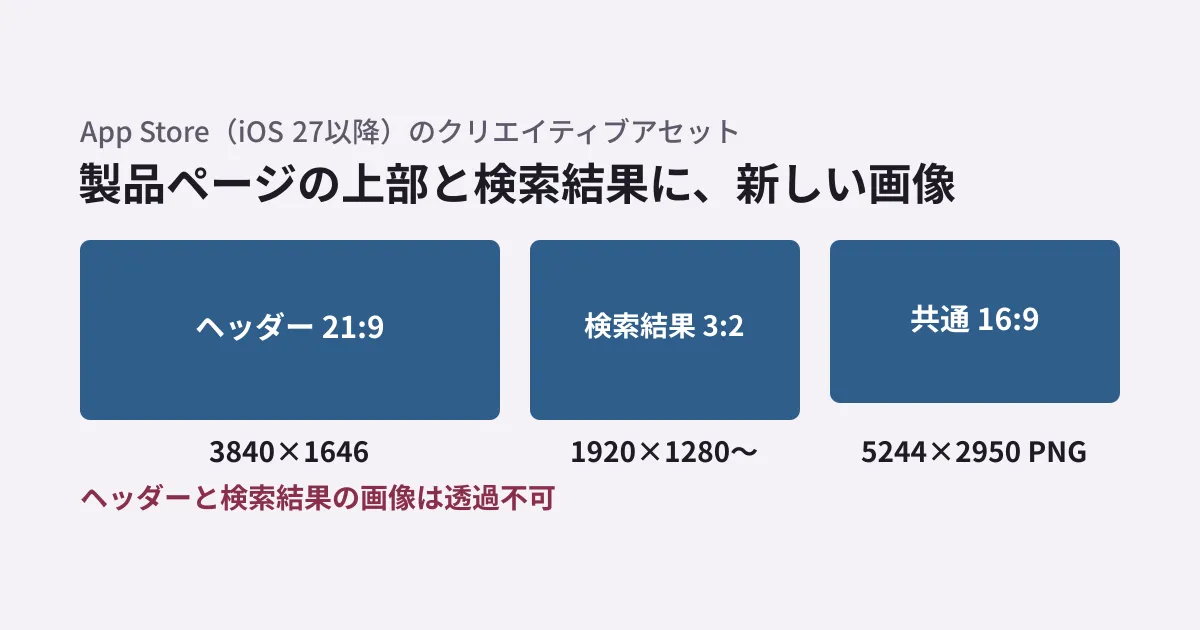
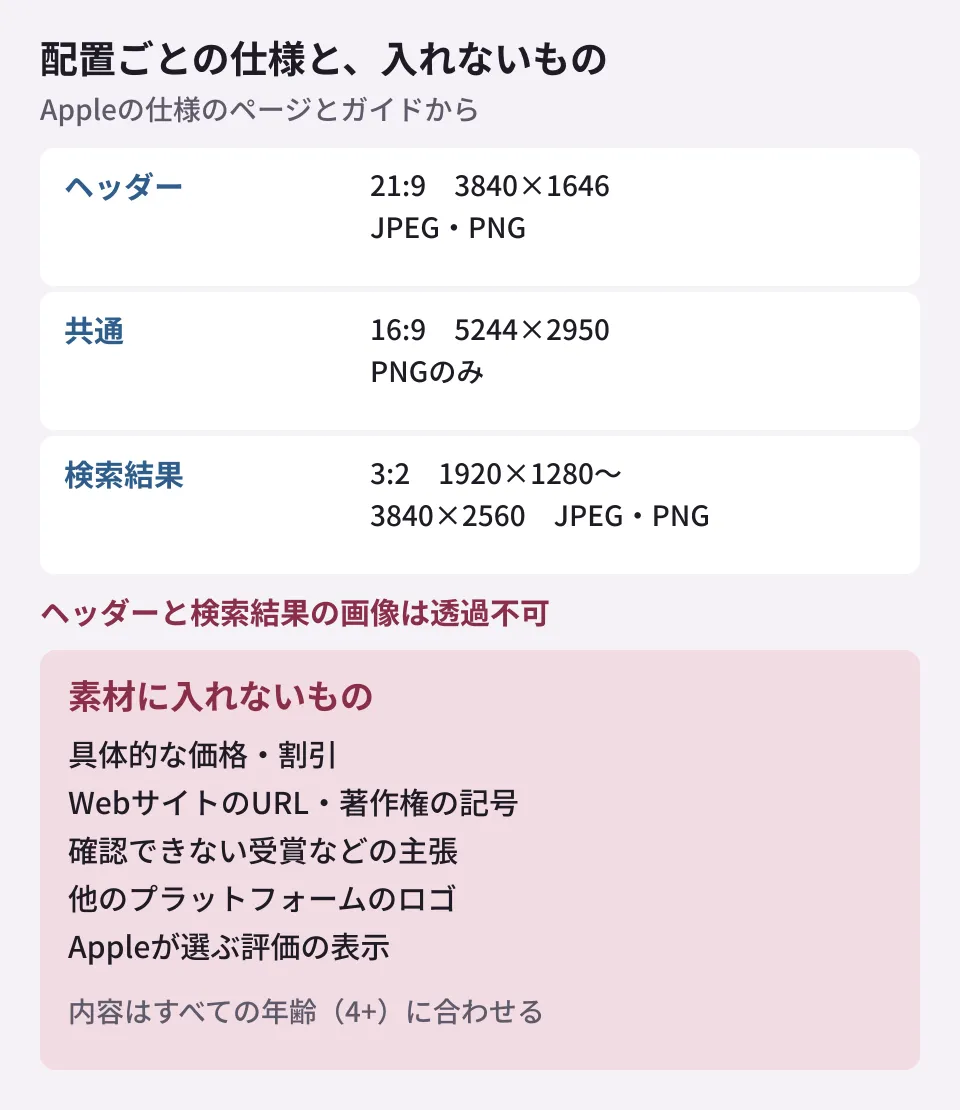
| Product page header | 21:9 | 3840×1646 | JPEG・PNG |
| Universal for header and search results | 16:9 | 5244×2950 | PNG only |
| Search results | 3:2 | 1920×1280〜3840×2560 | JPEG・PNG |
| In-app event card | 16:9 | 1920×1080〜3840×2160 | JPEG or PNG (up to 500MB) |
| In-app event details | 9:16 | 1080×1920〜2160×3840 | JPEG or PNG (up to 500MB) |
Header and search result images cannot use transparency (alpha channel). For videos, the header and search results require 30fps or 60fps and a length of 5 to 30 seconds. The specifications state that in search results videos play muted (sound cannot be turned on at this time), that on the product page they start muted and users can turn on the sound, and that in both cases they loop.
When exporting assets, watch out for the fact that only the universal 16:9 format is limited to PNG, and for how transparency is handled. Images made for websites (for example, 1200×630 for social media sharing) do not match the dimensions of any placement.
A script that checks dimensions and formats
When you create many assets, differences in export settings can let some that fall outside the specifications slip in. The editorial team created a small script that checks image dimensions, format, and transparency against the specifications above. It uses Node.js and the image processing library sharp.
// App Storeのクリエイティブアセット(画像)を、Appleの仕様表と照合する
// 使い方: node check-creative-assets.mjs <画像ファイル>...
import sharp from 'sharp';
import {extname, basename} from 'node:path';

// Creative assets specifications(2026-10-27確認)の画像の仕様
// noAlpha: ヘッダーと検索結果の画像は透過を使えない
const SPECS = [
  {place: '製品ページのヘッダー(21:9)', w: [3840, 3840], h: [1646, 1646], ext: ['.jpeg', '.jpg', '.png'], noAlpha: true},
  {place: 'ヘッダーと検索結果の共通(16:9)', w: [5244, 5244], h: [2950, 2950], ext: ['.png'], noAlpha: true},
  {place: '検索結果(3:2)', w: [1920, 3840], h: [1280, 2560], ext: ['.jpeg', '.jpg', '.png'], ratio: 3 / 2, noAlpha: true},
  {place: 'App内イベントのカード(16:9)', w: [1920, 3840], h: [1080, 2160], ext: ['.jpeg', '.jpg', '.png'], ratio: 16 / 9},
  {place: 'App内イベントの詳細(9:16)', w: [1080, 2160], h: [1920, 3840], ext: ['.jpeg', '.jpg', '.png'], ratio: 9 / 16},
];
const inRange = (v, [a, b]) => v >= a && v <= b;

for (const file of process.argv.slice(2)) {
  const m = await sharp(file).metadata();
  const ext = extname(file).toLowerCase();
  const sized = SPECS.filter(s => inRange(m.width, s.w) && inRange(m.height, s.h)
    && (!s.ratio || Math.abs(m.width / m.height - s.ratio) < 0.001));
  const ok = [], ng = [];
  for (const s of sized) {
    if (!s.ext.includes(ext)) ng.push(`${s.place}:${s.ext.join('/')}のみ`);
    else if (s.noAlpha && m.hasAlpha) ng.push(`${s.place}:透過(アルファチャンネル)は不可`);
    else ok.push(s.place);
  }
  if (!sized.length) ng.push('どの配置の寸法にも合わない');
  console.log(`${basename(file)}  ${m.width}x${m.height}`);
  console.log(`  使える配置: ${ok.join('、') || 'なし'}`);
  if (ng.length) console.log(`  合わない点: ${ng.join('/')}`);
}
These are the results of running it in the editorial team's environment (Node.js 22.22.0, sharp 0.34.5) on six solid-color images created for testing.
header-21x9.jpg  3840x1646
  使える配置: 製品ページのヘッダー(21:9)
universal-16x9.jpg  5244x2950
  使える配置: なし
  合わない点: ヘッダーと検索結果の共通(16:9):.pngのみ
universal-16x9-alpha.png  5244x2950
  使える配置: なし
  合わない点: ヘッダーと検索結果の共通(16:9):透過(アルファチャンネル)は不可
search-3x2.png  2400x1600
  使える配置: 検索結果(3:2)
event-card.png  1920x1080
  使える配置: App内イベントのカード(16:9)
ogp-1200x630.png  1200x630
  使える配置: なし
  合わない点: どの配置の寸法にも合わない
Before publication, on October 27, 2026, we recreated the same six images in another environment (macOS 26.5.1, Node.js 22.19.0, sharp 0.34.5), ran the script, and confirmed that the output was the same.
This script checks only dimensions, format, and transparency. It does not check file size, color handling, videos, or the content itself. For the final judgment, follow the results when you upload to App Store Connect and the outcome of App Review.
What not to include
The guide lists specifically what not to include in assets.
- Specific prices, discounts, website URLs, and copyright symbols
- Unverifiable claims, such as awards you have not actually received
- Logos of, or references to, other platforms or marketplaces
- Indications of Apple-selected recognition, such as "Editor’s Choice" or "App of the Day"
In addition, assets shown on the App Store are required to be suitable for "4+" even if the app itself has a higher age rating. The guide also recommends keeping any text to short phrases and translating it into the languages the app supports, and, because appearance varies by device and orientation, placing important elements within the template's safe area.
The App Review Guidelines, the criteria for review, also added 2.3.14 in the October 16, 2026 revision, which requires that creative assets relate to the app's content and features or its brand, that they be appropriate for all ages, and that they not include unverifiable claims or specific price or discount information. The revision as a whole is covered in The October revision of the App Review Guidelines.
If you reuse web banners or campaign images as they are, they may contain prices or URLs, or carry too much text. It is more realistic to plan App Store assets as separate materials made specifically for that purpose.
Handling in App Store Connect
According to the October 5 announcement and the App Store Connect help, assets are managed in the new "Asset Library".
- Images and videos can be uploaded and submitted for review separately from app versions, without deciding where they will be used. You can get them approved in advance and use them when needed
- The roles that can manage them are Account Holder, Admin, App Manager and Marketing
- Only assets in the "Prepared for Submission" state can be deleted. Archived assets cannot be used in new placements until they are unarchived
- With the preview feature, you can check how assets appear on the product page and in search results in dark mode and for each device and orientation
If you also leave store operations to your app development company, deciding in advance who gets the Marketing role and who decides on asset approval will save you from scrambling when campaign planning begins.
How to think about layouts breaking on real iPhones is covered in Checks before putting a web app in WKWebView, and how to divide iOS app publishing permissions is covered in Mac environment, signing and publishing permissions before letting AI handle iOS development.
Scope of verification
On October 27, 2026, we reviewed the Apple Developer news posts "Showcase your apps with new assets on the App Store" (October 5) and "Get ready for new creative assets on the App Store" (August 5), the App Store Connect help pages "Creative assets specifications" and "Manage your App Store assets", the guide "App Store asset best practices and resources", and section 2.3.14 of the App Review Guidelines (document research). We ran the checking script on six test images in the editorial team's environment and, before publication, confirmed the same results in a separate environment (hands-on verification). We have not verified uploading, review or previews in App Store Connect, or how assets appear on the App Store in iOS 27.
For app improvements or setting up a structure for store operations, please contact us through Development, AI and automation consultations.
References
- Showcase your apps with new assets on the App Store(Apple Developer、2026-10-05)
- Get ready for new creative assets on the App Store(Apple Developer、2026-08-05)
- Creative assets specifications(App Store Connect Help)
- Manage your App Store assets(App Store Connect Help)
- App Store asset best practices and resources(Apple Developer)
- App Review Guidelines(Apple Developer)