Calls with business partners are recorded on company-provided iPhones at the employee's sole discretion. Staff mirror work emails onto personal Macs via iPhone Mirroring. Portions of customer rosters might be fed directly into Apple Intelligence text generation features—previously, these states of "not knowing what is happening inside the smartphone" represented blind spots out of reach from the Google Admin console.
Starting June 4, 2026, numerous native settings for iOS were added to Google Endpoint Management, reaching general availability (GA). Native Apple MDM restriction items—down to permitting or prohibiting call recording and mirroring—can now be configured directly in the Admin console. For SMB IT teams where "Android was strictly controlled while iPhones were largely left unmanaged," this represents the perfect timing to overhaul device policies.
In this article, we break down what can now be restricted, the prerequisites for using these settings in your organization, and a realistic rollout sequence that avoids disrupting operations, from the viewpoint of a Google Workspace administrator.
Why iPhones often became "blind spots in the Admin console"
Device management in Google Workspace originally evolved around Android. Due to constraints in Apple's MDM specifications, Google offered a limited selection of controls for iOS, often resulting in an incomplete state where "email and calendar were managed at the account level, but device behavior itself was left up to the user."
In particular, features like call recording, iPhone Mirroring, app installations from alternative marketplaces permitted in the EU, and Apple Intelligence functions could not be restricted without contracting third-party MDMs like Intune or Jamf separately. Companies faced a structure where, despite paying for Google Workspace, enforcing control over iPhones required duplicate investments.
This GA release represents Google closing that gap in-house. Much like when ransomware detection was officially released in Drive, Google is aligning features toward "allowing administrators to reinforce defense at no additional cost." The essence of this update is that iPhone device policies can now be handled entirely within the Admin console without inserting a third-party MDM.
Six categories added in GA ― what can now be restricted
What became generally available is a collection of settings organizing Apple's native MDM restrictions into six areas. We outline representative items and the objectives behind controlling each.
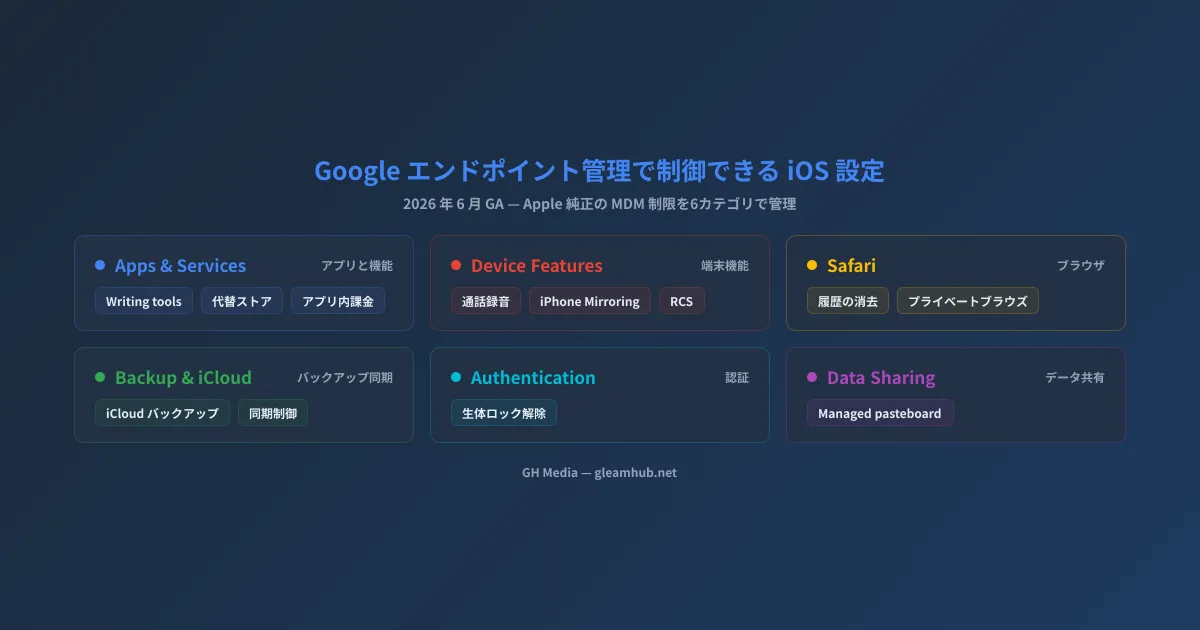
| Categories | Representative setting items | Risks administrators want to mitigate |
|---|---|---|
| Apps and Services | Writing Tools, App Clips, installations from alternative marketplaces, in-app purchases | Data leaks via AI features, sideloading, unauthorized personal purchases |
| Device Features | Auto Unlock, call recording, changing default browser, iPhone Mirroring, RCS messaging | Recording disputes, exfiltration of business data, personal communications |
| Safari | Clearing history, Private Browsing | Preserving audit trails |
| Backup and iCloud Sync | iCloud backup and sync | Exfiltration of business data to personal iCloud accounts |
| Authentication | Unlocking via biometrics like fingerprints | Standardizing device authentication policies |
| Data Sharing | Managed pasteboard | Copy-and-paste leaks between managed and unmanaged personal apps |
Because there are many items, we focus on four that have an immediate impact on SMBs.
Apple Intelligence Writing Tools ― cutting off "unintentional AI transmissions"
Writing Tools provides text generation, summarization, and proofreading powered by Apple Intelligence. While convenient, it can serve as a conduit through which business email drafts or customer information are submitted to AI processing without the user realizing it. In industries handling sensitive information such as finance, healthcare, and professional legal/accounting services, this is among the first controls to consider.
iPhone Mirroring ― the most concerning loophole in BYOD
iPhone Mirroring allows users to project and operate their iPhone's screen, notifications, and apps on a Mac. Having business app contents displayed on personal Macs easily becomes a loophole for data exfiltration. Whether dealing with company-owned devices or BYOD (bring your own device), reviewing this setting carries high priority.
Managed pasteboard ― blocking copy-paste leaks at the OS level
Managed pasteboard prevents content copied from managed apps like Gmail or Drive from being pasted into unmanaged apps like personal social media or notes. Its key advantage is enforcing baseline DLP (data loss prevention) behavior at the OS level rather than relying on individual applications.
Call recording and RCS ― drawing the line between compliance and personal use
Permitting or restricting call recording is a policy companies should define from the standpoint of consent and compliance. RCS messaging can become an avenue for personal communication, allowing admins to determine its permissible scope on corporate devices. Note that both involve controls that require iOS 18 or later.
Can your company use them? ― prerequisites for "advanced management" and editions
This is the largest hurdle for SMBs. These settings apply to devices where advanced mobile management is enabled for iOS. They cannot be enforced under account-level basic management alone.
| Basic management | Advanced management | |
|---|---|---|
| Primary management unit | Account (email, calendar, etc.) | Device profile |
| Detailed iOS restrictions | Not supported | Supported (new settings in this update) |
| Prerequisites | Minimal setup required | Apple Push Certificate, supported edition |
Advanced management for iOS requires registering an Apple Push Notification service (APNs) certificate, and enrolling company-owned devices via Apple Business Manager (ABM) enables even stronger control. Furthermore, editions supporting advanced management are limited. Generally, this starts from Business Plus and Enterprise tiers; however, because feature availability by edition can change, please verify whether your organization is eligible in Google's official Endpoint Management feature comparison. If you want to review the differences between editions themselves, the Complete Google Workspace Implementation Guide is also helpful. While announced as available to all Google Endpoint Management users, the practical takeaway is that settings apply only to devices with advanced management active.
A realistic rollout procedure ― avoid "turning everything off" at once
When setting options expand all at once, it is tempting to "turn off everything that looks risky." However, doing so on production devices harms user productivity. We recommend the following sequence:
- Verify your device management mode. Check in the Admin console under Devices whether target devices are running under advanced management. If they remain on basic management, first check edition eligibility and the feasibility of setting up an Apple Push Certificate. For basic Admin console operations, refer to the Google Workspace Admin Console Beginner's Guide.
- Do not apply company-wide immediately. Create a small pilot organizational unit (OU) and apply the settings there first.
- Start with a few items directly linked to data leaks. For example, limit the rollout to iPhone Mirroring, Managed pasteboard, and Writing Tools, and observe the impact on daily work.
- Plan around propagation delays. This rollout follows a phased deployment and may take up to 15 days for settings to reach all devices. Account for this in your operational schedule.
- Expand target OUs once confirmed stable. Scale out gradually, adjusting restriction levels across different job functions.
Pitfalls ― how over-restriction causes "shadow IT" and operational blind spots
Finally, we highlight key considerations to keep in mind prior to rolling out operations.
Excessive restrictions backfire. Consider a 30-person real estate agency providing company-owned iPhones to sales staff. Disabling call recording, turning off iPhone Mirroring, and controlling Managed pasteboard to prevent data leakage is sensible. However, if Private Browsing and clearing history in Safari are also uniformly banned, sales reps researching competitor listings may start bypassing restrictions: "I'll just do this on my personal phone." This encourages shadow IT. As an ironclad rule, apply differentiated policies across role-specific OUs rather than uniform restrictions across the company.
BYOD requires clear privacy boundaries. Overreaching into personal devices invites employee pushback and legal risks. Policies should separate concerns: focus on "protecting corporate data" for BYOD, while focusing on "comprehensive device control" for company-owned devices.
Beware of iOS version dependencies. Certain items, including restrictions on call recording, iPhone Mirroring, and RCS, require iOS 18 or later. Because older devices are unaffected, this must be paired with an OS update policy.
Anticipate future behavioral shifts. Apple is currently transitioning its device management architecture to Declarative Device Management (DDM); controls currently governed by MDM commands may transition to DDM-based behaviors in the future. Rather than setting policies and forgetting them, auditing device policies at least once a year is prudent.
Summary ― the one thing you should check first
The first step you can take today is verifying in the Admin console whether your organization's iOS devices are under advanced management. If they remain on basic management, none of these newly added settings will take effect. That is where you must begin.
From there, avoid locking down every item at once; instead, phase in restrictions across role-specific OUs starting with a few items directly tied to data leakage. This is the practical way to close iPhone blind spots without provoking employee pushback. We recommend making device policy reviews a recurring semiannual inspection alongside the Google Workspace Security Configuration Checklist.
Frequently asked questions
Q. Which Google Workspace editions support the new iOS settings?
They require editions supporting advanced mobile management for iOS, generally starting from Business Plus and Enterprise tiers. An Apple Push Notification service (APNs) certificate registration is also required. Please check the official Endpoint Management feature comparison to confirm your organization's eligibility.
Q. Can the new settings be applied under basic management?
No. These settings apply only to devices with advanced management active. Please first verify the management mode of your target devices under Devices in the Admin console.
Q. Can these settings be applied to personal iPhones (BYOD)?
Both company-owned devices and BYOD are supported. For BYOD, however, it is safest to design policies centered around corporate data protection rather than total device control to respect employee privacy.
Q. When do the settings take effect?
Due to the phased rollout, it may take up to 15 days for settings to propagate to all devices.
Sources
- Google Workspace Updates: New iOS device management settings now generally available in Google Endpoint Management
- Google Endpoint Management feature comparison (Official Help)
- Apply settings to iOS devices (Official Help)
- Set up management for company-owned iOS devices (Official Help)
- Securely manage mobile devices with Google Workspace Endpoint Management (G-gen Tech Blog)