"Just to book a meeting room, I have to switch from Outlook to Google Calendar, check availability, come back, and copy the details over"—this is still a common scenario in organizations dealing with M&As, joint ventures, business partnerships, or departments running on different calendar platforms.
In April 2026, Google Workspace announced a public beta that directly addresses this friction. Users can now directly book Google Workspace meeting rooms and equipment (resources) from non-Google calendars like Outlook and Apple Calendar. In this article, we break down the announcement, the two implementation paths, administrator setup steps, and operational considerations from the perspective of an IT team in a hybrid organization.
What was announced — Booking Workspace resources directly from external calendars
On April 7, 2026, Google announced "Book Google Workspace resources from third-party calendars" in public beta on the Workspace Updates blog. It is rolling out gradually over up to 15 days to both Rapid Release and Scheduled Release domains.
Previously, meeting rooms and equipment (calendar resources) managed in Google Calendar could only be booked directly by users with a Google account. For Outlook users to reserve a room, they had to ask a Google user via email or rely on an external booking management service.
With this beta, whenever a Workspace administrator explicitly designates that "this external domain (or external email address) is permitted to book," users simply add the resource's email address as an event guest to complete the reservation. If the resource is configured for auto-reply, it automatically accepts or declines based on availability and sends a confirmation email to the organizer.
Impacted groups: Organizations running dual platforms
Organizations that benefit most from this feature include:
| Organization profile | Pain point |
|---|---|
| Mixed Google and Microsoft environments due to M&As or joint ventures | Integration plans drag on, requiring endless back-and-forth emails just to reserve rooms on the other side |
| Parent company on Microsoft 365, subsidiary on Google Workspace | Parent company members face cumbersome room reservations when visiting the subsidiary's office |
| Business partners or onsite vendors on different calendar platforms | Receptionists repeatedly book floor meeting rooms on behalf of visitors |
| Research institutes and universities with different calendar platforms across departments | Shared facility reservations are fragmented across multiple systems, causing frequent double bookings |
Conversely, organizations fully unified on Google Workspace are unaffected. This update is strictly aimed at enterprises coexisting with other calendar platforms.
How it works — Two paths: Direct permission granting and Calendar Interop
While this beta and the existing Calendar Interop share a similar goal (reserving Workspace resources externally), their technical approaches differ. Understanding these two paths first is essential to avoid configuring the wrong settings.
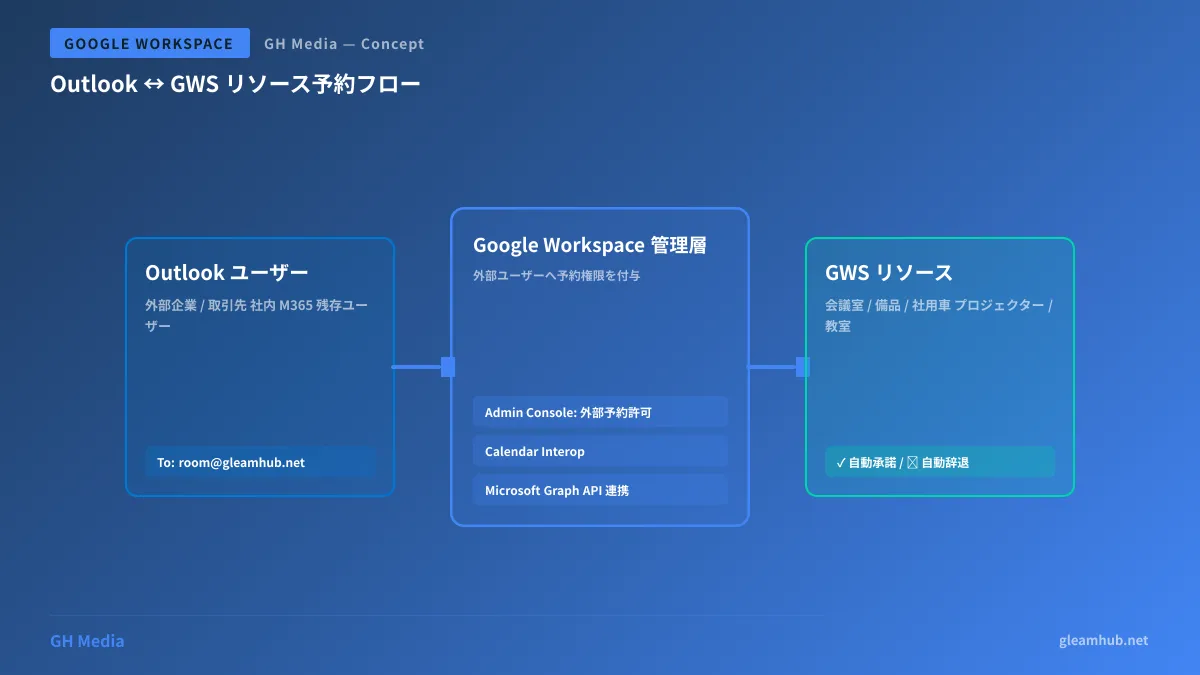
Path A: Direct permission granting (the focus of this public beta)
This method grants specific external domains or email addresses "permission to book this resource" directly in the Workspace Admin console.
- Target: Outlook / Microsoft 365 / Apple Calendar / any calendar app (agnostic to calendar vendor)
- Requirements: The external party only needs a standard calendar app or email client
- Behavior: The external user triggers a booking simply by adding the resource's email address as a guest
- Response: An immediate accept or decline is returned according to the resource's auto-reply settings
The key advantage is that it is client-agnostic: anyone capable of sending an email invite can be included.
Path B: Calendar Interop (bidirectional synchronization dedicated to Exchange)
This mechanism provides bidirectional free/busy time synchronization specifically with Microsoft Exchange and Exchange Online. Available since 2019, it remains fully supported alongside this new beta.
- Target: Microsoft Exchange / Exchange Online only
- Requirements: Create a service account on the Exchange side for Workspace integration and exchange credentials bidirectionally
- Behavior: Outlook users can check room availability by name and book rooms (closely matching a native UX)
- Response: Exchange resources can be discovered and booked from Google, and Google resources can be discovered and booked from Outlook
While Path B provides a smoother user experience, it requires administrative permissions and maintenance on the Exchange side, and it does not support other clients like Apple Calendar.
Which one should you choose?
┌────────────────────────────────────────────────────────────┐
│  相手側のカレンダー基盤は?                                │
└────────────────────────────────────────────────────────────┘
        │
        ├─ Exchange/Microsoft 365 で、両社の情シスが協調可能
        │     → 経路 B(Calendar Interop) を推奨
        │
        ├─ Exchange だが、相手側の情シスと調整が困難
        │     → 経路 A(直接権限付与) で十分
        │
        └─ Apple Calendar、その他、混在
              → 経路 A 一択
In production, a hybrid model—"syncing internal groups via Path B, while granting individual permissions to external partners via Path A"—is often the most pragmatic balance. For designing permissions alongside Google Workspace groups, see What are Google Workspace groups? A comprehensive guide to types, creation, and best practices.
Admin setup guide (Path A: Public beta)
Here are the specific steps to enable the new public beta (Path A). Please sign in with an admin account that has the Buildings and resources administrator role.
Prerequisites
| Item | Details |
|---|---|
| Admin privileges | Buildings and resources administrator (or Super Admin) |
| Target resources | Meeting rooms and equipment registered as calendar resources |
| Auto-reply | Enabling auto-reply on the resource side is recommended |
| Rollout | Up to 15 days starting April 7, 2026. Settings will not appear in the Admin console until rolled out |
Step 1: Open target resource in the Admin console
- Sign in to admin.google.com
- From the navigation menu, open Directory → Buildings, features, and resources
- From the list, click the resource you want to open externally (e.g., "Tokyo HQ 8F Conference Room A")
Step 2: Enable booking permissions for non-Google users
- In the resource details, open the section "Booking permissions for non-Google users"
- Click "Add non-Google users"
- Enter the email addresses or domains you want to permit
- Individual addresses:
taro@partner.example.com - Domain batch:
partner.example.com
- Individual addresses:
- Save
💡 Off by default: Without configuration, external bookings are blocked. It is designed to be toggled on per resource.
Step 3: Verify the resource's auto-reply settings
Because external users can only book by adding the resource's email address as a guest, reservations will stall if the resource is not set to return auto-reply accept/decline responses.
- Auto-accept: Immediately accepts if available; automatically declines if busy
- Manual approval: Resource manager reviews each request individually (tends to create high operational overhead when open externally)
For externally exposed resources, auto-accept is strongly recommended. With manual approval, external users see no response after sending invites, leading to inquiries via email.
Step 4: Share email addresses with external users
Resources are assigned email addresses such as room-tokyo-8f-a@yourcompany.com. Share these with external partners as a "Meeting Room Booking Address Directory" via PDF or internal wiki.
External users simply create an event in their daily calendar (Outlook, Apple Calendar, etc.) and add the resource address to the guest list to complete the reservation.
Admin setup guide (Path B: Calendar Interop)
If you want full integration with Exchange, choose Calendar Interop. Here is an overview of the process.
- Create a role account in Exchange — Set up a dedicated service account in Exchange for Workspace integration and grant free/busy read access
- Enable Calendar Interop in the Workspace Admin console — Register Exchange URLs and credentials via
アプリ → Google Workspace → Calendar → Calendar Interop management - Map Exchange resources — Register the email addresses of Exchange room resources into Workspace
- Verify that Workspace users can book Exchange resources (allow up to 30 minutes)
- Configure the reverse direction (Outlook → Workspace resources) similarly
Because Calendar Interop can fail silently during initial setup if certificates, service accounts, or URLs are misconfigured, follow the official Google documentation verbatim.
Use cases — 4 scenarios where booking hassles disappear
1. Visitor bookings between parent company (Microsoft) and subsidiary (Google)
When parent company executives visit a subsidiary office, instead of subsidiary assistants manually booking rooms in Google Calendar, parent company assistants can book them directly in Outlook.
2. Opening meeting rooms to business partners and onsite vendors
By authorizing vendor domains (partner.example.com) via Path A for onsite contractors or frequent visitors, you eliminate the need for front-desk staff to handle room reservations each time.
3. Shared facilities across universities and research institutes
In universities where different departments use Google or Microsoft, opening shared resources such as lab facilities and lecture halls via Path A reduces double-booking complaints.
4. Bridge operations during M&A integration
Standardizing calendar platforms during an M&A often takes 1–2 years. As a bridge during that period, Path A provides the fastest way to enable external room reservations. For phased integration scenarios across Workspace, see our Google Workspace deployment guide.
Implementation considerations and troubleshooting
1. Default-off behavior and per-resource management
While secure by design, having 200 meeting rooms means configuring settings 200 times. Because batch APIs are limited in beta, grouping resources and rolling them out in phases based on priority is the most practical operational approach.
2. Disabling auto-reply causes silent failures
External users will feel their invites were ignored if no reply is received, leading to follow-up emails. External access and auto-reply must go hand-in-hand.
3. Group email addresses cannot be granted access
Path A permissions apply only to individual addresses or entire domains. Granting permissions to an Outlook distribution list (DL) does not cascade down to its members. For partners with frequent personnel changes, granting permissions at the domain level is much easier to maintain.
4. Path A does not provide Outlook users with rich free/busy visibility
Because Path A operates on an email invitation model, Outlook users cannot inspect room availability in advance; if there is a scheduling conflict, the room simply returns an automatic decline. If you need visible free/busy availability, Path B (Calendar Interop) is required.
5. Aligning audit logs and data retention policies
Externally booked meetings appear in Workspace audit logs as "invitations from external email addresses." Aligning log retention policies with the IT team and compliance teams in advance ensures a smooth rollout.
For broader booking workflows across the organization, reading What is Google Workspace appointment schedules? A complete guide to setting up Google Calendar booking schedules provides helpful context on the overall Workspace booking experience.
Conclusion
- In April 2026, Google Workspace launched a public beta allowing users to book meeting rooms and equipment directly from third-party calendars
- Two paths exist: "Direct permission granting (Path A)" and "Calendar Interop (Path B)". Use Path B when Exchange sync can be configured; otherwise, use Path A
- Path A simply requires enabling "Booking permissions for non-Google users" per resource and approving external email addresses or domains
- Pairing this with auto-reply is mandatory; otherwise, external users receive no confirmation, leading to complaints
- While this update resolves long-standing inefficiencies for hybrid organizations (M&As, joint ventures, partnerships, universities), its default-off status and per-resource setup mean a phased rollout plan is the most realistic approach
Room reservations may seem mundane, but eliminating the wasted back-and-forth caused simply by using different calendar platforms delivers substantial value. Whether bridging an M&A transition, collaborating with ongoing partners, or organizing a mixed environment, evaluate how this feature fits your organizational needs.
References: