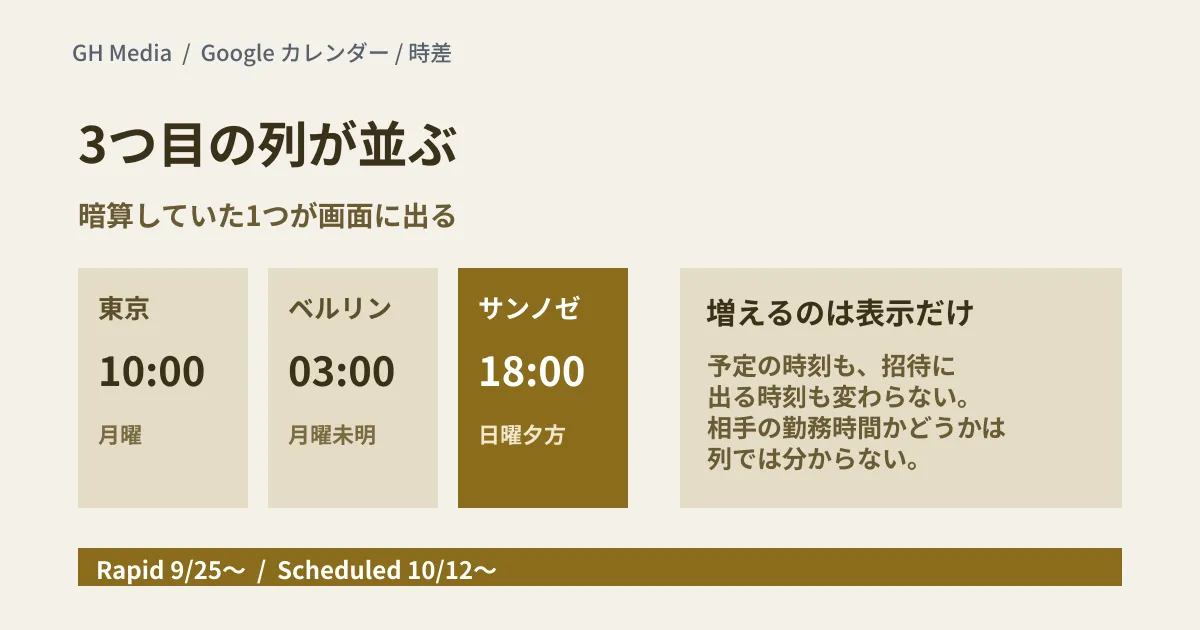
You send a question to a development partner in Europe, wait for the answer, and then set up a meeting with a client in North America. When you fit that sequence into a single week, you are comparing three times: yours, the contractor's and the client's. Until now, Google Calendar could show at most two time zones beside the grid, so the third time had to be converted outside the grid.
In Google Calendar on the web, that third time zone will now appear beside the grid too.
What's added is a display column
On September 25, 2026, Google announced that Google Calendar on the web will be able to display up to three time zones. A third time zone ("Tertiary time zone" in the English Help Center) joins the existing primary and secondary time zones.
The announcement names two places where they appear.
- The calendar grid: In the Day, Week and Custom multi-day views, up to three time zones appear as labeled columns along the left side of the grid.
- Searching for a time while creating or editing an event ("Find a Time" in the English interface): Up to three time zones are shown here as well.
In Settings, you can give each time zone a custom label such as "SFO" or "NYC".
What changes is the display on your own screen. According to the Help Center, events are converted to Coordinated Universal Time (UTC) when they are created, and the people you invite see them at the time in their own time zone. Adding a third column doesn't change the time others see. The columns also show only the time; they don't indicate whether that time falls within the other party's working hours.
The "World clock" in Settings, which shows clocks for other locations, is a separate feature. What has been added this time is the columns along the left side of the grid.
When it reaches your organization
There is no admin control for this feature; once it arrives, each user sets it up themselves. Rollout timing depends on the release track.
| Target | Rollout |
|---|---|
| Rapid Release domains | Gradual rollout from September 25, 2026 (up to 15 days to appear) |
| Scheduled Release domains | Full rollout from October 12, 2026 (1–3 days to appear) |
It is available to all Google Workspace customers, Workspace Individual subscribers and users with personal Google accounts. The announcement doesn't say when it will reach Workspace Individual or personal accounts. External collaborators who use personal accounts are also covered by the feature.
If you conclude "it hasn't reached us yet" without knowing which track your organization is on, you'll misjudge how long you have to wait. We explain how to decide in our article on which release track to choose.
What to put in the third time zone
Once you can line up three, the next question is what to put there. Our editorial suggestion is to choose based on the order in which you wait for answers, not on how many countries your counterparts are in.
In a setup like the opening example, where you send a question to a contractor in Europe and pass the answer on to a client in North America, the three to show are Japan, the contractor and the client. On a single screen, you can check when a question sent before the contractor's workday starts will come back, and whether you can relay the answer within the client's business hours.
Conversely, if all your clients are in Japan and you work with a single contractor, the primary and secondary time zones are enough. There's no need to fill a column you won't use.
How you choose a time zone also changed with an announcement dated March 16, 2026. On the web, instead of scrolling through a list, you can now search for and select a city or country in the field for choosing a time zone.
More columns don't reduce the times you write in messages
Even with three time zones on screen, you still write the times in the messages you send yourself. The added columns appear only on your own screen, so this remains a task for people.
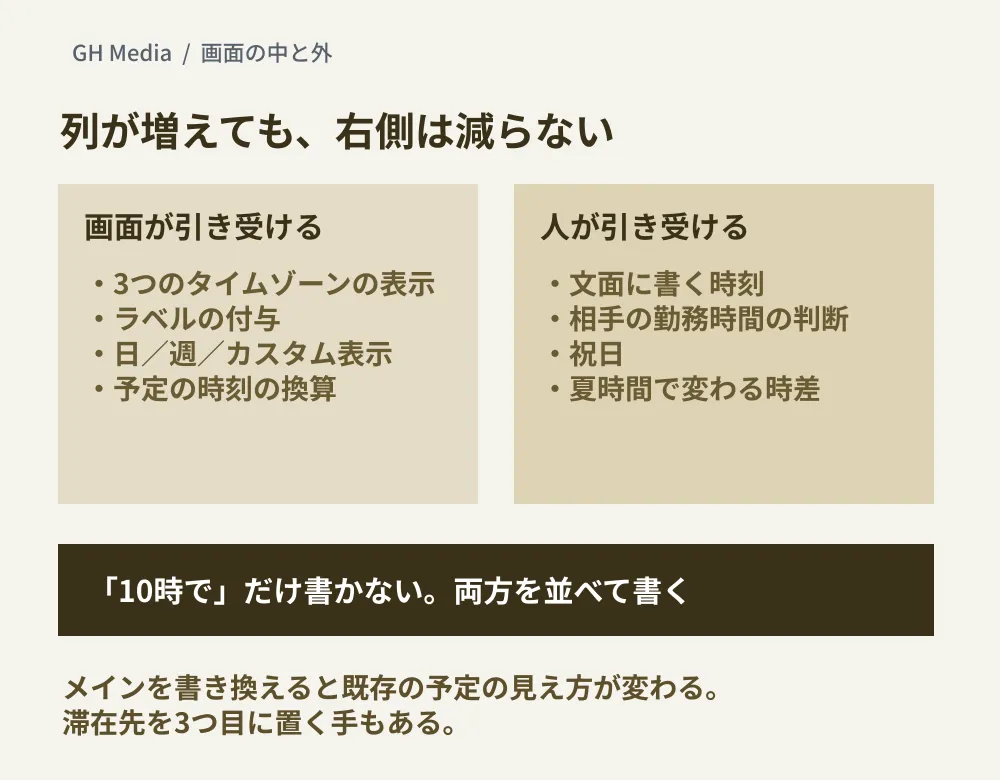
The left side of the diagram is what the screen takes on, and the right side is what people take on. The added column expands the left side, but the right side stays the same.
If you only write "How about 10:00?", it's left to the reader to decide which country's 10:00 you mean. To avoid a mix-up, write both times side by side.
How about Monday, October 5, at 16:00 JST / 09:00 CEST?
The third column saves you one of the conversions you used to work out by hand every time. What goes away is the calculation; the effort of writing remains. Putting a "JST / their time" pair into your message templates in advance makes it easier to avoid leaving it out.
What this feature doesn't solve
Even with more time zones displayed, some parts of scheduling still have to be checked by people.
- The time columns don't tell you the other party's working hours. Working hours are a separate feature. When people set them on a work or school account, others who try to schedule a meeting outside those hours can be notified. We have not checked in this article how an external party's settings appear from your side. Public holidays in the other party's country don't appear in the time columns either.
- The time difference changes by one hour around daylight saving time transitions. Because Japan doesn't observe daylight saving time, your "usual time" with counterparts in Europe or North America shifts before and after the switch. The 16:00 JST in the example above becomes 08:00 CET once Europe ends daylight saving time. The Help Center says Google Calendar uses UTC to avoid daylight saving time issues, while cautioning that events in past years or in the future may not reflect daylight saving time changes and may be displayed at the wrong time.
- The mobile apps are outside the scope of the announcement. This announcement is about the web version. The Android and iPhone versions of the same help article only describe using the device time zone or choosing a single time zone, with no steps for additional time zones (checked September 28, 2026). If you check your calendar on the go, plan on the assumption that nothing changes there.
- Handling invitations from outside is a separate setting. How to treat invitations from unknown senders falls under the admin settings for calendar invitations, a separate layer from how time zones are displayed.
Whether to change your primary time zone on business trips
When a business trip or a long stay changes where you are, it's tempting to change your primary time zone. The Help Center presents changing the primary time zone as the steps to "Change the time zone for all your calendars." Because events are displayed in your own time zone, changing it makes all your existing events appear in the local time of the place you're staying.
If you want to see your events in the local time where you're staying, this is convenient behavior. The Help Center also mentions the "Ask to update my primary time zone to current location" setting, which has Calendar confirm whether to match your primary time zone to your current location when you travel.
On the other hand, if your primary time zone is still set to your destination after you return, you may end up scheduling events while assuming the times on the grid are Japan time. If you'd rather keep your primary time zone in Japan, you can show your destination as an additional time zone instead. Even if the secondary time zone is already used for another counterpart, you can now put it in the third one. When you return, simply remove it or swap in another counterpart. As a rule of thumb, decide based on whether you'll have more local events during your stay or more events with people in Japan (editorial suggestion).
What to do next
If you have regular meetings with an overseas office, contractor or client, open your Calendar settings and check which time zones you currently display (in the English Help Center, "Show additional time zones" under Settings > General > Time zone). If both are filled and you can immediately think of someone you'd put in a third, this update is worth waiting for.
If no one comes to mind, there's no need to add one now. Once it reaches your organization, you can add one when you need it.
We checked the Google Workspace Updates announcements dated September 25, 2026 and March 16, 2026, and the Google Calendar Help articles "Use Google Calendar in different time zones" (computer, Android and iPhone) and "Set your working hours & location" on September 28, 2026. We have not verified the settings and display on an actual screen, the Japanese UI labels, the display around daylight saving time transitions, or how an external party's working hours appear. What to put in the third time zone, how to write times in messages and how to handle business trips are editorial suggestions.
For Google Workspace operations design that includes overseas offices and contractors, please consult GleamHub.
Sources
- View up to three time zones in Google Calendar on the web — Google Workspace Updates
- Easily find and set time zones in Google Calendar by searching for city or country — Google Workspace Updates
- Use Google Calendar in different time zones — Google Calendar Help
- Set your working hours & location — Google Calendar Help