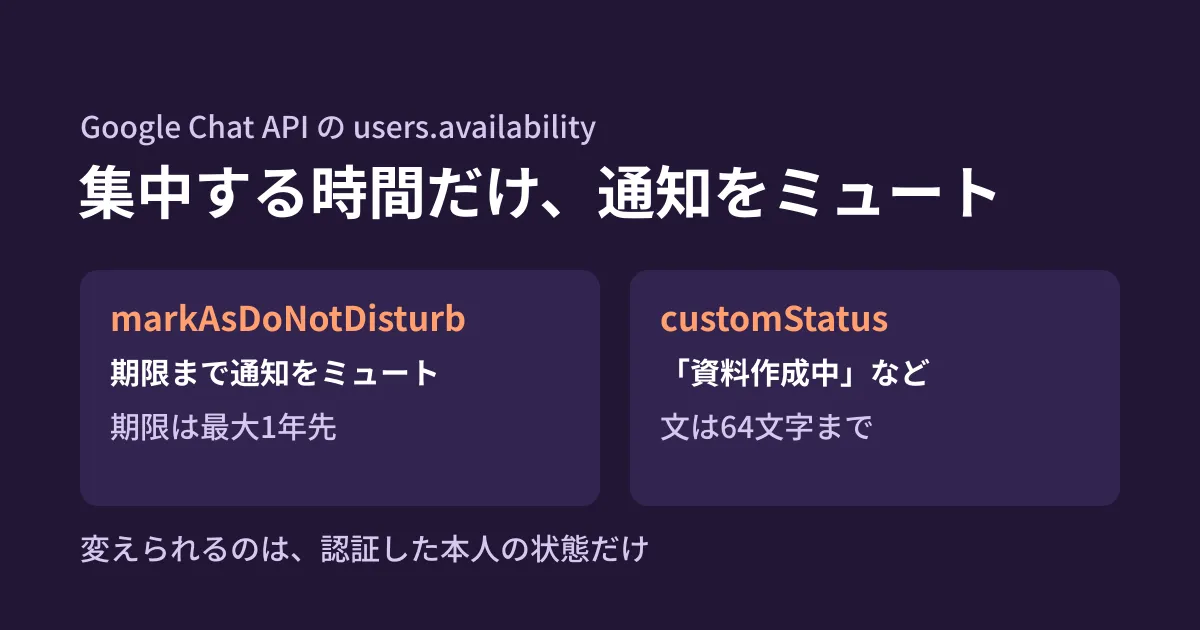
Google Chat notifications keep arriving just when you want to focus on preparing documents or calculating a quote. Even if you put "focus time" on your calendar, Chat still shows you as "online." When you finish, you forget to turn off "do not disturb" and miss an urgent message. This article is for people wondering whether this switching could be done automatically according to calendar events.
The Google Chat API has a resource called users.availability that handles a user's availability. It includes operations to switch the state to "active," "away" or "do not disturb," and to set a custom status such as "Preparing documents." The Chat API release notes announced it as generally available (GA) on July 7, 2026. Based on the release notes, the "Manage user availability for Chat apps" guide, the reference for each method and the Chat API Discovery document (the machine-readable definition of the API, revision 20261013), this article sorts out the conditions you should know before automating.
You can change only "your own" status
The first point to understand is that this API can handle only the status of the authenticated user. Each method's description includes the following sentence.
This method only updates the authenticated user’s availability.
The read method get is also described as "gets only the availability of the authenticated user," and the guide likewise says "you can only read and write the availability of the authenticated user." The resource name format is users/{user}/availability, and besides users/me you can write an email address or user ID, but that does not mean you can read or write other people's status. Design on the assumption that it cannot be used for dashboards listing the whole team's availability or for administrators changing members' statuses in bulk.
Authentication is user authentication, with the following two scopes. The guide's prerequisites list a Business or Enterprise Google Workspace account with access to Google Chat.
chat.users.availability: view and change availabilitychat.users.availability.readonly: view availability only
Four states and the methods that switch them
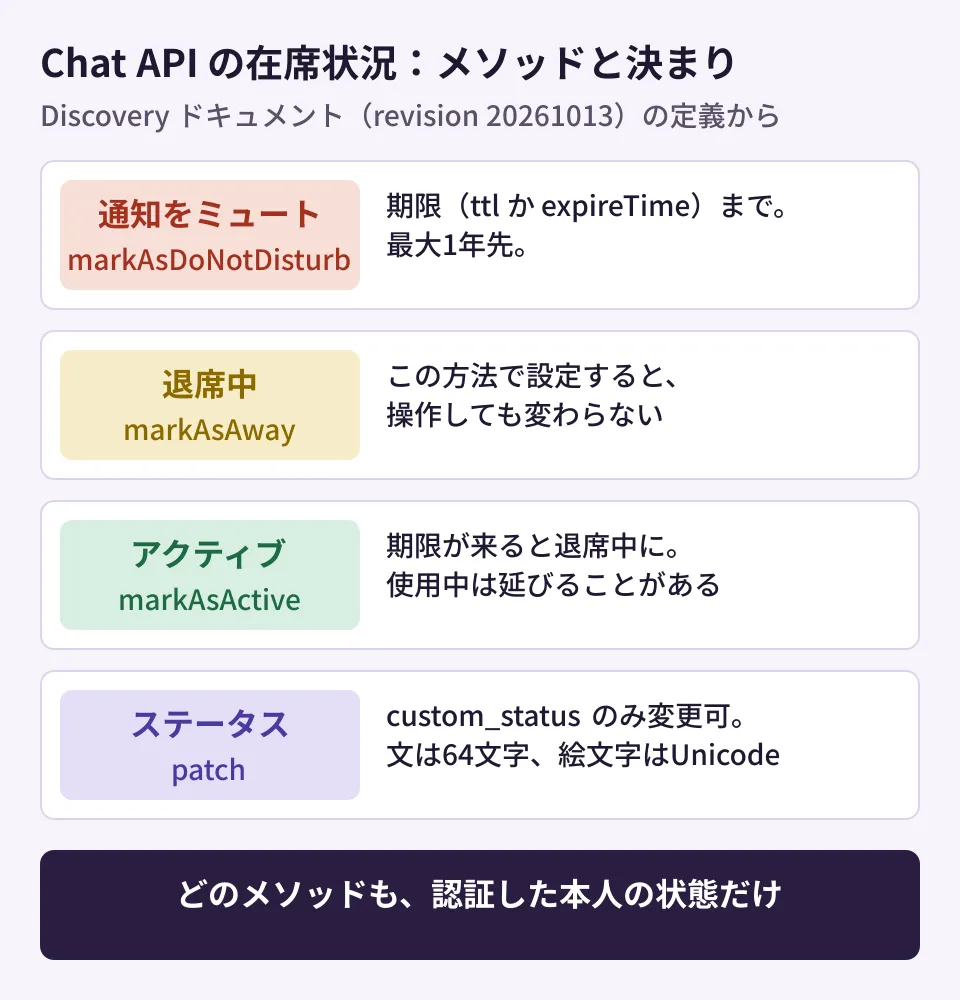
The availability state has the following four values (plus unspecified). All are output-only; instead of writing them directly, you switch them with methods.
| Status | Definition (summary) | Method that switches to it |
|---|---|---|
ACTIVE | Active based on recent activity | markAsActive (expiration optional; 30 minutes if omitted) |
IDLE | No activity for a while after being active | (not specified from the API) |
AWAY | Away. Set automatically when there is no activity, and can also be set manually | markAsAway |
DO_NOT_DISTURB | Do not disturb. Set manually | markAsDoNotDisturb (expiration required) |
The reference describes the rules for each as follows.
markAsDoNotDisturb: mutes until the expiration. The expiration is required and is specified either as a duration from now (ttl) or as an absolute time (expireTime). The expiration can be at most one year ahead. After it passes, the state becomes away (Away). It is described as "while in do not disturb, notifications are usually not delivered"markAsAway: sets the state to away. Away set this way does not change even if the user is activemarkAsActive: sets the state to active until the expiration. The expiration is optional; if omitted, it expires after 30 minutes. When it expires, the state becomes away. However, while the user is using Chat, active may continue past the expiration
For automating focus time, you mainly use markAsDoNotDisturb. Because the expiration is required, it is designed so that forgetting to turn off mute is unlikely. Note, however, that after the expiration the state becomes away, not active.
Rules for custom status
Of the availability fields, only the custom status (customStatus) can be changed with patch. updateMask is also defined as accepting only custom_status. The custom status fields are as follows.
text(required): the status text. Up to 64 charactersemoji(required): the emoji. Unicode emoji only; custom emoji cannot be usedttl: the duration until expiration (input-only)expireTime: the expiration time
Including the time you will be back in the text, such as "Preparing documents (until 12:00)," makes it easier for others to decide whether to wait for a reply. According to the guide, to clear the custom status, you update it with customStatus omitted.
An example of linking with Calendar
From here on is the editorial team's suggestion. One approach is to put a "focus time" event on Google Calendar and, when it starts, set mute and a custom status until the event ends. The editorial team type-checked the following code against the type definitions of @googleapis/chat 51.2.0 for Node.js and ran it with the API endpoint pointed at a local stub (a test server that returns fixed responses). We did not connect to an actual Google Chat.
import { chat_v1 } from "@googleapis/chat";

// 予定の終わり(endIso)までミュートにし、ステータスに一言を出す
export async function focusUntil(chat: chat_v1.Chat, endIso: string, text: string) {
  const name = "users/me/availability";
  await chat.users.availability.markAsDoNotDisturb({
    name,
    requestBody: { expireTime: endIso },
  });
  const { data } = await chat.users.availability.patch({
    name,
    updateMask: "custom_status",
    requestBody: {
      customStatus: { text, emoji: { unicode: "📝" }, expireTime: endIso },
    },
  });
  return data;
}
The requests that reached the stub were POST /v1/users/me/availability:markAsDoNotDisturb (with a body of expireTime) and PATCH /v1/users/me/availability?updateMask=custom_status.
There are three points to decide before building it in.
- Run it only with the user's consent. Because it changes the user's own status, run it authenticated as that user, within the scope they have allowed. We have not checked whether it can be run for everyone in bulk using domain-wide delegation
- Follow changes and cancellations of events. Decide whether to revert with
markAsActivewhen a meeting ends early or an event is deleted. Note thatmarkAsActivebecomes away when it expires, and expires in 30 minutes if the expiration is omitted - Keep a route for urgent contact. Since notifications are usually not delivered during do not disturb, make sure you can receive messages such as incident response through another route, such as phone. Note that Chat apps running with app authentication can send "forced notifications" that deliver push notifications regardless of the recipient's notification settings or mute (generally available on May 8, 2026). You can also consider whether to use this feature for your internal incident notification app
When it became available
The Chat API release notes announced the five users.availability methods as generally available (GA) on July 7, 2026. The same announcement also introduced an event that Chat apps can receive when availability changes (google.workspace.chat.availability.v1.updated in the Google Workspace Events API). Among client libraries, @googleapis/chat for Node.js supports them from 46.0.0, released on August 3, and the definition bundled with the Python client (google-api-python-client) from revision 20260809.
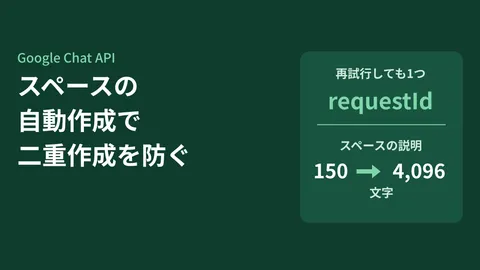
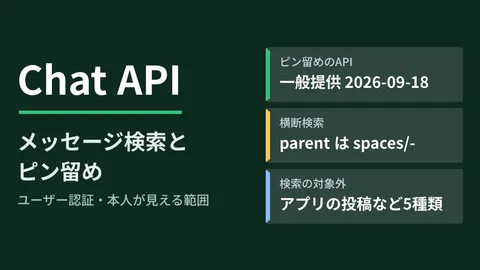
Other new Chat API features are covered in message search and pinning and automatic space creation. For admin settings to allow or stop Chat apps in your organization, see Chat apps are not stopped by "revoking access".
Scope of verification
On October 17, 2026, we retrieved the Google Chat API Discovery document (revision 20261013) and checked the five
users.availabilitymethods and the definitions ofAvailability,CustomStatus,DoNotDisturbMetadataand each request in the original. We confirmed when they were added by comparing the type definitions of@googleapis/chat45.0.0 and 46.0.0 on npm with the definitions bundled with google-api-python-client 2.198.0 and 2.199.0 (document research). We also type-checked the code example with@googleapis/chat51.2.0 and ran it against a local stub. On October 19, 2026, we opened the Chat API release notes, the "Manage user availability for Chat apps" guide, and the reference forusers.availabilityand each method, checked the general availability date, whether expirations are required or optional and their defaults, the state after expiration and the required account, and reflected them in this article. We have not tested how it appears in actual Chat or how notifications are stopped.
For automating work with Google Chat or Google Calendar, contact us through our free IT and Google Workspace consultation.