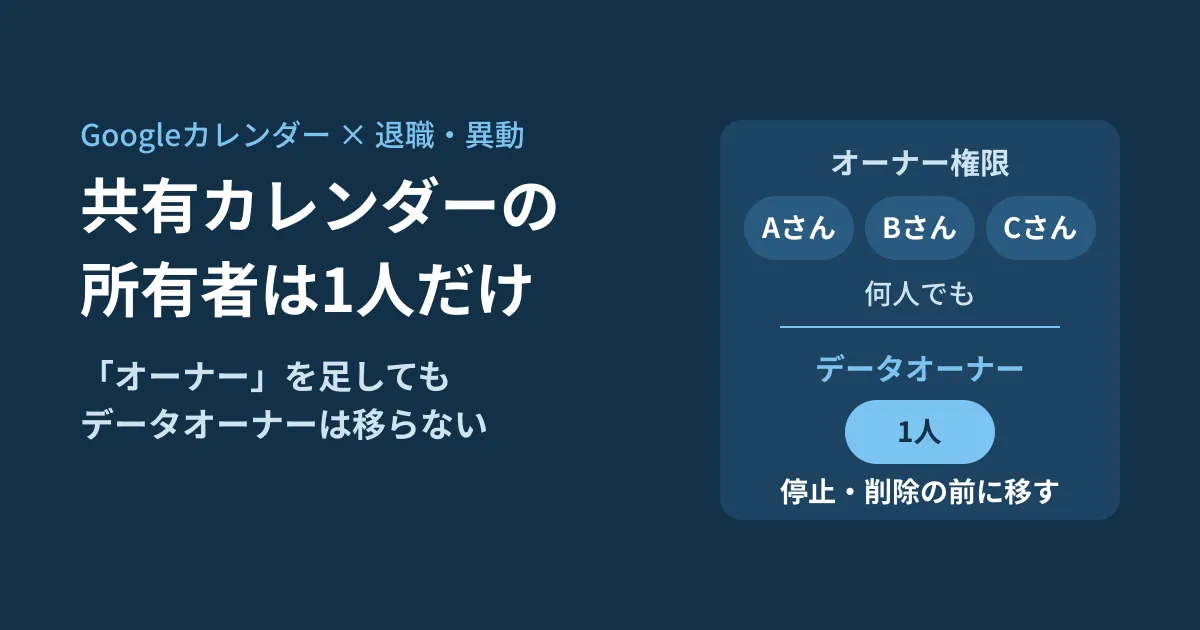
Calendars created in Google Calendar separately from personal schedules (secondary calendars), such as "Sales team schedule," "Hiring interviews" or "Company car reservations," are tied to the account of the person who created them. When the creator transfers to another team or leaves the company, do you assume you can hand them over simply by giving another member the "owner" permission?
In the Calendar API definition, the "owner" in sharing settings and the calendar's "data owner" are described as different things. This article is for IT team members who manage department calendars and developers of internal tools that create calendars automatically. It is based on the Calendar API Discovery document (the machine-readable API definition; revision 20261009) retrieved on October 14, 2026, and the Calendar API release notes, Google Workspace Updates (Google's official blog) and help articles checked on October 16.
No matter how many "owners" there are, there is only one data owner
Among the permissions granted in a calendar's sharing settings (ACL roles), owner is the permission to "view and edit events and also change other people's access." The API description includes the following note.
Important: the owner role is different from the calendar’s data owner. A calendar has a single data owner, but can have multiple users with owner role.
The owner permission can be granted to multiple people, but there is always exactly one data owner. You can see who the data owner is in dataOwner of the calendar resource (calendars.get) and the calendar list (calendarList.list). The field is described as "The email address of the owner of the calendar. Set only for secondary calendars. Read-only."
In other words, you cannot assume you are safe because you added an owner in the sharing settings. Transferring the data owner to another person is a separate operation from the sharing settings.
From October 5, 2026, deleting or suspending the data owner affects the calendar
According to the October 5, 2026 announcement on Google Workspace Updates, secondary calendars in work Google Workspace accounts are now treated the same as the data owner's account (rolling out gradually from October 5).
- Deleting the data owner's account also deletes the calendar along with its events
- Suspending the data owner's account also suspends the calendar
- To keep the calendar, you need to transfer the data owner before deleting or suspending the account
The admin help also explains that "when a calendar's owner is deleted, the secondary calendar is deleted including its events, and it can no longer be transferred afterward." Previously, there was a process that automatically assigned ownerless calendars to someone with "Make changes and manage sharing" permission, but the March 30 announcement states that this process ends on October 5.
According to the announcements and help, there are three ways to transfer the data owner.
| Method | Who | Features |
|---|---|---|
| Calendar settings screen | The data owner themselves | Transfer to someone in the same organization. The original person remains the owner until the recipient accepts within 60 days |
| Admin console | Administrators with the "Manage Calendars" privilege | Transfer all of a user's secondary calendars to another person at once. The recipient's acceptance is not required |
Calendar API(calendars.transferOwnership) | Same as above | Transfer calendars one at a time. The recipient's acceptance is not required |
The easiest approach is for the person to transfer ownership before leaving, but it still depends on the recipient accepting. Below, we look in detail at the conditions of the API, which you would use when there are many calendars or when building this into internal tools.
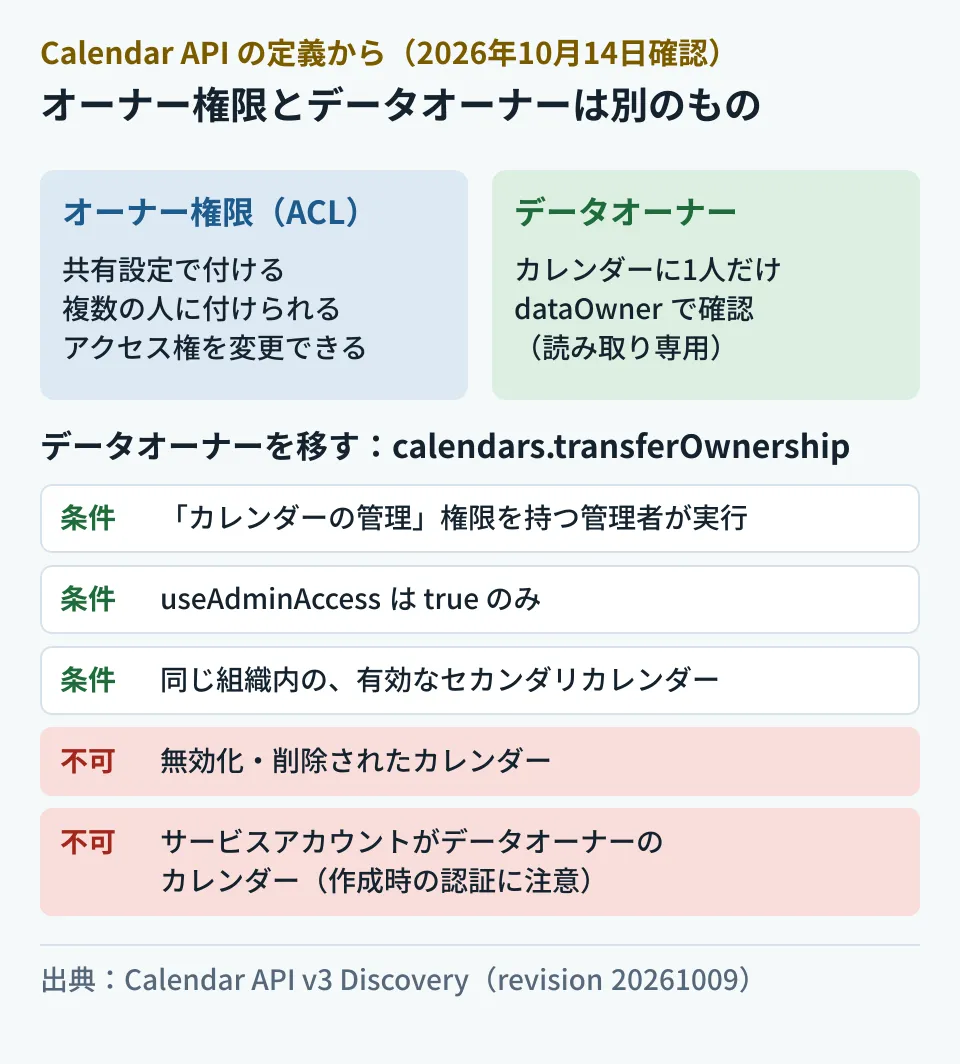
Administrators transferring the data owner via the API
To change the data owner, you can use the calendars.transferOwnership method. Its description is "Transfers a secondary calendar between users within a Google Workspace organization." The Discovery document lists the conditions as follows.
| Item | Conditions stated in the definition |
|---|---|
| Who runs it | A Google Workspace administrator with the "Manage Calendars" privilege. User authentication is required |
| Required parameters | calendarId, newDataOwner (the new data owner's email address), useAdminAccess (only true is accepted) |
| Scope | https://www.googleapis.com/auth/calendar or https://www.googleapis.com/auth/calendar.calendars |
| Calendars that can be transferred | Active secondary calendars. Transferring disabled or deleted calendars is not supported |
| Transfer scope | Between users in the same Google Workspace organization |
The Calendar API release notes list this method as generally available (GA) on June 18, 2026. The Workspace Updates announcement on the same day says it would roll out gradually over up to 15 days starting June 18. In Google's official Node.js client published on npm (googleapis), it has been included in the type definitions since 174.0.0, published on August 3.
When calling it with the Node.js client, it looks like this (an example assembled from the type definitions; the editorial team has not run it).
import { google } from 'googleapis';

// 「カレンダーの管理」権限を持つ管理者としてユーザー認証したクライアント
const calendar = google.calendar({ version: 'v3', auth });

await calendar.calendars.transferOwnership({
  calendarId: 'c_xxxxxxxx@group.calendar.google.com', // 移すカレンダーのID
  newDataOwner: 'successor@example.co.jp',             // 新しいデータオーナー
  useAdminAccess: true,                                // true 以外は受け付けない
});
The response is empty. To confirm the transfer, call calendars.get afterward and check whether dataOwner has changed to the new person.
Calendars created with a service account cannot be transferred
Take particular care if internal tools or batch jobs create calendars automatically. The description of calendars.insert, which creates calendars, includes the following note.
Don’t use a service account for authentication. If you use a service account for authentication, the service account is the data owner, which can lead to unexpected behavior. For example, if a service account is the data owner, data ownership cannot be transferred.
The user who authenticated the request becomes the data owner of the new calendar. If you create it with a service account, the service account itself becomes the data owner, and the data owner cannot be transferred. The official recommendation is to authenticate as the person you want to be the data owner. When an app needs to act as a specific user, Google recommends domain-wide delegation (a mechanism that lets an app act on behalf of users within the scope an administrator has approved).
If you have a system that automatically creates calendars per project or department, it is worth reviewing the code and settings to check whether creation is authenticated as the service account itself. For calendars already created, you can tell whether dataOwner is a service account address by looking at it.
Building it into offboarding and transfer procedures
From here on is the editorial team's proposal. We cover the overall order for closing a departing employee's accounts in The order for closing departing employees' accounts. Add calendar checks to that process as follows.
- List the calendars the person is data owner of. Authenticate as the person (for example, using domain-wide delegation) and extract the entries from the
calendarList.listresults wheredataOwneris that person. SettingshowOwnOrganizationOnly, which became generally available on July 14, 2026, totruenarrows the results to calendars in your own organization - Decide who takes over. Check with the departments using each calendar whether it will continue to be used or has served its purpose
- Transfer before suspending or deleting the account. From October 5, 2026, suspending an account also suspends its calendars, and deleting it also deletes them. The API description also states that disabled or deleted calendars cannot be transferred. Even if The order for closing departing employees' accounts says to "suspend first," complete the calendar transfer before that
- Check
dataOwnerafter the transfer. Also compare the sharing settings (ACL) before and after the transfer to confirm there are no unintended changes
For the problem of bookings lingering on meeting room and equipment calendars (resource calendars), see Cleaning up ghost bookings in meeting rooms, and for how private events appear to delegates, see Delegate permissions that keep private events hidden.
Scope of verification
On October 14, 2026, we retrieved the Calendar API v3 Discovery document (revision 20261009) and checked the original descriptions of
calendars.insert,calendars.transferOwnership,dataOwnerand the ACL roles. On October 16, we confirmed that revision 20261012 has the same descriptions, and reviewed the Calendar API release notes (GA on June 18), the Google Workspace Updates announcements (March 30, June 18 and October 5, 2026), and the admin help and Calendar help (document research). The editorial team has not tried calling the API, performing transfers in the Admin console or Calendar settings screen, or the actual behavior when a user is suspended or deleted.
If you are unsure how to build the handover of department calendars and shared drives into your offboarding and transfer procedures, contact us through our Free IT & Google Workspace Consultation.
References
- Google Calendar API v3 Discovery document
- Calendars: transferOwnership (Calendar API reference)
- Google Calendar API release notes
- Secondary calendars will now follow the lifecycle of their owner (Google Workspace Updates, October 5, 2026)
- Improved management of secondary calendars via the Calendar API (Google Workspace Updates, June 18, 2026)
- An update on secondary calendar lifecycle changes and a new API (Google Workspace Updates, March 30, 2026)
- Cancel or transfer events or secondary calendars before deleting a user (Google Workspace Admin Help)
- Transfer calendars or events in Google Calendar (Google Calendar Help)
- googleapis(npm)174.0.0
- @googleapis/calendar(npm)16.0.0