"New hires read the work instructions and still end up confused, so someone always has to sit next to them to explain things." This was a comment heard last month from the administrative department of a wholesale business with about forty employees. The instructions existed, written out in polite Japanese in Google Docs. However, the entire document consisted solely of text.
Who passes approval to whom? Under which conditions does a process branch one way or the other? The more one writes in sentences, the longer the text becomes, forcing the reader to mentally reassemble the entire workflow. Because the author already understands the process, it is easy to overlook this cognitive burden.
Anyone can arrive at the conclusion that adding diagrams would help. Yet they rarely get added because creating diagrams requires stepping completely outside the process of writing the document. You have to open a separate tool, arrange boxes and arrows, export the file as an image, and switch back to the document to paste it. When you assume this entire routine must be repeated every time a procedure changes, deciding not to make diagrams in the first place feels like the more rational choice.
A new Google Docs feature rolling out starting July 28, 2026, is designed to eliminate this tedious back-and-forth.
What the New Capability Enables
Users can now prompt Gemini to generate images, diagrams, and infographics directly within Google Docs, editing and refining them right on the page (Generate and edit visuals with Gemini in Google Docs — Google Workspace Updates).
What proves most effective in actual operations is that Gemini reads the surrounding text before generating the visual. Asking it to "turn the content of this paragraph into a diagram" yields a visual aligned with the subject matter and tone of that paragraph. There is no need to stare at a blank diagramming tool and re-explain everything already written in the document.
The feature can be accessed from the bar at the bottom of the document or via the Gemini side panel. After generation, modifications such as "reverse the direction of the arrow" or "reduce the departments shown to three" can also be instructed in plain language right in place.
Eligible tiers include Business Standard / Plus, Enterprise Standard / Plus, Education Plus, Google AI Pro / Ultra subscriptions, and users with the Google AI Pro for Education add-on. Business Starter is excluded, meaning organizations operating on the most affordable plan cannot use it. This point should be verified in advance.
Rollout began on July 28, 2026, for both Rapid Release and Scheduled Release domains, taking up to approximately 15 days to reach all accounts. It is available only on the web version of Google Docs, not on mobile apps. In addition, Workspace smart features must be turned on. For organizations where this setting has been disabled in the Admin console, the feature will not appear even after rollout reaches the domain.
Where to insert diagrams in text-only work instructions
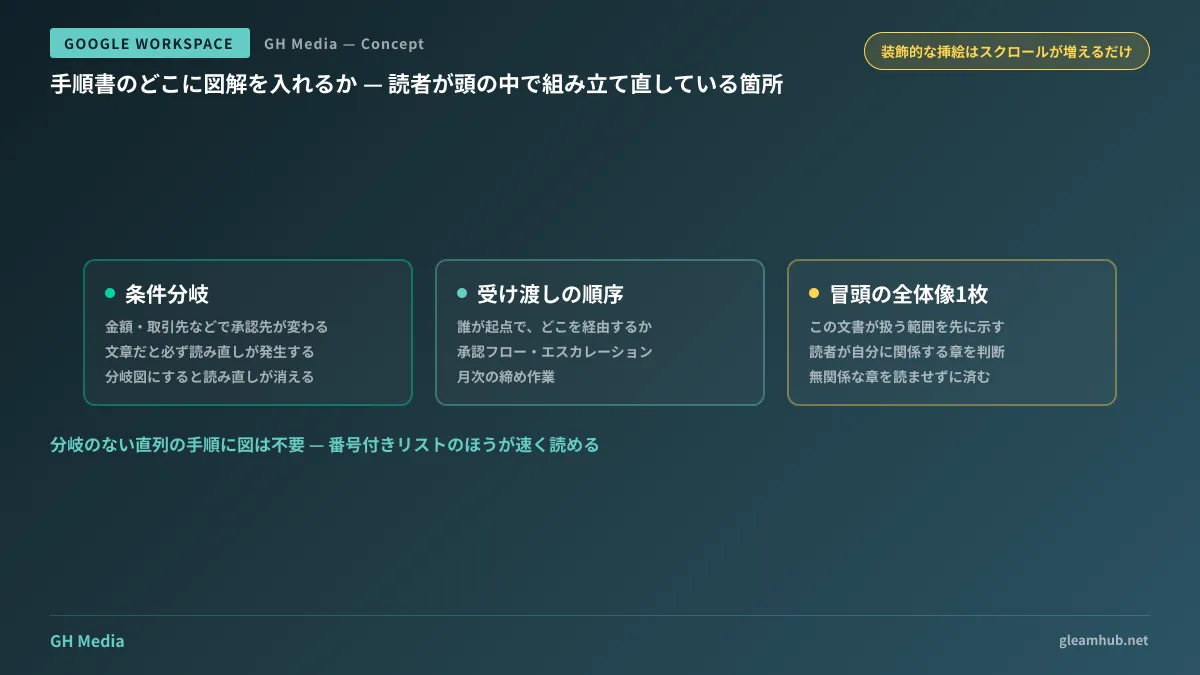
Just because the feature is available does not mean scattering diagrams throughout work instructions will make them easier to read. In fact, adding decorative illustrations only increases how much readers have to scroll.
Visuals deliver real impact when placed at points where readers must mentally reconstruct the workflow. Specifically, focusing on the following three areas makes the payoff on effort clearly evident.
The first is branching logic. Consider a rule like: "If the amount is under 100,000 yen, manager approval is required; if 100,000 yen or more, department director approval is required; however, for new clients, department director approval is required regardless of the amount." When reading conditions like this in plain prose, people inevitably double back and reread. Turning it into a decision tree completely eliminates that need.
The second is stakeholders and handoff sequences. Who initiates the process, what path does it traverse, and where does it conclude? This applies to approval workflows, issue escalations, monthly closing tasks, and similar procedures.
The third is a single high-level overview. Placing a single visual at the beginning of the instructions showing the scope covered by the document allows readers to determine immediately which parts apply to them, saving them from reading through irrelevant sections.
Conversely, simple linear procedures—those ending in steps 1, 2, and 3 without any branches—do not require diagrams. A numbered list is much faster to read.
Do not blindly trust generated diagrams
This is the most critical operational boundary. Gemini creates diagrams by reading the body text, but it fills in any unwritten details with assumptions. If ambiguities remain in the original wording of the work instructions, it will return a visual that resolves those ambiguities with plausible guesses.
For instance, from text that simply reads "The person in charge reviews it and moves to the next process if there are no issues," a diagram with an intermediate step like "Person in charge → Leader → Next process" may be generated. Because it looks plausible, no one other than the author will feel anything is off. Moreover, diagrams are trusted more than text. An incorrect diagram is more troublesome than incorrect text.
The countermeasure is straightforward: introduce a step where the people actually running the daily operation verify the generated diagram. Allocate the time saved from manual drawing toward this review. Checking a visual takes significantly less time than drafting one from scratch.
Additionally, documents serving as records of factual truth—such as organizational charts, seating charts, and system architecture diagrams—are not suited for generation with this feature. These assets must be kept accurately up to date with every change; constantly regenerating them leads to confusion over which version is current. Authoritative records should continue to be maintained as a single controlled master.
If you want to start by organizing your work instructions themselves, reading Eliminating Person-Dependent Operations with AI: How to Structure Internal Manuals and Work Instructions will help. For restructuring lengthy documents, refer to Restructuring Long Documents with Google Docs Tabs and Gemini to quickly determine where visuals belong. Since some topics are better presented via video, Should You Switch to In-House Production for Training and Manual Videos with Google Vids? also serves as helpful reference material.
Two points administrators should verify beforehand
Before users report that the tool is unavailable, administrators should check two key aspects.
First, verify whether your organization's plan is eligible. If operating on Business Starter, this feature will not arrive. While deciding whether to upgrade plans shouldn't hinge on visual generation alone, a continuing trend of missing out on Gemini-related features can serve as a catalyst for a plan review.
Second, check the status of your smart features settings. Some organizations previously disabled smart features due to data handling concerns. If left off, this capability will not appear. If you decide to turn it on, permissions can be segmented by organizational unit (OU), making it straightforward to test in a single department first.
To review fundamental operations within the Admin console, refer to our overview in How to Use the Google Workspace Admin Console.
Action items for this week
Pick just one existing work instruction document—ideally the one that requires the most verbal clarification. Find a single paragraph containing conditional branches and try turning it into a diagram.
Then, have someone who runs the actual operation check whether the resulting diagram matches reality. If it does not, it does not mean the diagram generation failed; rather, it visualized that the original text was ambiguous. Revise the text accordingly. This single feedback loop is where the greatest value of this feature lies.
If you want to structure internal documentation and knowledge management so that operations run smoothly even without dedicated IT personnel, GleamHub offers free IT and Google Workspace consultations. Optimal configurations vary based on requirements, so we provide customized quotes. Please reach out to us via Contact Us.