On a Friday evening, a notification arrives: a sales representative left their smartphone on the train. The device contains company Gmail and Google Drive accounts. You need to suspend access immediately. But only the super admin can block devices in the Admin console, and that person is away on business and unreachable by phone.
Similarly, cases where a departing employee's device sits untouched for weeks are common. General affairs completed the offboarding procedures. The IT staff assumed the account had been disabled. Yet company data remained on the physical device because no one had clearly established whose responsibility it was.
These bottlenecks share a root cause: device management in Google Workspace has long been essentially an all-or-nothing permission tied to super admin status. While companies want to delegate tasks to branch staff, granting super admin access exposes billing settings, user password resets, and domain configuration. As a result, access is withheld, leaving all responsibility concentrated on one individual.
The rollout of organizational unit (OU)-level delegation of device management privileges across all domains, starting June 29, 2026, is built to resolve this exact deadlock.
Ending the "all or nothing" approach
Google Workspace administrator privileges allow you not only to assign predefined roles, but also to create custom roles and restrict their scope to specific organizational units (OUs). While this framework has existed for some time, the ability to scope mobile device management privileges by OU is now supported (Delegate device management administrator privileges — Google Workspace Admin Help).
For instance, by creating an "Osaka Branch" OU and placing its employees inside, you can grant the person in charge at that branch permission to manage only Osaka Branch devices. Devices from headquarters or other branches remain hidden, and HR or billing data cannot be accessed.
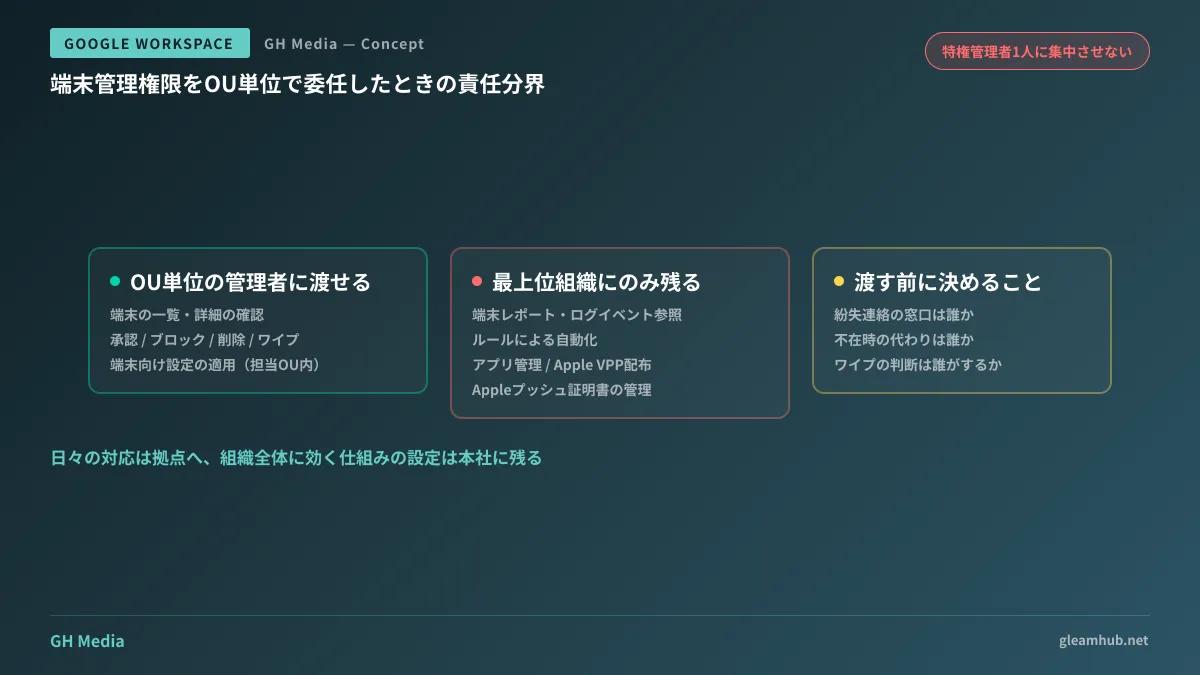
The delegated administrator can perform the following tasks within that OU's scope:
- Viewing device lists and details
- Approving, blocking, deleting, and wiping data from devices
- Applying settings for mobile devices and endpoints
Both emergency situations mentioned earlier—suspending a lost phone on a Friday night or wiping a departing employee's device—fall within this scope. In short, the time-critical actions on the ground can now be handed over to local branches.
Understanding upfront what cannot be delegated
When designing delegation, operational mistakes typically arise from assuming something was delegated when it actually was not. The limitations of OU-level administrators are clearly defined. The following actions can only be performed by administrators with privileges over the top-level organization:
| Task | OU-Level Admin | Top-Level Organization Admin |
|---|---|---|
| View, approve, block, delete, and wipe devices | Supported (within assigned OU only) | Supported |
| Apply device settings | Supported (within assigned OU only) | Supported |
| View device reports and log events | Not possible | Supported |
| Automate device management via rules | Not possible | Supported |
| Manage web and mobile apps | Not possible | Supported |
| Distribute iOS apps via Apple VPP | Not possible | Supported |
| Manage Apple push certificates | Not possible | Supported |
The bottom half of this table represents infrastructure-level setup rather than daily operational tasks: reviewing audit logs, configuring automation rules, determining app distribution, and renewing certificates foundational to iOS management. Each of these impacts the entire organization.
The biggest operational trap is the Apple Push Certificate. This certificate expires annually, and if it lapses, iOS device management breaks down completely. Because only administrators of the top-level organization can renew it, headquarters remains responsible for certificate renewals even if you believe you have handed iOS management over to branch offices. If personnel changes occur without communicating this handover, the certificate may expire, rendering all iOS devices unmanageable at once.
Similarly, the inability to view log events affects operational design. Branch administrators cannot audit retroactively who wiped whose device and when. Operating procedures must be drafted under the assumption that audit tracking responsibility remains with headquarters.
A realistic segmentation approach for SMEs
Companies with several dozen employees may feel their organization is not large enough to split into OUs. Even so, the risk of concentrating all permissions in a single person remains. When determining how to segment access, focusing on contact availability hours rather than the formal org chart makes decisions much easier.
The following two patterns are the most practical:
Segment by branch or office location. This applies when headquarters and branch offices exist, with general affairs personnel stationed at the branches. Permitting branch devices to be suspended locally avoids delays caused by time differences or travel, ensuring much faster initial response.
Segment only executives and sensitive departments. When there are no satellite offices, but leadership, HR, or finance devices require special handling. You can assign company-wide management to one administrator while excluding the executive OU. Delegated admins will also feel more comfortable knowing their operational boundaries are explicitly defined.
In either case, before deciding whom to delegate to, we recommend documenting who does what on a single sheet of paper. Who receives reports of lost devices? Who acts as the backup when that person is away? Who makes the final call to execute a wipe? Handing over access permissions alone does not guarantee anyone will take ownership of the decision.
If you have not yet implemented device management, reading Who Protects Company PCs and How? Starting Windows Device Management with Google Workspace Alone will help establish the proper sequence. For iOS settings, refer to iOS Settings in Google Endpoint Management, and for basic console navigation, consult How to Use the Google Workspace Admin Console.
Dividing privileges does not dilute accountability
People often express concern that delegating authority weakens internal governance, but in this scenario, the opposite is true.
When granting super admin was the only option, choosing not to delegate directly caused delays in incident response. Devices were left active for hours or even days. The resulting security risks far outweighed the risks of distributed permissions.
In contrast, OU-level roles have explicitly defined boundaries of authority, making them much easier to audit later. You can verify exactly who holds what permissions over which OU in the Admin console's role list. This setup is far more accountable and explainable than having three separate super admins.
If you are at the stage of overhauling overall security settings, cross-referencing with our Google Workspace Security Settings Checklist helps avoid oversights.
Action items for this week
Check your Admin console and count how many super admins exist. Then, ask yourself: "If an employee loses their smartphone tonight, who can block the device, and how many minutes will it take?"
If the answer is "only one person" or "that person might be unreachable," create a custom role and assign device management privileges scoped strictly to the target OU. Starting with a single branch and a single administrator is plenty. After delegating, be sure to add the Apple Push Certificate expiration date to the headquarters calendar.
If you want to configure Google Workspace permissions and device management so that operations run smoothly without a dedicated IT staff, GleamHub offers free IT and Google Workspace consultations. Optimal configurations vary based on requirements, so we provide customized quotes. Please reach out to us via Contact Us.
Sources
- Delegate device management administrator privileges — Google Workspace Admin Help
- Assign mobile device management admin privileges based on organizational unit — Google Workspace Updates
- Create organizational unit administrator roles — Google Workspace Admin Help
- Administrator privilege definitions — Google Workspace Admin Help