"Where can I find the expense reimbursement manual?"—many companies see this question posted in chat multiple times a month. Those answering paste the same Drive link every time, while recipients save it to personal bookmarks. Six months later, the file is replaced, leaving bookmarks pointing to obsolete versions.
The true cost of lacking a single entry point lies less in search time and more in stale information continuing to be used. Google Sites is an accessible tool for consolidating this entrance onto a single page. It requires no HTML knowledge, builds from templates, and adds no extra cost if you already use Google Workspace.
However, many organizations follow the exact same misstep here: pick a template, line up links, and publish. Then, immediately after publishing, they confront the question: "Was this information really safe to show all employees?" The order is backward; access boundaries must be decided before building.
Visibility is determined in three places
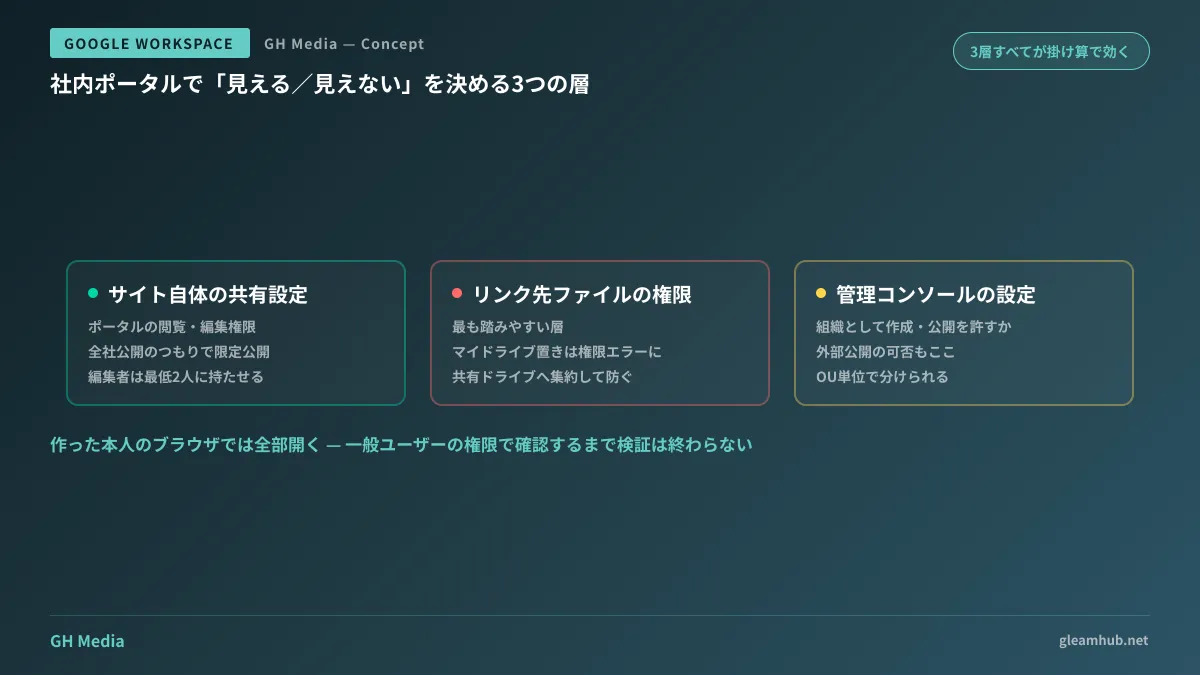
The visibility scope of an internal portal is not dictated by a single setting. The following three layers multiply together to determine access:
| Layer | What to Decide | Consequence if overlooked |
|---|---|---|
| Sharing settings of the site itself | Who can view and edit portal pages | Intended for company-wide view, but visible only to specific members |
| Sharing settings of linked files | Who can open documents and sheets on Drive | Portal opens, but linked files trigger permission errors |
| Google Sites settings in Admin console | Extent to which creation and publishing are permitted across the organization | Created sites can be published to the outside world |
In practice, the middle layer is tripped over most frequently: the portal itself is published company-wide, but linked manuals remain trapped in the creator's personal My Drive. Because everything opens fine in the creator's own browser, it bypasses pre-launch checks.
To prevent this structurally, consolidating files linked from the portal into shared drives is the surest method. Choosing between My Drive and shared drives is covered in How to consolidate My Drive and shared drives.
Three things to decide before building
Deciding three things before choosing a template minimizes rework later:
First, classify information into three tiers. Company-wide items (work regulations, expense reimbursements, company directories), department-only items (departmental procedures, active project docs), and restricted-member items (HR evaluations, recruiting records). Starting without this classification leads to endless ad-hoc fixes when "certain users can't see this specific link."
Second, decide what not to place on the portal. While convenient as a directory of links, an internal portal is poorly suited as a primary repository for raw information. Prose written directly on pages suffers from low searchability and lacks version history. Drawing the line early that a portal is a table of contents, not a bookshelf, prevents bloat.
Third, designate who maintains it. The typical death of an internal portal involves the creator remaining its sole administrator, only to transfer departments, leaving the site untouched. Granting edit permissions to at least two people and managing it under a shared drive ensures the portal does not depend on individual personal accounts.
Starting templates from "Team" is fastest
Google Sites offers multiple templates, but for internal portals, the "Team" template is structurally closest to what you need. It includes frames for navigation, announcements, and link collections from the start, making replacing placeholders with your content much faster than designing from a blank canvas.
After choosing a template, tasks generally proceed in this order:
- Determine navigation items first. Writing item names down on paper before building preserves structure far better than rearranging pages after creation
- Move linked files to shared drives. If not moved at this stage, you will have to re-paste every link later
- Set visibility scopes page-by-page aligned with the three classified tiers
- Verify access using non-admin accounts. Admin accounts can naturally view everything; the key is confirming what standard user permissions reveal
Step 4 is frequently skipped, but launching without it guarantees a flood of inquiries on day one.
What building a portal will not solve
While an internal portal unifies entry points, it does not solve the problem of outdated content. In fact, streamlining access can even increase traffic to stale information. Building operational habits upfront—such as displaying revision dates on every manual and auditing broken links quarterly—is realistic.
Furthermore, as a means to eliminate repetitive questions altogether, chat practices can sometimes be more effective than a portal. If frequently asked questions are scattered across spaces, tackling Internal guide to Google Chat first may deliver faster results.
If you are exploring having AI answer from accumulated internal documents, that requires an architecture separate from portals. Decision factors are summarized in Handling internal knowledge with NotebookLM and Workspace Studio.
What to do next
Gather 10 instances of "Where is this?" posted in company chat over the past month. Counting how many of those 10 are identical questions will virtually define the items to include on the portal. Curating what was actually asked is faster and far more accurate than imagining what pages you want to make.
If you would like to consult on portal architecture, permission design, or migrating existing files to shared drives, GleamHub offers free IT and Google Workspace consultations. Because appropriate separation models depend on departmental structure and information sensitivity, please consult us individually. Reach out via Contact Us.
Sources
- Can Google Sites Help Internal Information Sharing? Tips and Best Practices — rakumo
- Super Simple! How to Create an Internal Portal with Google Sites — rakumo
- How to Build an Internal Portal with Google Sites: Practical Guide to Manual Consolidation and Permission Design — AIzen
- Internal Portal Case Studies Built with Google Sites — TS Cloud