Count how many times last month you opened the same deck and gave the exact same explanation. Operational workflows for new hires, preliminary context for client proposals, how to use internal systems. If it exceeds three times, that explanation is well-suited for recording.
The reason people fail to switch to recordings is usually that it is a hassle. Launch a screen recording tool, export the file, upload it to Drive, adjust the sharing settings, and paste the link. The moment you picture these five steps, you conclude that it would be faster to explain it verbally in the next meeting. The new recording feature in Google Slides rolling out from August 20, 2026, aims to eliminate these redundant steps.
What changed is not the recording quality, but the distance to getting started
A "Record" option has been added to the right-hand menu in Slides, allowing you to start recording directly from there. Recorded presentations are listed right in place, and clicking a title plays them in a player where you can select the sharing scope in the upper right. Choose specific users, within your organization, or anyone with the link, and it instantly becomes a link ready to share.
The resulting recording can be handled just like any other file in Drive. In other words, your existing knowledge of sharing, moving, modifying permissions, and deleting applies directly without change.
The rollout schedule is up to 15 days starting August 20, 2026, for Rapid Release domains, and up to 3 days starting September 7 for Scheduled Release domains. It is available not only to Google Workspace users, but also to Workspace Individual subscribers and personal Google Accounts.
What is critical is that there is virtually no need to learn a new tool. Opening Vids as a standalone app to construct a video is worthwhile if you intend to craft a polished internal manual (as covered in Turning Internal Manuals into Videos with Vids), but it is somewhat heavy for the purpose of preserving a single explanation this week. Recording directly from Slides provides a path that circumvents this overhead.
Explanations to record vs. explanations to keep in person
Turning every explanation into a recording usually ends in failure. The criterion for drawing the line is whether the content changes during the explanation based on the other party's reactions.
| Nature of explanation | Handling |
|---|---|
| Sharing procedures, specifications, or prerequisite knowledge | Record. The value lies in being able to review it repeatedly. |
| Explanations where content is adjusted while listening to the other party's circumstances | Keep in person. Recording makes it one-way. |
| Proposals seeking a decision | Record only the preliminary context; use in-person time for Q&A and decision-making. |
The third row is the most impactful in practice. It is not uncommon to have a meeting where the first 20 minutes are spent on background context, leaving only 10 minutes for discussion before running out of time. If you deliver the background context beforehand via a recording, you can dive into discussion right from the start of the meeting.
Conversely, forcing recordings for topics unsuited for them will only increase the number of unwatched videos. Having unwatched videos pile up in Drive is just like neglected procedure manuals, requiring a cleanup audit later. We wrote about addressing the problem of aging manuals in Delivering Procedure Manuals in a Regenerable Format.
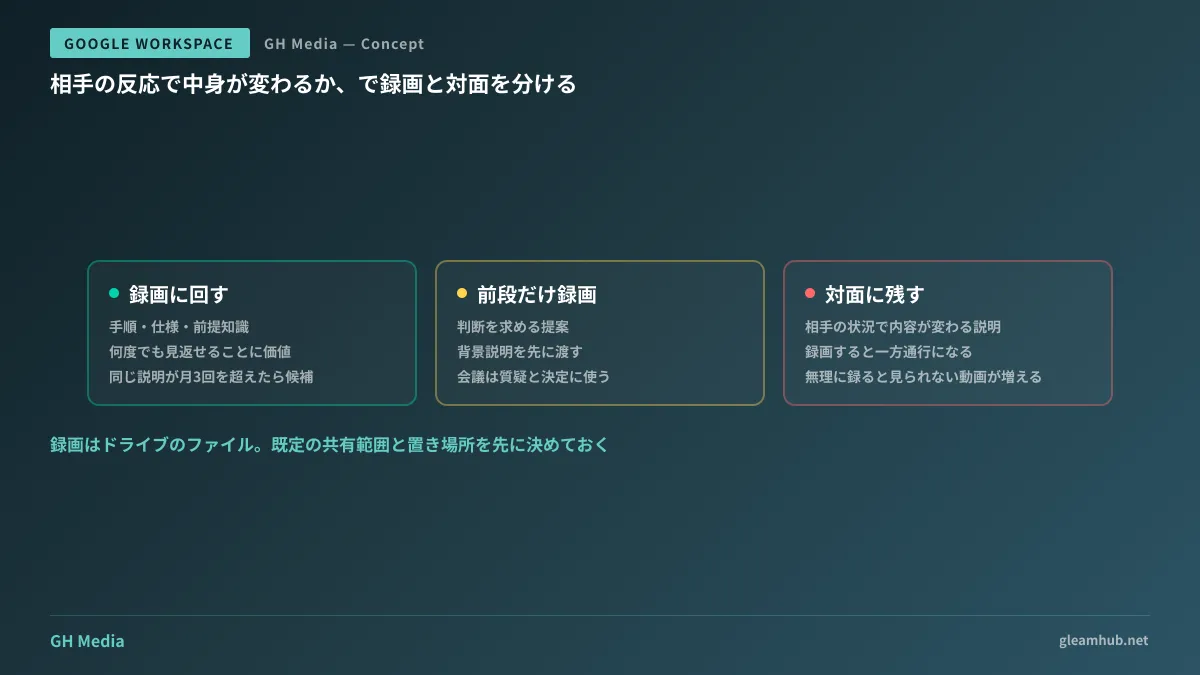
Resulting videos are "Drive files"
Behind this convenience lies an additional governance consideration: recordings include things not written on the slides.
Verbal explanations often mix in internal circumstances omitted from documents, ongoing project names, names of personnel, and unreleased pricing discussions. It is entirely common for the slides themselves to be safe for external distribution while a recording explaining them cannot be shared outside the company.
For this reason, decide on the following two points beforehand.
- Set the default sharing scope to "Within organization." Having to deliberate on sharing settings every time you record is not sustainable. Keeping the default restrictive and selectively loosening only items intended for external release reduces incidents. How to audit and revoke external sharing links after the fact is covered in Auditing and Revoking Drive Sharing Links.
- Make shared drives the storage location from the outset. If recordings remain in personal My Drives, access to them will be lost all at once when employees leave the company. It defeats the purpose if assets created to preserve explanations disappear the moment someone departs.
What to do next
First, select one presentation deck you used for the same explanation three or more times this month. Then, the next time you are asked for that same explanation, try creating and handing over a single recording instead of explaining it verbally. The time required will be virtually identical to the length of the explanation itself.
Next, designate a single folder in a shared drive to store recordings. If the location is not decided, people will start saving recordings to their own My Drives as they discover how convenient it is, and six months later everyone will be asking where that explanation video went.
GleamHub offers free IT and Google Workspace consultations regarding organizing internal knowledge in Google Workspace, shared drive architecture and permission design, and establishing operational rules for videos and procedure manuals. Because the approach depends on your existing documentation volume and organizational structure, please consult with us individually. Reach out via Contact Us.